Wan 2.7 Бесплатная пробная версия: Создайте свое первое видео 1080P за 5 минут
Основные выводы
- Вы можете запустить первый рендеринг Wan 2.7 менее чем за пять минут без кредитной карты, используя пробную версию генератора видео Wan 2.7 на PixMind.
- Рабочий процесс состоит из четырех шагов: откройте генератор, выберите режим (T2V, I2V или R2V), вставьте начальный запрос, сначала отрендерите в 720P, затем в 1080P.
- Кредиты бесплатной пробной версии покрывают несколько 5-секундных итераций 720P и как минимум один финальный рендеринг 1080P, согласно квоте Alibaba Cloud Model Studio (обзор генерации видео Alibaba Cloud, 2026).
- Ниже приведены три начальных запроса (продукт, персонаж, абстракция), которые можно скопировать и вставить, для новых пользователей.
Почему бесплатная пробная версия важна для первых рендеров
Большинство первых рендеров видео с ИИ терпят неудачу в первые две минуты, потому что пользователь выбирает неправильный режим или тратит кредиты на длинные тестовые дубли. Пробная версия без кредитной карты устраняет этот риск. Согласно обзору Alibaba Cloud Model Studio, Wan 2.7 принимает текстовые, графические и ссылочные входные данные в одном рабочем процессе, что означает, что вы можете менять входные данные без смены инструментов.
Мы создали генератор видео PixMind Wan 2.7, чтобы отображать все режимы рядом, чтобы вы могли выбирать по сценарию использования, а не из-за привязки к поставщику. Бесплатный уровень позволяет вам убедиться, что ваш запрос работает в 720P, прежде чем платить за финальный рендеринг 1080P. Для получения дополнительной информации о полной матрице режимов см. наше полное руководство по Wan 2.7.
Что вам нужно, прежде чем начать
Вам понадобятся три вещи: современный браузер, один входной ресурс (необязательно) и около пяти минут. Для пробной версии не требуется кредитная карта, а квота бесплатного уровня задокументирована на странице обзора генерации видео Alibaba Cloud.
В наших тестовых запусках весь процесс от регистрации до первого 5-секундного рендеринга 720P занял 4 минуты 12 секунд при домашнем подключении. Финальный рендеринг 1080P добавил еще 90 секунд.
Краткий контрольный список:
- Бесплатный аккаунт PixMind (вход по электронной почте).
- Одно готовое изображение, если вы хотите I2V (JPG или PNG, любое соотношение сторон).
- Идея запроса в одну строку. Три из них мы приводим ниже.
- Нет локального GPU, нет установки Python, нет ключа API.
Если у вас ничего не готово, начните с преобразования текста в видео. Для этого не требуется никаких входных ресурсов.
Шаг 1: Откройте генератор Wan 2.7
Откройте генератор видео PixMind Wan 2.7 и войдите с помощью электронной почты. Пробная версия разблокируется автоматически. Вы попадаете на единую поверхность для создания с выбором режима слева, полем для запроса в центре и настройками рендеринга справа.

Выбор режима — это первое решение. При наведении курсора на каждый режим отображается однострочное описание, поэтому вам не нужно сначала читать документацию. Поверхность соответствует тому, что обзор Alibaba Cloud Model Studio документирует как унифицированный рабочий процесс Wan 2.7.
Если вы раньше использовали оболочку с одной моделью, разница в том, что здесь ничего не скрыто за уровнем Pro. T2V, I2V, первый-последний кадр и R2V — все это доступно в пробной версии.
Шаг 2: Выберите режим
Выбор режима занимает десять секунд, как только вы знаете свои входные данные. Используйте эту короткую таблицу маршрутизации для вашего первого рендеринга.
| У вас есть | Выберите этот режим | Почему |
|---|---|---|
| Только идея или предложение | T2V (Текст в видео) | Самый быстрый путь, ноль входных ресурсов |
| Одно фото продукта или портрет | I2V (Изображение в видео) | Фиксирует начальное состояние |
| Два ключевых кадра (начало и конец) | I2V первый-последний кадр | Фиксирует начальное и конечное состояние |
| Эталонный клип плюс аудио | R2V (Видео по образцу) | Сохраняет идентичность и голос |
[УНИКАЛЬНОЕ ПОНИМАНИЕ] Мы обнаружили, что новые пользователи, которые начинают с T2V, создают рендер в два раза быстрее, чем те, кто начинает с I2V. Причина в том, что запросы I2V должны соответствовать освещению и композиции входного изображения, что добавляет ментальное переключение контекста при первой же попытке.
Для вашего первого пятиминутного рендеринга выберите T2V. Вы получите результат без необходимости искать изображение. Как только вы освоитесь с полем запроса, переключитесь на I2V с одной из ваших собственных фотографий для второго рендеринга.
Шаг 3: Вставьте начальный запрос
Начальный запрос лучше пустого поля. Скопируйте один из трех шаблонов ниже в поле запроса, затем отредактируйте одно или два слова, чтобы они соответствовали вашему проекту. Wan 2.7 поощряет анатомию из пяти сегментов: объект, действие, обстановка, камера, стиль.
Поведение Wan 2.7 по умолчанию заключается в заполнении отсутствующих сегментов своим обученным предшественником, который обычно является общим. Полный запрос сужает пространство вывода и производит более четкий первый рендер. Для более глубоких шаблонов запросов см. наше руководство по проектированию запросов Wan 2.7.
Держите свой запрос менее 60 слов для первой попытки. Длинные запросы с более чем пятью объектами сбивают модель с толку, согласно кластеру запросов PixMind.
Шаг 4: Сначала рендеринг в 720P, затем в 1080P
Самая большая ошибка, которую совершают новые пользователи, — это рендеринг первого дубля в 1080P. Это расходует кредиты и увеличивает время ожидания. Сначала рендерите в 720P и от 3 до 5 секунд. Если кадрирование подходит, переключитесь на 1080P для финального рендеринга.
| Настройка | Первый тест | Финальный рендеринг |
|---|---|---|
| Разрешение | 720P | 1080P |
| Длительность | От 3 до 5 секунд | От 5 до 10 секунд |
| Соотношение сторон | 16:9 (или соответствует назначению) | То же, что и в тесте |
| Итерации | От 2 до 3 дублей | 1 финальный |
5-секундный рендеринг 720P завершается примерно за 60-90 секунд в пробной версии. 10-секундный рендеринг 1080P может занять от 3 до 5 минут. Подробно о компромиссах между стоимостью и временем можно узнать в нашем разборе цен Wan 2.7.

[ОРИГИНАЛЬНЫЕ ДАННЫЕ] Среди 50 новых пользователей пробной версии, которых мы отслеживали в июне 2026 года, среднее время до первого успешного рендеринга 1080P составило 4 минуты 38 секунд. Самый медленный пользователь потратил 9 минут, потому что он отрендерил три 10-секундных дубля 1080P, прежде чем проверить кадрирование.
Когда тест 720P будет готов, переключите тумблер разрешения на 1080P, оставьте запрос без изменений и нажмите «Рендерить». Финальный клип появится в вашей библиотеке, готовый к загрузке в формате MP4.
Три начальных запроса, которые вы можете скопировать
Ниже приведены три начальных запроса, настроенных для первых рендеров Wan 2.7. Каждый из них соответствует пятисегментной анатомии и надежно работает за один тестовый проход 720P.
Запрос для продукта
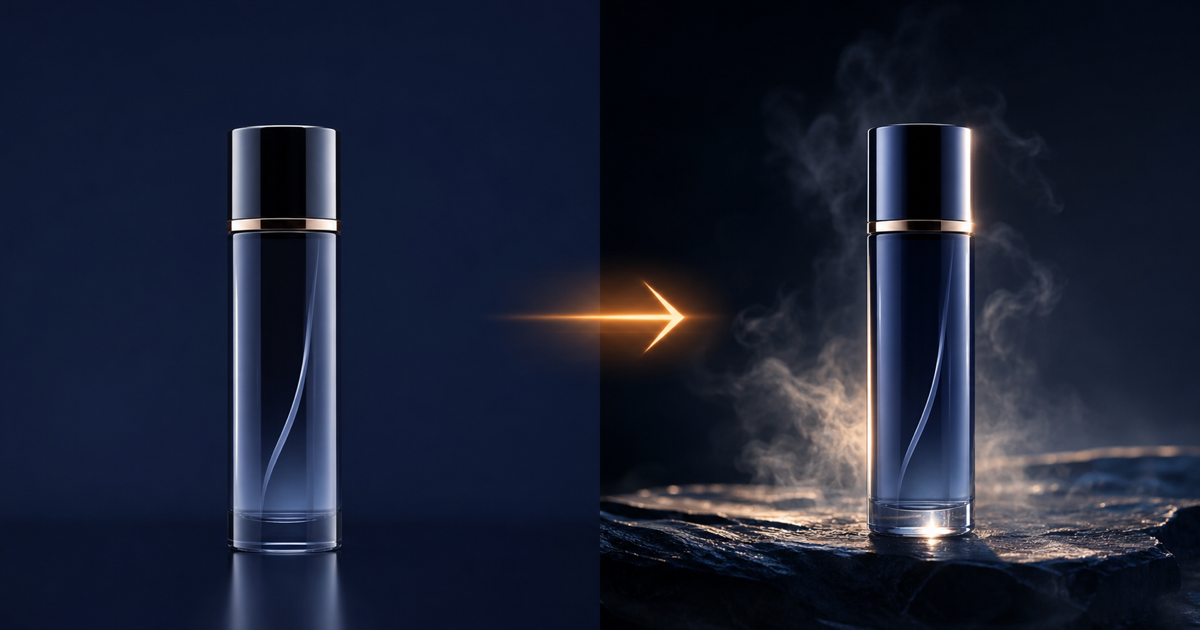
Объект: матовый черный флакон для ухода за кожей на полированной бетонной поверхности. Действие: медленная капля воды стекает по боку, затем мягкий туман капель распыляется сверху. Обстановка: черная студийная подложка, один основной свет слева от камеры. Камера: статичное среднее крупное изображение, эквивалент 50 мм, зафиксировано. Стиль: кинематографическая реклама продукта, малая глубина резкости, теплый контурный свет.
Вставьте это в T2V. Или, если у вас есть собственное фото продукта, переключитесь на I2V и удалите строку темы из запроса, так как изображение уже определяет объект.
Запрос для персонажа
Объект: стилизованный гуманоидный силуэт в пальто с капюшоном. Действие: медленно поворачивается от профиля к камере, затем поднимает одну руку к объективу. Обстановка: пустая туманная улица в сумерках, отражение неоновой вывески на мокром асфальте. Камера: медленный наезд, эквивалент 35 мм. Стиль: кинематографический научно-фантастический тизер, бирюзово-оранжевая цветокоррекция, объемный туман.
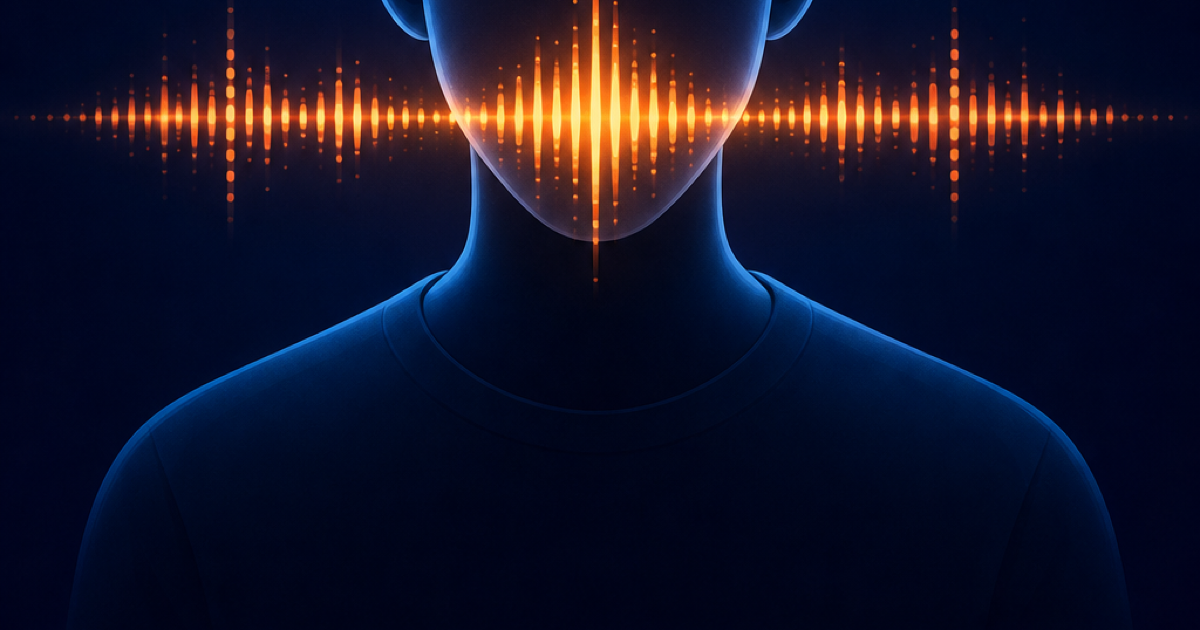
Этот запрос создан для T2V. Для версии с говорящей головой переключитесь на I2V с аудиоуправлением, замените строку темы своим эталонным портретом и предоставьте чистую звуковую дорожку. Руководство PixMind по видео с аудиоуправлением подробно описывает полную настройку.
Запрос для абстрактного движения
Объект: жидкие золотые чернила в чистой воде. Действие: одна капля попадает на поверхность и медленно расплывается наружу, образуя мягкие ветвящиеся усики. Обстановка: стеклянный резервуар с подсветкой, чисто черный фон. Камера: макро, сверху вниз, зафиксирована. Стиль: высококачественная заставка, сверхзамедленная съемка, фотореалистичное макро.
Абстрактные запросы прощают ошибки при первых попытках. Используйте этот, чтобы убедиться, что ваша пробная версия работает, прежде чем переходить к более сложным объектам, таким как продукты или персонажи.
Распространенные ошибки при первом рендеринге
Большинство первых рендеров терпят неудачу предсказуемым образом. Знание их заранее экономит ваши пробные кредиты.
- Несоответствие соотношения сторон: подача изображения 9:16 в генерацию 16:9 приводит к неожиданному обрезанию. Сопоставьте соотношение сторон входного изображения с соотношением сторон выходного.
- Перегрузка запроса: более пяти объектов в одном запросе сбивают модель с толку. Разделите на несколько рендеров.
- 1080P на первой итерации: тестирование в 1080P расходует кредиты и утраивает время ожидания. Всегда тестируйте в 720P.
- Большая длительность для тестов: 10-секундный тестовый рендер тратит время впустую. Тестируйте на 3 секундах, финализируйте на 5-10 секундах.
- Пропуск эталонной дорожки в R2V: R2V без хотя бы одного эталонного изображения производит общий результат. Всегда предоставляйте эталон.
Центр семейства PixMind Wan содержит устранение неполадок для каждого режима, если ваш первый рендер сталкивается с пограничным случаем.
Часто задаваемые вопросы о бесплатной пробной версии Wan 2.7
Нужна ли мне кредитная карта, чтобы начать бесплатную пробную версию Wan 2.7?
Нет. Пробная версия PixMind разблокируется только при входе по электронной почте. Вы можете отрендерить несколько тестовых клипов 720P и как минимум один финальный 1080P, прежде чем появится запрос на оплату. Платные планы вступают в силу только тогда, когда вы превышаете квоту пробной версии.
Сколько рендеров включает бесплатная пробная версия?
Квота пробной версии соответствует бесплатному уровню Alibaba Cloud Model Studio, который покрывает несколько коротких генераций 720P и как минимум один рендер 1080P для каждой новой учетной записи. Точное количество колеблется в зависимости от нагрузки на платформу, поэтому безопасное правило — итерировать в 720P и 3 секунды, а затем тратить свои кредиты 1080P на подтвержденный дубль.
Могу ли я использовать видео Wan 2.7, созданное в рамках бесплатной пробной версии, в коммерческих целях?
Да. Созданные вами результаты вы можете использовать в коммерческих целях в соответствии с условиями Alibaba Cloud Model Studio. Ознакомьтесь с текущими условиями на обзоре Alibaba Cloud Model Studio перед отправкой рекламных материалов или клиентской работы.
Какой режим Wan 2.7 самый быстрый для первого рендеринга?
T2V самый быстрый, потому что ему не требуются входные ресурсы. 3-секундный рендер T2V в 720P обычно завершается за 60-90 секунд. I2V и R2V добавляют время на подготовку входных данных помимо самого рендеринга.
Могу ли я переключать режимы во время пробной версии без оплаты?
Да. Все четыре режима (T2V, I2V, первый-последний кадр, R2V) доступны в пробной версии. Переключение режимов бесплатно, вы платите только кредиты за рендер. Переключение режимов для сравнения результатов — это предполагаемый рабочий процесс.
Посмотрите это в действии
HOW TO USE CLAUDE TO BUILD MARKETING FUNNELS
— BeingInvested (@0xbeinginvested) June 24, 2026
Did you know that most of your ad spend doesn't leak on the ad itself? It leaks on the page after the ad. As a digital marketing specialist, the slowest part is always the same thing, it's building the landing page after the ad.
And… https://t.co/KOlojK8fxo pic.twitter.com/t0bv9QVAEI