Text node: static or LLM-generated prompts
Write fixed instructions or choose Generate mode and an LLM. Connect the result downstream so image and video prompts stay aligned; the downstream prompt field locks while linked text is active.

AI Infinite Canvas
Plan prompts, references, images, panoramas, videos and tasks in one visual workspace. Connect nodes to carry context forward, control each generation step, and save the complete creative workflow to your PixMind account.
Sign in to create, save, duplicate and reopen canvas projects from your personal workspace.
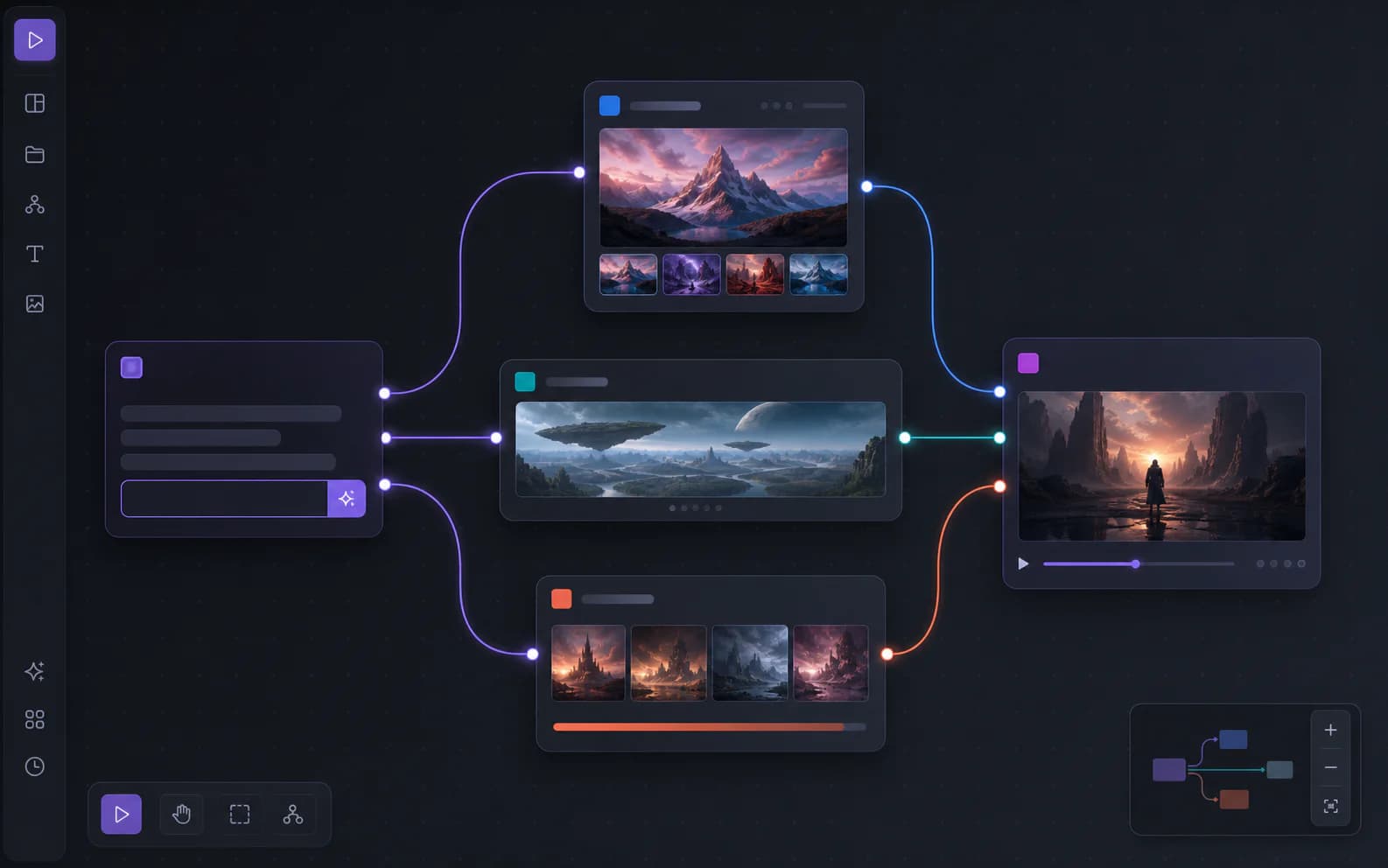
What is an AI infinite canvas?
An AI infinite canvas replaces scattered generator tabs with one zoomable, node-based workspace. Prompts, source images, panorama references, model settings and generated media stay visible together, so you can understand how an output was made and where it should go next.
PixMind is designed for workflows that need more than a single generation: turning a product photo into campaign variations, converting a storyboard frame into video, or using an LLM-written script as the shared prompt for multiple image and video nodes. Connections carry context between steps while each node keeps its own model and output controls.
One workspace, many models
Start with only the nodes you need, then branch, compare and continue. PixMind keeps source material, instructions, controls and outputs in the same visual graph.
Write fixed instructions or choose Generate mode and an LLM. Connect the result downstream so image and video prompts stay aligned; the downstream prompt field locks while linked text is active.
Upload a source or generate inside the node. Choose the available model, aspect ratio, resolution and camera direction from compact control panels built for visual iteration.
Create or hold a wide 2:1 environment reference before producing individual shots. Use it to keep location, lighting and spatial direction visible across a storyboard workflow.
Generate from text, a normal reference, a first frame, or first-and-last frames when supported. Set ratio, clarity, duration, audio and watermark options in one panel.
Upload and organize audio alongside visual nodes so narration, music and sound references remain part of the same project context.
Separate reusable model and output choices from individual assets, making repeated experiments easier to inspect and adjust.
Describe the deliverable, break work into visible steps and keep unfinished production decisions next to the assets they affect.
Ask the Agent to inspect selected nodes, propose a workflow, add connected nodes and return generated assets to the canvas instead of losing them in a separate chat.
Workflow examples
The canvas becomes most useful when one source needs to produce several related assets. These examples show how references and outputs can remain connected instead of being copied between tools.
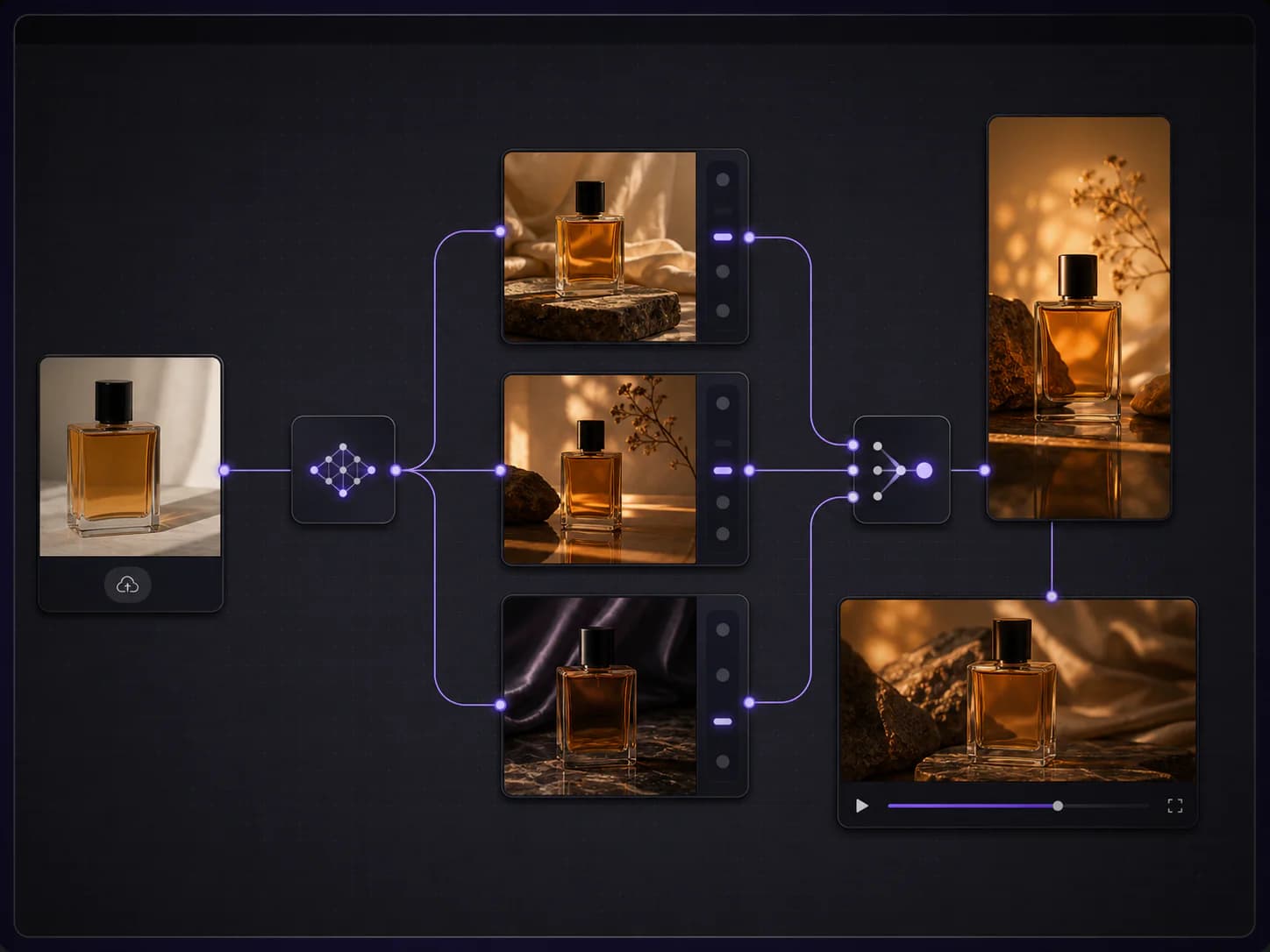
Place a clean product image on the canvas, connect it to several visual directions, choose the strongest result and continue into portrait social creative or product video. Every variation remains traceable to the same source.
Best for product hero images, launch concepts, seasonal campaign variants and social ad production.
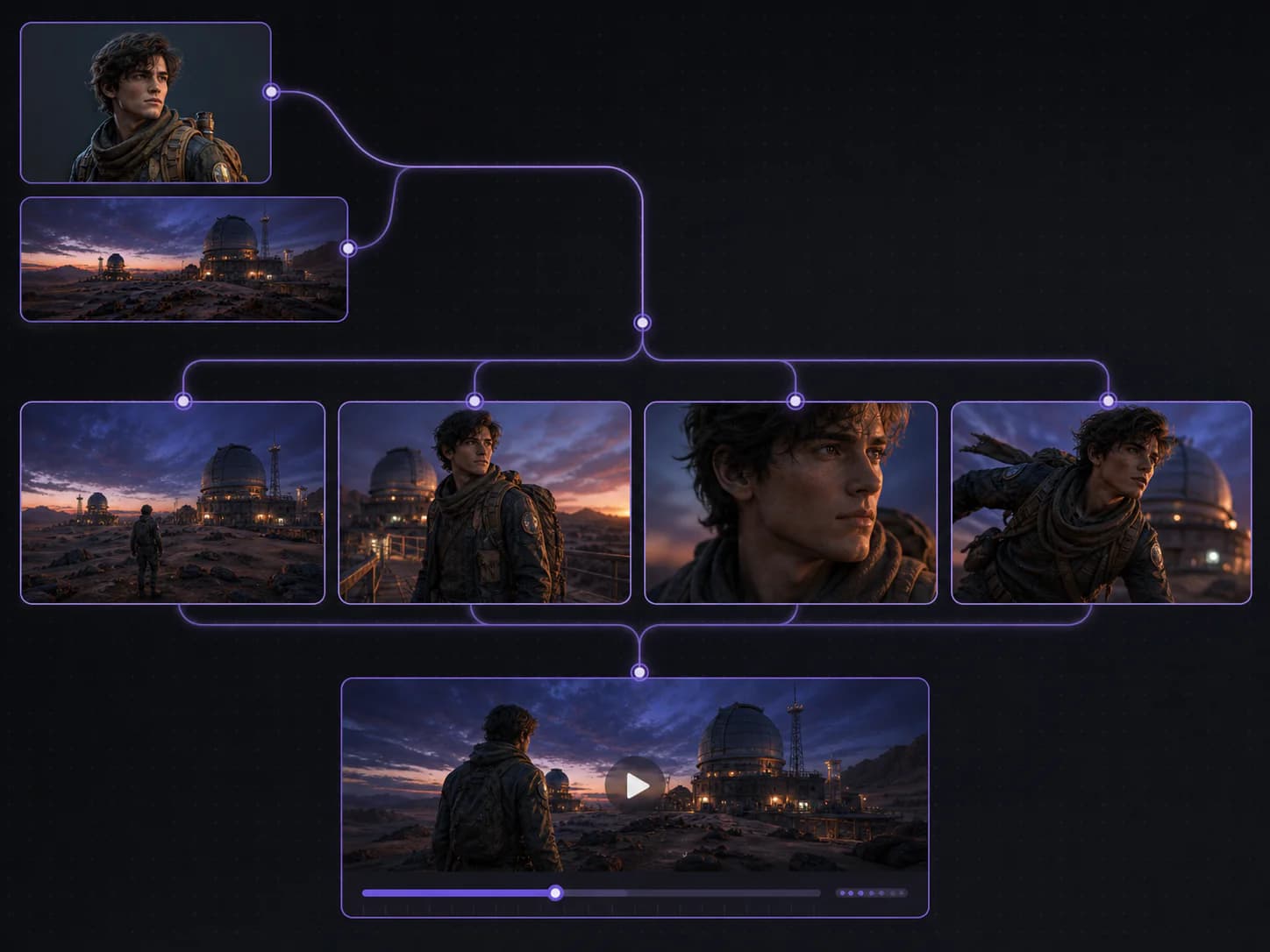
Connect a character reference and panoramic environment to wide, medium and close-up shots. The selected frame can then become a first-frame input for video, keeping the visual plan visible beside the motion result.
Best for short-film previsualization, branded stories, music video concepts and consistent scene exploration.
Generation controls
PixMind reads the capability data of the selected image or video model and presents relevant options inside the node. You can make a visual choice without leaving the workflow to hunt through a separate form.
Model lists and supported controls come from PixMind's current generation routes, so the node can adapt when you change models.
Choose supported aspect ratios and output resolution together in a compact panel, including custom pixel size where the route allows it.
Add camera, lens, focal length and aperture language to image prompts from a dedicated control instead of rebuilding the prompt by hand.
Video task IDs stay with the project, allowing the canvas to resume status checks and attach a completed result when you reopen it.
Why use a visual workflow?
Use a standalone generator for one-off output. Choose the infinite canvas when references, decisions and downstream media need to remain connected and reusable.
| Workflow need | PixMind AI Canvas | Single generator | Manual multi-tool process |
|---|---|---|---|
| Context between steps | Passed through visible node connections | Usually limited to one generation session | Copied between tabs and documents |
| Branching and variants | Branches stay beside the shared source | Results appear as a flat history | Tracked with filenames and folders |
| Image-to-video handoff | Connect the selected image to a video node | Upload the result again in another tool | Export, rename, upload and document settings |
| Return to the project | Saved project, nodes, links and task references | Generation history without workflow structure | Depends on personal folder discipline |
How it works
Create text, image, panorama, audio or task nodes. Upload references and record the creative goal before generating.
Link prompts and reference media to the generation nodes that should consume them. Branch when you want alternative directions.
Select the model, ratio, resolution, duration, reference method and supported controls directly in each node.
Keep the strongest output, connect it to the next step and return later. The project stays organized in your account.
Use these as the first text node, then connect the output to image or video nodes. Keep subject, environment and deliverable constraints explicit so every branch starts from the same brief.
Create three premium launch directions for this product reference: clean studio, warm lifestyle and dramatic editorial. Preserve product shape and label placement. Deliver a 1:1 hero, 4:5 social ad and 16:9 video first frame.
Connect the same product image to each branch, then compare lighting directions side by side.
Use the attached character and panoramic environment as anchors. Plan four shots: establishing wide, medium action, emotional close-up and final movement frame. Keep wardrobe, time of day and screen direction consistent.
Send the selected storyboard frame to a video node as the first frame.
Turn this campaign idea into three visual hooks for vertical short video. For each hook, provide an opening frame, concise on-screen message and motion direction while keeping the brand palette and product identity consistent.
Use a generated text node as the shared prompt source for every image and video branch.
Open a focused generator for a one-off job, or bring those capabilities together inside the infinite canvas when the work becomes a connected production.
It is a visual workspace where text, reference media, generation settings, images, and videos live as connected nodes instead of separate tools or tabs.
Yes. Signed-in users' projects are saved to their PixMind account, including nodes, connections, viewport, settings, and generation task references.
Anyone can view this product page. Creating, editing, and managing saved canvases requires sign-in so projects can be linked to the correct account.
The current workspace supports text, image, panorama, video, audio, generation settings, and task nodes.
Yes. Connect a text node to an image or video node and the downstream prompt uses that text, keeping the input consistent across a workflow.
Yes. Available ratios, resolutions, durations, references, audio, watermark, and camera controls are shown according to the selected model's capabilities.
The canvas saves the generation task ID. When you reopen the project, PixMind can resume checking that task and attach the finished result.
Yes. Your canvas library supports creating, searching, reopening, renaming, duplicating, and deleting separate projects.
Use it to create or hold a wide 2:1 environment reference before generating individual shots. It is useful when several storyboard or video frames should share one location, lighting direction and spatial idea.
A normal generator is optimized for one prompt and one result stream. The canvas keeps prompts, references, model settings, branches, selected outputs and downstream image-to-video steps visible as one reusable project.
Create a canvas, add the source material and connect only the steps your project needs. PixMind will save the workflow to your account so you can refine it over time.