ภาพรวม ประเด็นสำคัญ และบทแบ่งพร้อม timestamps
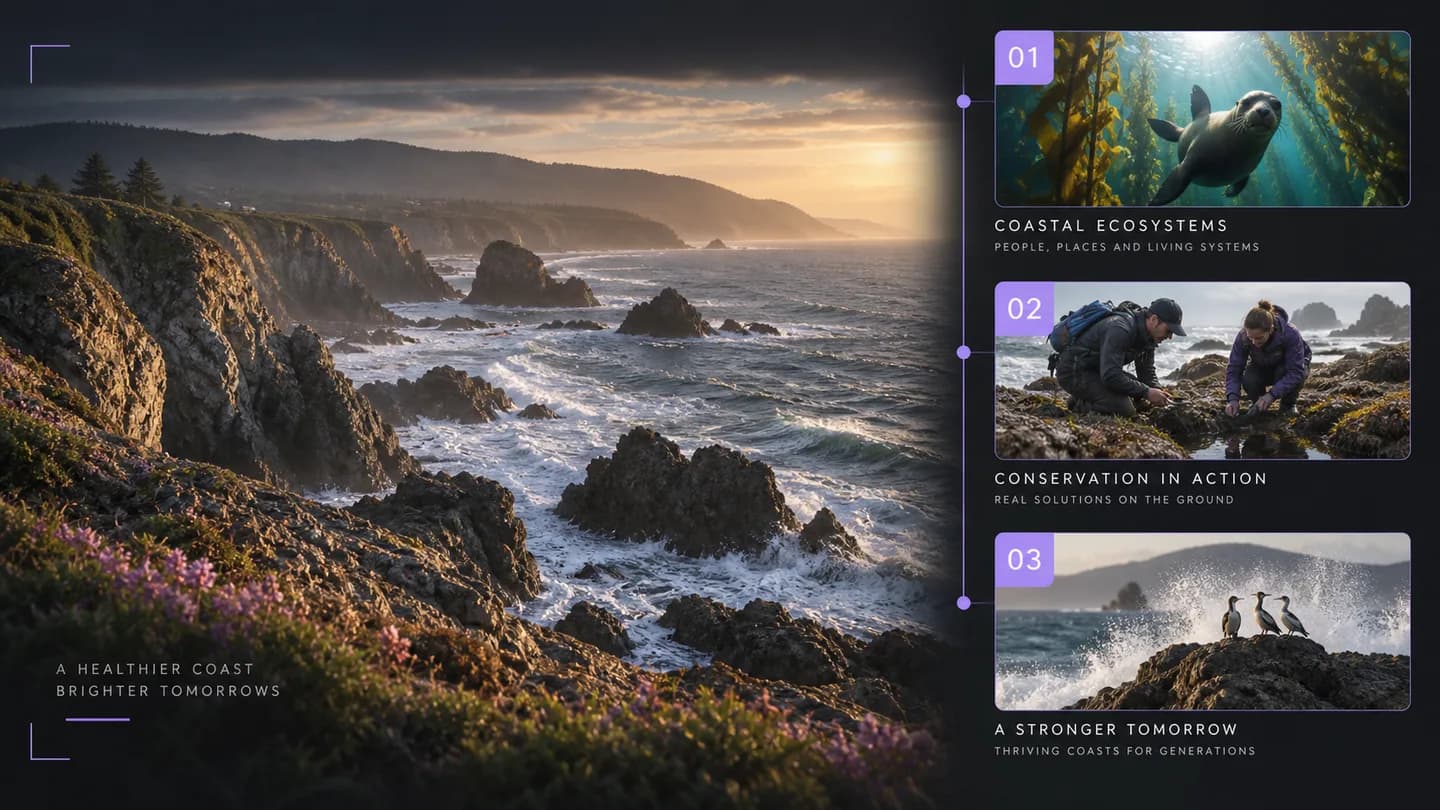
การบันทึกเรื่องอนุรักษ์ชายฝั่งกลายเป็นภาพรวมของปัญหา แนวทางรับมือ และข้อสรุป ใช้ timestamps เพื่อตรวจข้อเท็จจริงสำคัญในบริบทเดิม
ตรวจรายละเอียดหรือเปลี่ยนไอเดียเป็นสคริปต์ใหม่

วิดีโอเข้า ไอเดียออก
เปลี่ยนการบันทึกเสียงพูดเป็นภาพรวม ประเด็นสำคัญ และบทแบ่ง เก็บทรานสคริปต์ไว้ใช้เมื่อต้องการรายละเอียดเบื้องหลังบทสรุป
URL วิดีโอหรืออัปโหลดไฟล์
กำลังประมวลผลวิดีโอของคุณ
จากสารคดีสู่ brief งานวิจัย
บทสรุปสร้างจากทรานสคริปต์ บทแบ่งแยกการบันทึกยาวออกเป็นหัวข้อที่ไปยังได้ โดยยังคงถ้อยคำต้นฉบับไว้ให้ตรวจรายละเอียดและถามคำถามต่อได้
การบันทึกเรื่องอนุรักษ์ชายฝั่งกลายเป็นภาพรวมของปัญหา แนวทางรับมือ และข้อสรุป ใช้ timestamps เพื่อตรวจข้อเท็จจริงสำคัญในบริบทเดิม
ตรวจรายละเอียดหรือเปลี่ยนไอเดียเป็นสคริปต์ใหม่
ใช้ URL วิดีโอที่รองรับ หรือเลือกไฟล์วิดีโอหรือเสียงจากอุปกรณ์ของคุณ
เลือกภาษาต้นทางและทรานสคริปต์ บทสรุป หรือการวิเคราะห์ภาพที่คุณต้องการ
คัดลอกหรือส่งออกผลลัพธ์ ถามคำถามต่อ หรือเตรียม brief สร้างสรรค์ชิ้นถัดไปของคุณ
| เครื่องมือ | ผลลัพธ์ | ขั้นตอนถัดไปของคุณ |
|---|---|---|
| แปลงวิดีโอเป็นข้อความ — ถอดความวิดีโอพร้อม Timestamps | ทรานสคริปต์พร้อม timestamps และส่งออกเป็น TXT/SRT/VTT | แก้ไขคำบรรยาย เก็บคำพูดสำคัญ หรือถามเกี่ยวกับทรานสคริปต์ |
| เครื่องมือสรุปวิดีโอ — ประเด็นสำคัญและบทแบ่งออนไลน์ | ภาพรวม ประเด็นสำคัญ และบทแบ่งพร้อม timestamps | ตรวจรายละเอียดหรือเปลี่ยนไอเดียเป็นสคริปต์ใหม่ |
| Video to Script — สกัดสตอรีบอร์ดรายฉาก | สคริปต์รายฉากและคิวโปรดักชันเชิงภาพ | ปรับสตอรีบอร์ดและสร้างวิดีโอถัดไปของคุณ |
สร้างภาพรวมสั้น รายการประเด็นสำคัญ และบทแบ่ง พร้อมทรานสคริปต์ที่มี timestamps เลือกเฉพาะผลลัพธ์ที่ต้องการก่อนประมวลผล
เครื่องมือนี้สรุปจากคำบรรยายหรือเสียงพูดที่ถอดความแล้ว ไม่ได้คาดเดาการกระทำที่มองเห็นจากคำพูดเพียงอย่างเดียว หากต้องการวิเคราะห์ภาพ ให้ใช้ Video to Script หรือ Video to Prompt
ได้ อัปโหลดไฟล์หรือใช้ URL วิดีโอที่รองรับ ขีดจำกัดไฟล์และความยาวขึ้นอยู่กับบัญชีและบริการที่ใช้งานอยู่
ได้ ตั้งภาษาบทสรุปแยกจากภาษาที่พูด ช่วยให้คงทรานสคริปต์ต้นทางไว้และอ่านภาพรวมเป็นภาษาอินเทอร์เฟซอื่นที่รองรับได้
บทแบ่งจัดกลุ่มคำพูดที่เกี่ยวข้องเป็นหัวข้อพร้อม timestamps ช่วยให้หาช่วงที่ต้องการได้เร็ว โดยไม่ต้องถือว่าภาพรวมสั้น ๆ แทนรายละเอียดทั้งหมด
ใช้แผงถามต่อเพื่อขอสคริปต์ใหม่จากทรานสคริปต์ ระบุกลุ่มผู้ชม ความยาว และสารที่ต้องการสื่อ ผลงานดัดแปลงถือเป็นงานเขียนใหม่ ไม่ใช่คำพูดตรงจากต้นฉบับ
การถอดความกับบทสรุปเป็นขั้นตอนแยกกัน ปัญหาการเข้าสู่ระบบ เครดิต หรือโมเดลอาจทำให้บทสรุปไม่สำเร็จแม้ทรานสคริปต์จะเสร็จก่อนแล้ว แผงผลลัพธ์จะอธิบายส่วนที่หายไป
ไม่ แผงคำถามใช้ทรานสคริปต์ที่เสร็จแล้วเป็นบริบท คำตอบแชทใช้โควตาหรือเครดิตของโมเดลโดยไม่เริ่มงานถอดความวิดีโอใหม่
เพิ่มลิงก์วิดีโอหรืออัปโหลดไฟล์ เลือกผลลัพธ์ที่ต้องการ แล้วทำงานต่อกับสิ่งที่ได้
วิเคราะห์วิดีโอของคุณทดลองฟรี 1 ครั้งต่อวัน (2 ครั้งเมื่อเข้าสู่ระบบ) · ฟรีสำหรับวิดีโอไม่เกิน 10 นาที ใช้เครดิตได้ถึง 2 ชั่วโมง