Video to Prompt Guide
Upload a video or provide a public direct media URL to generate a master prompt, summary, and shot-by-shot storyboard.
Video to Prompt reverse-engineers a reference video into reusable AI video prompts. It analyzes subjects, actions, scenes, camera movement, lighting, pacing, transitions, dialogue, and sound, then returns both a master prompt and a structured storyboard.
This is product usage documentation. The steps below apply to the PixMind web tool, not an API integration. Developers should use the API Quickstart.
Product interface
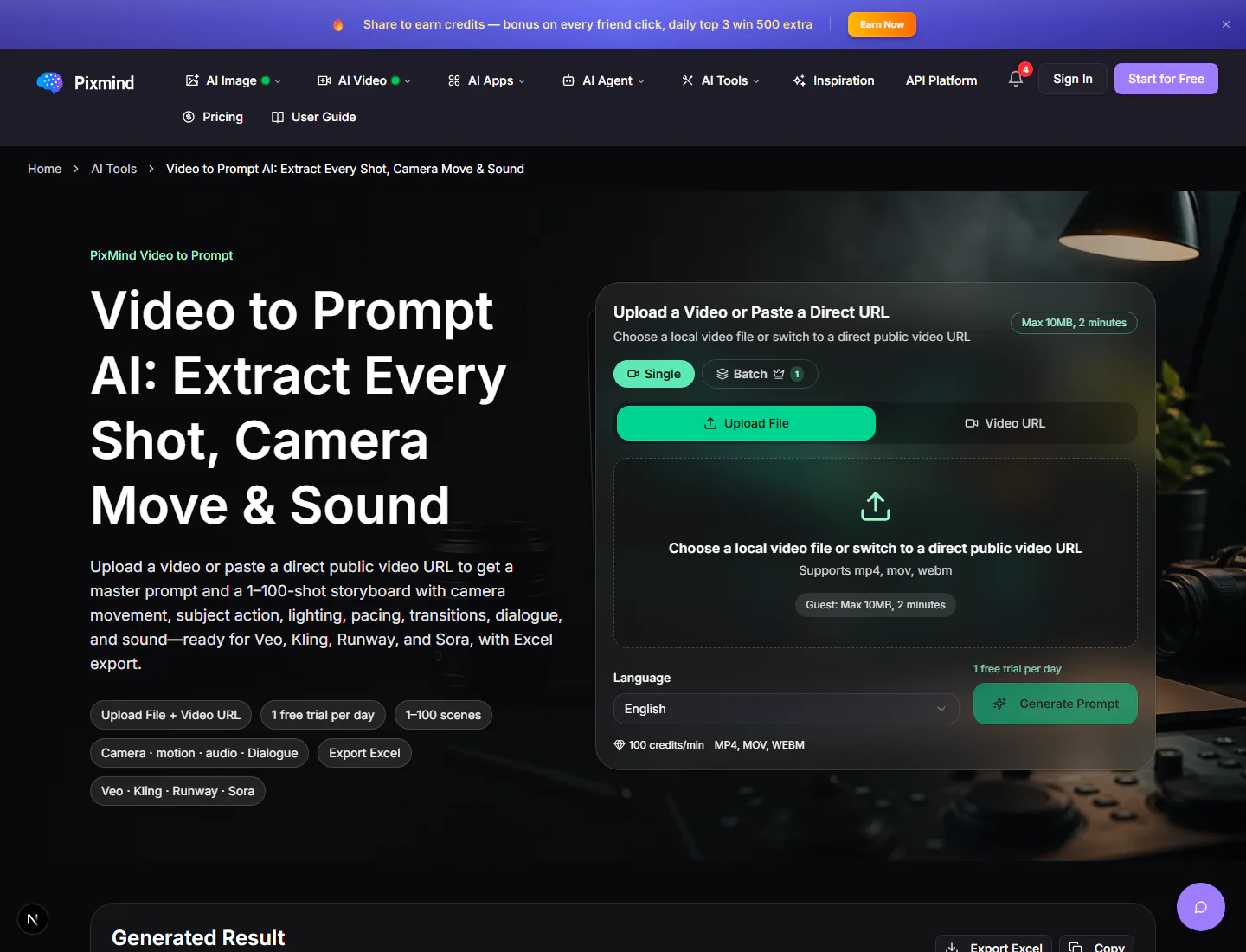
The Video to Prompt workspace: configure the video and output on the right, then review and export the generated result below.
- Single / Batch: analyze one video or process several videos in one batch.
- Upload File / Video URL: upload an MP4, MOV, or WebM file, or provide a publicly accessible direct media URL.
- Language: controls the language used for the master prompt, summary, and storyboard.
- Generate Prompt: shows the estimated credit cost before upload and analysis begin.
- Generated result: review the master prompt and shot-by-shot storyboard, copy the content, or export it to Excel.
What you get
One analysis can produce:
- Video description: the main subjects, setting, and visual content.
- Video summary: the narrative, pacing, and important changes.
- Master prompt: a complete description you can reuse in an AI video model.
- Shot-by-shot storyboard: shot type, camera movement, color, visuals, action, dialogue, sound effects, transitions, and duration.
- Excel export: a structured storyboard for editing, collaboration, and production planning.
Step 1: Choose single or batch mode
- Single mode analyzes one video and is available to visitors and free users.
- Batch mode processes several videos, keeps their results separate, and supports a combined export. It requires a paid account and accepts up to 10 videos.
Choose Single for your first analysis.
Step 2: Add a video
You can use either of these input methods:
Upload a file
Click the upload area or drag a video onto it. Supported formats:
- MP4
- MOV
- WebM
Current limits:
| Account | Maximum file size | Maximum duration |
|---|---|---|
| Visitor or free account | 10 MB | 2 minutes |
| Paid account | 100 MB | 10 minutes |
Paste a video URL
Switch to Video URL and paste a publicly accessible direct media URL. The URL must return an MP4, MOV, or WebM file directly.
YouTube, TikTok, and similar watch-page URLs are not direct media URLs and are not currently supported. Use a video file you are permitted to process or provide a public direct media URL.
Step 3: Choose the output language
Select the language for the master prompt, summary, and storyboard text.
English is usually the best starting point when the result will be sent to an international generation model. Choose your working language when the result is primarily for review, scripting, or team collaboration.
Step 4: Generate the prompt
Select Generate Prompt. The page shows separate upload and analysis progress.
The estimated credits and video duration appear below the button. The current on-page credit rate determines the final charge, and longer videos normally take longer to analyze.
Most analyses finish within a few minutes. Keep the page open until processing completes.
Step 5: Review and reuse the result
The result panel lets you:
- Review the description and summary to verify the overall interpretation.
- Copy the master prompt as a starting point for recreating a similar video.
- Inspect every shot's subject, action, camera, lighting, dialogue, and sound.
- Format the prompt for General, Kling, Jimeng, Runway, Veo, or Sora.
- Select Export Excel to download the full storyboard.
Review the result overview
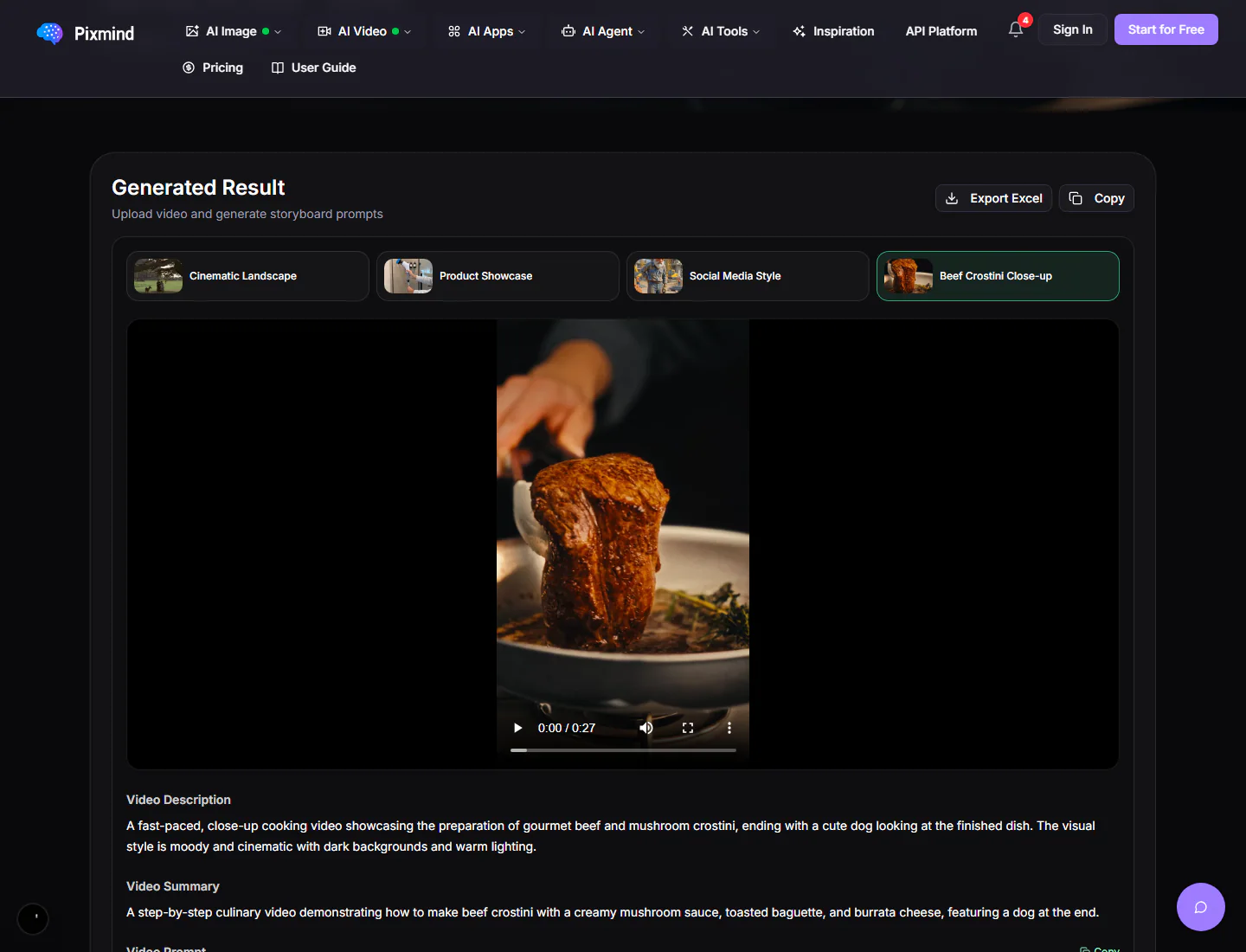
Use the example tabs to preview different video styles. The result starts with the source video, followed by the AI-generated video description and summary. Export Excel and Copy are available at the top-right of the result panel.
Copy the video and storyboard prompts
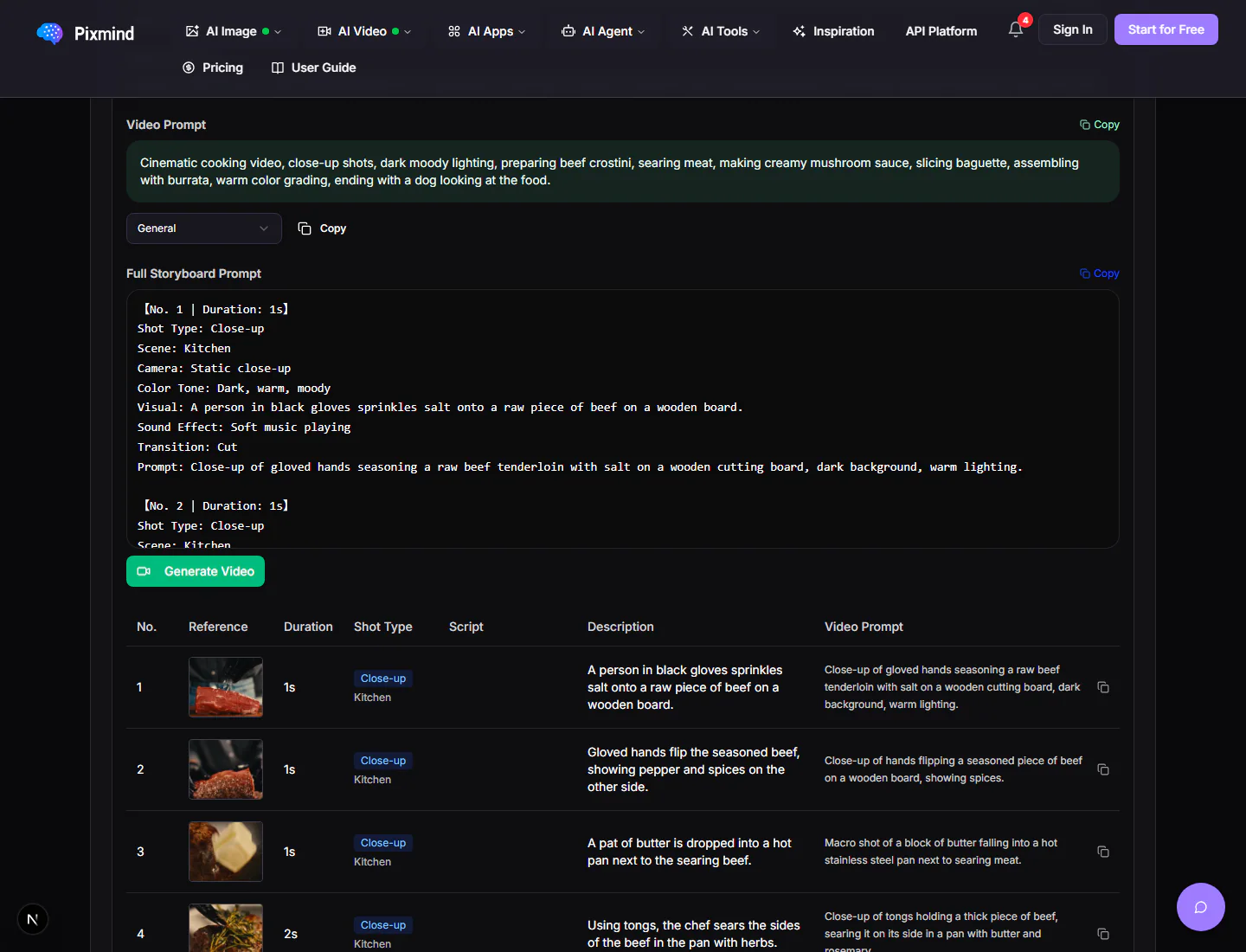
The Video Prompt summarizes the whole video for reuse in an AI video model. The Full Storyboard Prompt retains per-shot camera, scene, visual, sound, transition, and prompt details. Use the model selector to format the master prompt, or select Generate Video to continue into creation.
Inspect the shot-by-shot table
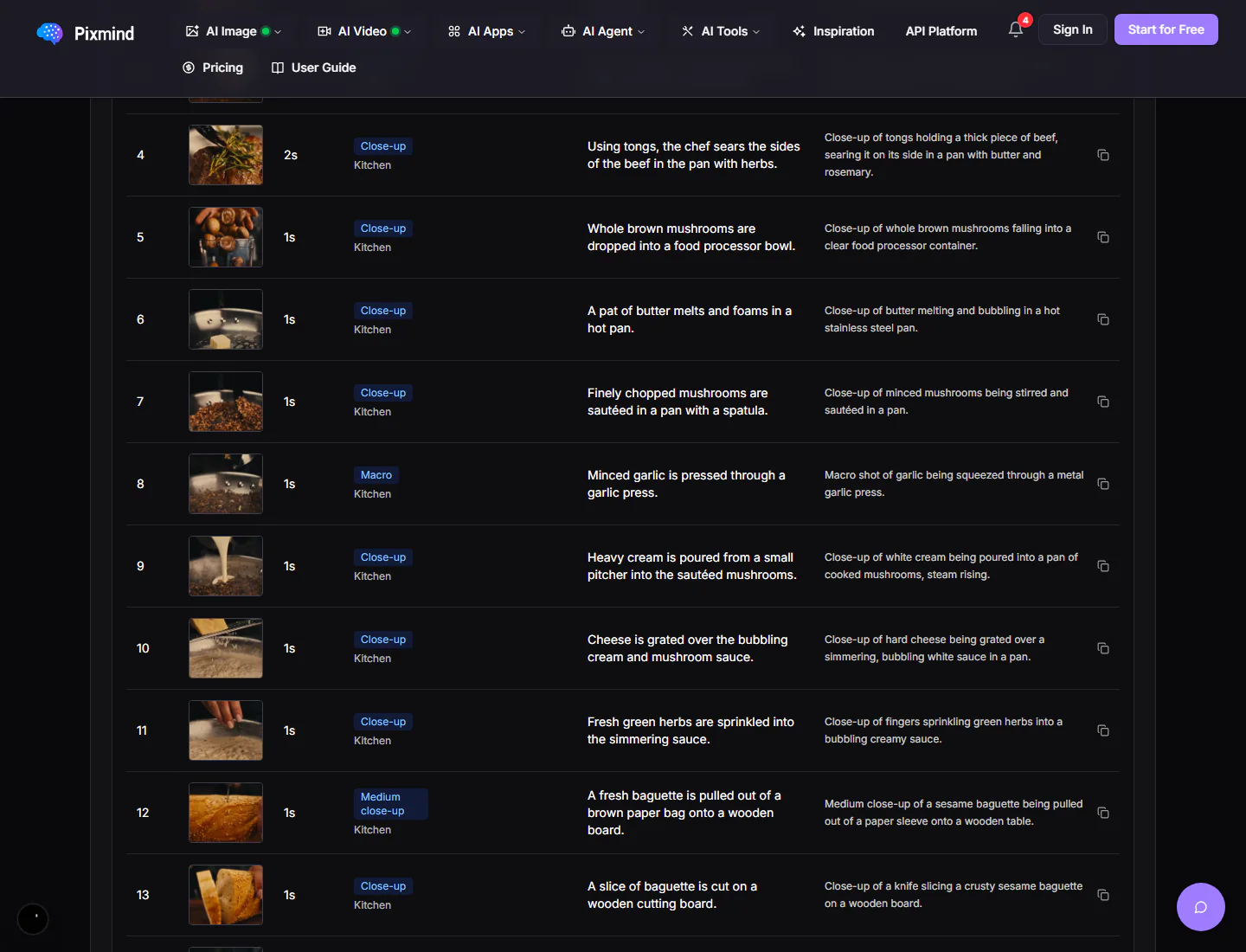
Each row represents one shot and includes its reference frame, duration, shot type, scene, visual description, and reusable video prompt. Use the copy icon on a row when you only need that shot's prompt.
Tips for better results
- Use clear source footage with recognizable shot boundaries.
- Split long videos into shorter, focused clips before analysis.
- For dialogue and sound analysis, use footage with clean audio and limited background noise.
- Review names, dialogue, timing, and very fast transitions after generation.
- Use the master prompt for overall style and the individual shot prompts for multi-shot generation and editing plans.
Troubleshooting
Why does my video URL fail?
Confirm that it is a public direct media URL, not a YouTube, TikTok, or other platform watch page.
Why can’t I upload my video?
Check the format, file size, and duration against your account limits. Compress the video or trim it into a shorter clip if necessary.
Can I use it without signing in?
A limited guest trial is available. After the free attempts are used, sign in and use account credits to continue.
What can I use the result for?
Common workflows include studying camera language, analyzing ad structure, preparing a production script, building a storyboard, and creating prompts for Kling, Jimeng, Veo, Sora, and other video models.
Video Creation
Generate videos in PixMind with text-to-video and image-to-video — prompts, reference images, first/last frames, and parameters.
AI Apps
Guides for product images, virtual try-on, brand materials, storefront signs, marketing posters, packaging, culture walls, and product detail image sets.