Image Creation
Generate images in PixMind with text-to-image and image-to-image — prompts, parameters, reference images, and supported models.
PixMind offers two image creation modes — text-to-image and image-to-image. Both share the same generation interface: enter a prompt, set the aspect ratio, resolution, and other parameters, then start generating.
This is a product usage guide. These steps apply to the PixMind web tool, not the API. Developers should read the API quickstart instead.
Open image generation
Go to the PixMind image generation page and start creating.
Models
Compare available image and video models.
Model editions
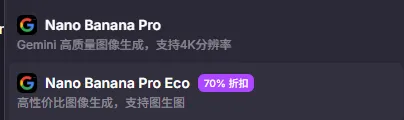
PixMind models come in two editions — check the name suffix when choosing:
- Eco suffix: economy models implemented through cost-efficient pipelines. They are cheaper and great for batch generation.
- No suffix: official models. More stable and higher quality, for deliverables where quality matters.
Text-to-image
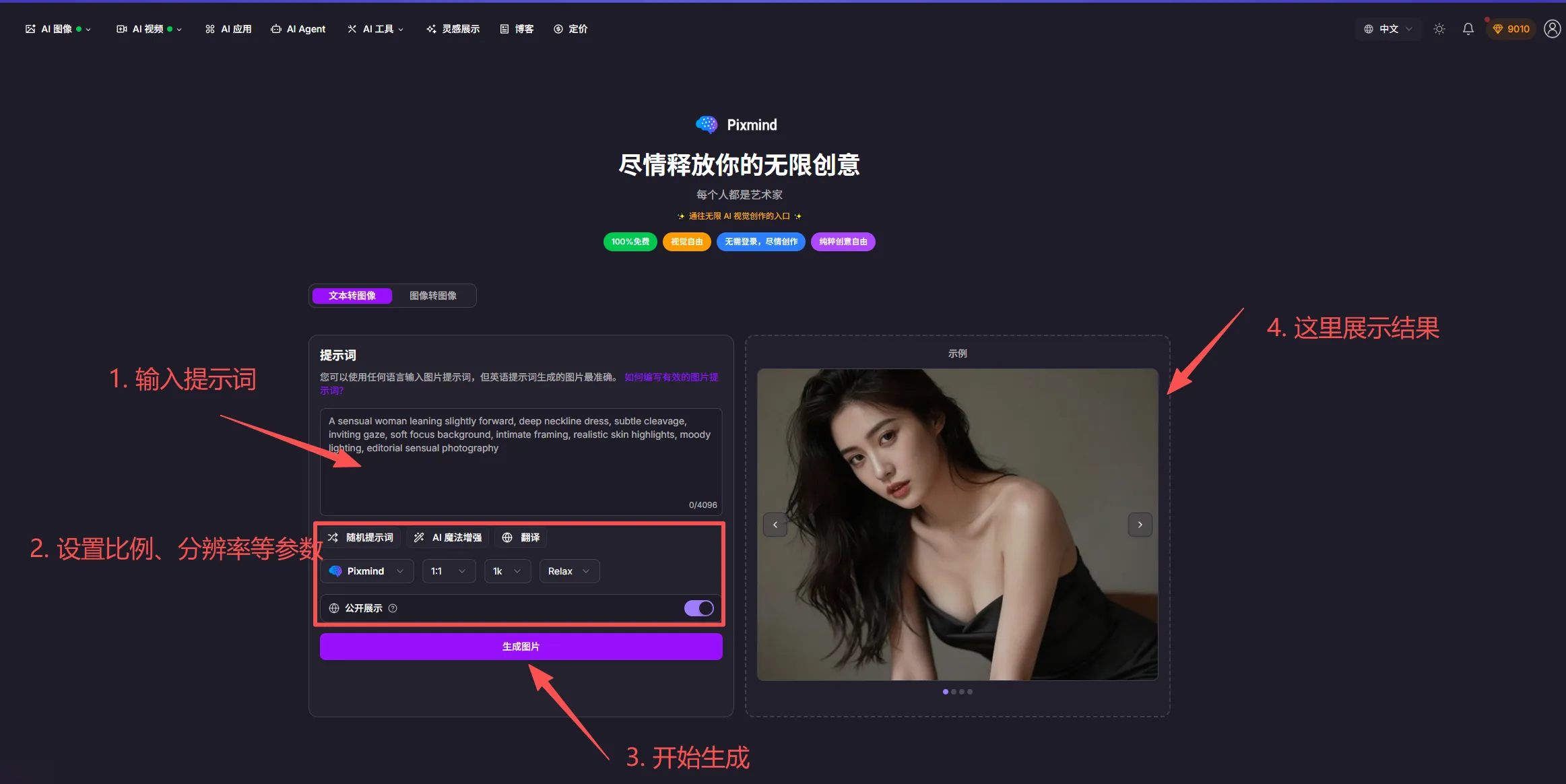
Text-to-image generates images from a text description:
- Enter a prompt: describe the image you want in the input area on the left. The more specific, the more controllable the result.
- Set parameters: choose the aspect ratio, resolution, and other options. Toggle background settings if you need a subject-only image.
- Generate: click the generate button. Results appear in the output area.
Supported models
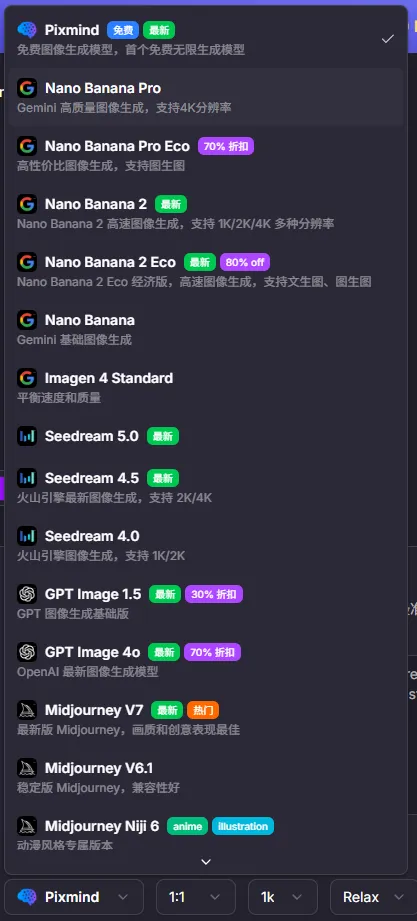
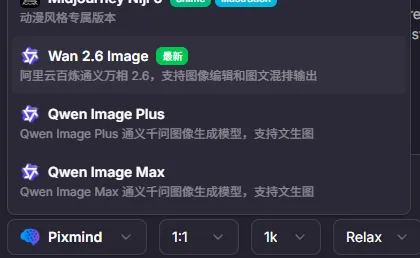
Text-to-image currently supports these model families:
| Model family | Notes |
|---|---|
| Nano Banana series | Nano Banana Pro (high-quality Gemini image generation, up to 4K), Nano Banana Pro Eco (~30% off), Nano Banana 2 and its Eco edition (~20% off) |
| GPT Image series | GPT Image 1.5, GPT Image 4o, and more |
| Midjourney series | Midjourney V7, V6.1, Niji 6, and more |
| Wan series | Wan 2.6 Image — supports image editing and text-image layouts |
| Qwen Image series | Qwen Image Plus and Qwen Image Max |
The model list keeps evolving — the dropdown menu in the app is always the source of truth for available models, discounts, and resolutions.
Image-to-image
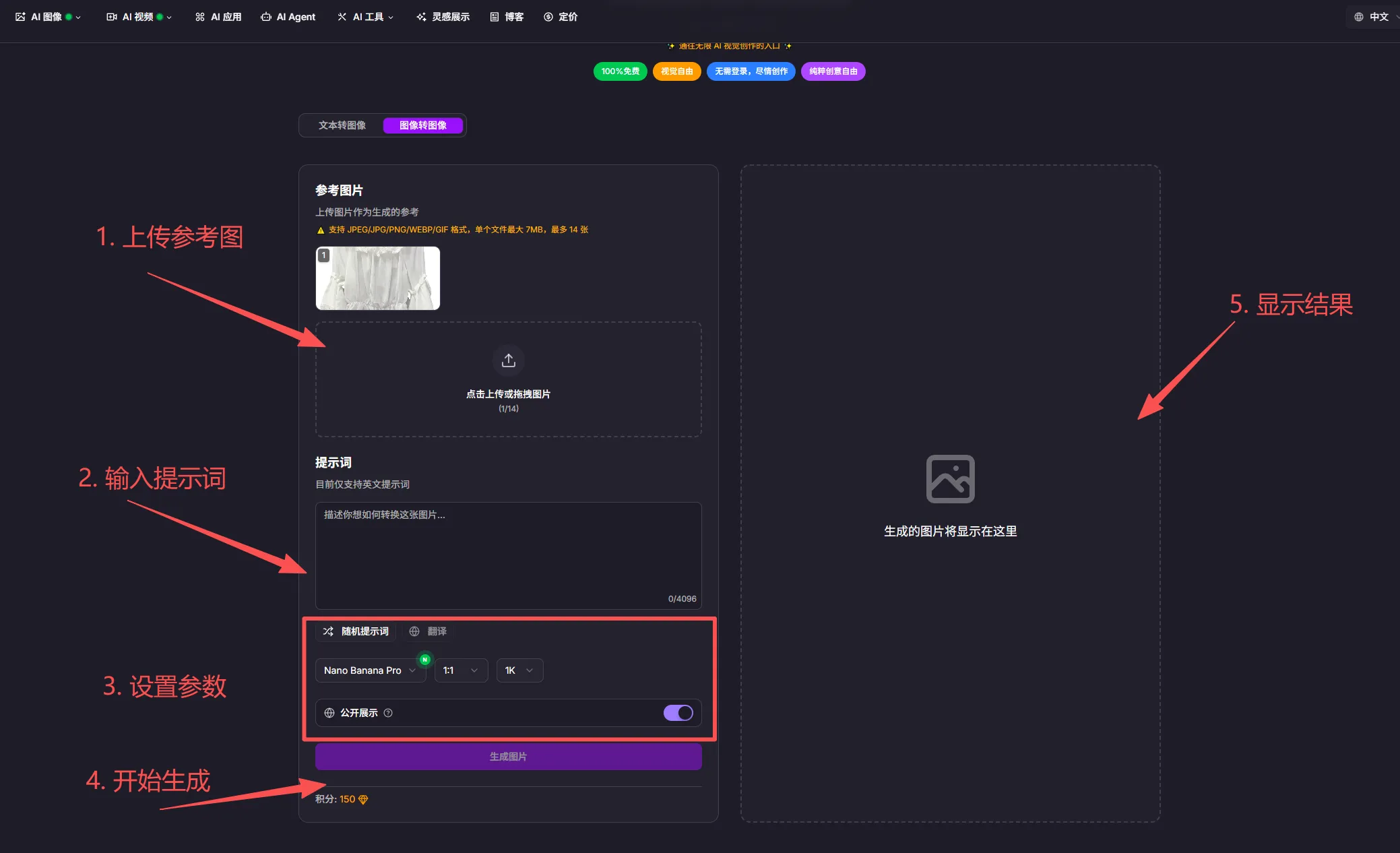
Image-to-image generates new images based on a reference image — ideal for restyling, background swaps, and variations.
The steps are the same as text-to-image, except you first upload a reference image:
- Upload one or more reference images.
- Enter a prompt describing the changes you want relative to the reference.
- Set parameters and generate.
Note: supported formats and the number of reference images vary by model — check the model's page for limits.
Supported models
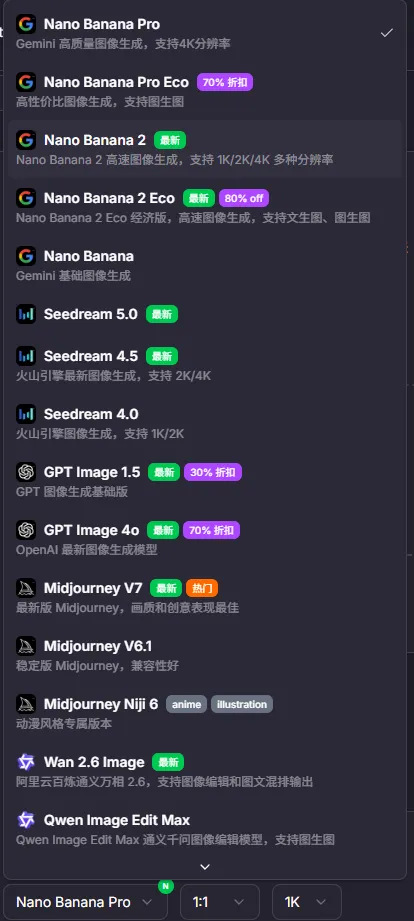
Image-to-image supports the Nano Banana, Seedream, GPT Image, Midjourney, Wan 2.6, and Qwen Image series, among others. Some models list supported resolutions (for example, Nano Banana Pro supports 1K/2K/4K). See the in-app dropdown for details.
FAQ
How should I write prompts?
Use concrete nouns and adjectives to describe the subject, style, lighting, and composition. Start with a short prompt, then add detail.
Eco or official models?
Use Eco models for drafts and batch generation to save credits; switch to official models for final deliverables.
What if the result isn't good?
Adjust the prompt and parameters and regenerate, or try a different model. Reuse prompts from past generations that worked well.