Create Veo 3.1 videos from text
Write one complete shot with subject, action, camera, light, and sound. The current PixMind route accepts prompts up to the live generator limit.
Try Veo 3.1
Google Cloud · Quality route
Turn a shot description or one approved image into an 8-second audiovisual scene with the quality-first Google Cloud route connected in PixMind.
Online generator
The generator is pinned to veo-3.1. Available settings and the charged credits come from the live route.
Choose the input that already contains the most important part of the shot: a written direction when the scene starts from an idea, or one image when identity and composition must stay anchored.
Write one complete shot with subject, action, camera, light, and sound. The current PixMind route accepts prompts up to the live generator limit.
Try Veo 3.1Google video model
Veo 3.1 is Google's leading generative video model for filmmakers and storytellers. Google documents text-to-video, image-to-video, native audio, prompt adherence, and richer creative control. PixMind currently connects the Google Cloud quality route under the exact model ID veo-3.1.
Audiovisual generation
Google positions Veo 3.1 around video and audio generated as one experience. Describe short dialogue, room tone, environmental sound, and a visible action together. PixMind's model record reports audio capability, but it does not expose a separate audio toggle, so the actual result must be reviewed after generation.
Prompt adherence
Instead of writing only 'cinematic,' specify shot size, lens feel, camera path, timing, lighting motivation, and the final composition. Google reports improved prompt adherence; practical control still depends on writing one coherent shot rather than several competing scenes.
Image guidance
The connected PixMind route accepts one image. Use it to protect the opening composition, product shape, wardrobe, or character identity; then ask for one readable action. Google offers broader reference-image capabilities in other products, but this page only promises the single-image workflow currently exposed here.
Model comparison
Compare three leading AI video models by creative fit, audio, reference control, scene direction, and supported creation workflows.
| Feature | Veo 3.1 | Sora 2 | Kling 3.0 |
|---|---|---|---|
| Best For | Cinematic realism, product videos, and controlled scenes | Story ideas, creative clips, and realistic prompt videos | Character motion, action shots, and creator videos |
| Audio | Native audio with dialogue, ambience, music, and effects | Synced audio generation | Audio and lip-sync workflows |
| Reference Control | Strong for characters, objects, scenes, and style | Good for asset-based creation and remixing | Strong for characters and repeated subjects |
| Scene Control | First and last frames plus clip extension | Storyboard, remix, and extend tools | Motion control and multi-shot workflows |
| Input Options | Text, image, reference images, and first or last frames | Text, images, and video assets | Text, image, and reference-based workflows |
| Best Choice When | You need polished, directed, production-ready visuals | You want broad creative exploration | You need strong character or action performance |
This table compares broader model and product workflows. The current PixMind Veo 3.1 route exposes text or one image and up to 8 seconds; always use the live generator as the final source for available controls.
Dialogue, ambience, music, and visible action work best when they are directed together as one shot.
Camera path, lighting, timing, and the final composition give the model a clearer production target than broad style words alone.
Check dialogue wording, identity, product geometry, logos, and rights before treating any generated clip as production-ready.
Start with a shot brief, or upload one clean image when the opening composition must remain recognizable.
Define subject, action, environment, camera, light, sound, and what must not change.
Review usable frames, audio timing, identity, product structure, and rights before downloading or publishing.
Start from the intended deliverable, then use a task-specific prompt and the matching PixMind workflow.
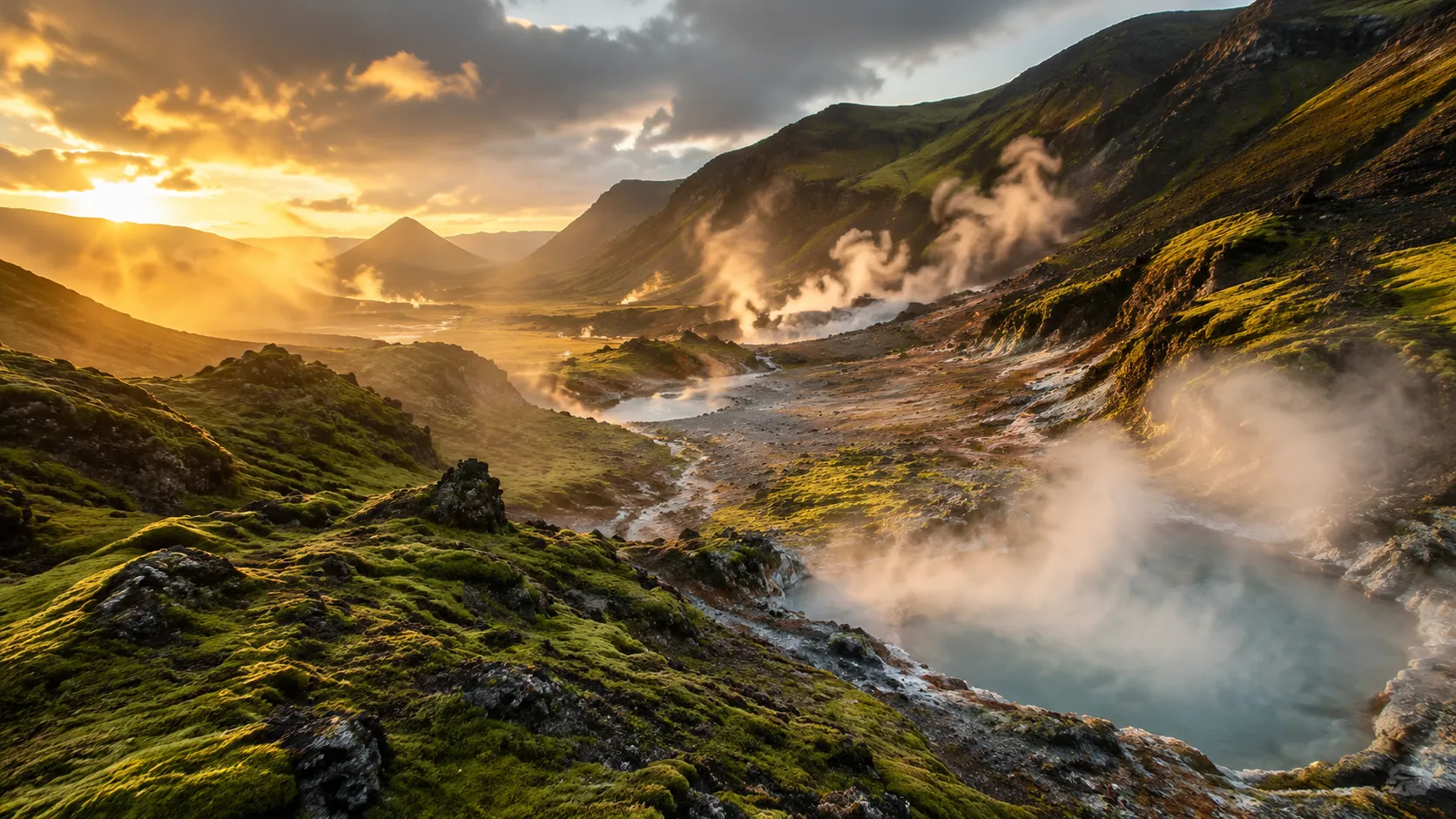
Create an atmosphere-led hero shot with intentional camera, light, and sound.
View workflow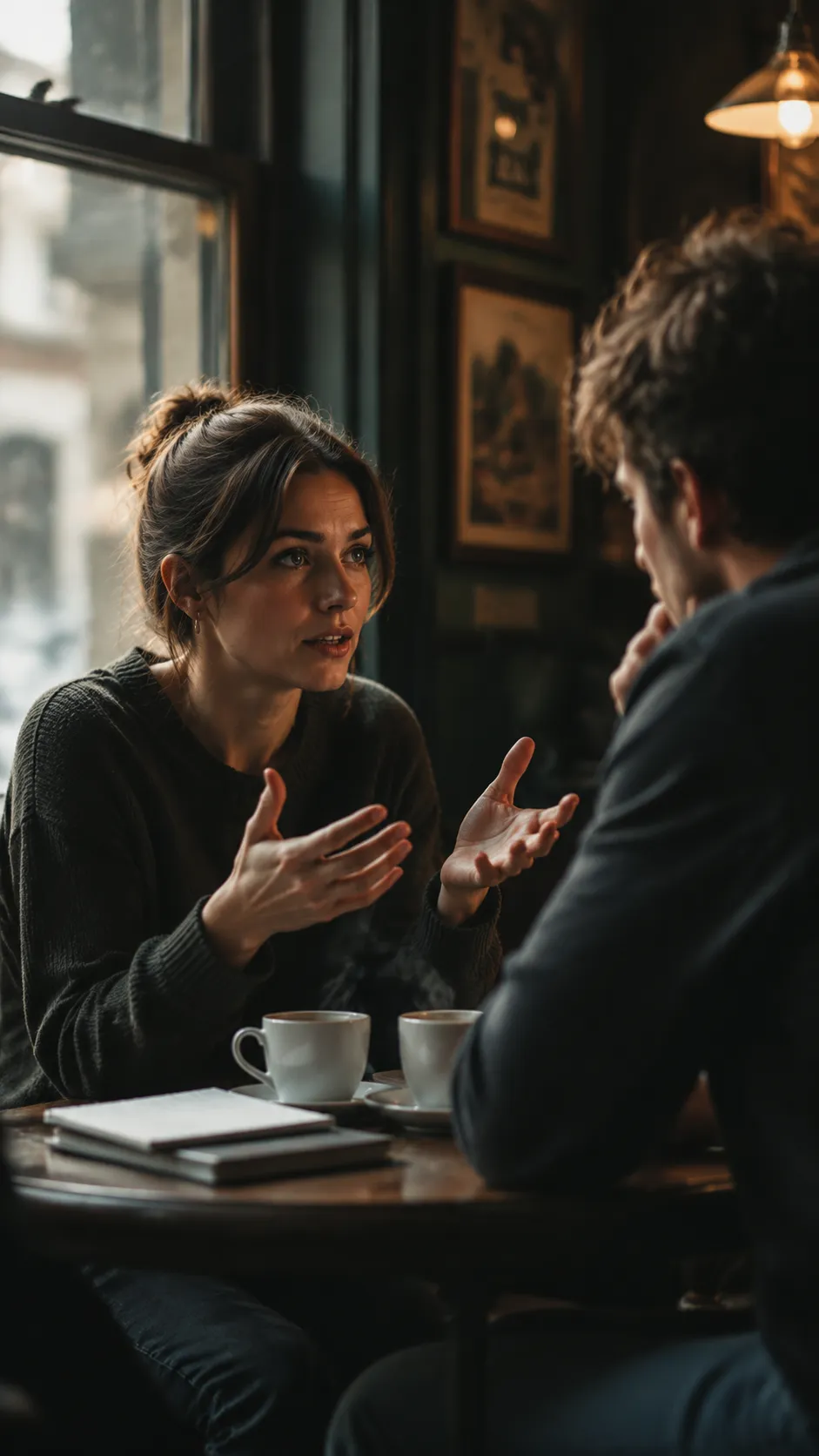
Direct one short spoken line, visible performance, and natural room tone.
View workflow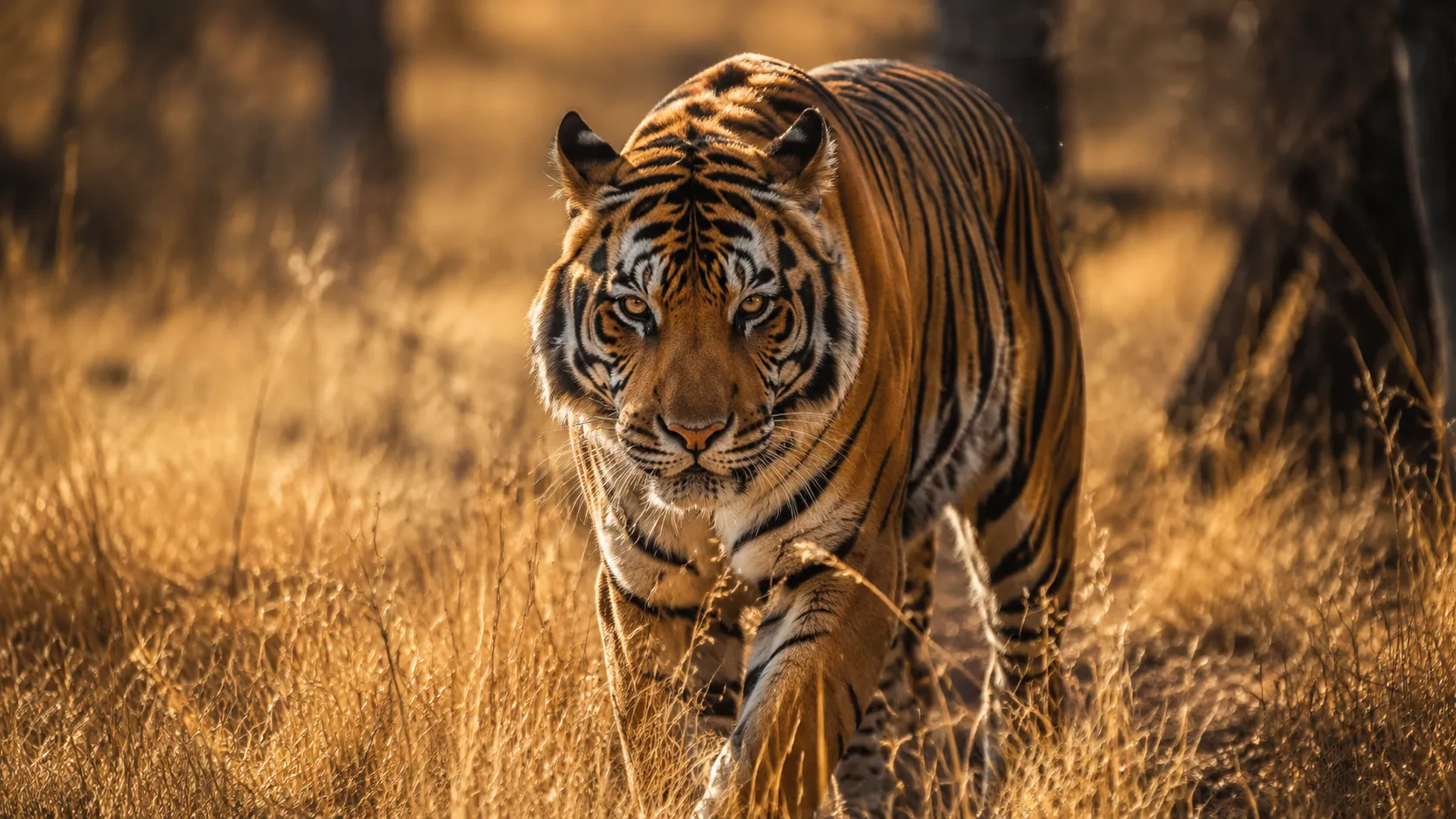
Generate environment-led shots with physically plausible movement and layered ambience.
View workflow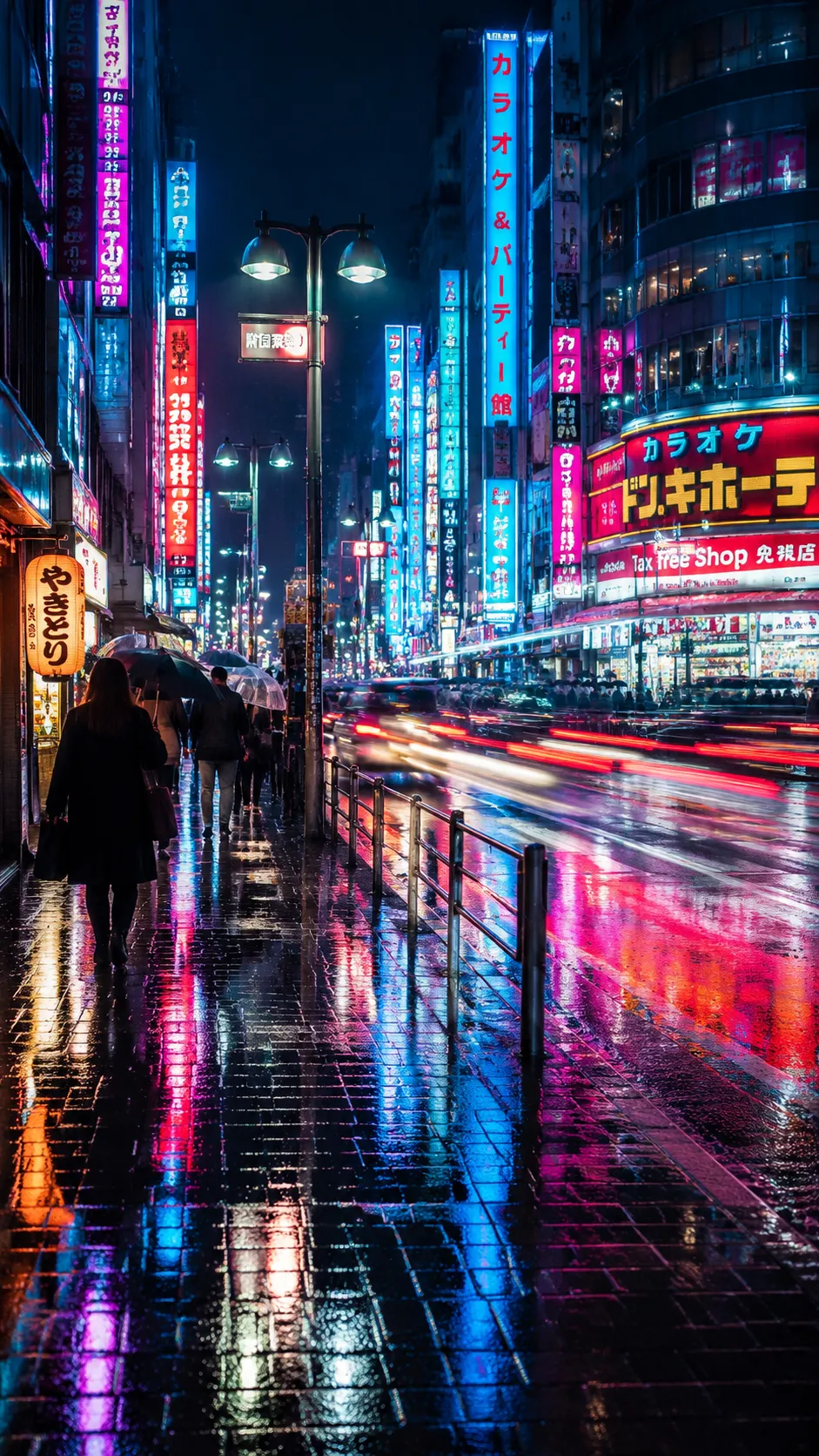
Plan one immediate visual hook, a readable action, and safe space for separately added copy.
View workflow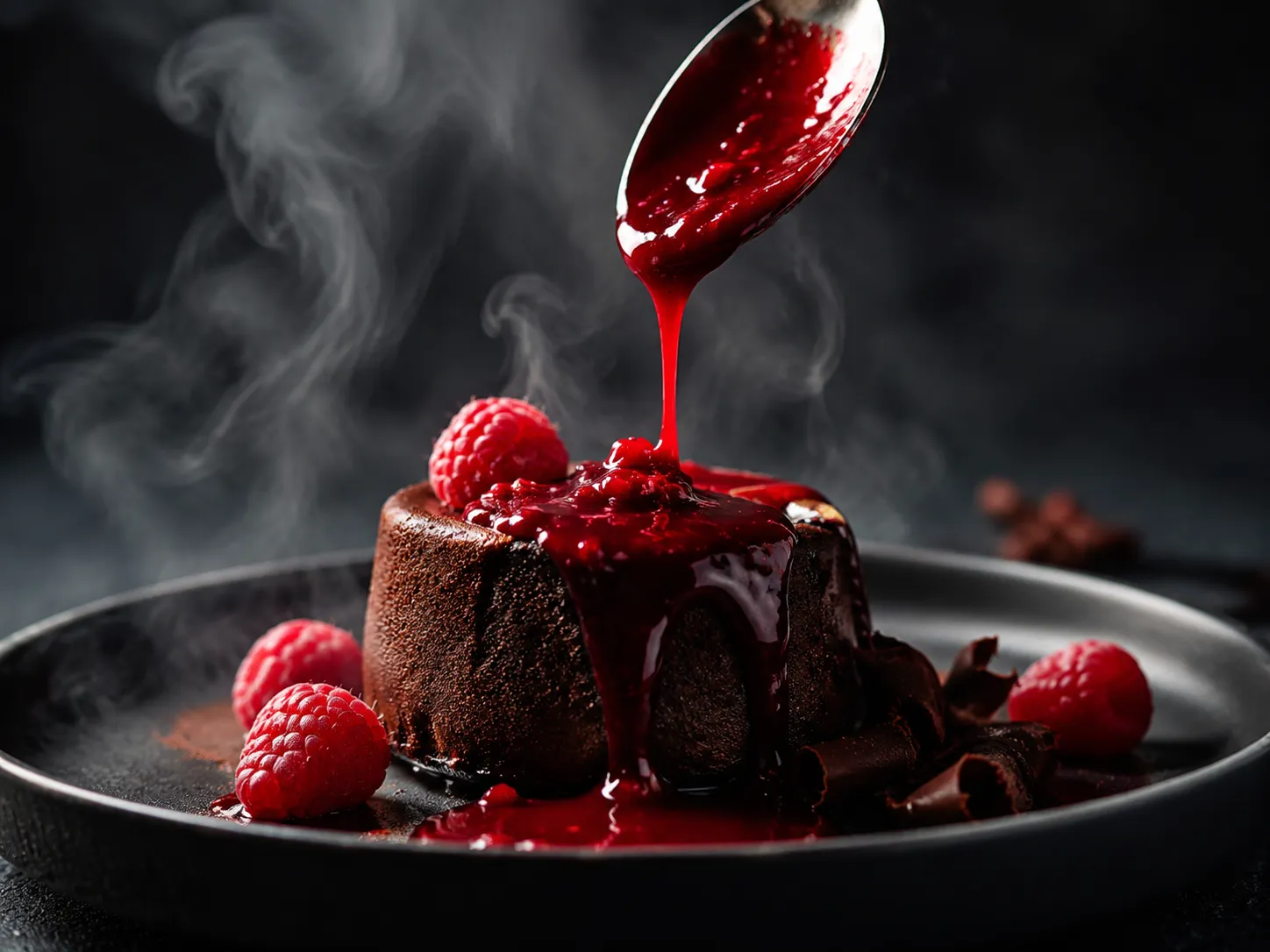
Pair tactile close-ups with restrained sound cues and simple camera motion.
View workflow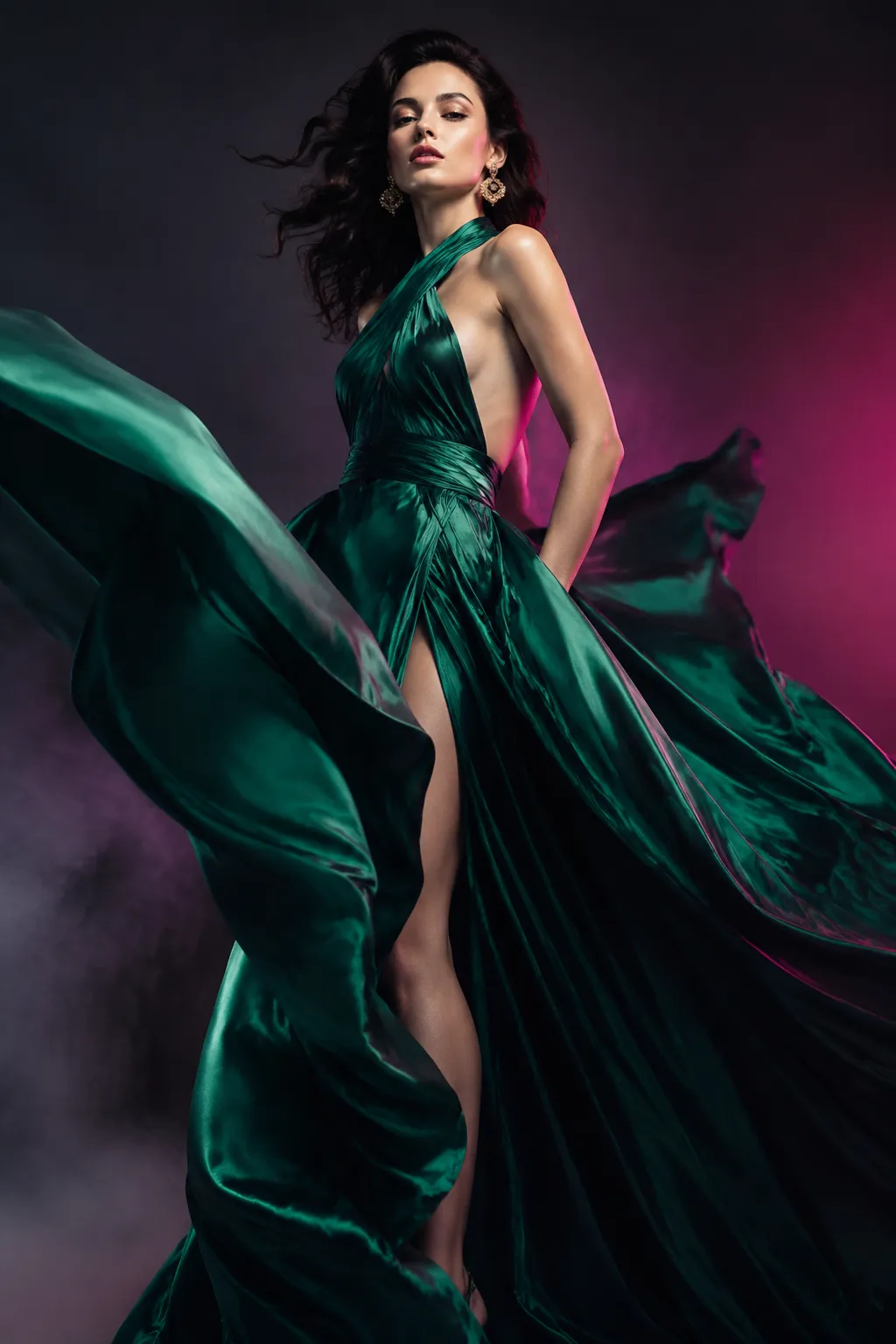
Evaluate garment movement, performance, framing, and light before a longer edit.
View workflowUse the exact Google Cloud quality route instead of an ambiguous family label.
Move between idea-led and image-led shots without leaving the model page.
Write dialogue and ambience into the shot while keeping route limitations visible.
See the audited route cost and verify the final amount in the live generator.
Continue into product, dialogue, camera, and cinematic prompt pages instead of starting blank.
Return to the Hub to compare Veo 3.1, Veo 3, and Veo 3.0 Fast by production stage.
The production model endpoint reports text input, one image, audio capability, up to 8 seconds, and a 60-credit snapshot. The generator is the final source for currently exposed controls and cost.
Yes. The current PixMind route accepts a text prompt or one image. Use text when the scene starts from an idea and an image when identity or composition must be anchored.
Google documents native audiovisual generation and the PixMind route reports audio capability. There is no separate audio switch in the current route response, so describe sound in the prompt and review the actual result.
The current route response does not expose a 4K setting, a complete resolution list, or multiple reference images. Google offers broader capabilities in other products, but this page only promises controls available in PixMind.
Write one coherent shot: subject, one main action, environment, shot size, camera movement, lighting, sound, final composition, and invariant details.
Choose Veo 3.1 for final-quality work, Veo 3.0 Fast for shot planning, and Veo 3 only when maintaining an established Veo 3 workflow matters.
Start with a focused prompt or one approved image, generate with the exact quality route, then review every frame and sound cue before publishing.
Try Veo 3.1