White-background product photos
Turn a product snapshot into a consistent white-background image for catalogs, stores, and marketplace listings.
Create a product photo
Free online background remover
Upload a photo and remove its background automatically. Download a transparent PNG, switch to a clean white background, or trim empty edges for product, portrait, and design work.
Click or drag to upload images, background will be removed automatically
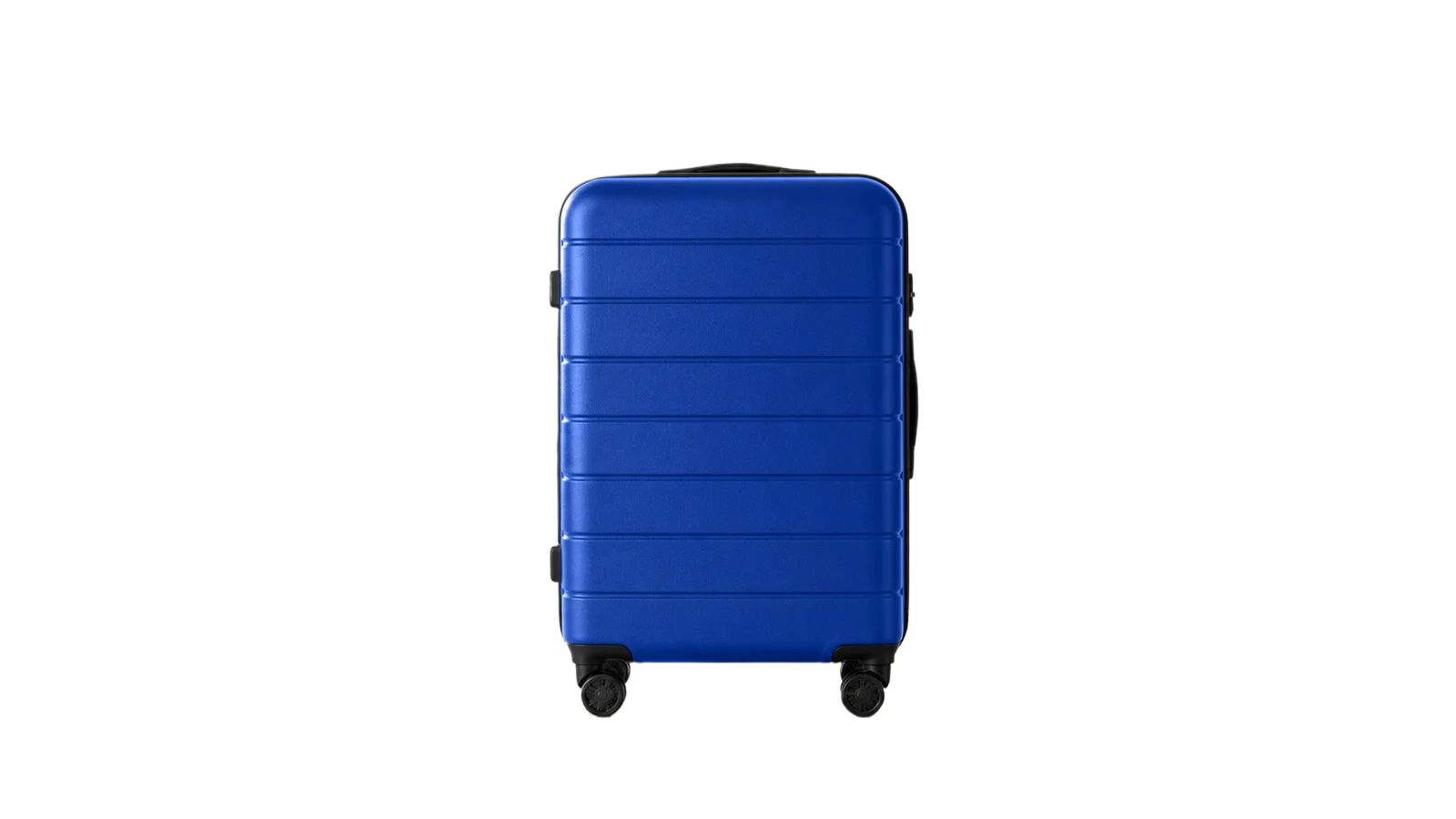
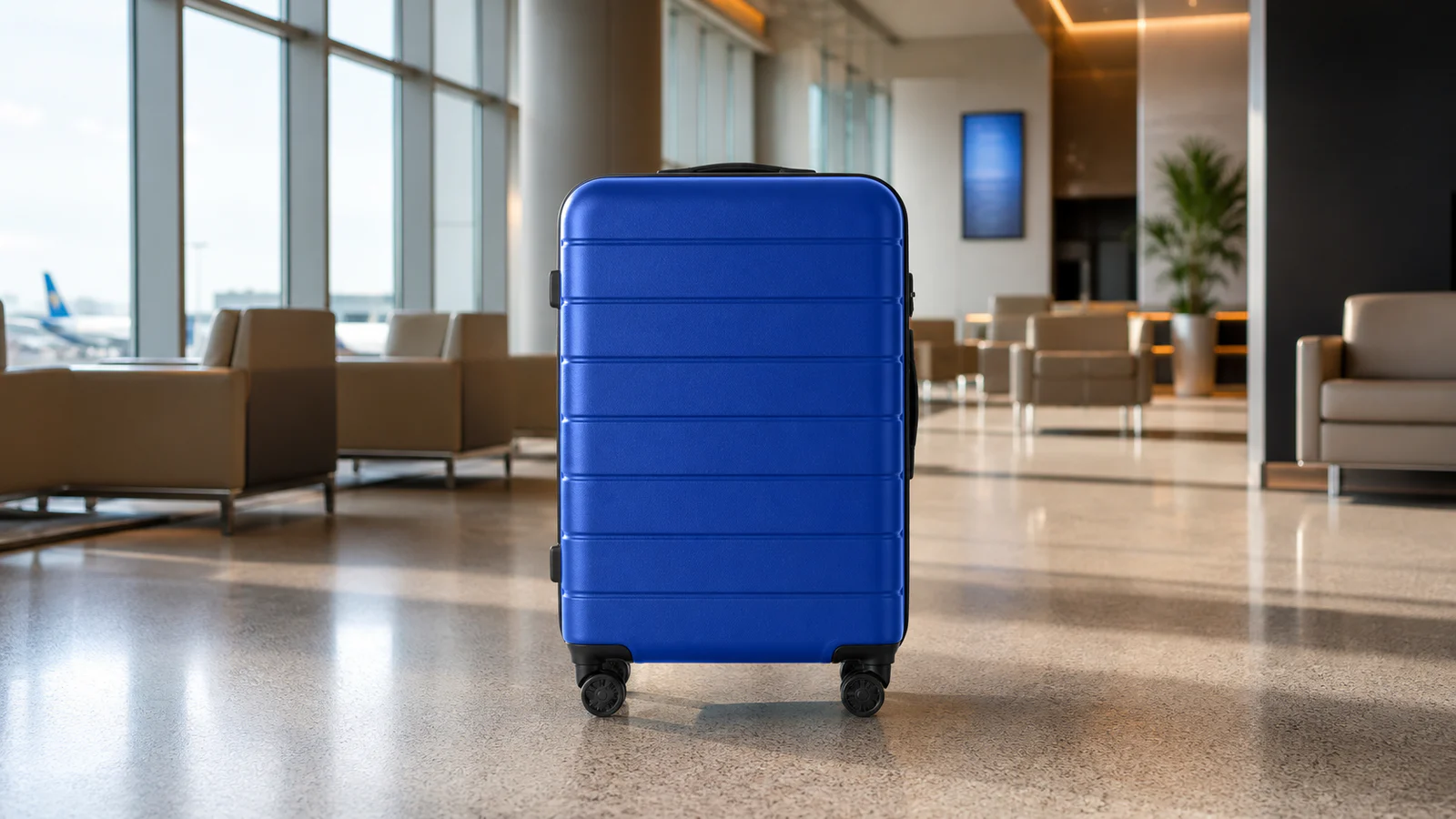
Click or drag to upload images, background will be removed automatically
Supports JPEG, JPG, PNG, BMP, WebP (max 3MB per file), resolution under 2000x2000.
No matter how complex the background is, you can cut out the subject in one click, with clean, crisp edges that look more natural.
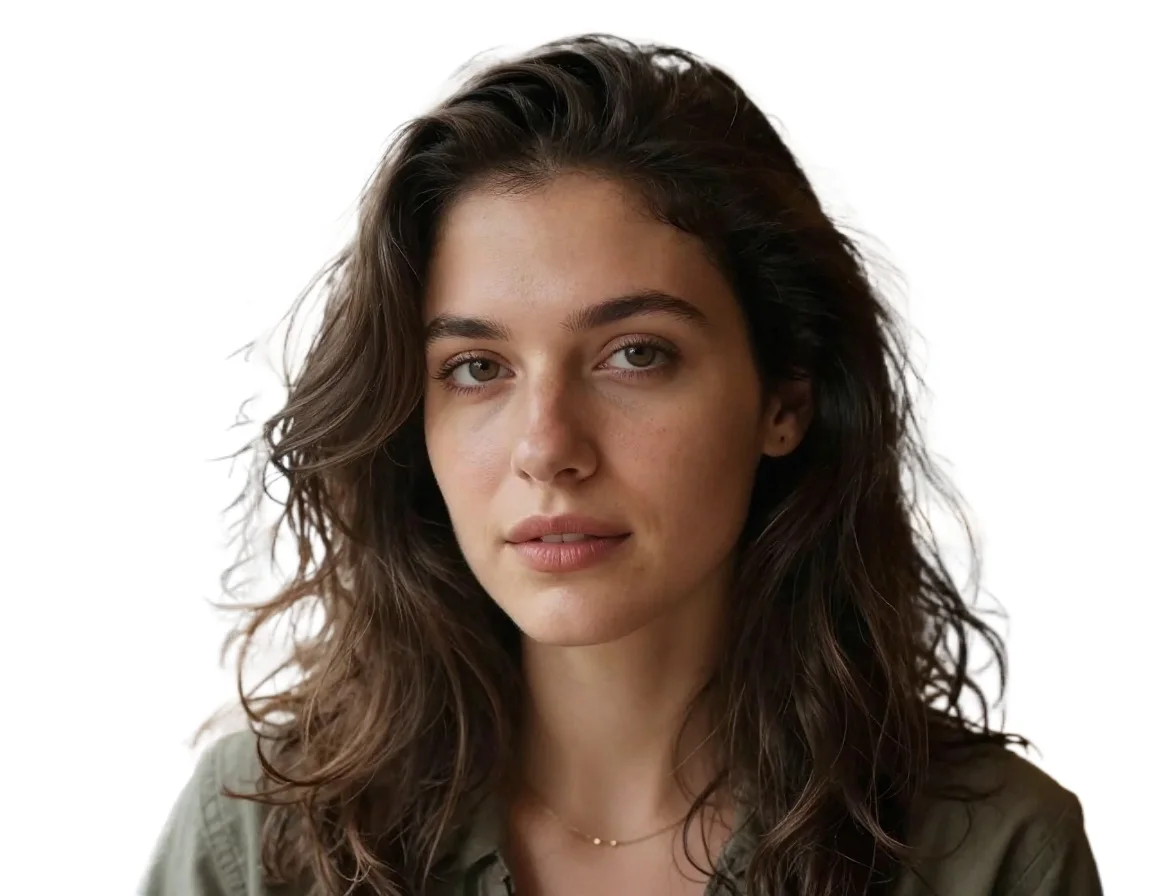
During portrait cutouts, the AI precisely preserves fine hair strands and soft edges, making the subject-to-background transition more natural for a more realistic, premium result.

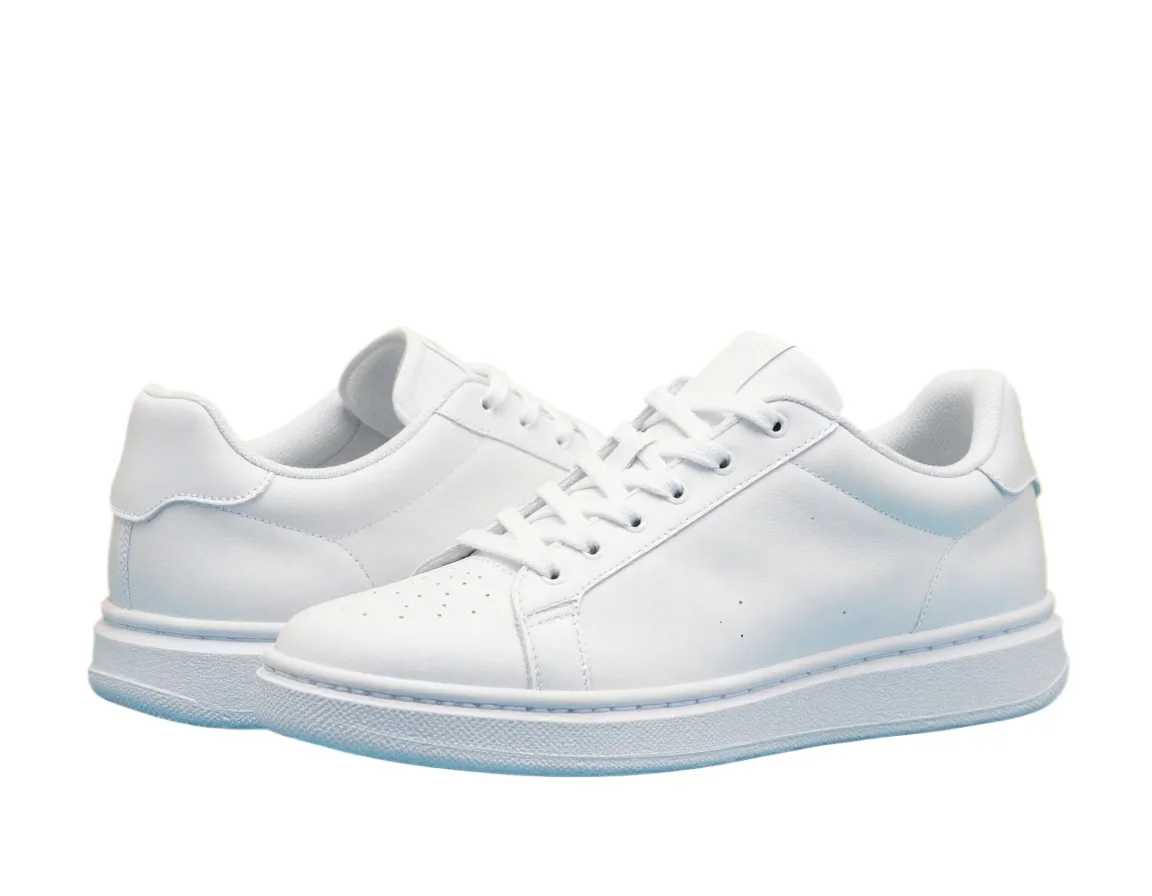
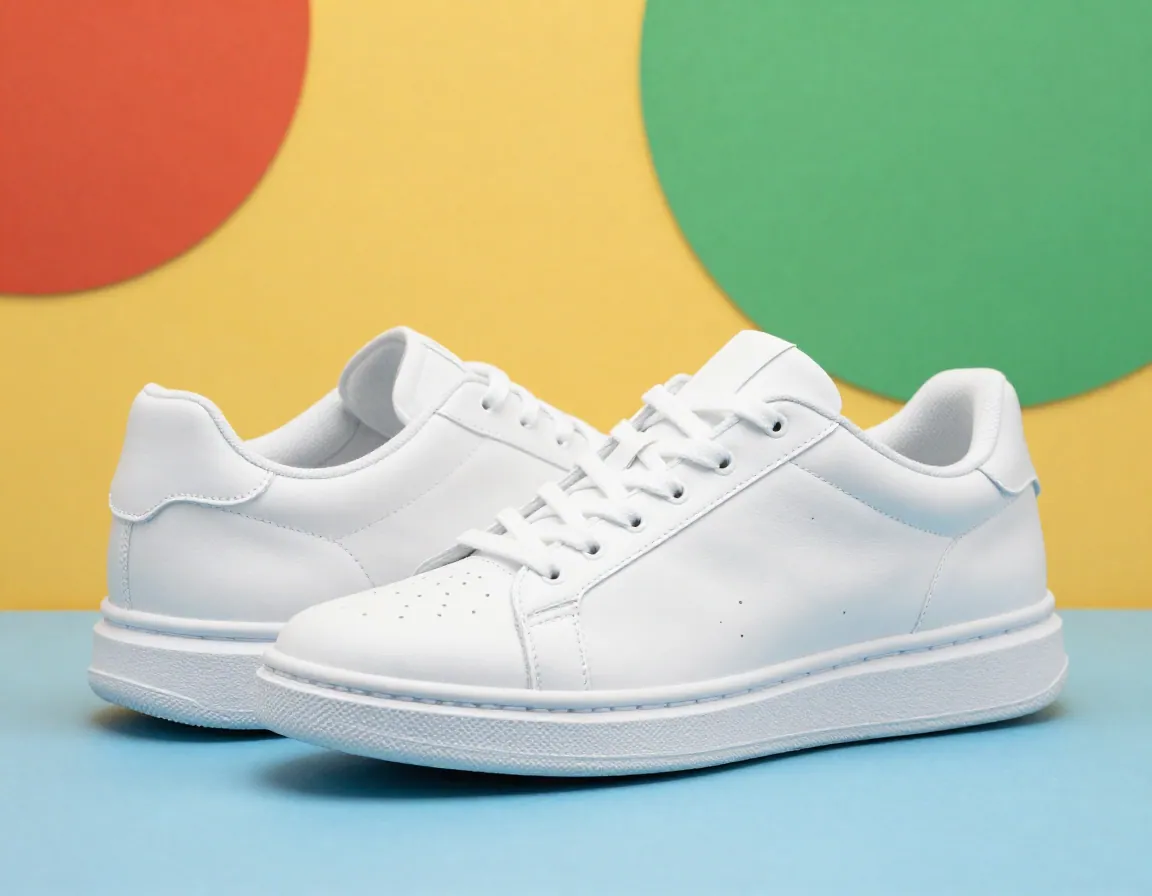
Ideal for e-commerce and advertising assets, keeping subject edges clean and consistent for more professional product presentation and a more commercial-grade look.
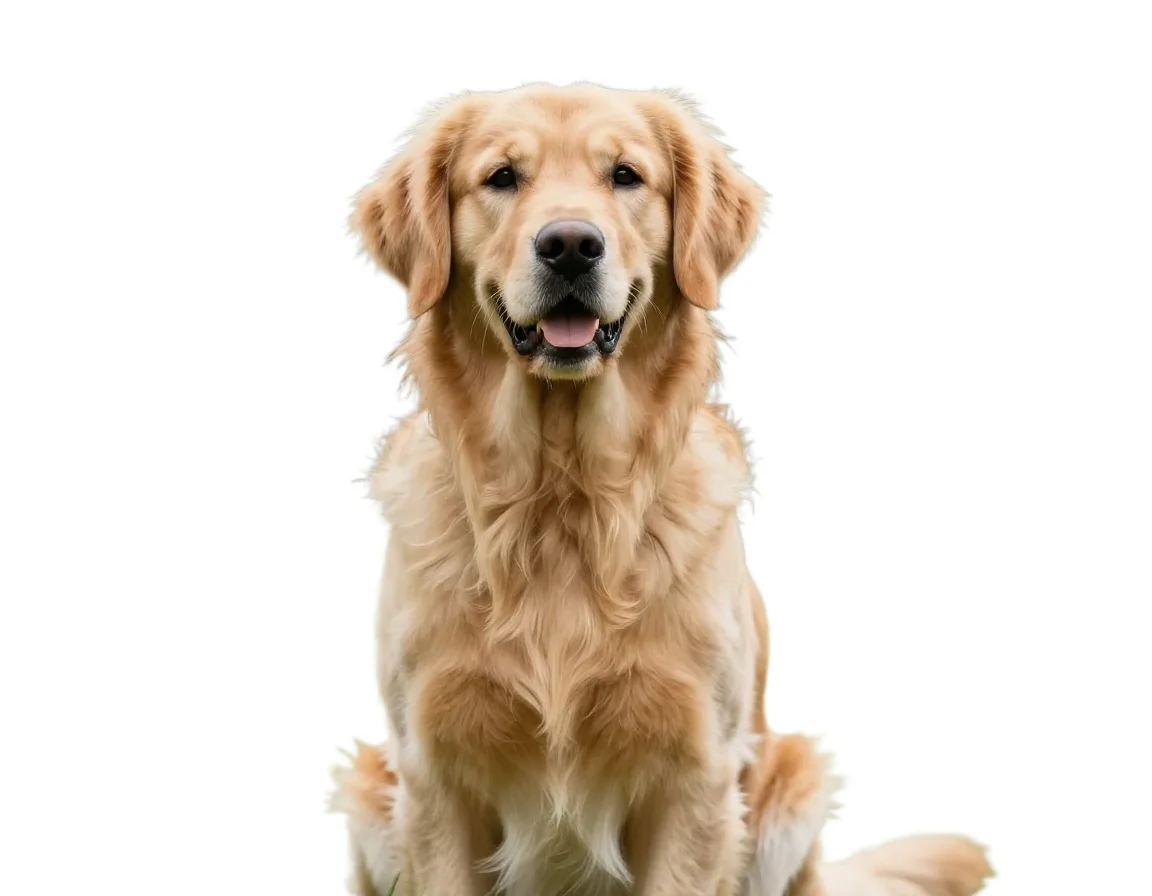
While removing cluttered backgrounds, the AI carefully preserves fur texture and fine detail, making the subject look more natural and clear for a more realistic cutout.

Choose your output
Select the result you need before uploading. PixMind can preserve transparency, create a white product background, or remove empty space around the subject.
| Output option | Best for | What you get |
|---|---|---|
| Transparent background | Logos, design assets, presentations, and image compositing | A PNG cutout that can be placed on another color or image |
| White background | Product listings, catalogs, profile photos, and marketplaces | A clean subject on a consistent white canvas |
| Trim empty edges | Stickers, thumbnails, compact assets, and faster layout work | A tightly cropped cutout with unused outer space removed |
Three-step workflow
Go from an original JPG, PNG, WebP, or BMP file to a reusable cutout in a few clicks.
Choose a file up to 3MB with dimensions below 2000×2000 pixels. Clear, well-lit subjects produce the cleanest edges.
PixMind detects the main subject automatically and separates people, products, pets, and other objects from the scene.
Compare the original and result, then download the finished cutout for ecommerce, profiles, presentations, or further editing.
Practical use cases
Start with a clean cutout, then continue in the PixMind tool that matches your next task.
Turn a product snapshot into a consistent white-background image for catalogs, stores, and marketplace listings.
Create a product photoSeparate a person from a distracting scene while keeping fine hair and soft portrait edges readable.
Create an ID photoPrepare a clean isolated graphic, then convert suitable artwork into scalable vector paths for layout and brand work.
Open Image to VectorWhen foreground-versus-background is not enough, split the image into multiple editable transparent layers.
Open Image LayersAnswers about supported images, transparent PNG output, white backgrounds, batch limits, and edge quality.
PixMind accepts JPEG, JPG, PNG, BMP, and WebP files up to 3MB. Width and height must be greater than 32 pixels and below 2000 pixels, with a longest edge of 1999 pixels or less.
A single image usually takes about 3–10 seconds. Actual processing time depends on image size, subject complexity, and current server load.
The AI is designed to preserve fine portrait hair, pet fur, and defined product edges. A sharp image with clear contrast between the subject and background usually produces the cleanest cutout.
Choose Transparent background before uploading. PixMind removes the scene behind the subject and prepares a PNG cutout that you can place over another color, photo, slide, or design.
Yes. Select White background before uploading to create a clean white canvas for product listings, catalogs, profile images, and other consistent layouts.
Standard and guest use supports one image at a time. Eligible paid memberships can upload and process up to five images in one batch.
Use a sharp, well-lit image with the complete subject visible and clear contrast against the background. Avoid heavy motion blur, extremely low resolution, and subjects cropped at important edges.
Use it in product listings, profile photos, presentations, social posts, thumbnails, or image editors. Transparent cutouts can also be placed into PixMind Image Layers, Image to Vector, and other creative workflows.
Ready to start
Upload one image, choose transparent, white, or tightly cropped output, and download a clean result for your next project.
Remove image background