Social hooks
Create a visually immediate first beat for Reels, Shorts, TikTok, or paid social placements.

Create · remix · publish
The full PixVerse V5 route for social and campaign clips — text or a single reference image in, 4–10 second 720p clips out, across five social-ready aspect ratios.
Built for the destination
Five common social ratios shown below; the V6 route covers more. Available ratios follow the live generator.
9:16
social-ready canvas
16:9
social-ready canvas
1:1
social-ready canvas
4:3
social-ready canvas
3:4
social-ready canvas
What it's for
Create a visually immediate first beat for Reels, Shorts, TikTok, or paid social placements.
Animate a product still with controlled camera movement, material-aware lighting, and a clean final composition.
Plan the same creative direction for landscape, square, portrait, and platform-specific delivery.
Case gallery
Each case maps to a real delivery task. Images are route illustrations, not measured model outputs.
An immediate first beat that stops the scroll on Reels, Shorts, or TikTok.
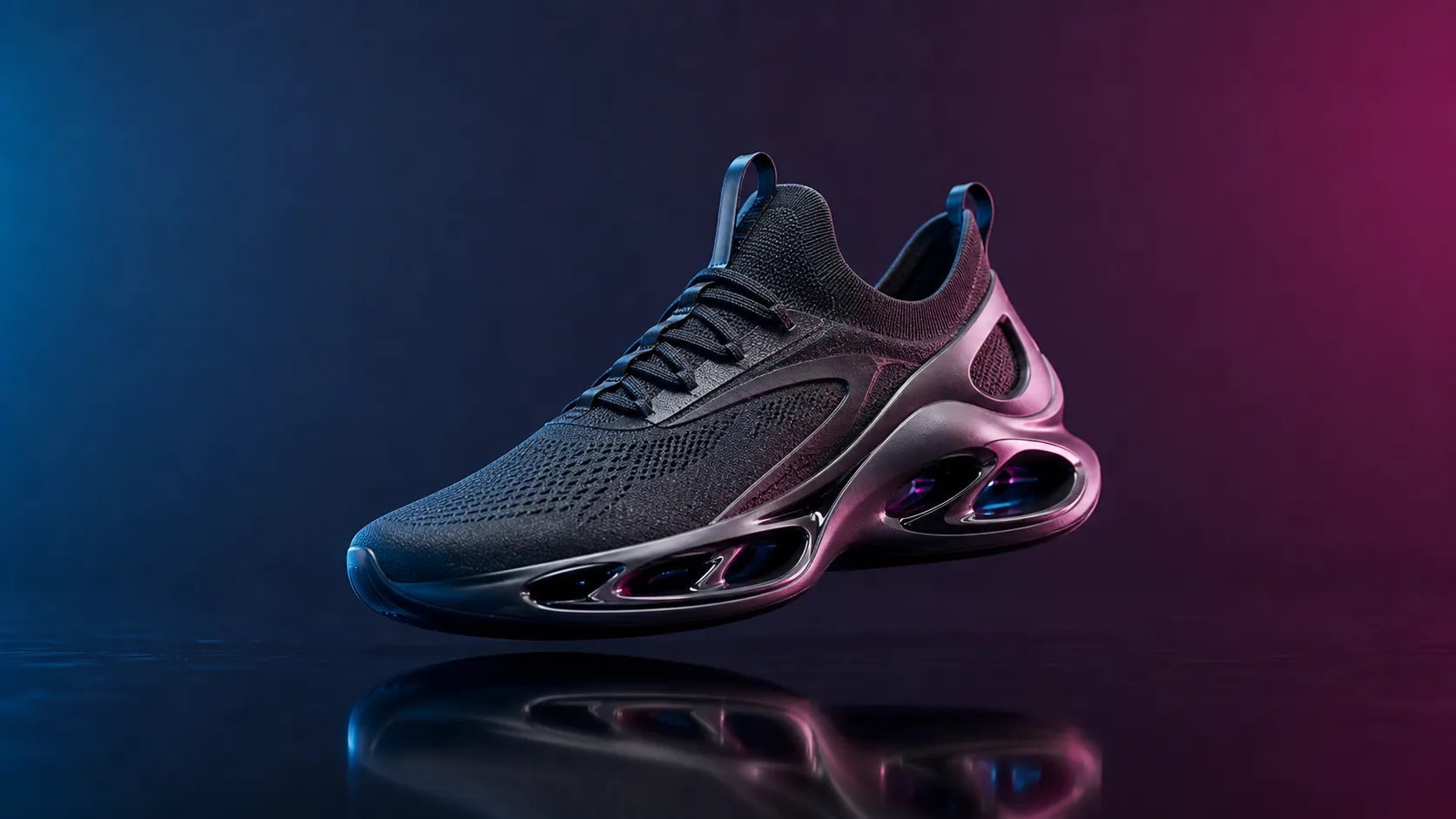
Animate a product still with a controlled orbit, keeping shape, label, and materials intact.
Transform a subject from one state into another in a single readable motion.

A seamless-feeling short loop with a stable camera and matching start and end frames.
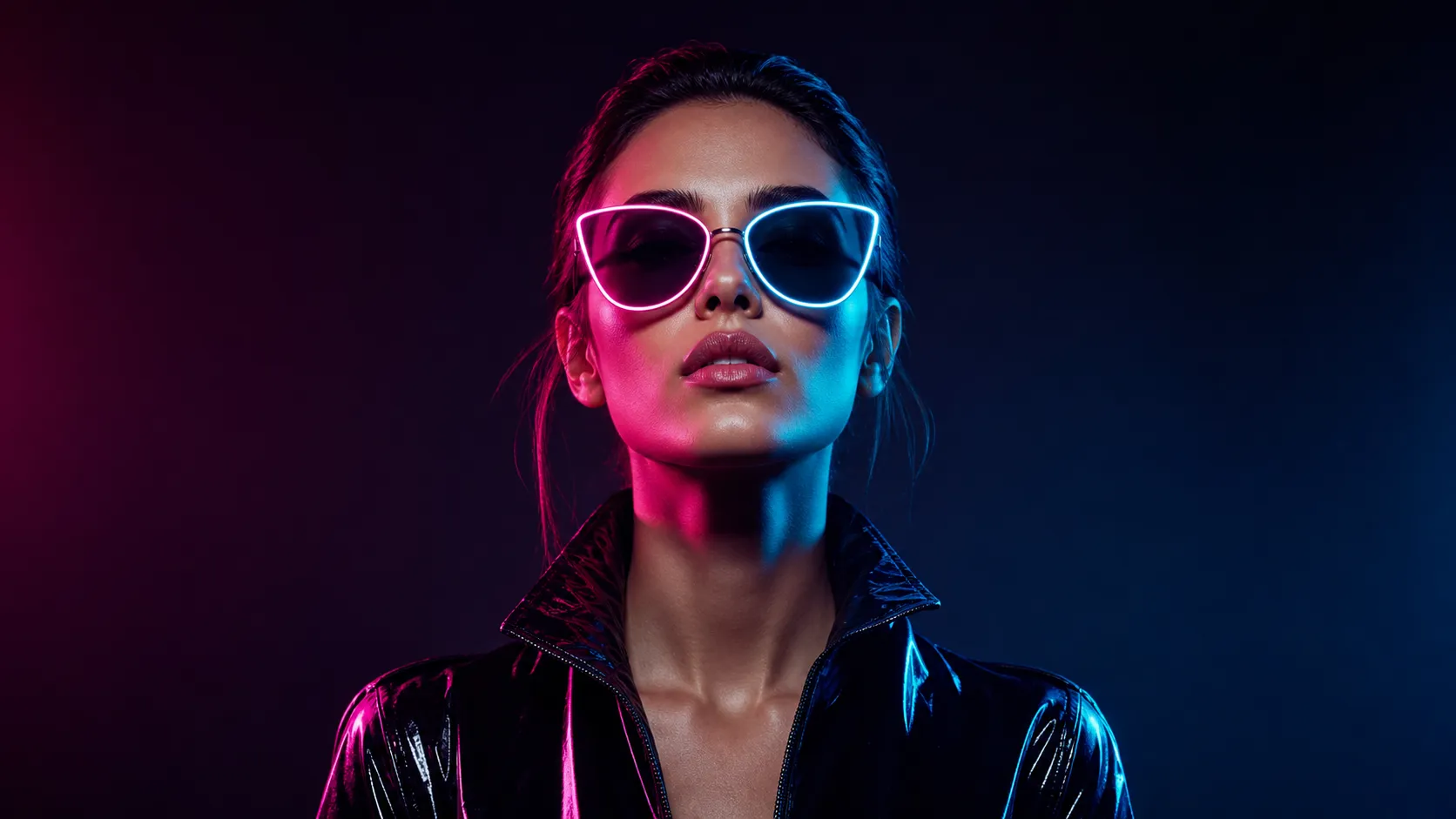
One creative direction planned for landscape, square, portrait, and platform delivery.
Route comparison
This table separates the current PixMind route snapshot from family-level claims. Credits and exposed controls follow the live generator.
| Parameter | PixVerse V5Current | PixVerse V6 | Wan 2.6 | Veo 3 |
|---|---|---|---|---|
| Inputs | Text, 1 image | Text, image, first/last frame, multimodal reference | Text, image, first/last frame, references | Text, image |
| Max resolution | 720p | 1080p | 1080p | 1080p |
| Clip duration | 4–10s | 5, 10, 15s | 2–15s | 4, 6, 8s |
| Native audio | No | No | Yes | Yes |
| Aspect ratios | 5 | 8 | Several | Several |
| Best for | Quick social hooks and product motion | Longer multimodal and reference scenes | Multi-shot stories and ads with sound | Cinematic dialogue and audio-led shots |
Note: Veo and Wan specs come from their official public guides; available PixMind parameters follow the selected route's live configuration. Verified 2026-07-17.
How to use it
Use V5 for quick 4–10 second social clips from text or one image; use V6 when you need up to 15 seconds, 1080p, or first/last-frame and reference control.
Pick the final aspect ratio first, then compose the subject and camera path for that frame.
Short clips are clearer when one subject action and one camera move carry the visual idea.
Check labels, logos, product geometry, first-frame impact, and final-frame usability.
Use V5 for fast social iteration; step up to V6 when you need longer clips, 1080p, or first/last-frame and reference control.
v5
The full PixVerse V5 route for social and campaign clips — text or a single reference image in, 4–10 second 720p clips out, across five social-ready aspect ratios.
v6
Newest PixVerse flagship for multimodal 1080p clips.
View versionPrompt 01
Create a [ratio] social video that opens immediately on [surprising visual]. The subject [action], camera [movement], bold [lighting/style], clean background, no generated text.
Prompt 02
Animate the reference product with a slow controlled orbit. Preserve shape, label placement, materials, and colors. Add [environment] reflections and finish on a centered hero frame.
Prompt 03
Transform [subject] from [starting state] into [ending state] in one readable motion. Style: [visual style]. Keep the silhouette recognizable and avoid extra objects.
Prompt 04
Create a seamless-feeling short loop of [subject/action]. Keep the camera stable, repeat the motion rhythmically, and match the opening and closing composition.
Choose V5 for quick 4–10 second social clips from text or a single reference image. Choose V6 when you need up to 15 seconds, 1080p, or first/last-frame and multimodal reference control. The live generator is the final source for available settings.
No. The connected V5 and V6 routes do not generate native audio. Add dialogue, music, or sound effects in a separate editing step.
V5 accepts text or a single reference image. V6 adds first/last-frame input and multimodal references (up to 9 images plus up to 3 reference videos in the verified snapshot). Available inputs follow the selected version's live generator.
V5 generates 4–10 second clips (default 5) at a 720p default. V6 offers 5, 10, or 15-second clips at 480p, 720p, or 1080p. Confirm the exact options in the generator before submitting.
V5 exposes the common social ratios (16:9, 9:16, 1:1, 4:3, 3:4). V6 covers eight ratios, adding 3:2, 2:3, and 21:9. Pick the destination format before writing camera direction.
Describe one coherent shot: subject, action, shot size, camera movement, lighting, timing, and what must stay unchanged. Keep one dominant action per clip instead of stacking several large changes.
PixVerse V5 is 35 credits per generation in the current route snapshot. V6 pricing follows the live generator and may differ, so confirm the displayed credit cost before submitting.
Use a clean, sharply focused reference, state which geometry, colors, labels, and materials must not change, keep the action simple, and avoid changing subject, style, and scene in the same clip.
They suit most projects, but faces, brand logos, product geometry, and on-screen text still need manual review and rights clearance. Ensure you have permission for any real people or third-party reference assets.
Next step
Pick the exact route in the generator, validate the direction with one shot, then decide whether to step up to V6.
Sources verified 2026-07-17 against the PixMind live model API; the live generator is final.