01
Code with project context
Open a local project, ask questions about the codebase, edit files and keep implementation conversations attached to the work.

Pixmind Builder connects your projects, conversations and AI tools. Choose providers yourself, set global defaults, or let Auto routing select an image or video model for the task.
First sign-in reward
Download Pixmind Builder and sign in to get 200 API Platform credits
The 200-credit reward is added to your API Platform balance once, after your first successful Pixmind Builder sign-in.


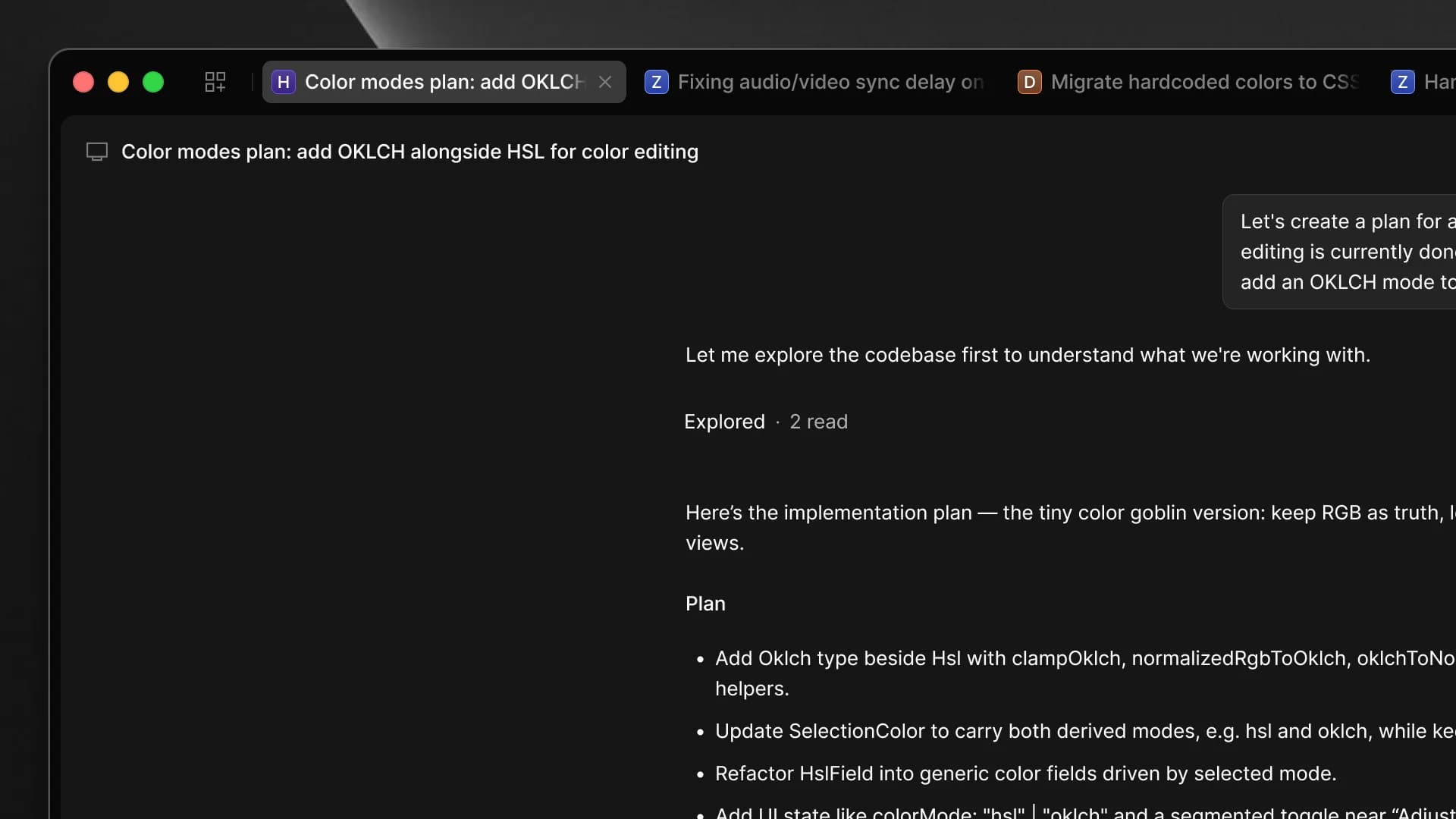
Use the same conversation to understand a codebase, change files, run tools and create visual assets without moving work between separate apps.
Use text or reference images, then choose the model, aspect ratio and resolution required by the task.
Select a video provider and model, configure supported output parameters and track generation tasks in the conversation.
Open a local project, ask questions about the codebase, edit files and keep implementation conversations attached to the work.
Use text or reference images, then choose the model, aspect ratio and resolution required by the task.
Select a video provider and model, configure supported output parameters and track generation tasks in the conversation.
Use Auto for model recommendations, keep global defaults, or override the image and video model for one conversation.
Connect Pixmind or other supported providers and select the exact provider before choosing a model.
Give the agent reusable instructions and tools for development, research, content and media workflows.
The model settings page defines global defaults. The selectors below each conversation let you change the active choice without replacing those defaults.
Choose the provider and language model used for reasoning, coding and tool calls.
Choose Auto or a specific image model, then use supported ratios and resolutions.
Choose Auto or a specific video model and configure the parameters that model supports.
When the agent explicitly recommends a compatible media model for a task, that recommendation takes priority; otherwise Pixmind Builder uses the conversation choice, then the global default.
Installers are available for Windows x64 and macOS (Apple Silicon). Sign in with your Pixmind account or connect provider API keys from Settings.
Download the latest signed Windows x64 installer from the official Pixmind update feed.
Run the installer, open Pixmind Builder and allow it to finish its first-start setup.
Use browser authorization for your Pixmind account, or open Settings → Providers to connect a supported provider.
Open Settings → Models and choose the default LLM, image model and video model. Select a provider first, then its model.
Open a local folder, create a conversation and adjust the LLM, image or video selector below the prompt when needed.
The steps below are only needed on macOS. The app is not notarized with Apple yet, so Gatekeeper blocks the first launch. Follow them once and the app will open normally afterwards.
Open the downloaded .dmg file, drag Pixmind Builder into the Applications folder, then launch it from Applications.
If macOS says the app cannot be opened because the developer cannot be verified, open System Settings → Privacy & Security and click "Open Anyway".
If the app is still reported as "damaged and can't be opened", run the command below in Terminal (type your Mac login password when prompted; it stays invisible), then open the app again.
sudo xattr -r -d com.apple.quarantine "/Applications/Pixmind Builder.app"Current download: Windows x64
Current downloads: Windows x64 installer and macOS (Apple Silicon) DMG.
Pixmind Builder is a desktop AI agent for software projects and creative media workflows. It combines conversations, local project context, tools, skills and model selection in one app.
The public release feed provides a Windows x64 installer and a macOS (Apple Silicon) DMG for M-series Macs. Linux installers are not published yet.
You can sign in to Pixmind through browser authorization. Provider connections and available models can then be managed in the desktop settings.
Yes. Open Settings → Providers, connect a supported provider and select that provider when choosing a model.
Open Settings → Models, choose a provider and then choose a default LLM, image model and video model. New conversations use those global defaults.
Auto enables routing mode so the agent can select a suitable supported model for the current generation task. You can still choose a specific model when you need exact control.
Yes. Use the LLM, image and video selectors below the prompt. A conversation choice overrides the global default for that conversation.
The desktop app checks the official Pixmind release feed for updates. You can also use Check for Updates from the account menu.
Download Pixmind Builder, connect a provider and choose the defaults that fit your workflow.