Turn a reference video into a production-ready starting point
See how a clip is constructed: the scenes, subject actions and camera cues. Start with the visual analysis, then refine the script for your own production.
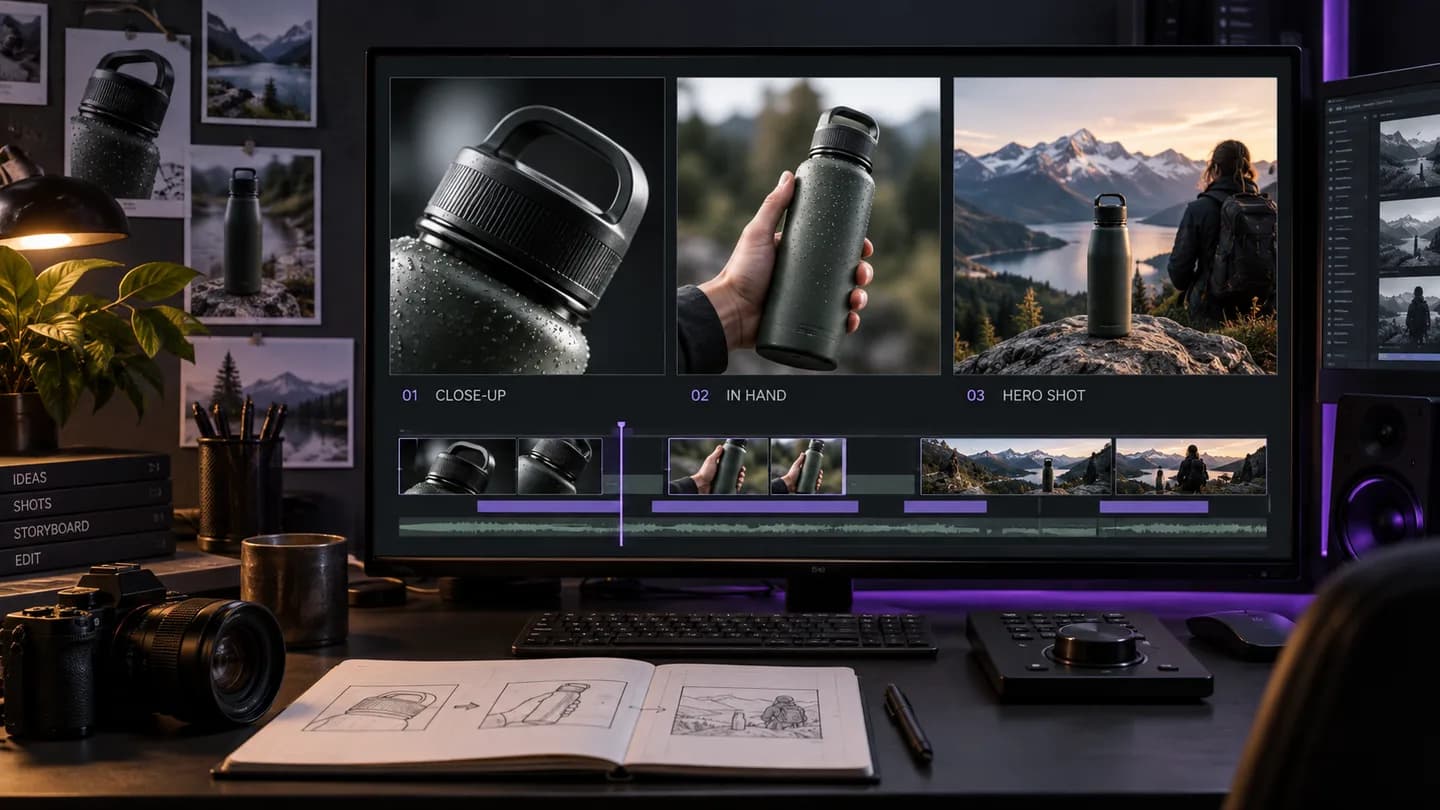
Illustrative workflow example · Product film to a three-shot brief
Add your video
Processing your video
Product film to a three-shot brief
Break the sequence into decisions you can use
Visual analysis gives a structured starting point for shots, actions and scene changes. Review the extracted storyboard against the source before treating its dialogue or timing as exact. For verbatim spoken words, use Video to Text.
Scene-by-scene script and visual production cues
A reusable bottle ad becomes a detail shot, a handling shot and an outdoor product shot. Adapt the sequence to a different product rather than copying the original footage.
Refine the storyboard and create your next video
From source video to useful output
01
Paste a link or upload
Use a supported video URL or choose a video or audio file from your device.
02
Choose your output
Select the source language and the transcript, summary or visual analysis you need.
03
Keep working with the result
Copy or export the output, ask a follow-up question, or prepare your next creative brief.
Edit captions, collect quotes or ask about the transcript
Questions before you start
How is Video to Script different from transcription?
Transcription focuses on spoken words. Video to Script uses visual analysis to organize scenes, actions and camera cues into a storyboard-style result.
Can I analyze a video URL here?
Yes. Use the link input in the embedded analysis workspace or upload a video. A supported platform URL must be retrievable by the backend.
Do I need to leave this page to start?
No. The video analysis workspace is embedded below the introduction. Submit the source and inspect its scene breakdown on the same page.
Are generated dialogue and timestamps exact?
Treat the extracted script as an analysis, not a certified transcript. Check the source for exact dialogue and timings, or use Video to Text for a speech-focused output.
Can I export the storyboard?
Use the export controls available in the analysis result. The existing workspace supports copying output and exporting structured storyboard information.
Can I use the script for a different product?
Yes. Adapt the subject, audience, setting and call to action. Review every scene so the new brief describes your own product and production requirements.
What makes a good reference clip?
Use a clear, focused clip with visible subjects and scene changes. Very rapid cuts, obscured subjects and complex overlays can make an extracted storyboard less precise.
Should I choose this or Video to Prompt?
Choose this page when the main output you need is a script or shot sequence. Choose Video to Prompt when you want generation prompts that describe the reference's visual treatment.
Bring the source. Leave with a starting point.
Add a video link or upload a file, choose the output, and continue working with the result.
Choose a local video file or switch to a direct public video URL
Max 10MB, 2 minutes
Choose a local video file or switch to a direct public video URLMP4, MOV, or WebM · up to 200MB and 2 minutesGuest: Max 10MB, 2 minutes
1 free trial
60 credits / 30sMP4, MOV, WEBM
Generated Result
Upload video and generate storyboard prompts
Video Description
A fast-paced, close-up cooking video showcasing the preparation of gourmet beef and mushroom crostini, ending with a cute dog looking at the finished dish. The visual style is moody and cinematic with dark backgrounds and warm lighting.
Video Summary
A step-by-step culinary video demonstrating how to make beef crostini with a creamy mushroom sauce, toasted baguette, and burrata cheese, featuring a dog at the end.
Video Prompt
Cinematic cooking video, close-up shots, dark moody lighting, preparing beef crostini, searing meat, making creamy mushroom sauce, slicing baguette, assembling with burrata, warm color grading, ending with a dog looking at the food.
Full Storyboard Prompt
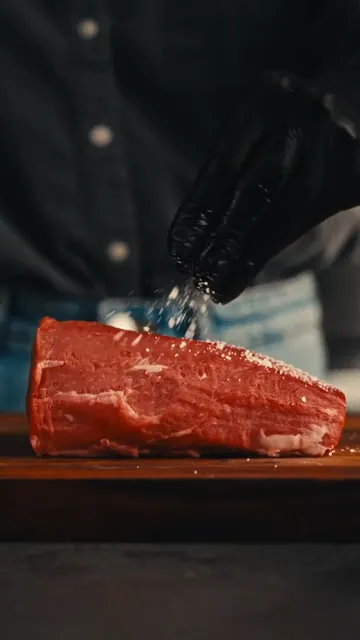
【No. 1 | Duration: 1.0s】
Shot Type: Close-up
Scene: Kitchen
Camera: Static close-up
Color Tone: Dark, warm, moody
Visual: A person in black gloves sprinkles salt onto a raw piece of beef on a wooden board.
Sound Effect: Soft music playing
Transition: Cut
Prompt: Close-up of gloved hands seasoning a raw beef tenderloin with salt on a wooden cutting board, dark background, warm lighting.

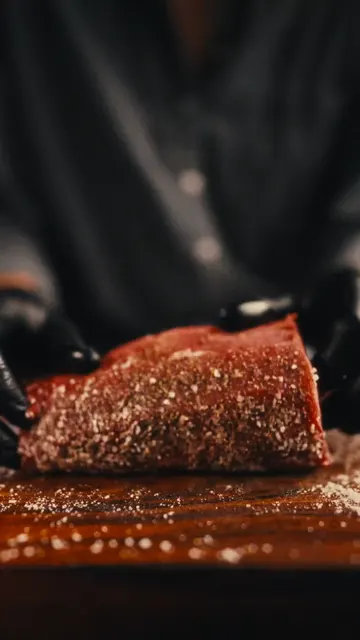
【No. 2 | Duration: 1.0s】
Shot Type: Close-up
Scene: Kitchen
Camera: Static close-up
Color Tone: Dark, warm, moody
Visual: Gloved hands flip the seasoned beef, showing pepper and spices on the other side.
Sound Effect: Sizzling sound
Transition: Cut
Prompt: Close-up of hands flipping a seasoned piece of beef on a wooden board, showing spices.

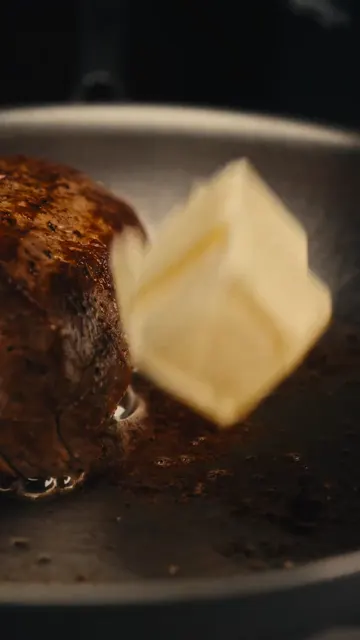
【No. 3 | Duration: 1.0s】
Shot Type: Close-up
Scene: Kitchen
Camera: Macro shot
Color Tone: Warm, golden
Visual: A pat of butter is dropped into a hot pan next to the searing beef.
Sound Effect: Loud sizzling
Transition: Cut
Prompt: Macro shot of a block of butter falling into a hot stainless steel pan next to searing meat.

【No. 4 | Duration: 2.0s】
Shot Type: Close-up
Scene: Kitchen
Camera: Close-up, slight pan
Color Tone: Warm, golden
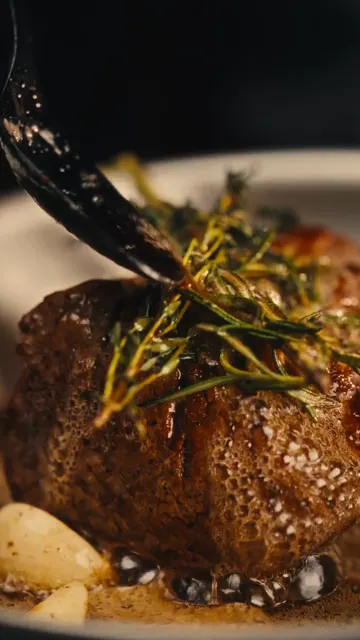
Visual: Using tongs, the chef sears the sides of the beef in the pan with herbs.
Sound Effect: Sizzling
Transition: Cut
Prompt: Close-up of tongs holding a thick piece of beef, searing it on its side in a pan with butter and rosemary.

【No. 5 | Duration: 1.0s】
Shot Type: Close-up
Scene: Kitchen
Camera: Static close-up
Color Tone: Dark, moody
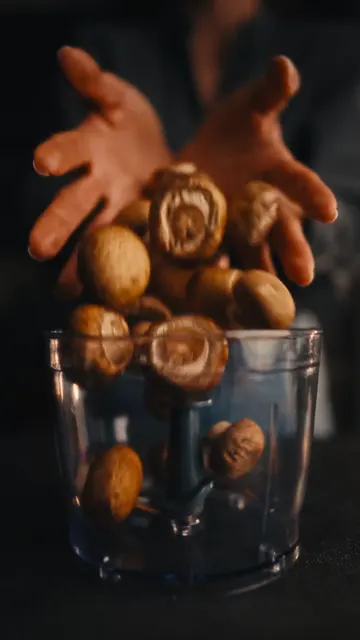
Visual: Whole brown mushrooms are dropped into a food processor bowl.
Sound Effect: Thudding of mushrooms
Transition: Cut
Prompt: Close-up of whole brown mushrooms falling into a clear food processor container.

【No. 6 | Duration: 1.0s】
Shot Type: Close-up
Scene: Kitchen
Camera: Static close-up
Color Tone: Warm, bright
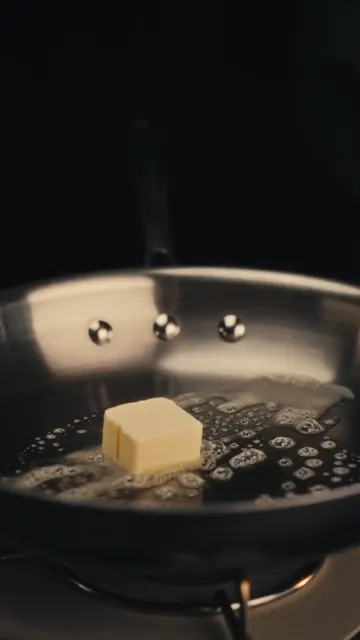
Visual: A pat of butter melts and foams in a hot pan.
Sound Effect: Sizzling butter
Transition: Cut
Prompt: Close-up of butter melting and bubbling in a hot stainless steel pan.

【No. 7 | Duration: 1.0s】
Shot Type: Close-up
Scene: Kitchen
Camera: Static close-up
Color Tone: Warm, dark
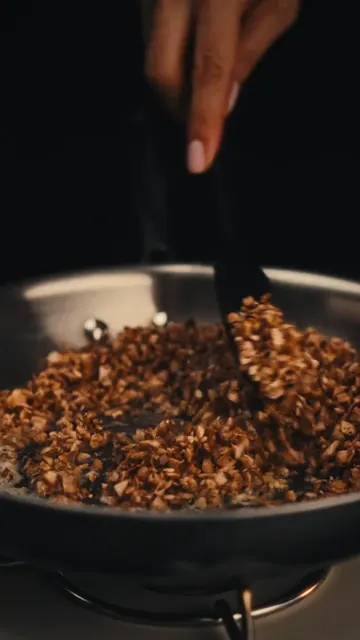
Visual: Finely chopped mushrooms are sautéed in a pan with a spatula.
Sound Effect: Sizzling
Transition: Cut
Prompt: Close-up of minced mushrooms being stirred and sautéed in a pan.

【No. 8 | Duration: 1.0s】
Shot Type: Macro
Scene: Kitchen
Camera: Macro shot
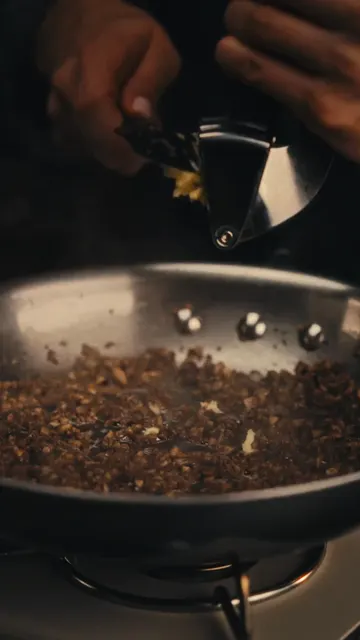
Color Tone: Dark, high contrast
Visual: Minced garlic is pressed through a garlic press.
Sound Effect: Squeezing sound
Transition: Cut
Prompt: Macro shot of garlic being squeezed through a metal garlic press.

【No. 9 | Duration: 1.0s】
Shot Type: Close-up
Scene: Kitchen
Camera: Static close-up
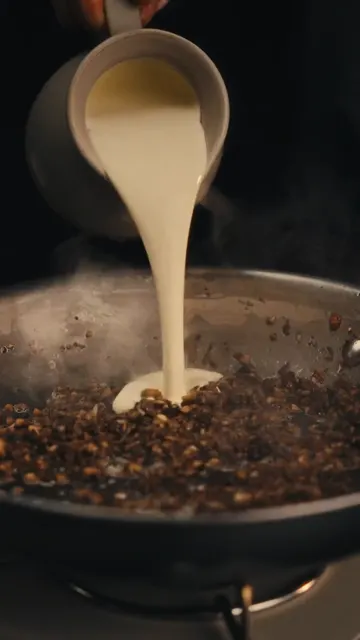
Color Tone: Warm, creamy
Visual: Heavy cream is poured from a small pitcher into the sautéed mushrooms.
Sound Effect: Pouring liquid
Transition: Cut
Prompt: Close-up of white cream being poured into a pan of cooked mushrooms, steam rising.

【No. 10 | Duration: 1.0s】
Shot Type: Close-up
Scene: Kitchen
Camera: Static close-up
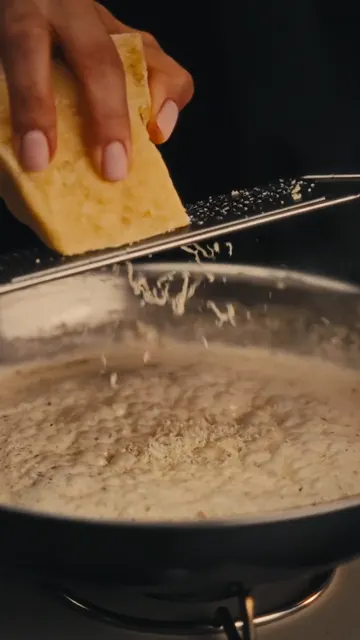
Color Tone: Warm, golden
Visual: Cheese is grated over the bubbling cream and mushroom sauce.
Sound Effect: Grating sound
Transition: Cut
Prompt: Close-up of hard cheese being grated over a simmering, bubbling white sauce in a pan.

【No. 11 | Duration: 1.0s】
Shot Type: Close-up
Scene: Kitchen
Camera: Static close-up
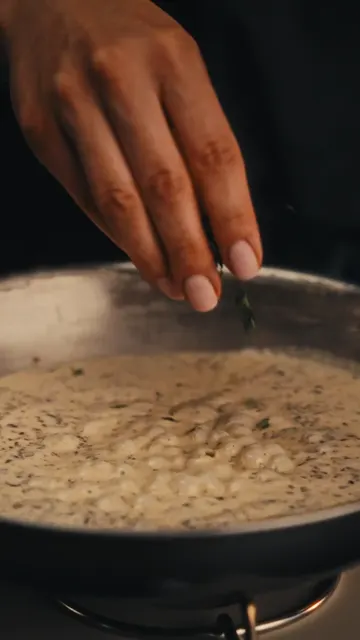
Color Tone: Warm, vibrant
Visual: Fresh green herbs are sprinkled into the simmering sauce.
Sound Effect: Bubbling
Transition: Cut
Prompt: Close-up of fingers sprinkling green herbs into a bubbling creamy sauce.

【No. 12 | Duration: 1.0s】
Shot Type: Medium close-up
Scene: Kitchen
Camera: Static medium close-up
Color Tone: Warm, rustic
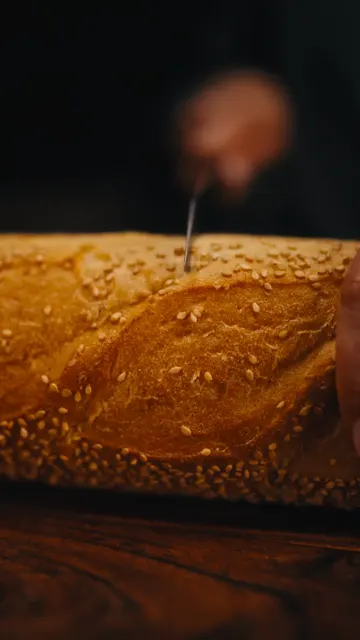
Visual: A fresh baguette is pulled out of a brown paper bag onto a wooden board.
Sound Effect: Paper rustling
Transition: Cut
Prompt: Medium close-up of a sesame baguette being pulled out of a paper sleeve onto a wooden table.

【No. 13 | Duration: 1.0s】
Shot Type: Close-up
Scene: Kitchen
Camera: Static close-up
Color Tone: Warm, rustic
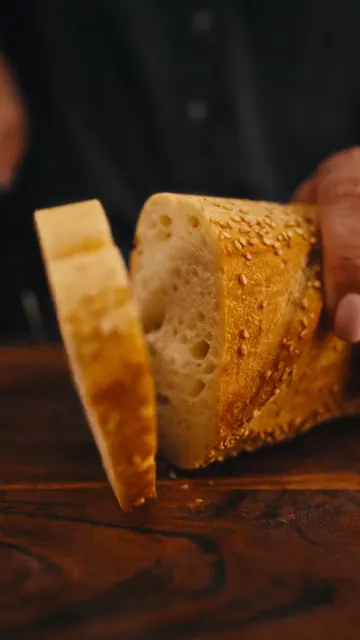
Visual: A slice of baguette is cut on a wooden cutting board.
Sound Effect: Crunchy bread cutting
Transition: Cut
Prompt: Close-up of a knife slicing a crusty sesame baguette on a wooden board.

【No. 14 | Duration: 1.0s】
Shot Type: Close-up
Scene: Kitchen
Camera: Static close-up
Color Tone: Warm, golden
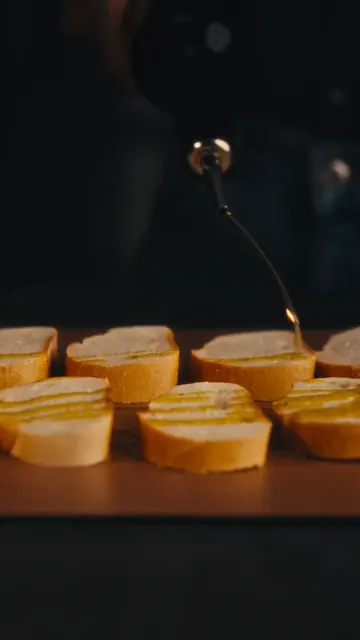
Visual: Olive oil is drizzled over several slices of baguette.
Sound Effect: Drizzling oil
Transition: Cut
Prompt: Close-up of olive oil being drizzled over neat rows of sliced baguette.

【No. 15 | Duration: 1.0s】
Shot Type: Close-up
Scene: Kitchen
Camera: Static close-up
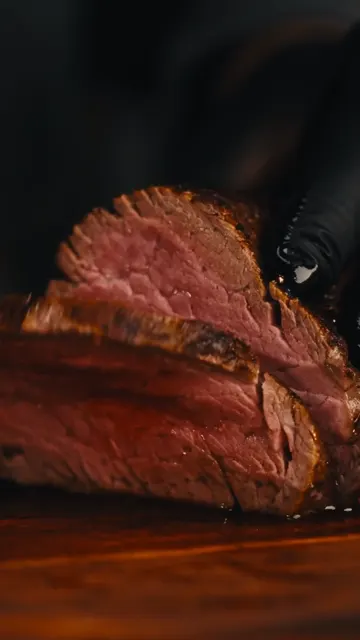
Color Tone: Dark, warm
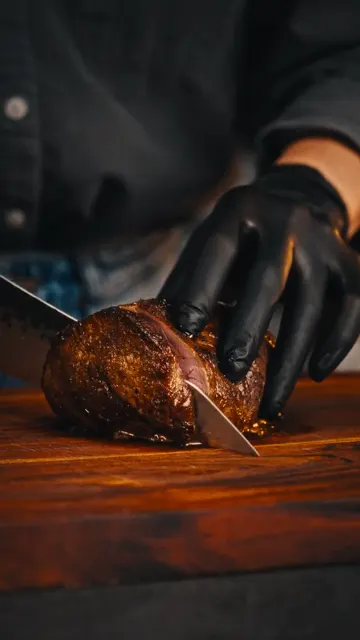
Visual: The cooked beef is sliced on a wooden board with a sharp knife.
Sound Effect: Slicing meat
Transition: Cut
Prompt: Close-up of a gloved hand slicing a cooked beef roast on a wooden board.

【No. 16 | Duration: 1.0s】
Shot Type: Close-up
Scene: Kitchen
Camera: Static close-up
Color Tone: Vibrant pink, warm
Visual: The sliced beef is opened to reveal a perfect medium-rare pink center.
Sound Effect: Soft music
Transition: Cut
Prompt: Close-up of a juicy medium-rare beef slice being separated to show the pink interior.

【No. 17 | Duration: 1.0s】
Shot Type: Close-up
Scene: Kitchen
Camera: Static close-up
Color Tone: Bright white, warm
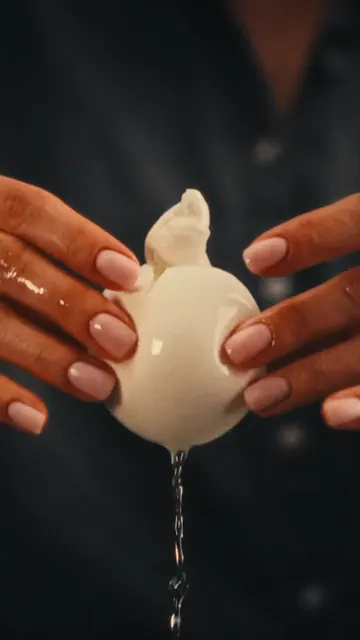
Visual: A fresh ball of burrata cheese is torn open, releasing creamy filling.
Sound Effect: Squishing sound
Transition: Cut
Prompt: Close-up of hands tearing open a fresh burrata cheese ball, cream dripping down.

【No. 18 | Duration: 1.0s】
Shot Type: Medium close-up
Scene: Kitchen
Camera: Static medium close-up
Color Tone: Warm, glowing oven light
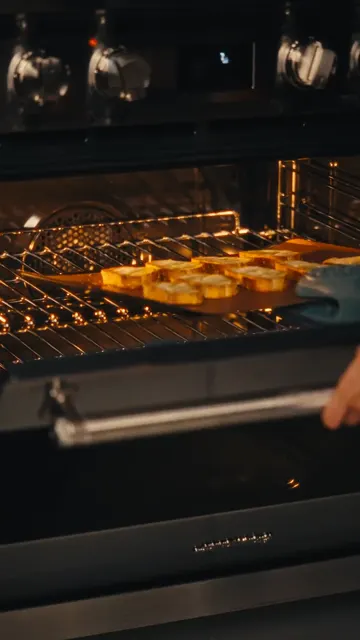
Visual: A tray of baguette slices is placed into a hot oven.
Sound Effect: Oven door closing
Transition: Cut
Prompt: Medium close-up of putting a baking sheet of bread slices into a glowing oven.

【No. 19 | Duration: 1.0s】
Shot Type: Close-up
Scene: Kitchen
Camera: Static close-up
Color Tone: Warm, rustic
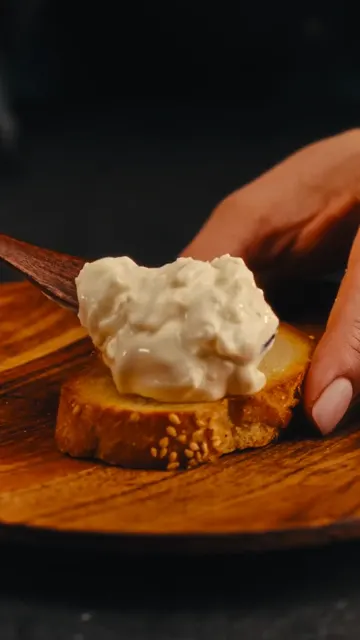
Visual: A spoonful of creamy cheese mixture is spread onto a toasted baguette slice.
Sound Effect: Spreading sound
Transition: Cut
Prompt: Close-up of spreading a thick, creamy cheese mixture onto a toasted baguette slice.

【No. 20 | Duration: 1.0s】
Shot Type: Close-up
Scene: Kitchen
Camera: Static close-up
Color Tone: Warm, rich
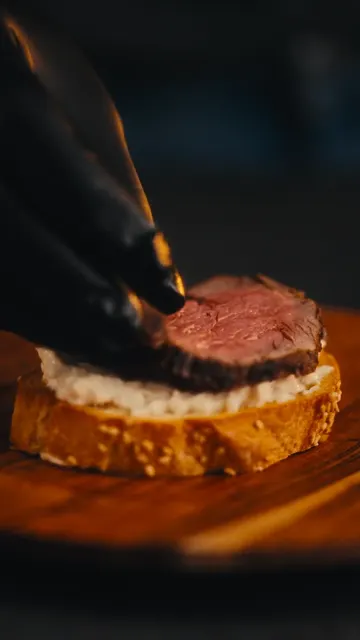
Visual: A slice of medium-rare beef is placed on top of the cheese-spread baguette.
Sound Effect: Soft music
Transition: Cut
Prompt: Close-up of a gloved hand placing a tender slice of pink beef onto the prepared crostini.

【No. 21 | Duration: 1.0s】
Shot Type: Close-up
Scene: Kitchen
Camera: Static close-up
Color Tone: Warm, detailed
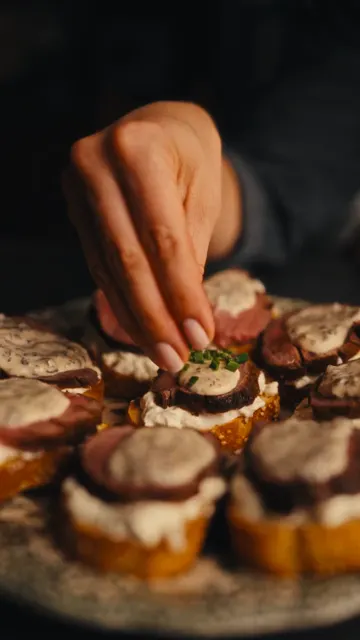
Visual: The crostini are topped with mushroom sauce and garnished with chopped chives.
Sound Effect: Soft music
Transition: Cut
Prompt: Close-up of garnishing beef crostini with creamy mushroom sauce and fresh green chives.

【No. 22 | Duration: 2.0s】
Shot Type: Close-up
Scene: Kitchen
Camera: Static close-up
Color Tone: Dark, moody, smoky
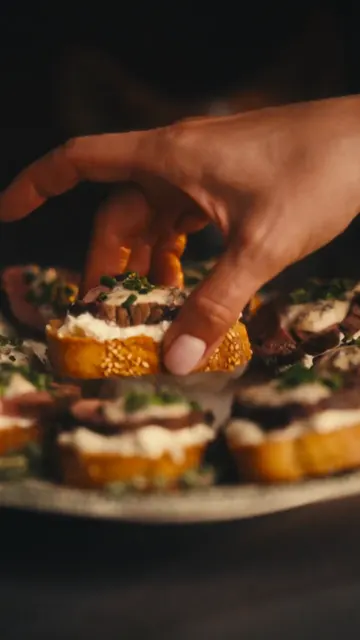
Visual: A hand picks up one finished crostini from a platter with dramatic smoke rising around it.
Sound Effect: Whoosh sound
Transition: Cut
Prompt: Close-up of a hand lifting a gourmet beef crostini from a plate surrounded by swirling white smoke.

【No. 23 | Duration: 2.0s】
Shot Type: Medium close-up
Scene: Kitchen
Camera: Static medium close-up
Color Tone: Dark, warm
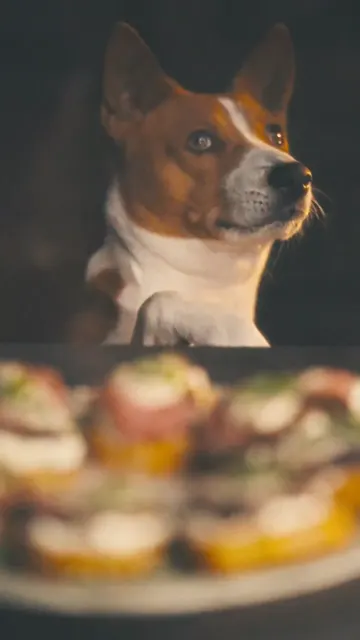
Visual: A brown and white Basenji dog looks up eagerly at the food with its paw on the table edge.
Sound Effect: Soft music fades
Transition: Fade out
Prompt: Medium close-up of a cute brown and white dog looking up expectantly at the camera, dark background.
No.
Reference
Duration
Shot Type
Script
Description
Video Prompt
1
1.0s
Close-up
Kitchen
A person in black gloves sprinkles salt onto a raw piece of beef on a wooden board.
Close-up of gloved hands seasoning a raw beef tenderloin with salt on a wooden cutting board, dark background, warm lighting.
2
1.0s
Close-up
Kitchen
Gloved hands flip the seasoned beef, showing pepper and spices on the other side.
Close-up of hands flipping a seasoned piece of beef on a wooden board, showing spices.
3
1.0s
Close-up
Kitchen
A pat of butter is dropped into a hot pan next to the searing beef.
Macro shot of a block of butter falling into a hot stainless steel pan next to searing meat.
4
2.0s
Close-up
Kitchen
Using tongs, the chef sears the sides of the beef in the pan with herbs.
Close-up of tongs holding a thick piece of beef, searing it on its side in a pan with butter and rosemary.
5
1.0s
Close-up
Kitchen
Whole brown mushrooms are dropped into a food processor bowl.
Close-up of whole brown mushrooms falling into a clear food processor container.
6
1.0s
Close-up
Kitchen
A pat of butter melts and foams in a hot pan.
Close-up of butter melting and bubbling in a hot stainless steel pan.
7
1.0s
Close-up
Kitchen
Finely chopped mushrooms are sautéed in a pan with a spatula.
Close-up of minced mushrooms being stirred and sautéed in a pan.
8
1.0s
Macro
Kitchen
Minced garlic is pressed through a garlic press.
Macro shot of garlic being squeezed through a metal garlic press.
9
1.0s
Close-up
Kitchen
Heavy cream is poured from a small pitcher into the sautéed mushrooms.
Close-up of white cream being poured into a pan of cooked mushrooms, steam rising.
10
1.0s
Close-up
Kitchen
Cheese is grated over the bubbling cream and mushroom sauce.
Close-up of hard cheese being grated over a simmering, bubbling white sauce in a pan.
11
1.0s
Close-up
Kitchen
Fresh green herbs are sprinkled into the simmering sauce.
Close-up of fingers sprinkling green herbs into a bubbling creamy sauce.
12
1.0s
Medium close-up
Kitchen
A fresh baguette is pulled out of a brown paper bag onto a wooden board.
Medium close-up of a sesame baguette being pulled out of a paper sleeve onto a wooden table.
13
1.0s
Close-up
Kitchen
A slice of baguette is cut on a wooden cutting board.
Close-up of a knife slicing a crusty sesame baguette on a wooden board.
14
1.0s
Close-up
Kitchen
Olive oil is drizzled over several slices of baguette.
Close-up of olive oil being drizzled over neat rows of sliced baguette.
15
1.0s
Close-up
Kitchen
The cooked beef is sliced on a wooden board with a sharp knife.
Close-up of a gloved hand slicing a cooked beef roast on a wooden board.
16
1.0s
Close-up
Kitchen
The sliced beef is opened to reveal a perfect medium-rare pink center.
Close-up of a juicy medium-rare beef slice being separated to show the pink interior.
17
1.0s
Close-up
Kitchen
A fresh ball of burrata cheese is torn open, releasing creamy filling.
Close-up of hands tearing open a fresh burrata cheese ball, cream dripping down.
18
1.0s
Medium close-up
Kitchen
A tray of baguette slices is placed into a hot oven.
Medium close-up of putting a baking sheet of bread slices into a glowing oven.
19
1.0s
Close-up
Kitchen
A spoonful of creamy cheese mixture is spread onto a toasted baguette slice.
Close-up of spreading a thick, creamy cheese mixture onto a toasted baguette slice.
20
1.0s
Close-up
Kitchen
A slice of medium-rare beef is placed on top of the cheese-spread baguette.
Close-up of a gloved hand placing a tender slice of pink beef onto the prepared crostini.
21
1.0s
Close-up
Kitchen
The crostini are topped with mushroom sauce and garnished with chopped chives.
Close-up of garnishing beef crostini with creamy mushroom sauce and fresh green chives.
22
2.0s
Close-up
Kitchen
A hand picks up one finished crostini from a platter with dramatic smoke rising around it.
Close-up of a hand lifting a gourmet beef crostini from a plate surrounded by swirling white smoke.
23
2.0s
Medium close-up
Kitchen
A brown and white Basenji dog looks up eagerly at the food with its paw on the table edge.
Medium close-up of a cute brown and white dog looking up expectantly at the camera, dark background.