Extract individual shots
Separate an edited montage, product reel, or storyboard export at visible shot changes without marking every cut by hand.
Recommended mode: Scene changes

Free online video splitter
Split a video online for free without installing an app. Detect scene changes, choose a fixed duration, or divide the video into equal parts, then preview and download your clips.
Drag and drop a video or choose a file
How should this video be split?
One video, three useful workflows
PixMind turns a short source video into a set of separate MP4 clips. Use adaptive scene detection when the footage already contains shot changes, choose a duration for consistently sized segments, or request an exact number of equal parts. You can inspect each result before downloading it alone or together in one ZIP.
Feature snapshot verified August 6, 2026 against the current PixMind browser workspace.
Workflow
The same workspace covers content-aware cuts and predictable time-based batches, so you can choose the structure that matches the next editing task.
Choose an MP4, MOV, or WebM file up to 100MB and 120 seconds. The file stays on your device.
Detect shot changes, enter seconds per clip, or specify how many equal parts you need.
Preview every result, save only the clips you want, or package the complete set in a ZIP.
See the split logic
Each example maps to a mode in the workspace, so the visual result matches the way the cuts are chosen.
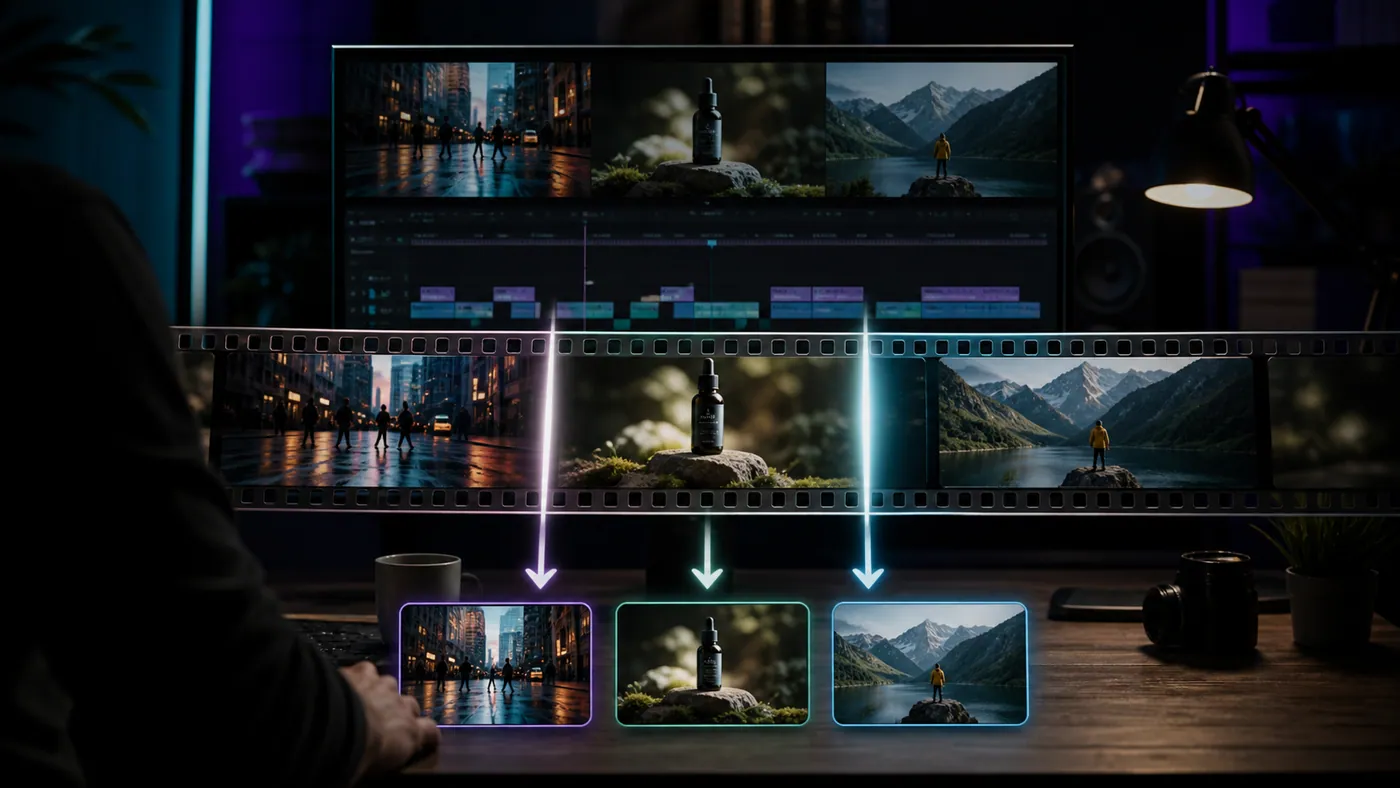
Distinct shots become separate clips after adaptive frame analysis finds the transitions.
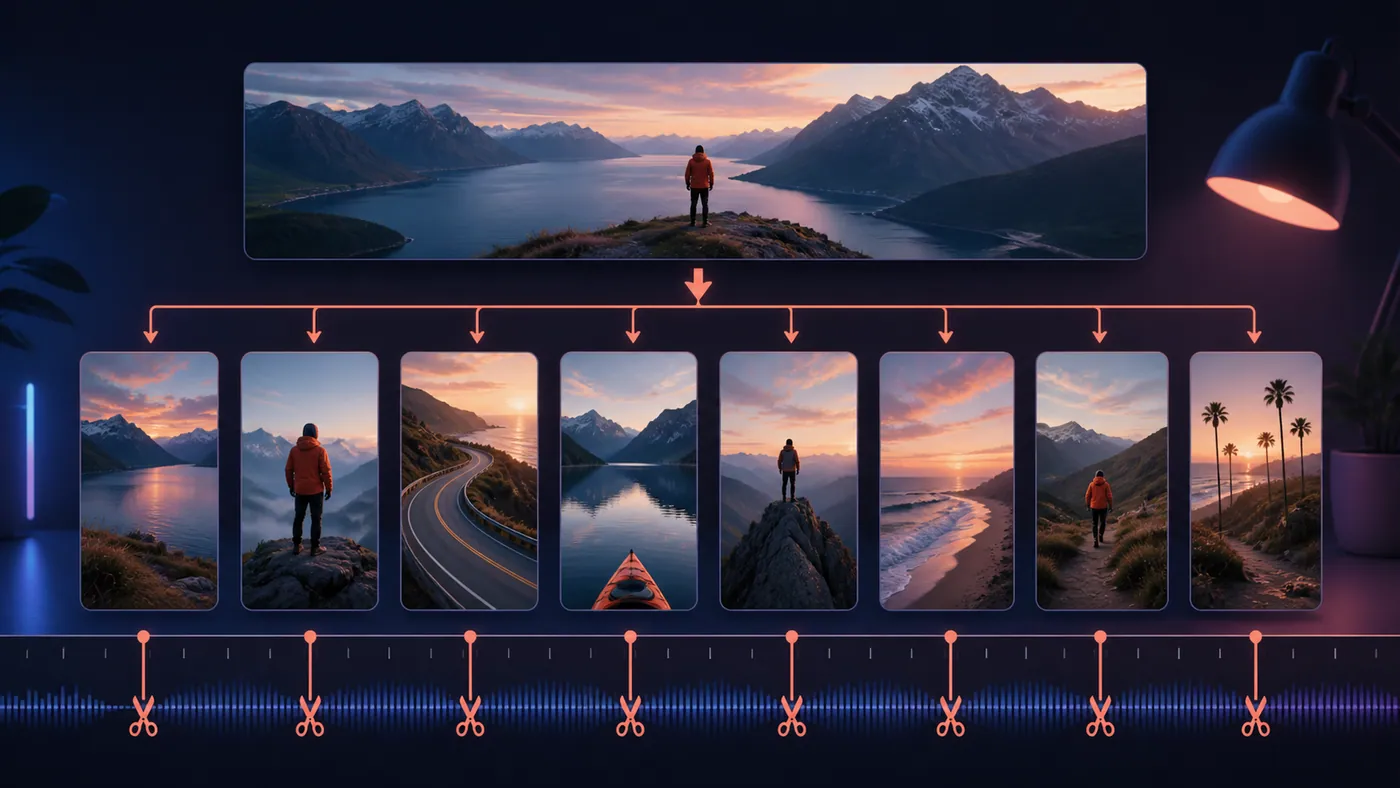
One source timeline becomes consistent short segments for repeatable publishing or review.
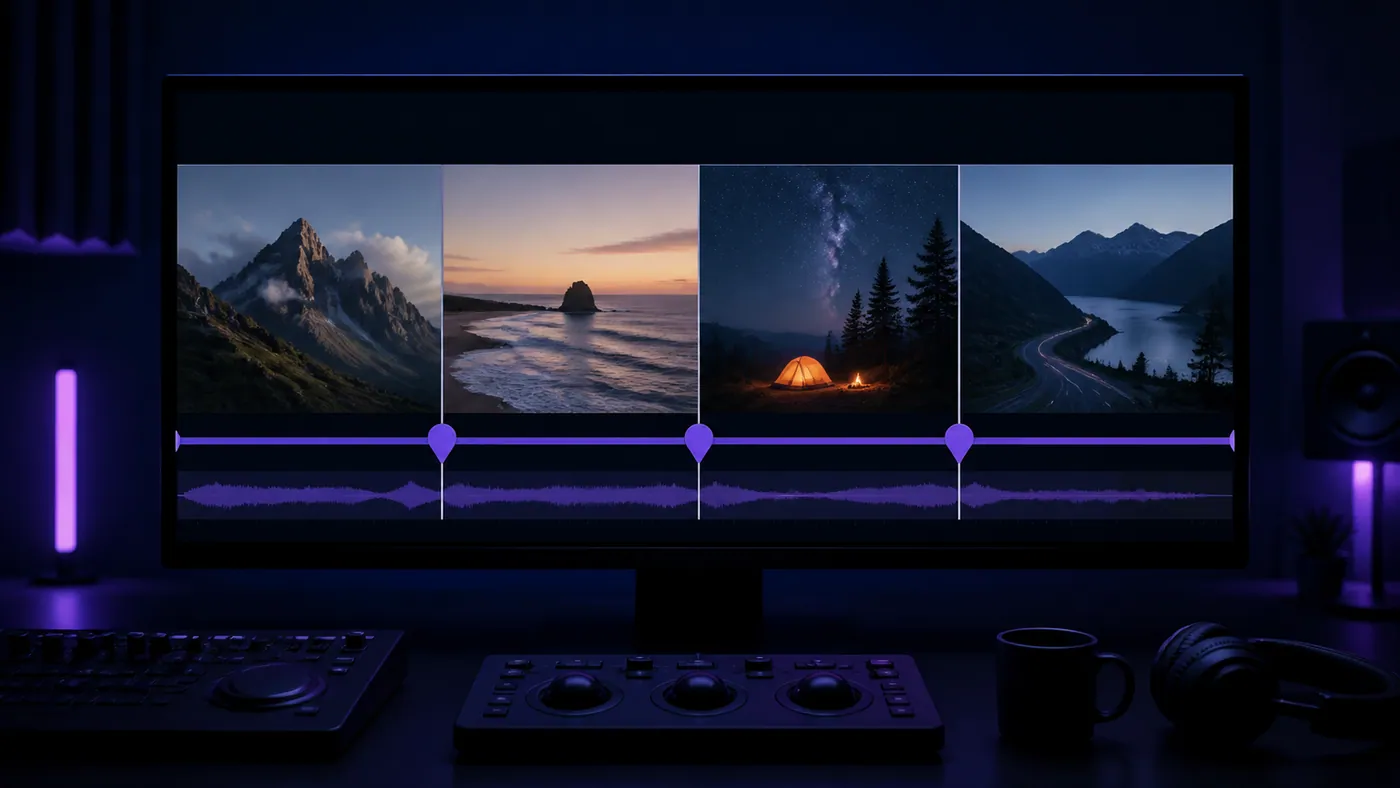
The full source is divided into four balanced sections when you need a known file count.
Mode guide
The three modes solve different jobs. Scene mode follows the content; duration and equal-parts modes follow a predictable structure.
| Split mode | Best for | How cuts are chosen | What you get |
|---|---|---|---|
| Scene changes | Edited footage with visible shot or angle changes | Checks consecutive frames for strong visual transitions and filters brief flashes. | A separate clip for each detected shot; one full-length clip when no clear cut is found. |
| Fixed duration | Shorts, reels, review chunks, or fixed delivery limits | You choose the number of seconds per clip, from 1 to 120. | Consistent clip lengths, with a shorter final segment when needed. |
| Equal parts | Dividing a video into an exact number of manageable files | You choose between 2 and 20 clips; the full duration is divided evenly. | The requested number of equal-duration MP4 clips. |
Practical use cases
Separate an edited montage, product reel, or storyboard export at visible shot changes without marking every cut by hand.
Recommended mode: Scene changes
Create consistent time blocks for social drafts, highlights, captions, or a handoff that requires a fixed maximum duration.
Recommended mode: Fixed duration
Divide a short recording into a known number of files so collaborators can review, label, or compare manageable sections.
Recommended mode: Equal parts
Designed for a quick handoff
The browser reads and processes the selected file locally instead of sending it to PixMind storage.
No app, desktop software, signup, credits, or watermark is required to split and download your clips.
Each segment becomes its own MP4 file, ready to preview, download, and use in the next editing step.
Continue the workflow
Use the generated clips as references, rebuild a video concept, or start a new AI video from text and images.
Video splitter FAQ
No. The selected file is read, checked, cut, and prepared in your browser. This tool does not upload it to PixMind storage.
Scene mode compares consecutive frames to spot noticeable visual changes, filters brief flashes, and groups cuts that are too close together. It works best for hard cuts and clear shot changes.
The workspace accepts a video only when it is no larger than 100MB and no longer than 120 seconds. A file must meet both limits.
Choose Scene changes for edited footage with visible cuts, Fixed duration when every clip needs a target length, and Equal parts when you need an exact number of files.
Upload common video files such as MP4, MOV, and WebM. If a file cannot be opened, try exporting it as a standard MP4.
Each result is an MP4 file. Download clips individually or place the complete set in one ZIP archive.
The first split can take longer while the tool prepares the video for processing. Scene mode also checks the video before creating clips; Fixed duration and Equal parts modes can start cutting sooner.
The tool returns the full video as one clip. If you still need multiple files, switch to Fixed duration or Equal parts and process the source again.
It can work in modern mobile browsers that can process local video, but larger files use more memory. For the most reliable result, use a recent desktop browser and a short standard MP4.
Open the browser tool, add a short video, choose how to split it, and download the finished clips without installing anything.
Split video online