
AI Outfit Generator — Create & Swap Outfits on Photos
Outfit Examples
Showing 220 looks · pick a category below
PixMind AI outfit generator
Turn your clothing into a look worth sharing
Bring a garment photo and a model together. Create outfit visuals for product listings, lookbooks, and your next social post.
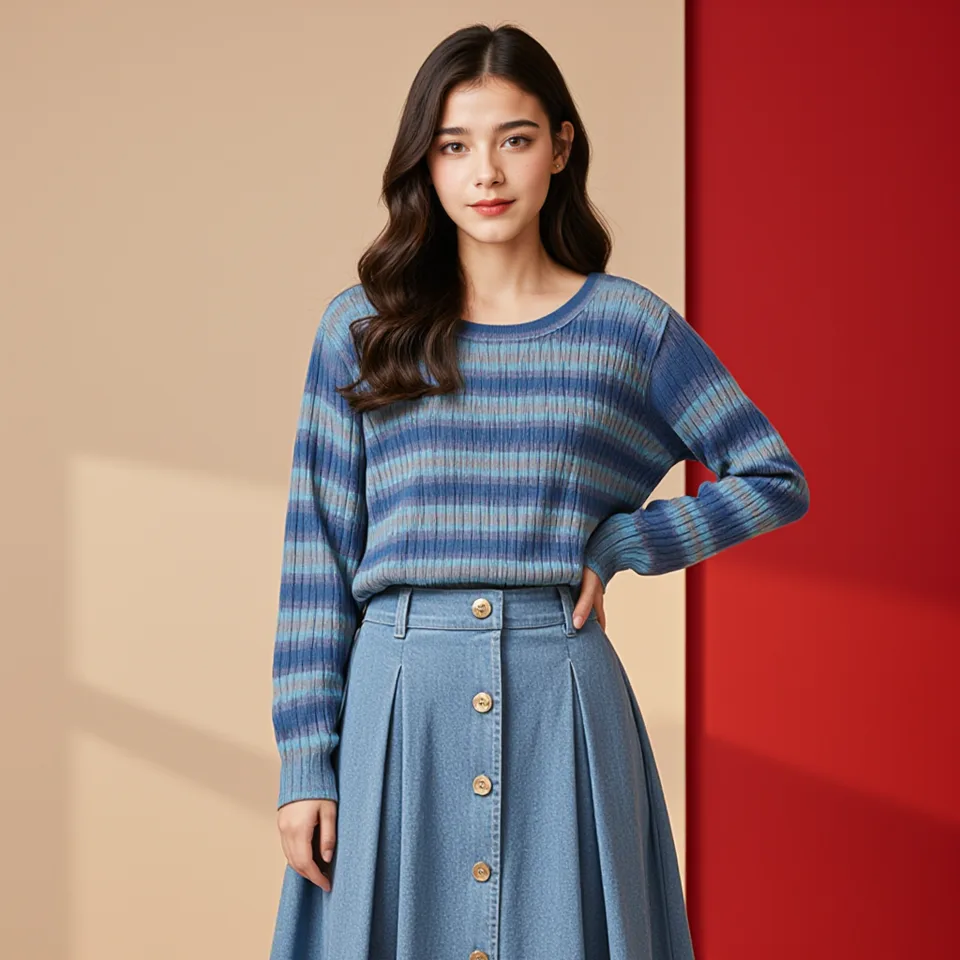
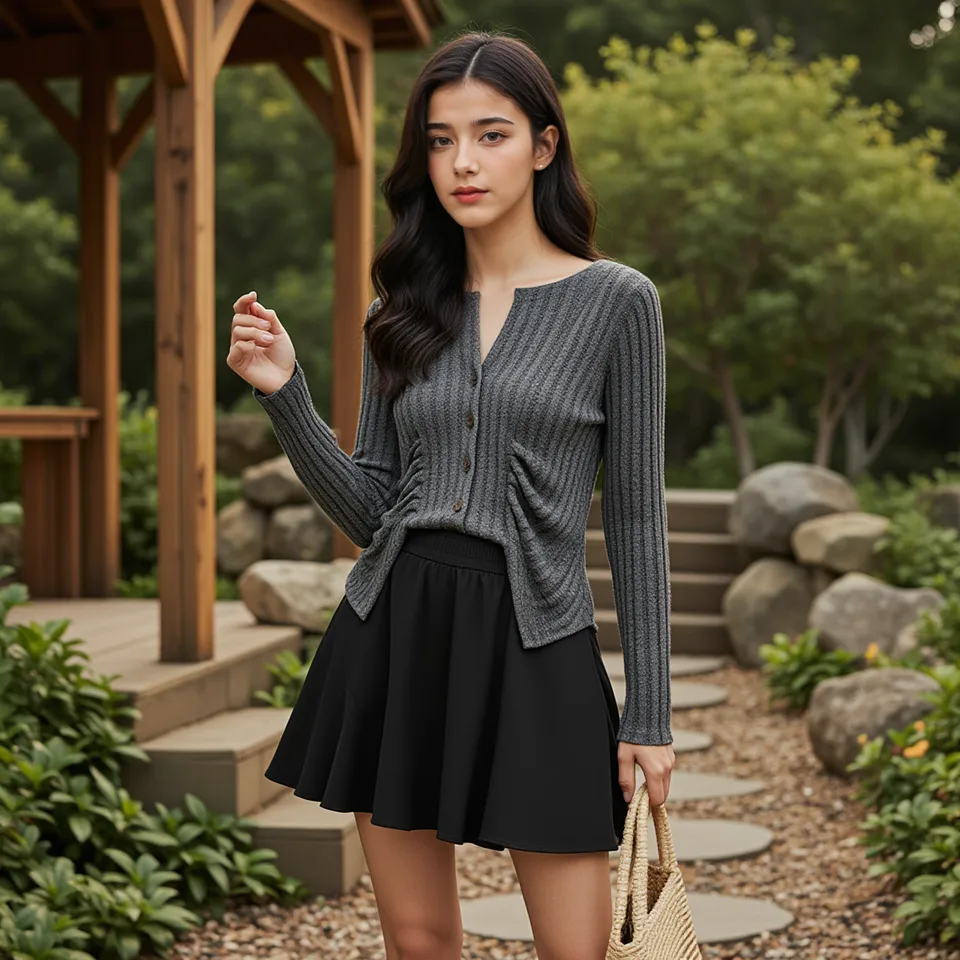
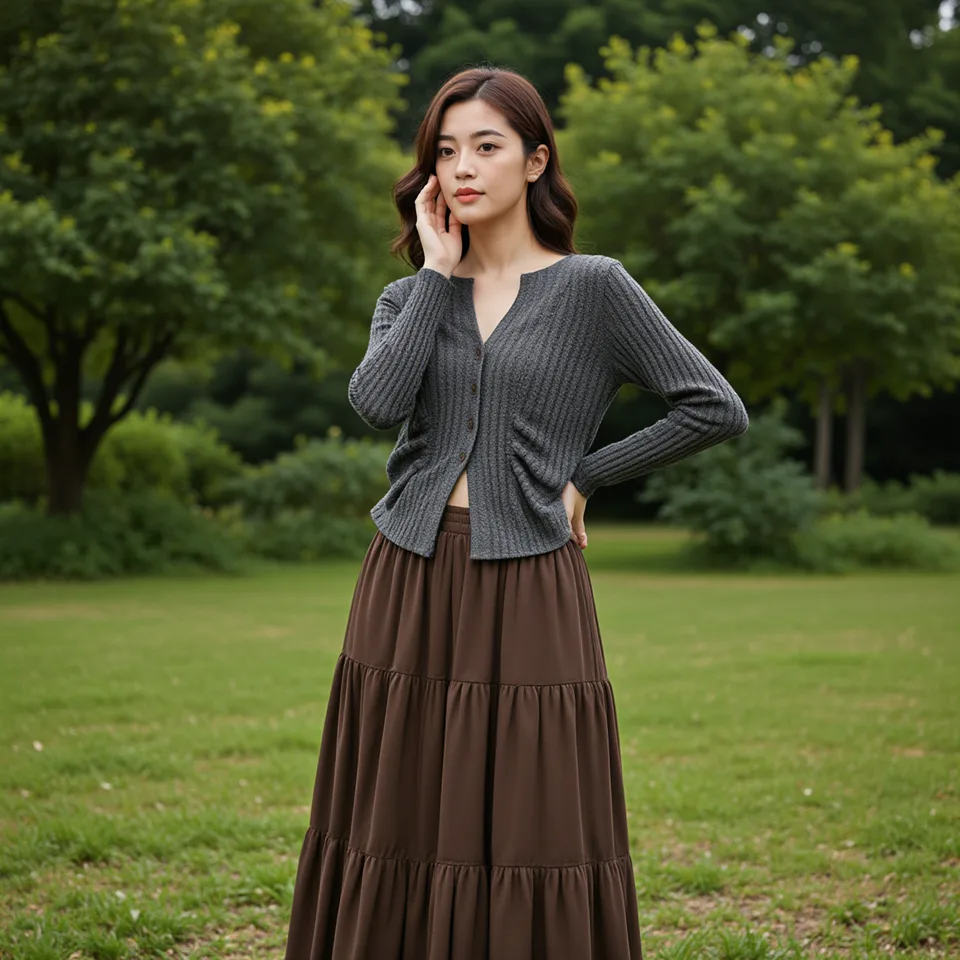
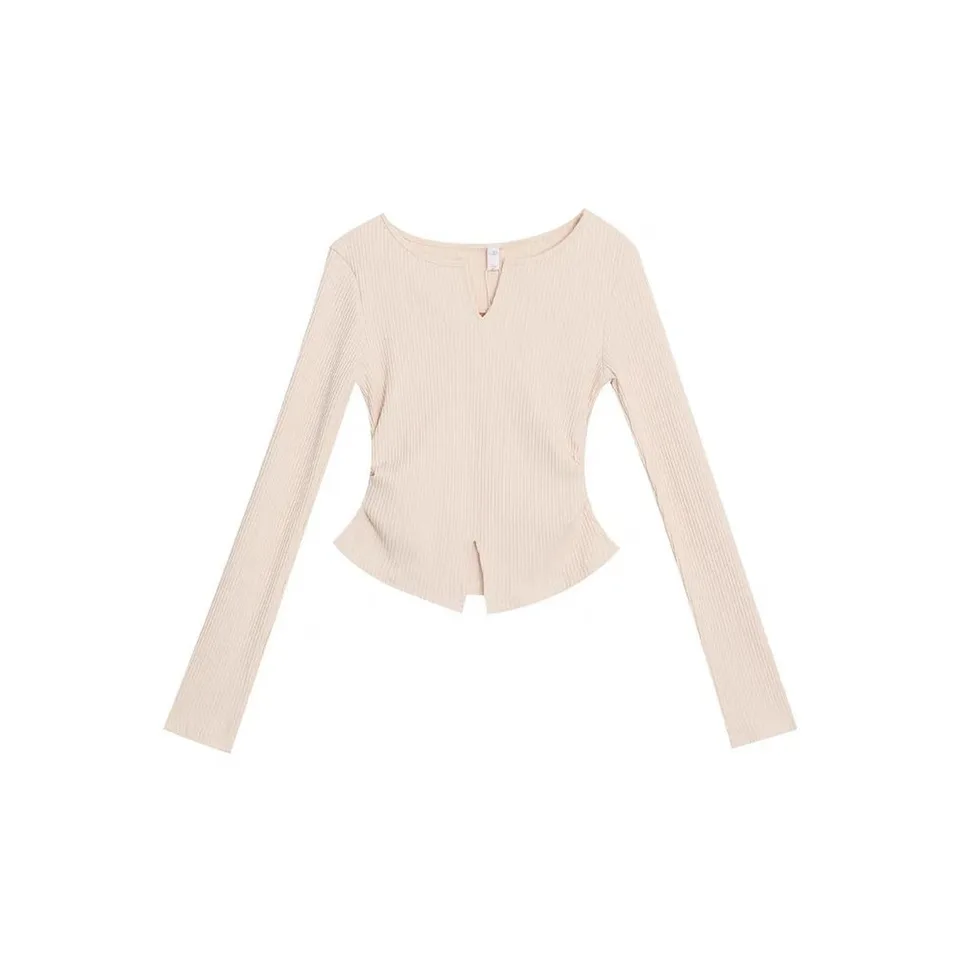
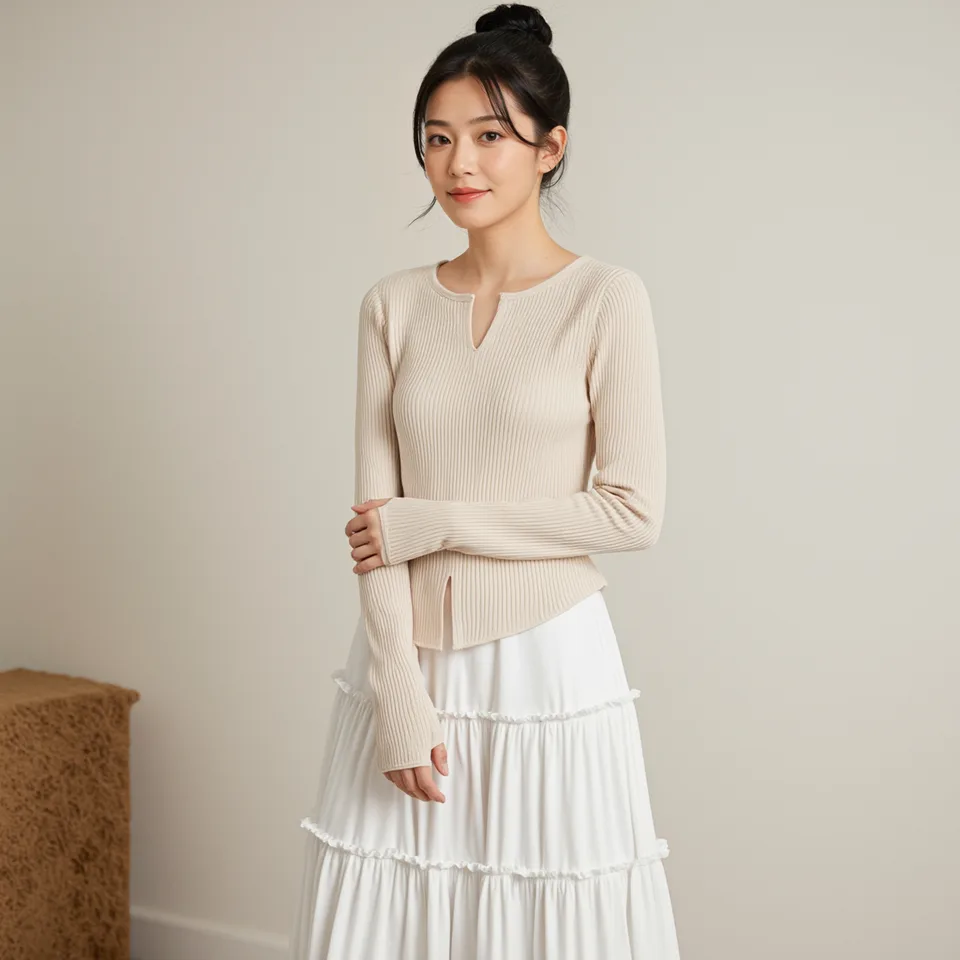
From flat-lay to on-model
Give a garment context: see its neckline, silhouette, and styling on a person, instead of showing only a product cutout.
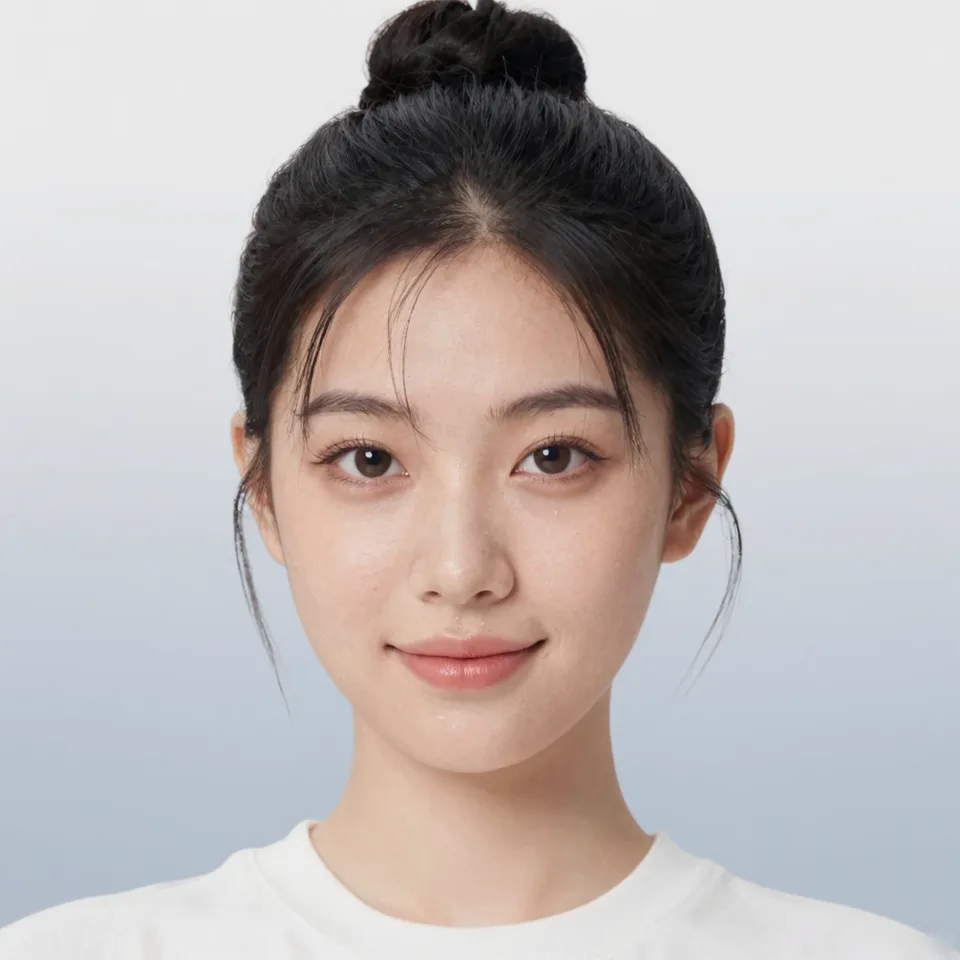
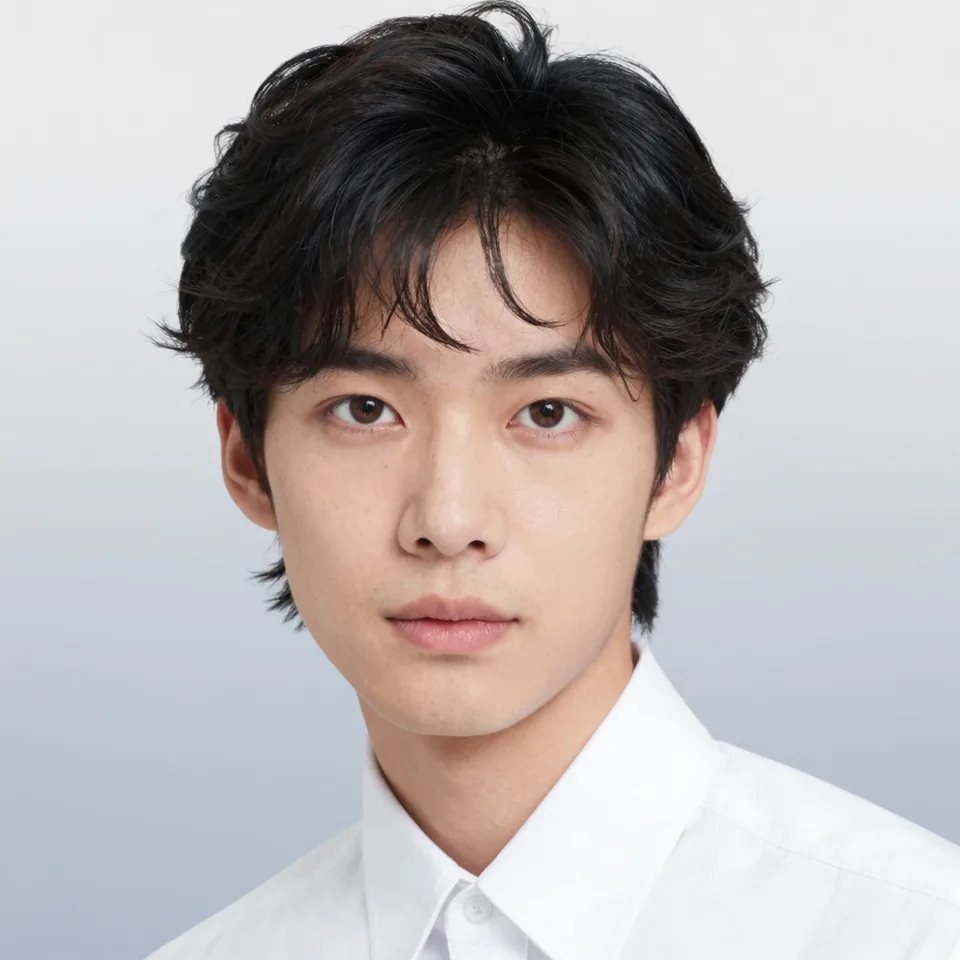
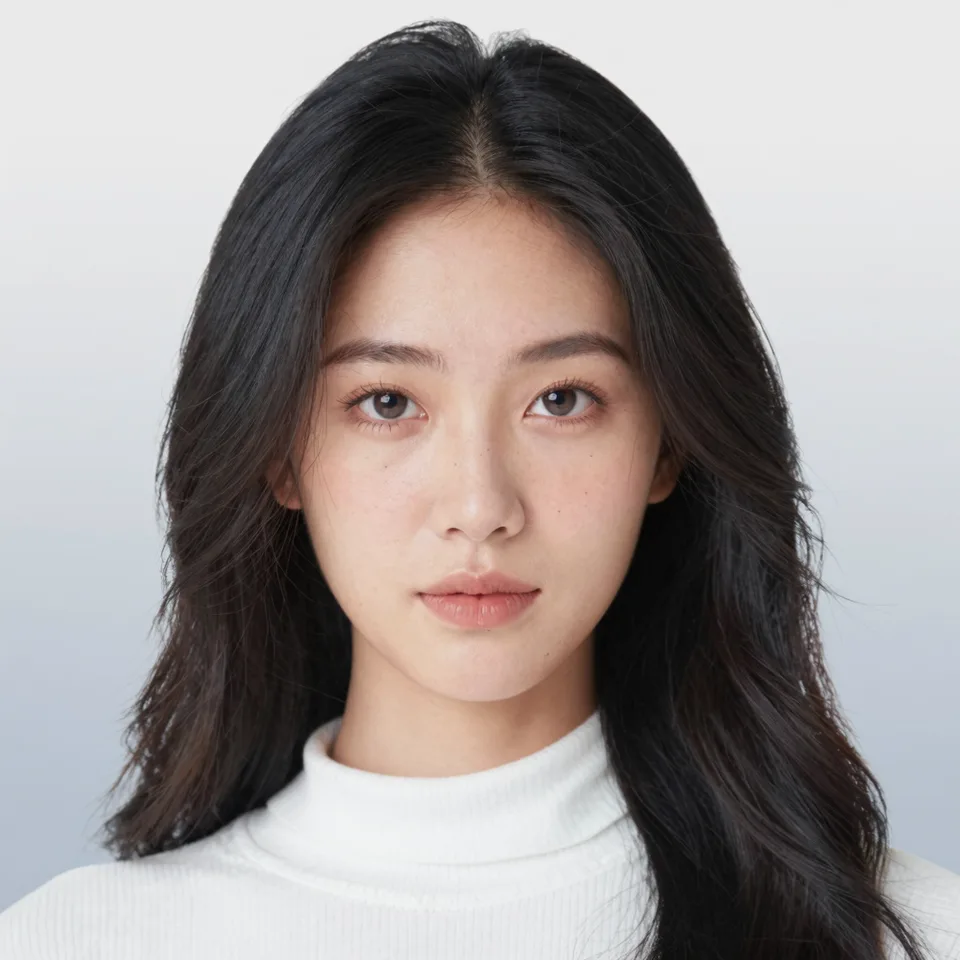
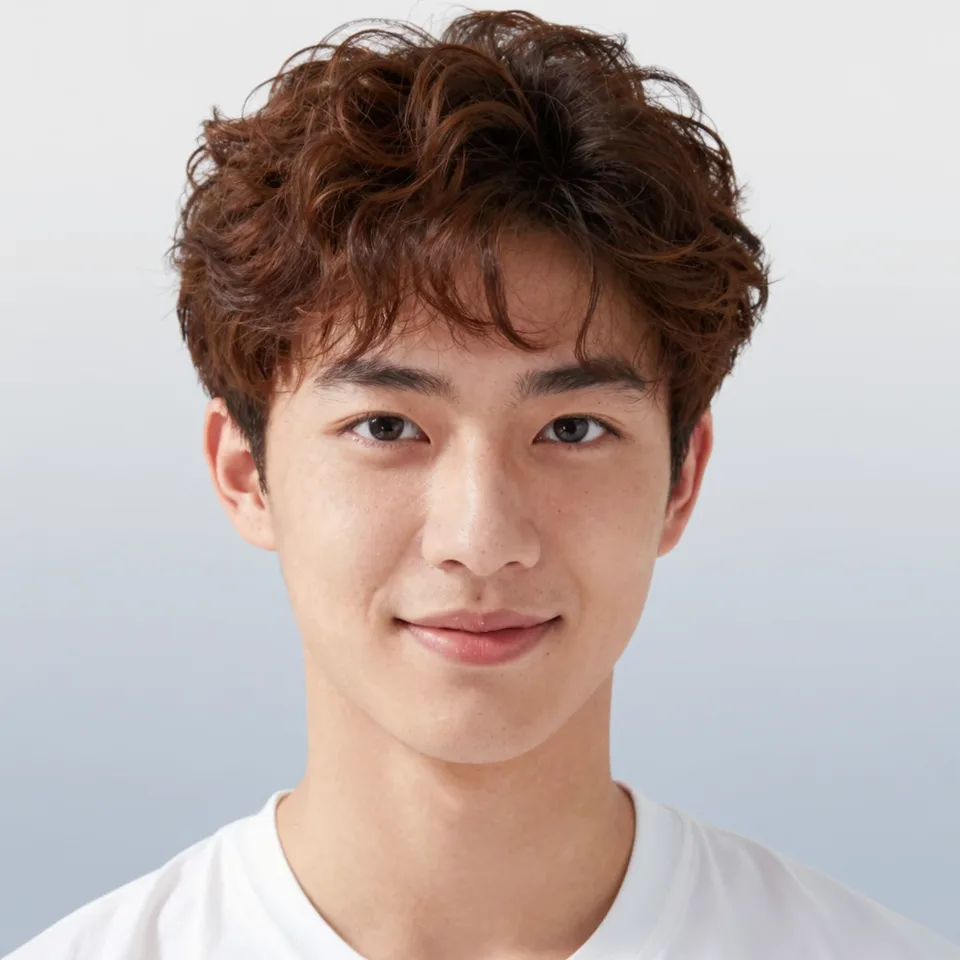
Choose the face of your collection
Browse the model library or upload your own portrait. Pick a model that fits the audience and visual identity of your collection.
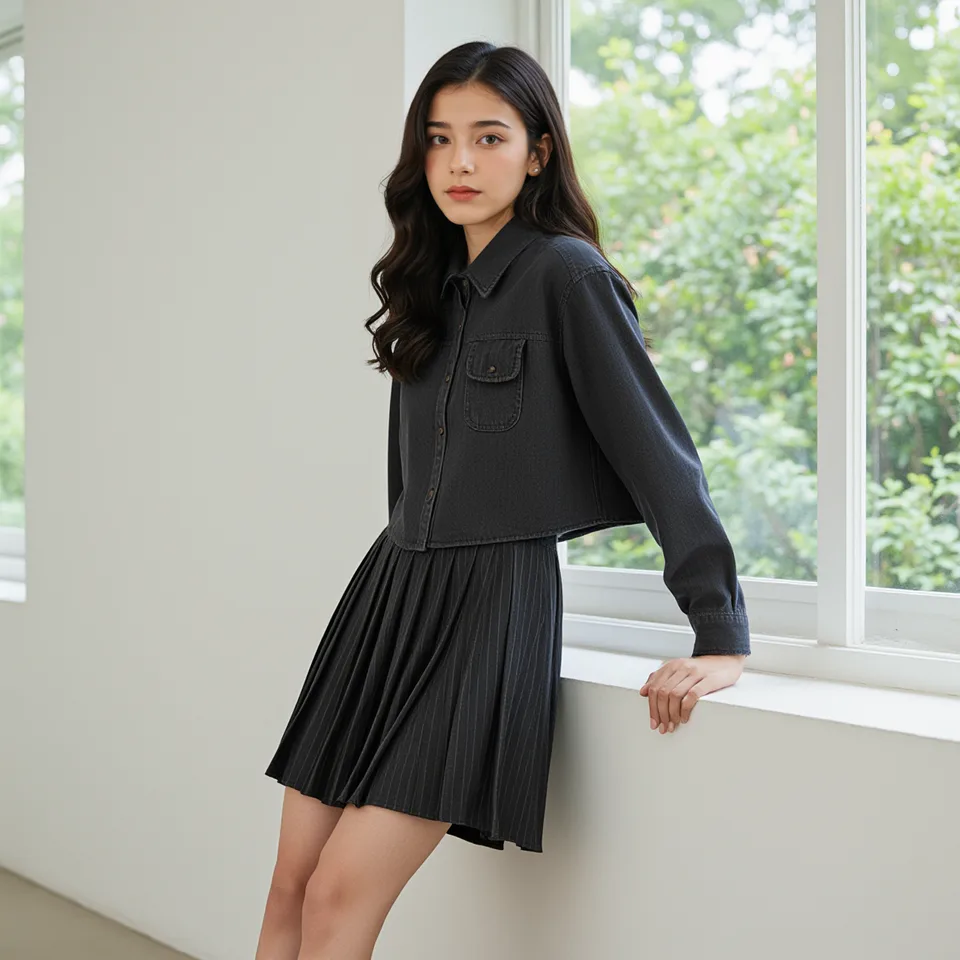
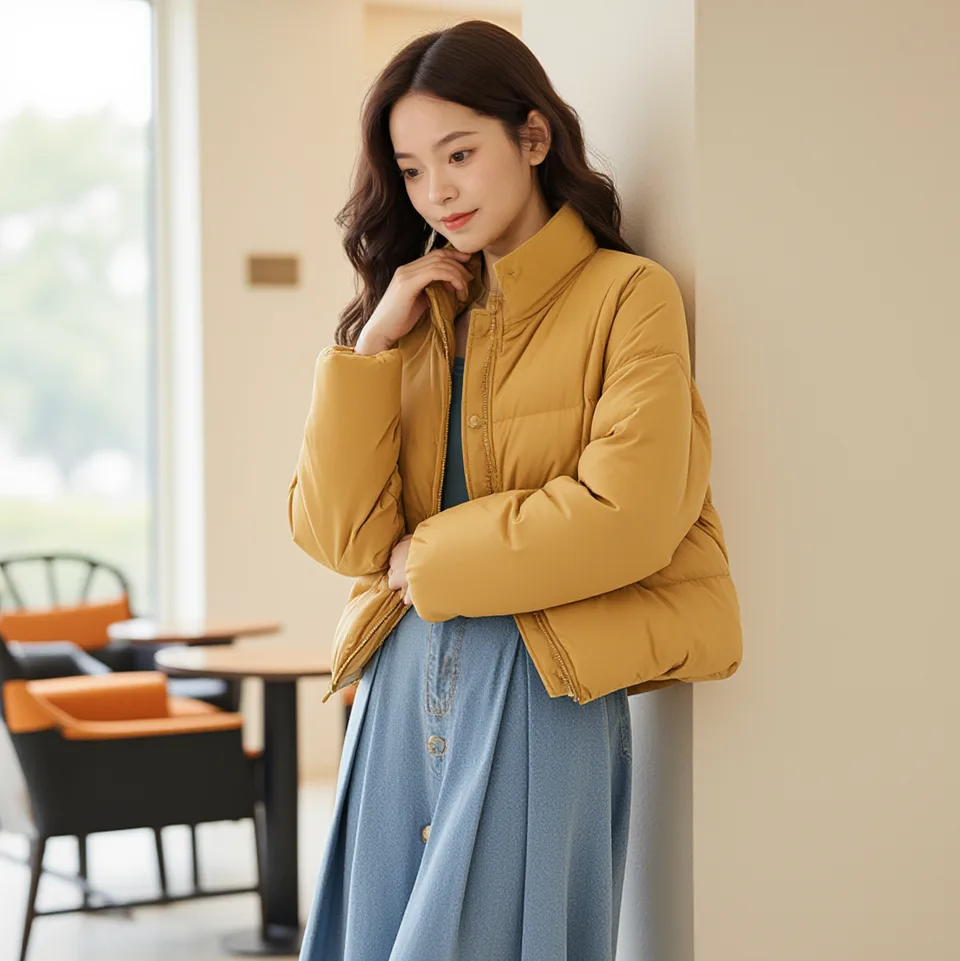
One piece. A complete outfit.
Show a single garment or combine a top and bottom. Explore how individual pieces work together before building your next collection.
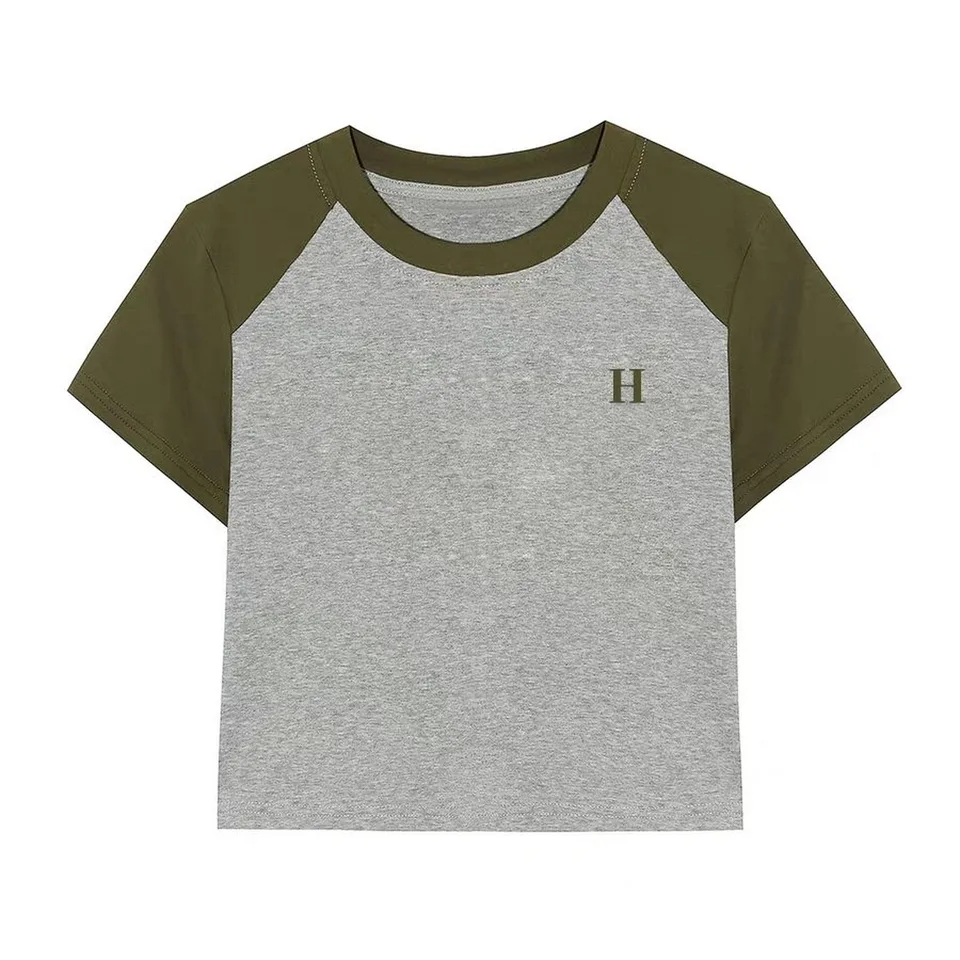
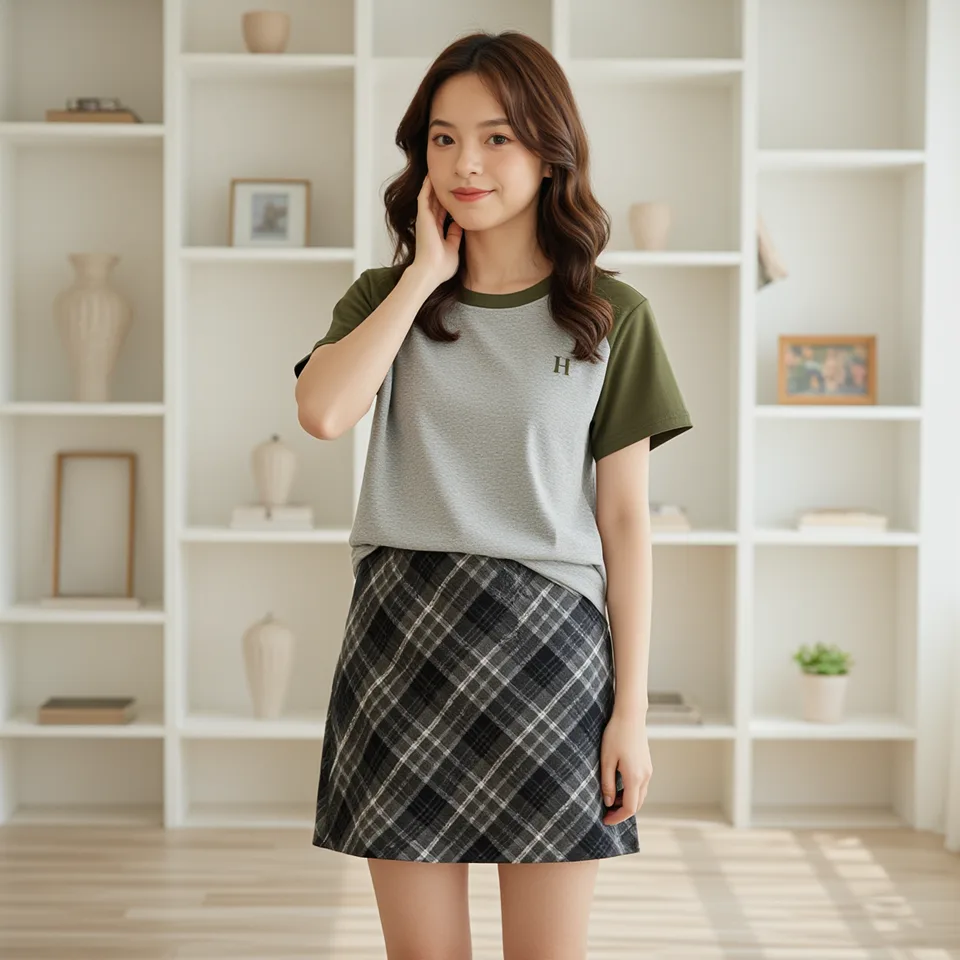
Put garment details in the spotlight
Use clear reference photos to guide colors, prints, and fabric details. Show the garment alongside its on-model styling.
Frame it for the way you publish
Choose square or portrait formats for product cards, lookbooks, and social feeds. The previews show different crops of one example.
Three steps from garment to outfit
- 01
Upload your garment
Add one garment or a top and bottom. Use a clear, well-lit PNG, JPG, or WebP image.
- 02
Choose your model
Select a library model or upload your own photo, then choose an image ratio.
- 03
Generate and download
Generate the outfit, explore the result, and download the image you like.
Keep creating with PixMind
AI Try-On
Try on clothes virtually with AI. Upload your photo and clothing items to generate realistic try-on images for fashion e-commerce, social media, and online retail showcases.
AI Clothing Image
Generate professional clothing showcase images with AI. Create stunning fashion photography for e-commerce product listings, online catalogs, and social media marketing.
Handheld Product
Create realistic handheld product showcase images with AI. Generate lifestyle product photos showing items being held or used, perfect for e-commerce and marketing campaigns.
Your outfit questions, answered
What does the AI outfit generator create?
It combines garment references and a selected model into an on-model outfit image. Start with clothing photos in the workspace above.
Which image formats can I upload?
PNG, JPG, and WebP images up to 10 MB. A clear garment photo helps show its shape and details.
Can I use my own model photo?
Yes. Open the model selector and upload a portrait instead of choosing a library model.
Can I combine a top and bottom?
Yes. Choose multiple garments and add a top and bottom separately. Single-garment mode supports one clothing image.
How can I keep a collection visually consistent?
Reuse the same model and image ratio across your garments to give the collection a coherent visual direction.
Which image ratios are available?
The workspace offers 1:1, 2:3, and 3:4. Choose square for product cards or portrait for outfit styling.
How are generations charged?
Sign in to generate. The workspace displays the credit cost before you submit; each generation uses credits.
Where can I use the finished images?
Download your favorites for product listings, lookbooks, outfit inspiration, and social content.
Your next outfit starts with one photo
Bring your garment, choose a model, and create the first image for your next collection.