Light: slightly soft detail
The subject and face are readable; subtle sharpening and minimal reconstruction are appropriate.

Bring clearer edges and more natural texture to a blurry photo. Choose light, moderate or strong blur so the clear-up preset matches your source image.
Sharpen recognizable edges and textures while preserving faces, colors and composition.
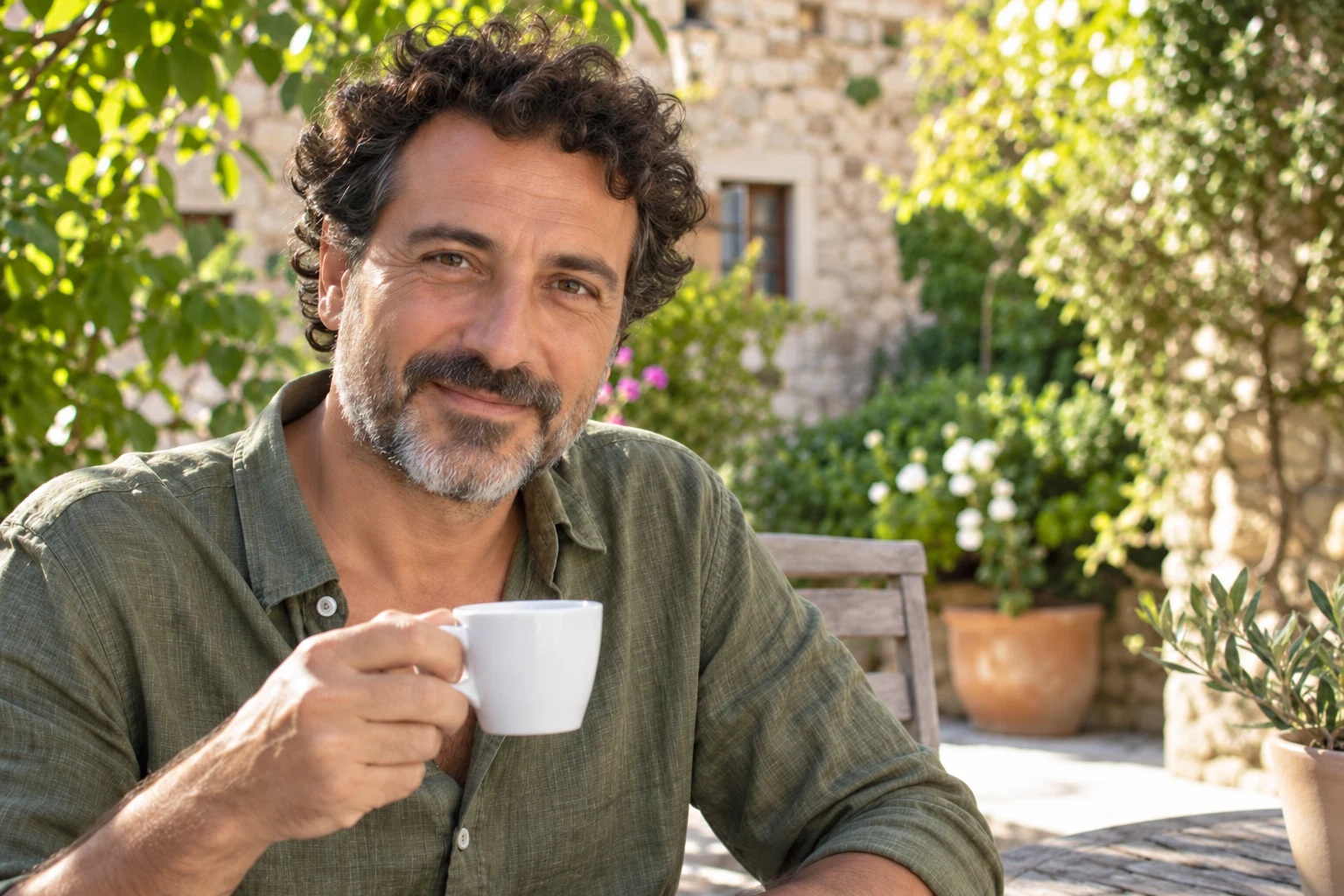
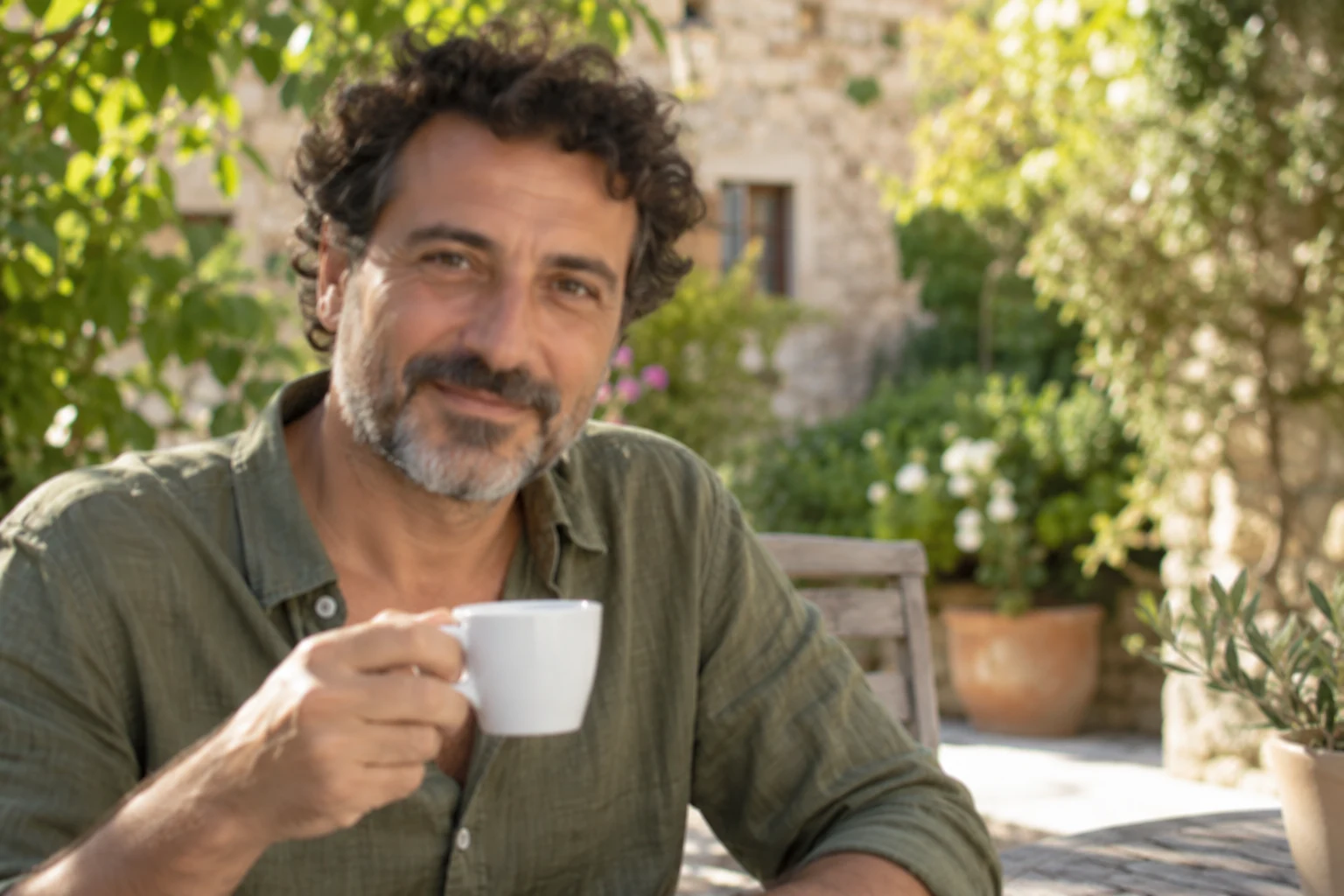
Both the source and enhanced images below are AI-generated illustrations of the intended effect, not GPT Image 2.5 benchmark results.
Upload your image or load an example below. This page’s enhancement preset is already selected.
Use light blur for a slightly soft photo, moderate blur for visibly softened edges, and strong blur for a source with little readable detail. Each level changes the reconstruction instructions. Compare facial features, small text and repeated patterns in the workspace.
The subject and face are readable; subtle sharpening and minimal reconstruction are appropriate.
Outlines remain recognizable but hair and fabric blend together; focus on recovering visible structure.
Use conservative reconstruction when major structures remain recognizable, without inventing fine text or facial features.
Explore the intended changes at both image and detail level, then load a source image to try the preset.
Both the source and enhanced images below are AI-generated illustrations of the intended effect, not GPT Image 2.5 benchmark results.
Light blur
The garden portrait has soft eyes and hair, with recognizable identity and expression. Focus on eye edges, curls and stubble while retaining natural skin and light.
What the preset asks for
Apply light sharpening; keep identity, expression and linen texture without beauty retouching.
Moderate blur
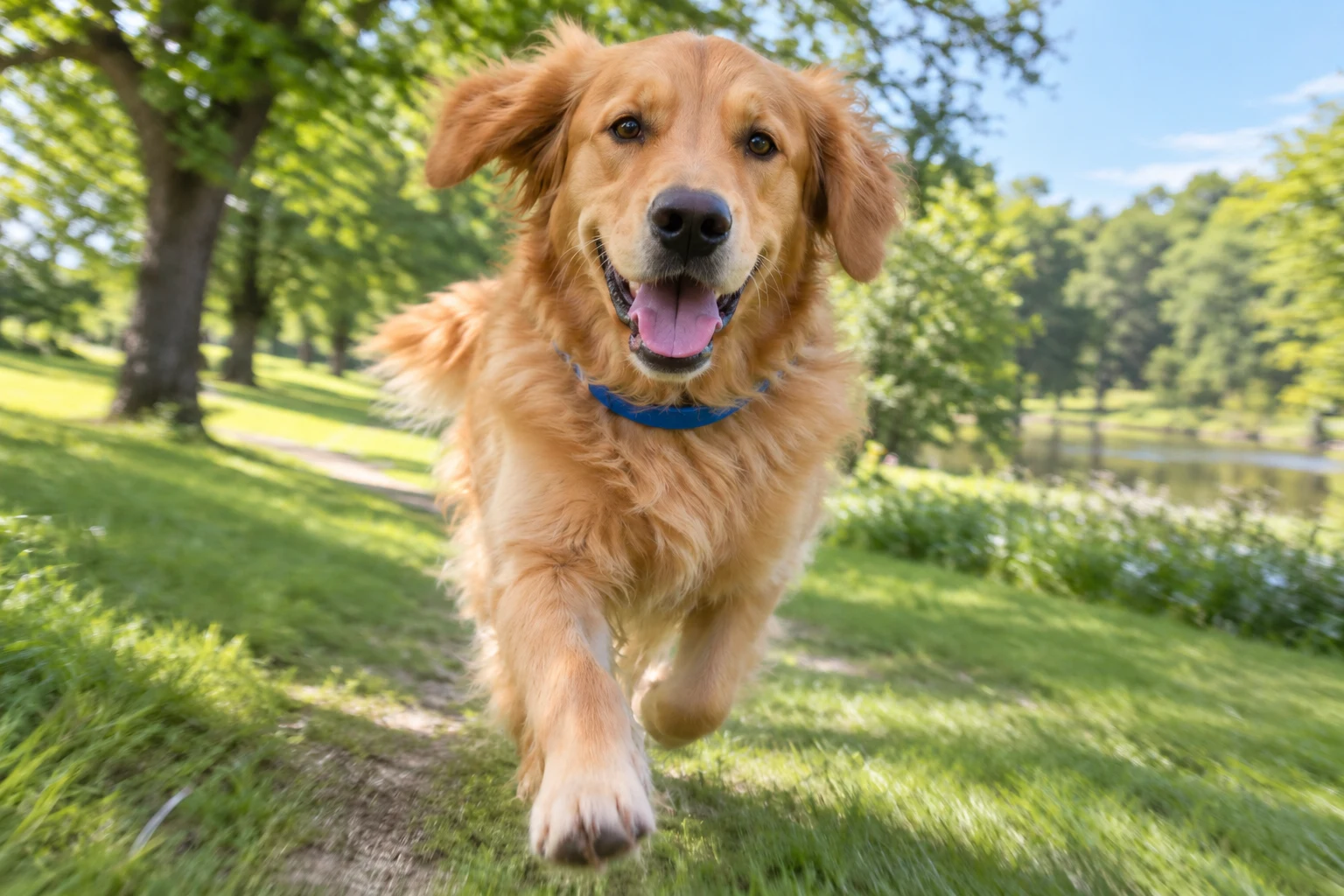
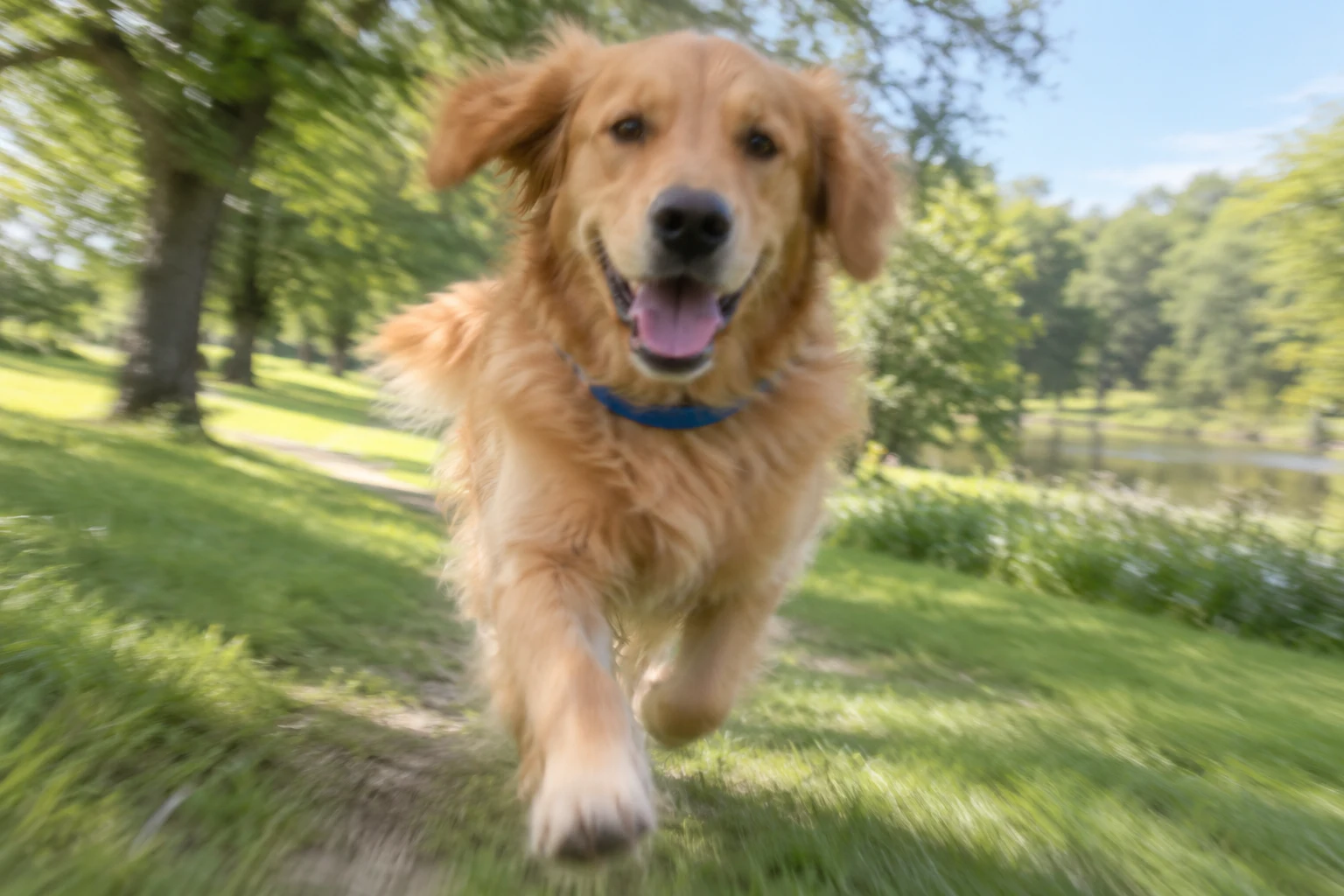
A running retriever can pick up motion blur. Compare eyes, nose, ears and paw outlines as well as fur, retaining the pose and anatomy.
What the preset asks for
Refine recognizable motion-softened edges; keep the running pose, blue collar and natural fur.
Strong blur
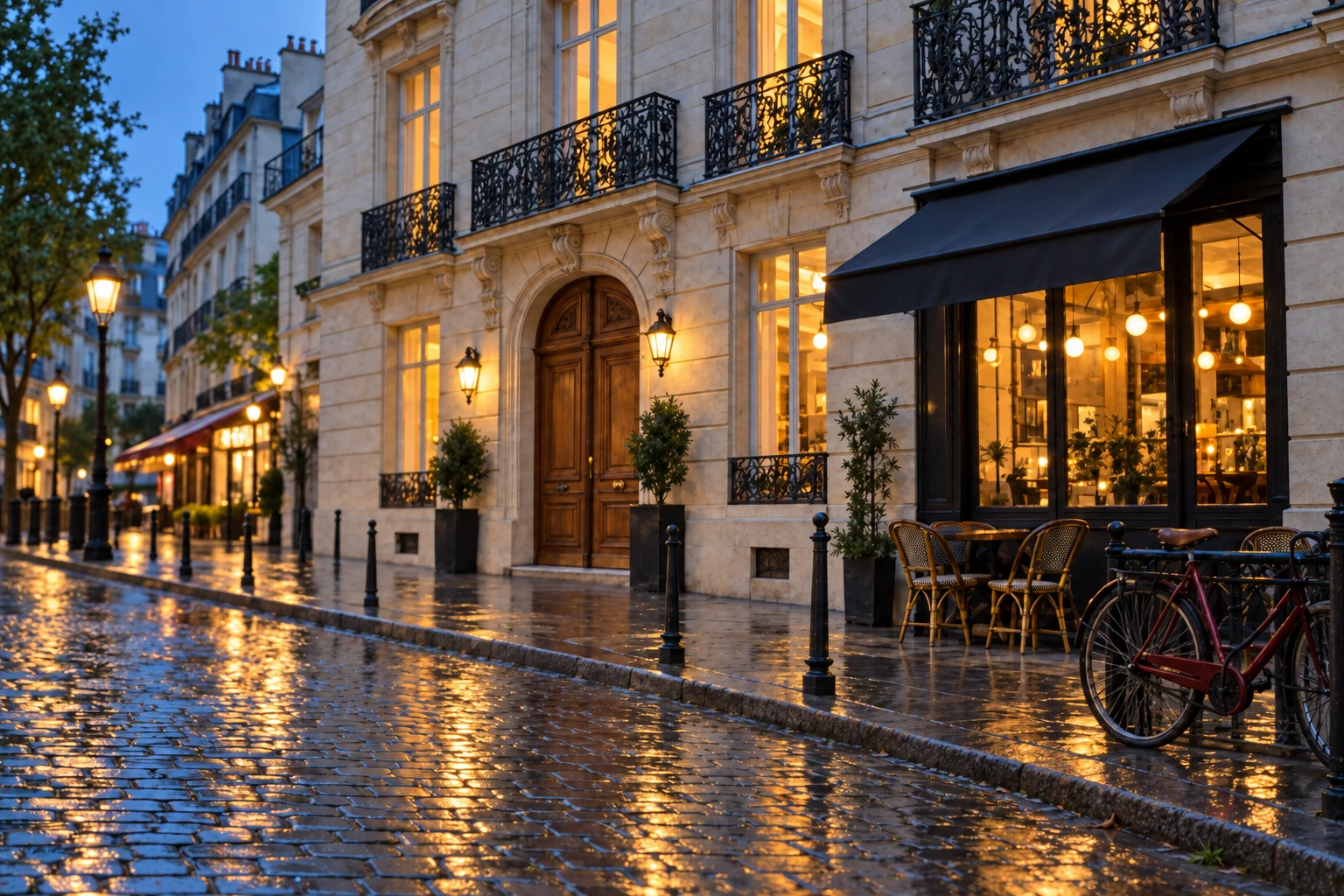
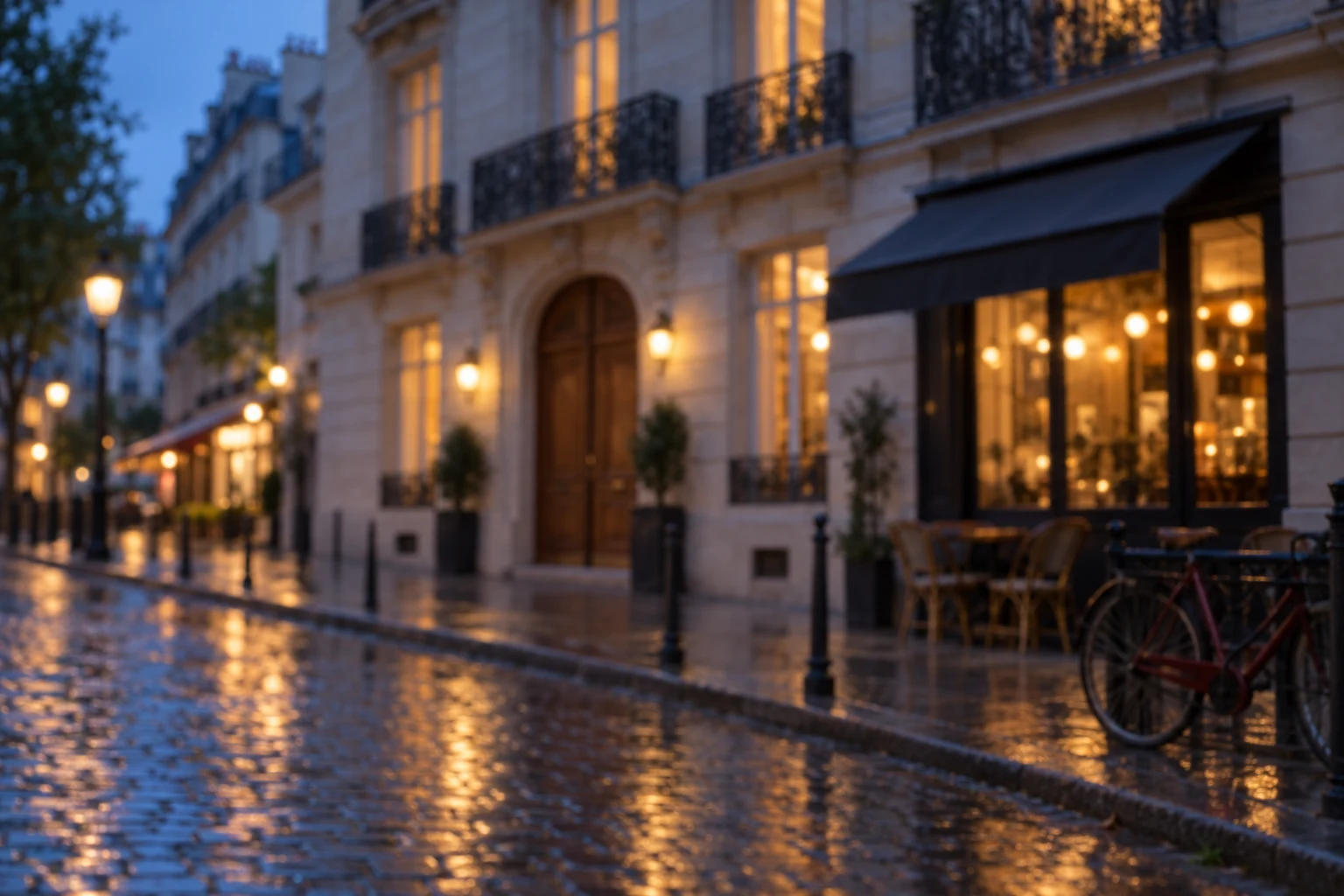
Blur hides window frames, iron balconies and cobblestone patterns in the rainy street. Compare edges and repeated structures, preserving perspective, amber light and the blue-hour sky.
What the preset asks for
Recover clarity from recognizable architecture; keep perspective and lighting without adding signage text.
These close-ups use the same comparison images. Move the slider to examine texture, edges and color.
For everyday portraits with a clear subject and soft detail.
Refine soft subject edges in candid action shots while retaining pose and expression.
Compare changes around windows, railings and repeated structures in defocused scenes.
Choose a JPG, PNG, or WebP image. Start with the original file rather than a screenshot of a screenshot.
The task preset is selected for you. Choose medium or high quality and 2K or 4K output. Leave the ratio on auto to keep the original proportions.
Generate one image, drag the comparison slider to inspect details, then download the version you want.
Use the task preset on this page to improve lighting, edges or materials when the image itself needs work.
Natural clarity and edge recoveryUse the separate 2× or 4× workflow when your main goal is a larger image.
AI image upscalerThe clear-up preset asks the model to preserve the subject, composition and colors. Start with light blur for a soft but recognizable photo. Strong blur uses more reconstruction, so it is better suited to images whose visible structure is still clear.
Zoom into eyes or object edges. Choose light for slightly soft detail, moderate for recognizable outlines with blended texture, and strong when only major structures remain.
No. More blur means less source information. Light blur suits natural sharpening; strong blur involves reconstruction and can produce detail different from the original.
HD redraw uses GPT Image 2.5 Sunburst. The smart-upscale tab provides a separate 2× or 4× enlargement workflow.
GPT Image 2.5 redraw requires sign-in and credits. The workspace shows the cost for your selected quality and resolution. Smart upscale has its own daily guest allowance and pricing.
Upload JPG, PNG or WebP. Original files usually retain more detail than chat thumbnails or screenshots.
After generation, the workspace shows your source and result. Drag the slider to compare matching areas, then save the output with the download button.
No. Loading an example places its source image in the workspace and selects the preset. A processing task starts only when you click Generate. The displayed comparisons are AI-generated illustrations.
Choose an image, compare the generated result and download the version you prefer.
Upload an imageGPT Image 2.5 · Sunburst
Natural clarity and edge recovery
Sharpen recognizable edges and textures while preserving faces, colors and composition.
Upload an image for AI HD redrawing, the aspect ratio will be preserved
Supports JPEG, JPG, PNG, BMP, WebP, HEIC. Max 10MB.
Please log in to use this feature