01Text or one image
Kling 3.0 Turbo
Fast text-to-video and single-image animation
Social hooks, product motion, storyboard drafts, and short concept variants
Open version page
Kling model family
Choose the right Kling workflow before you generate: Turbo turns text or one image into a short clip, while Motion Control transfers a driving performance to a character image.
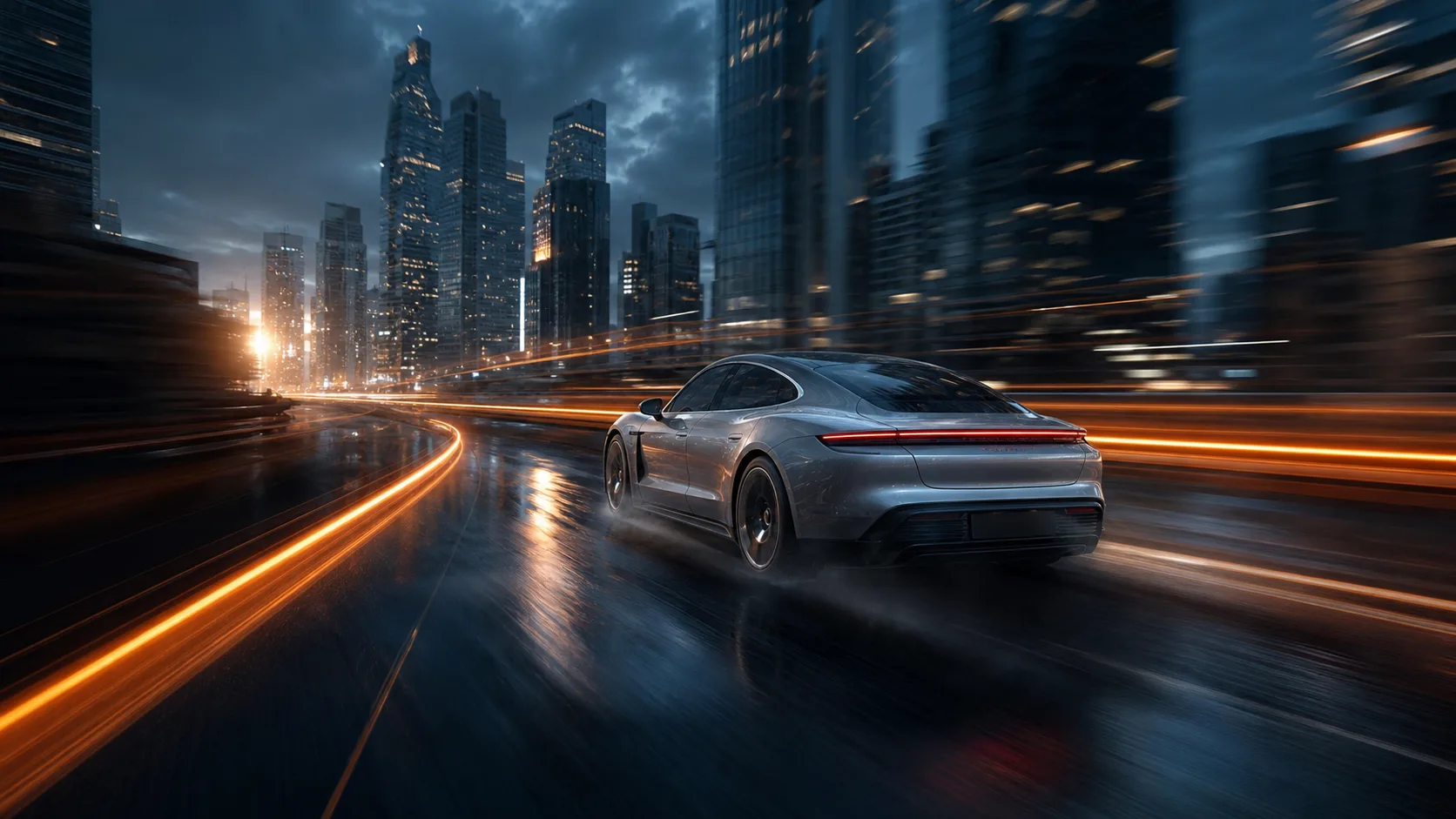
Live workspace
Kling 3.0 Turbo is preselected. Available inputs, duration, resolution, aspect ratio, and charged credits come from the live generator.
Two connected routes
That decision determines which Kling page and input workflow to use.
Fast text-to-video and single-image animation
Social hooks, product motion, storyboard drafts, and short concept variants
Open version pageTransfer movement from a driving video to a character image
Dance, sports, fashion performance, gestures, and character-led social clips
Open version pageRoute snapshot
| Decision | Kling 3.0 Turbo | Kling V3 Motion Control |
|---|---|---|
| Primary job | Fast text-to-video and single-image animation | Transfer movement from a driving video to a character image |
| Best for | Social hooks, product motion, storyboard drafts, and short concept variants | Dance, sports, fashion performance, gestures, and character-led social clips |
| Inputs | Text or one image | One character image plus one driving video |
| Duration | 3–15 seconds; 5/10/15 presets | Follows the reference video, up to 30 seconds |
| Resolution | 720p or 1080p | Follow the live generator |
| Aspect ratios | 16:9, 9:16, 1:1 | Driven by the reference workflow |
| Audio | Not exposed on this route | Not a native-audio workflow |
| Credits | 168 credits per second | Shown by the live generator |
Dated PixMind route snapshot verified on 2026-07-19. The live generator is final for controls and credits.
Choose by production job
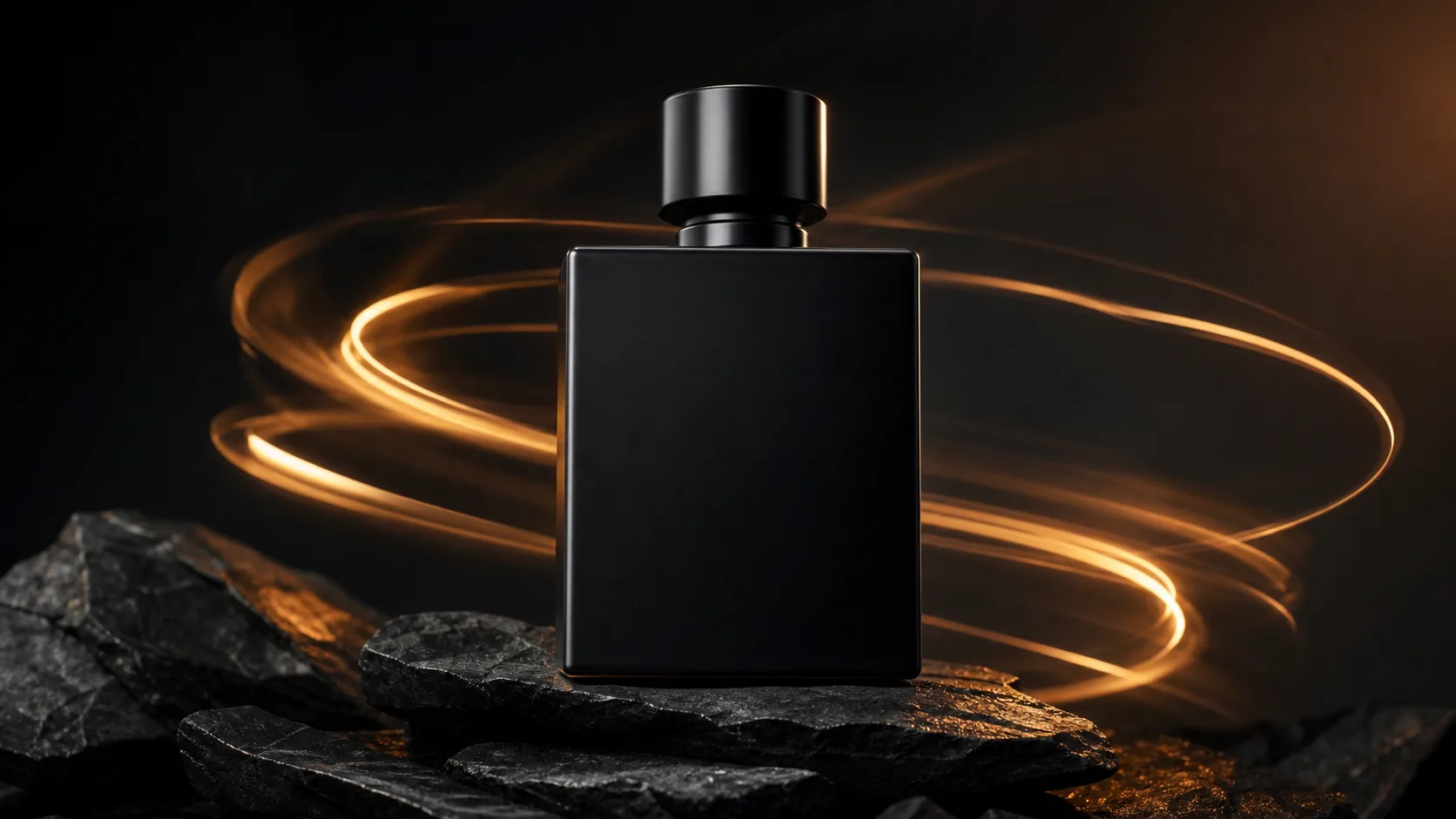
Use Turbo to preserve an approved visual anchor while testing one product reveal, camera orbit, push-in, or lighting change.
Use this workflow
Start with a concise scene brief when you need an original environment, action, and camera idea rather than a fixed source image.
Use this workflow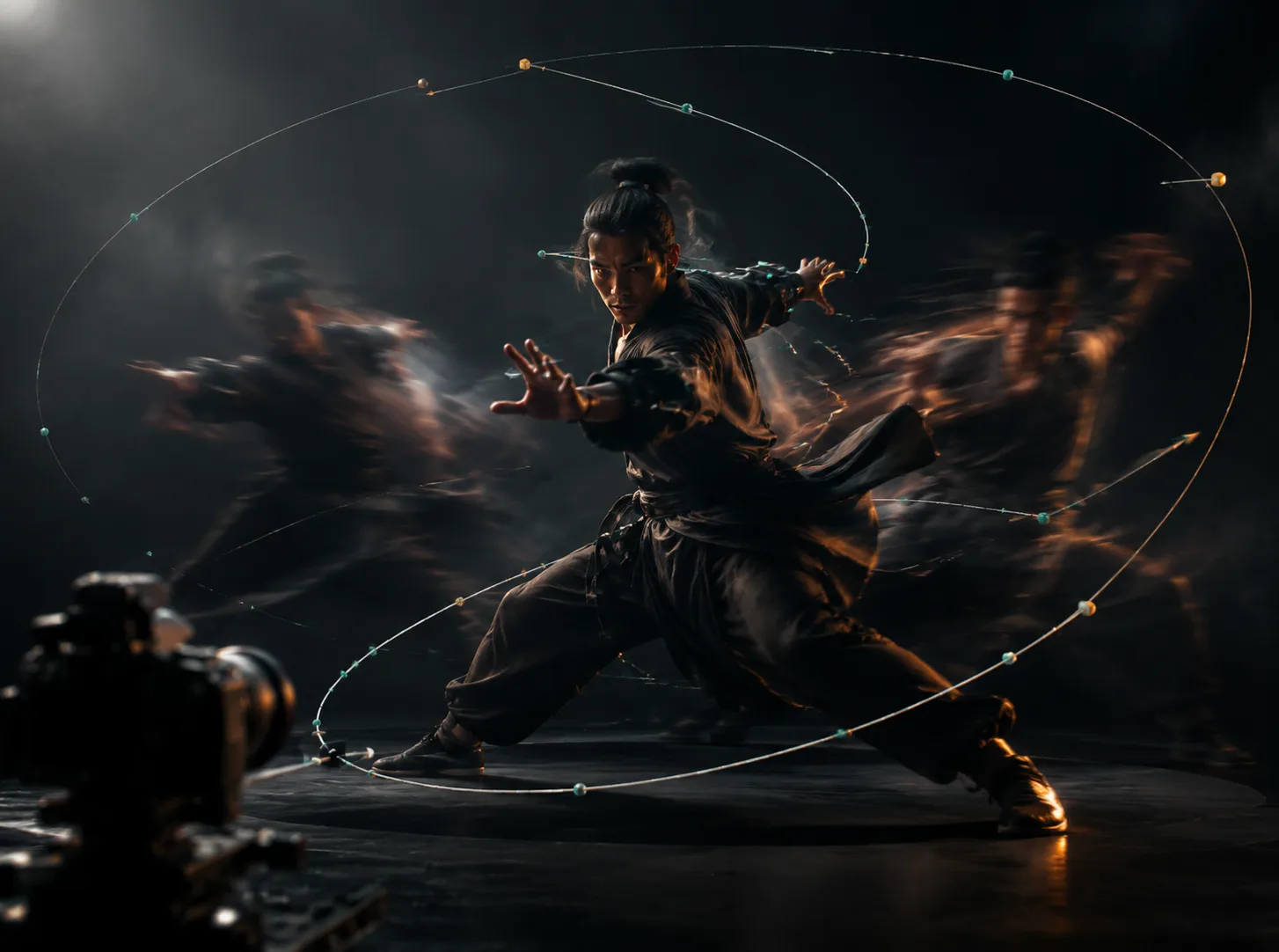
Use Motion Control when a dance, sport, gesture, or performance already exists in a driving video and a new character should follow it.
Use this workflowPrompt starters
PROMPT 01
Medium tracking shot of [subject] moving through [setting]. Camera follows at [speed], [lighting] shapes the scene, realistic weight and contact, finish on [final composition].
PROMPT 02
Animate the supplied [product] image with one controlled [orbit/push-in]. Preserve shape, label placement, materials, and colors. Add [environment] reflections and finish on a clean hero frame.
PROMPT 03
9:16 social clip. Open immediately on [visual hook]. The subject performs [one action] while the camera [one move]. High-contrast [lighting/style], readable silhouette, clean final frame.
PROMPT 04
Create one concise narrative beat in [setting]: establish [subject], reveal [change], end on [decision]. Use [shot size], [camera movement], and consistent wardrobe, props, and color grade.
FAQ
Start with Kling 3.0 Turbo when you have a text brief or one source image. Choose Kling V3 Motion Control when you already have a character image and a driving performance whose movement you want to transfer.
No. Turbo is a short text-to-video and image-to-video route. Motion Control is a specialist performance-transfer workflow that requires both a character image and a driving video.
The live PixMind routes expose Turbo text-to-video or one-image generation, plus a separate Motion Control workflow. Official Kling 3.0 family features can be broader than the controls exposed by these two routes.
The current Kling 3.0 Turbo response reports no audio control, and Motion Control is not presented as a native-audio route. This differs from broader Kling 3.0 family material that describes native audio in other products or routes.
The verified web route is configured at 168 credits per second: 840 credits for 5 seconds, 1,680 for 10 seconds, and 2,520 for 15 seconds. Pricing can change, so the live generator is final.
Use a sharp image with one readable subject, complete edges, stable product or character details, and enough empty space for the intended movement and camera path.
Write one coherent shot: subject, action, setting, shot size, camera movement, lighting, timing, and the final composition. For image-to-video, also state which identity, shape, colors, or label placement must remain unchanged.
Large transformations, heavy occlusion, several competing actions, or a camera path that leaves the source composition can increase drift. Simplify to one main action and one camera move before extending the shot.
Check the PixMind plan and model terms that apply when you generate. You also need permission for uploaded people, brands, products, driving performances, and other third-party source material.
Fact sources
PixMind route and pricing verified on 2026-07-19. Family-level claims were checked against Kuaishou's Kling 3.0 announcement and Kling's official Video 3.0 guide. Current PixMind controls and credits come from the live generator.
Next step
Start with a 5-second Turbo test. Once the action and camera direction work, move to a longer version or switch to Motion Control for an exact performance.