
xAI · motion, image and sound
Grok Imagine Video 1.5 AI video generator
Give a still image a reason to move. Direct a product reveal, a character's delivery or one satisfying physical interaction with Grok Imagine Video 1.5, xAI's video model with synchronized audio.

These are xAI model specifications. PixMind input modes, output settings and credits depend on the connected route shown below.
Create with Grok Imagine Video 1.5
Choose the exact Grok model, prepare a shot and check the available settings before submitting. This workspace only opens when the matching model is present in the live catalog.
Choose your starting point
What is Grok Imagine Video 1.5?
Grok Imagine Video 1.5 is xAI's model for short audiovisual scenes. Its official API supports text-led creation, animation from a starting image and reference-led scenes. A useful brief describes an action, a camera path and the sound that belongs to the moment.
Describe a new scene
Start from text when the composition is open. Specify the subject, setting, one main action, lighting and camera movement.
Animate a source frame
Start from a product photo or portrait when appearance and framing matter. Describe what changes over time instead of rewriting the whole image.
Guide a new composition
The official reference workflow supports multiple visual anchors and voice references. This differs from animating a fixed first frame; availability depends on the platform.
Three briefs worth trying
Grok video prompts built around a clear action
Separate the subject's movement from the camera and sound. These original starting points cover product animation, short dialogue and a physical contact event.
Turn a product photo into a reveal
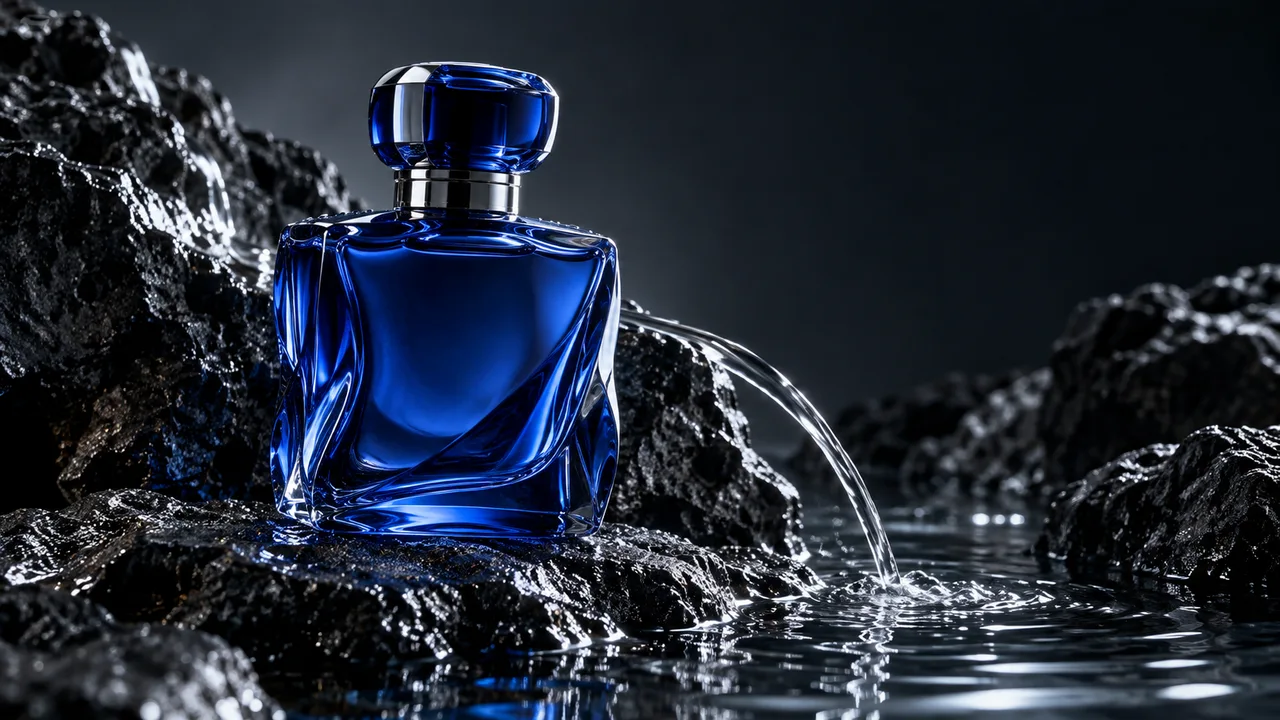
Use a clean product frame as the visual anchor. Keep the silhouette and setting fixed while you test one gentle camera move and a small environmental change.
The cobalt glass bottle stays still on wet black stone. The camera makes a slow, shallow orbit; a thin ribbon of water lands beside the bottle and ripples across the pool. Cool rim light, quiet water sounds, no speech, one continuous shot.
Give a character one line and one gesture
For an audio-led scene, name the speaker, their delivery and the room sound. Keep the spoken line brief enough to leave room for the expression and gesture.
The artisan looks up from the pottery wheel, smiles and says warmly: 'This one is made to last.' A quiet wheel hum and soft studio ambience remain underneath. Stable waist-up framing, one small nod, no music and no scene change.

Make contact, motion and sound agree
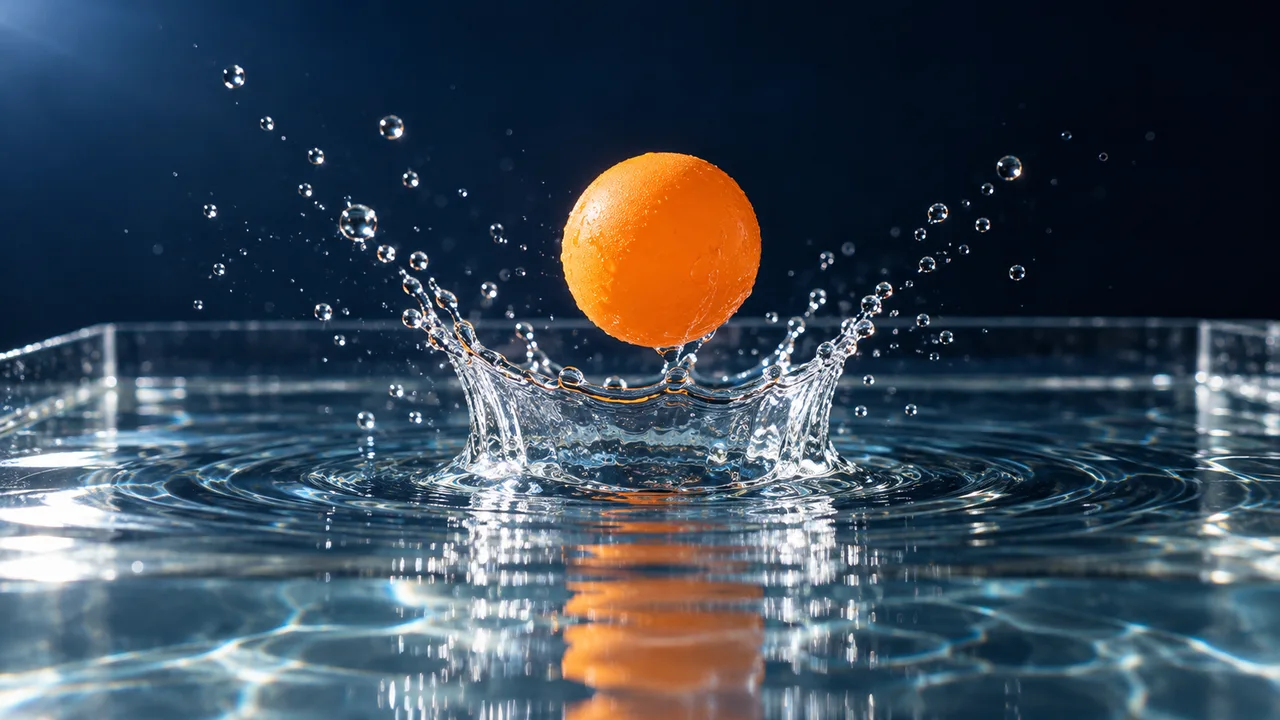
A single visible contact event gives the shot a clear timeline. Define the object, the impact, the reaction and the matching sound before adding complex camera motion.
An orange ball drops once onto the water, creating one small crown splash. Droplets fall back and the ripples settle. Locked macro camera, crisp side light, one light splash sound, no extra balls and no cuts.
Grok Imagine Video 1.5 vs Kling and Veo
Choose by the shot you want to make. These are workflow choices, not benchmark rankings or guarantees about visual quality.
| Model | Start here for | Build the brief around | Next step |
|---|---|---|---|
| Grok Imagine Video 1.5 | Image animation, short spoken moments and visible object interactions with sound. | A source frame or scene description, one action, camera direction and a concise audio brief. | Try the prompt concepts here; use the exact Grok route when it becomes available. |
| Kling 3.0 Turbo | Comparing text- or image-led camera and action variations in the connected Turbo workspace. | One source image or a text brief with a clear subject and motion direction. | Open Kling 3.0 Turbo and compare its current controls and credit estimate. |
| Veo 3.1 | Exploring cinematic scene direction with an explicit dialogue or environmental sound brief. | Framing, action, lighting and the relationship between the scene and its sound. | Open Veo 3.1 to inspect the available audio, input and output settings. |
Official xAI capabilities and PixMind route availability are separate. The current generator provides the available controls and the final credit estimate.
How to use Grok Imagine Video 1.5
Set the visual anchor
Choose a complete, well-lit source frame or describe a new scene. Leave space around the subject for the movement you want.
Write the motion and sound
Name one subject action, one camera path and the intended speech or ambient sound. Keep the ending of the shot clear.
Generate, compare, refine
When the route is available, check settings and credits, generate and change one variable per attempt. Save useful clips and assemble longer sequences in the editor.
Grok Imagine Video 1.5 questions
Is Grok Imagine Video 1.5 the same as Grok Imagine 1.5 image generation?
No. This page covers the video model, which creates moving scenes with audio. Grok Imagine image generation produces still images. Use the image-model page to make a source frame, then return here for video direction.
Does Grok Imagine Video 1.5 need a starting image?
Not always. xAI documents text-to-video, image-to-video and reference-to-video workflows for 1.5. A starting image is useful when you already have the subject and framing. PixMind's connected input modes will be shown in the generator when the route is available.
What duration and resolution does the official model support?
xAI documents 1–15 second clips and 480p, 720p and 1080p output. Text-to-video and image-to-video can use native 1080p; the documented reference-to-video workflow is capped at 720p. Image-to-video follows the source image's aspect ratio. These are official specifications, not a verified PixMind settings list.
Can Grok generate speech, sound effects and ambience?
The official 1.5 model generates audio with the video, including lip-synced speech. Write the spoken line, delivery and background sounds explicitly. For example, name a wheel hum beneath the artisan's line. PixMind audio controls depend on the connected route.
Are reference images, voices and first/last frames supported?
xAI's current documentation lists up to 14 image references, three voice references and first/last or intermediate keyframes for 1.5. These belong to distinct API workflows and should not be assumed to work together on every platform. This page does not claim that PixMind has enabled those controls.
How many PixMind credits does Grok video cost?
There is no verified PixMind credit price yet: the exact model was absent from the public catalog on the verification date. We do not substitute xAI's dollar pricing for PixMind credits. Once the route is enabled, choose the settings and read the estimate before generating.
What makes a useful Grok image-to-video prompt?
Describe motion rather than repeating everything already visible. Start with the subject's action, then the camera movement, sound and ending. For example, keep the bottle fixed, move the camera slightly and let only the water ripple. Compare one change at a time.
What should I change if the subject drifts or motion is confusing?
Use a clearer source frame, reduce the number of moving objects and remove competing camera instructions. Keep the next test focused on one action. For dialogue, shorten the line. Check the clip for the product details or character features that matter to your brief before exporting.
When should I use Grok instead of Kling or Veo?
Explore Grok for source-frame animation and short audiovisual interactions. Use the linked Kling and Veo workspaces when their current controls match your brief or you need an available route today. Compare the same source, action and sound instructions rather than choosing by version number alone.
Start with one frame. Direct one memorable moment.
Prepare the image, action and sound together, then check the exact Grok workspace for availability.
Open the generator