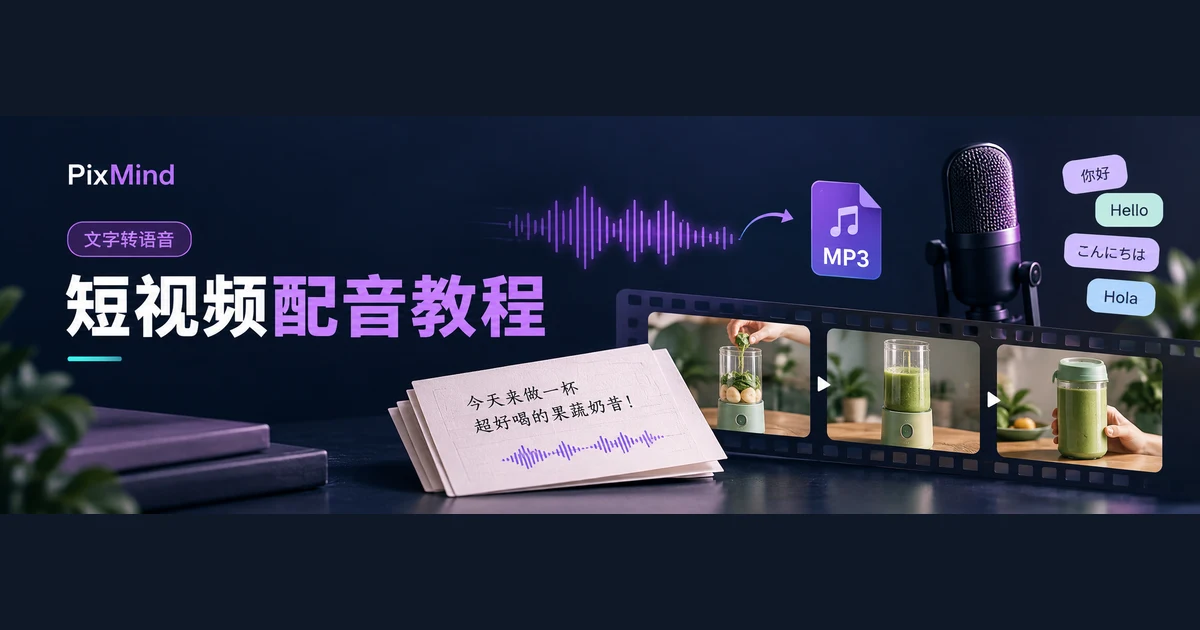
Turning text into an immediately usable MP3 takes only three key moves: shape the text for reading aloud, choose a voice that matches the language, and listen once after generating before saving. PixMind's Text to Speech page puts all three in one interface: enter text on the left with a live character count, pick the voice and parameters on the right, play the result in-page, and download once confirmed.
Open Text to Speech, and a product blurb under 100 characters gets you your first audio file in minutes.
Key takeaways
- The voice popup lets you audition samples directly; for generation, the Microsoft engine is free with no registration, while the other engines require signing in and consume credits by character count.
- Signed out, you get up to 100 characters per run and 2 free trials; signed in, the free plan still allows 100 characters per run, and paid members get up to 10,000.
- The speed and volume sliders work for every engine; the pitch slider appears only with the MiniMax engine; switching engines resets parameters to defaults automatically.
- Check the result in the page's player bar first—names, product names, and long numbers—then click download to get the MP3 file.
Prepare Text That Reads Well Aloud
Most quality differences come from the text, not the parameters. The same voice reading bookish long sentences versus short ones sounds completely different—rewriting the draft into "spoken words" before generating beats fiddling with sliders.
Three rules for rewriting. Split long sentences short—one point per sentence—and drop bookish fillers like "features" and "aims to." Write numbers and abbreviations exactly as they should be read, with model codes, amounts, and years each standing as their own word. Leave pauses to punctuation: a comma is a short pause, a period is a breath—don't control rhythm with spaces.
Take a product blurb. Original: "This product adopts a newly developed in-house engine, featuring high speed, stability, and ease of use, and can satisfy the diverse needs of individual users and enterprise customers across multiple scenarios." Spoken rewrite: "This is our new engine. It's fast, and it's steady. Works for one person, works for a team."
The input box truncates text at the current character limit, with a live "current / limit" count below. The limit depends on sign-in status; see "How to check your quota and estimated cost before starting" for how to verify.
Filter Voices by Language and Audition Them
The right panel comes with a default voice matched to the interface language—on the Chinese interface, a Chinese voice—which you can use for the first version directly. To change voices, follow this order:
- Click "Choose voice" to open the voice popup.
- Switch engines on the "Speech model" row at the top: Microsoft, Volcengine, MiniMax, Google, and low-resource languages. Each card shows that engine's current voice count—treat the interface as the source of truth.
- Filter by target language with the "Language" dropdown. The options come from the current engine's voice catalog and change when you switch engines.
- Narrow further with the "Gender" dropdown (female, male) and the search box when needed; the right side shows the live result count, "N voices."
- Hover over a voice's avatar and click play to audition its sample; voices without samples show "No sample available for this voice."
- Click "Select" on the card you like; the popup closes and the right panel updates to that voice.

Auditions play the voice's built-in sample, not your text; to judge real results, generate a short line and listen. No engine is the single answer: the Microsoft engine is free with broad language coverage, the page positions Volcengine toward narration and audiobooks, MiniMax toward ads and character voicing, Google covers more languages and accents, and the low-resource-languages engine covers ethnic and regional languages. Audition a voice or two per task at hand—that's more reliable than memorizing conclusions.
Adjust Speed, Volume, and Available Parameters
In the "Speech settings" panel, the speed and volume sliders work for every engine, while the third slider, "Pitch," appears only when a MiniMax-engine voice is selected. Value ranges differ by engine:
| Engine | Speed | Volume | Pitch |
|---|---|---|---|
| Microsoft | -100% to +100%, default 0 | 0 to 100 | None |
| Volcengine | 0.8x to 2.0x, default 1.0x | 0.5x to 2.0x | None |
| MiniMax | 0.5x to 2.0x | 0 to 10 steps | -12 to 12 semitones |
| Google and low-resource languages | -100 to +100, converted at submission | 0 to 100, converted at submission | None |
Parameters follow the selected engine, not the voice: switching to another engine's voice snaps the sliders back to that engine's defaults, and previously tuned settings aren't kept. The "Reset parameters" button below the panel restores defaults anytime.
Fix your tuning order: generate the first version with defaults, listen and determine whether the problem is pacing or loudness, then move the matching slider—one change at a time, or you won't hear which adjustment did the work.
Listen Once After Generating, Then Download the MP3
With text and voice in place, click "Generate speech"; the button shows "Generating…" while it runs. Text, voice, and character count are validated before generation, and unmet requirements trigger an immediate prompt instead of a wasted wait. Once the result arrives, proceed in this order:
- Listen through once in the player bar at the bottom of the page. It shows progress, current time, total duration, and the voice used, with a draggable playhead.
- Check three kinds of content closely: people's names, product names, and long numbers. These have the highest chance of being misread.
- If something's off, go back and revise the text—rephrase or add/remove punctuation—then generate a new version, which replaces the previous one.
- Once confirmed, click "Download MP3"; the saved file starts with pixmind-tts- and has the .mp3 extension.

Full sample audio (voice: Yunxi):
The page keeps only one result at a time; for multiple audio segments, generate and download segment by segment.
How to Check Your Quota and Estimated Cost Before Starting
No need to guess quota information—it's all displayed directly below the text box. Verify three things before generating:
- The character count "X / Y characters": Y is 100 for signed-out and free-plan users, 10,000 for paid members.
- The note beside the count: signed out it reads "2 free trials · up to 100 characters per run"; on the signed-in free plan it reads "Free users: up to 100 characters per run."
- "Estimated cost": with the Microsoft engine selected it shows "Free" and deducts no credits; with a paid engine it shows the credit amount, calculated at 10 credits per 100 characters, with runs under 100 characters counted as 100.
Once your trials run out while signed out, the server declines generation and pops up a sign-in dialog; after signing in you can continue. Auditioning in the voice popup is unaffected—click and listen anytime.
FAQ
Which voices can I try for free?
Every voice with a sample can be auditioned in the popup without signing in. For generation, there are two classes: Microsoft-engine voices are free to generate with no registration—signed out you get 2 trials at 100 characters each; Volcengine, MiniMax, Google, and low-resource-language voices require signing in and consume credits by character. Telling them apart is easy: check whether "Estimated cost" shows the "Free" tag or a credit number.
What format is the downloaded file?
MP3. After each generation, click "Download MP3" on the player bar's right to save; the filename starts with pixmind-tts- and carries a timestamp of the generation time. The page keeps one result at a time, so multiple segments must be generated and downloaded one by one.
How should I split very long text?
Confirm the current limit first: 100 characters per run signed out and on the free plan, 10,000 for paid members—text beyond it won't generate. Split by natural paragraphs or sentence groups, generating and downloading each segment separately. Keep one voice for a single manuscript where possible, remember that switching engines resets speed, volume, and other parameters to defaults, and note your tuned settings before splitting.
Generate Your First MP3 Now
Start with a product blurb under 100 characters: rewrite it into short sentences, pick a Chinese voice, generate with default parameters, listen through once, then decide whether to adjust the speed or change the voice. Once the first MP3 is on your machine, longer drafts are just repeats of the same flow.