A twenty-minute interview recording typed out by hand means constant pausing, rewinding, and re-listening for names — it often takes longer than the video itself. The video-to-text tool hands this step to transcription: upload a file or paste a link, choose the spoken language, and within a few minutes you usually have a time-segmented transcript you can export as TXT and take straight into editing.
Open Video to Text, upload a video or paste a link — the segmented transcript, the source label, and the export buttons all appear on the same page once generation finishes.
Key takeaways
- Local files support MP4, MOV, WEBM, MP3, and other audio/video formats; without signing in you get 1 free run per day (up to 50MB and 10 minutes), 2 per day after signing in, and credits can extend processing up to 2 hours.
- The transcript is displayed in time segments, each with its own timestamp, and can be exported as TXT, SRT, or VTT.
- The results area labels the transcript source: existing platform subtitles, or speech transcription.
- When you need the distilled points rather than the spoken words, switch to the "Summary" output; verbatim transcripts and summaries serve two different jobs.
First decide: verbatim transcript or summary
There is only one criterion: will you use the original words afterward, or the condensed conclusions? Choose a verbatim transcript to quote exact words, tidy up an interview, proofread content, or build subtitle drafts; choose a summary when you only need to know what the video said or are writing a report.
| Output | What it contains | Fitting tasks | How to get it |
|---|---|---|---|
| Transcript | The spoken original, segmented by time | Quoting, organizing drafts, proofreading, subtitle drafts | Submit the task to generate; the first 3 segments preview without signing in |
| Summary | One overview paragraph plus a list of key points | Quickly understanding content, writing reports | Requires signing in before it can be selected and generated |
For the same video, the two outputs differ sharply: a transcript preserves "who said what, when," while a summary only answers "what this video is about." Mixing them up costs you both ways — you can't find a quotable line in a few-hundred-word summary, and there's no need to read an hour-long transcript just to write a report.
Upload a file or use a currently supported video link
The workbench offers two input paths, switchable anytime via the buttons at the top. When you have the file, upload it first — it's the most reliable; use pasting only when all you have is a platform link.
Link path:
- Stay in "Paste link" mode (this entry point's default) and paste the full video link; the input box's placeholder examples include YouTube, TikTok, Douyin, and other platforms.
- Whether a link can be parsed is decided by the task result — not every link succeeds. If parsing fails, an "Upload a file instead" button sits next to the error message, switching you back to the local path in one click to retry.
File path:
- Switch to "Upload file," click the selector, and choose a video or audio file; common formats including MP4, MOV, WEBM, and MP3 are all supported.
- Mind the limits before submitting: signed out, the maximum is 50MB and 10 minutes; signed in, the maximum is 200MB and up to 2 hours, with the portion beyond 10 minutes billed by credits (10 credits/minute). When you pick a file, the tool detects its duration on the fly and warns you.

Generate the transcription and review the segments
- Choose the spoken language. If unsure, keep "Auto (follow the video)"; you can also manually set Chinese, English, Japanese, Korean, Spanish, Russian, or French.
- Confirm "Transcript" is checked as the output type. This entry point checks only the transcript by default; "Summary" and "Chapters" require signing in to generate.
- Click "Start generating." The progress bar walks through stages — reading the video source, preparing audio, reading subtitles or transcribing speech — with a percentage, usually finishing in 1–3 minutes.
- Review the transcript in the results area: the content is segmented by time, each segment preceded by a minute-and-second timestamp; the area also shows the video title and total duration.
Two details deserve attention. First, the end of the results area labels the transcript's source: "Source: platform subtitles" or "Source: speech transcription." When the video ships with subtitles, the platform subtitles may be used directly; without usable subtitles, the audio goes through speech recognition — and the two sources can yield slightly different content. Second, you can submit a task and preview the first 3 segments without signing in, while viewing the full transcript requires signing in; refreshing the page after submitting won't lose your progress.
Clean up names, terminology, and spoken-language repetition
Transcription takes down pronunciation and doesn't verify spelling: people's names, brands, product terminology, and mixed Chinese-English phrases are where verbatim transcripts go wrong most. Doing the revisions in your exported copy of the text saves time over rerunning the transcription repeatedly:
- Download the TXT first, or use the copy button in the results area to paste all the text into your own document. Copied content carries no timestamps and suits direct body-text editing; the TXT's leading line timestamps preserve jump-back points.
- Verify proper nouns segment by segment. Standardize the spelling of people's names, company names, product names, and technical terms; for any doubtful word, use the TXT line's leading time to jump to that spot in the original video, listen, and decide.
- Clean up spoken-language artifacts. Trim filler words, repeated half-sentences, and verbal tics according to the draft's purpose; keep the original wording — and the segment's timestamp — for passages you'll quote directly.
Revisions happen only in your copy; the original transcription in the tool stays unchanged, so you can always re-export a clean base draft.
Export TXT or move to the subtitle workflow
The export buttons sit right in the transcript results area, and all three formats come from the same transcription:
- TXT: each line reads "[min:sec] text" with timestamps — ideal for organizing drafts and jumping back by time.
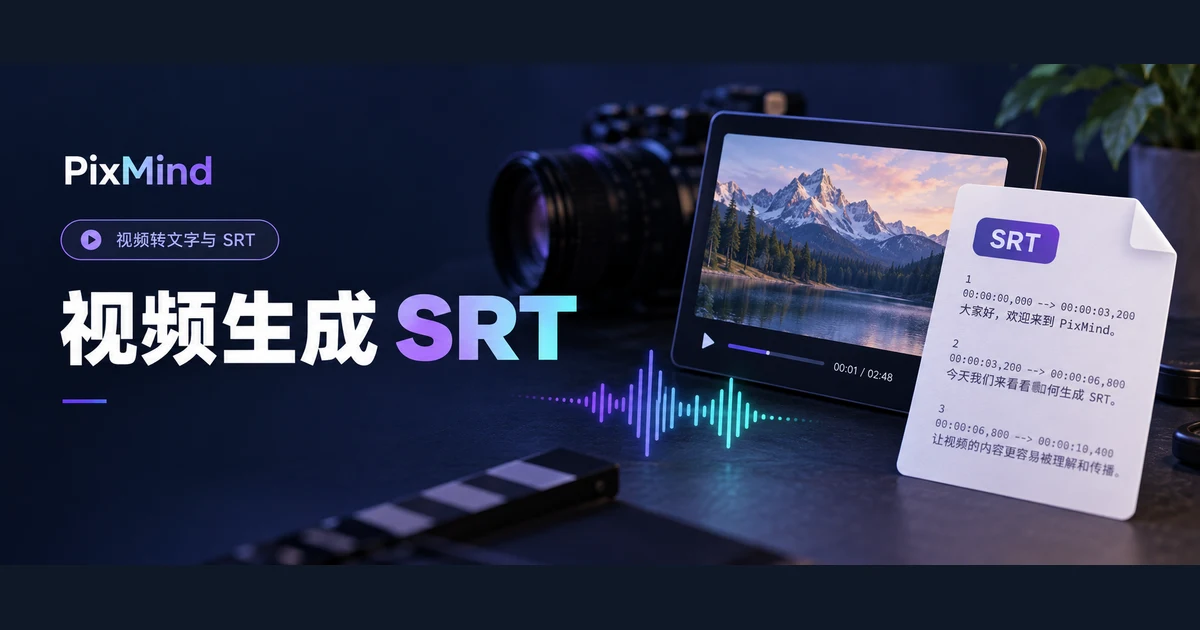
- SRT: each segment carries a number plus start and end timecodes in the "00:00:01,000 --> 00:00:04,500" format, for editing and playback software to use as a subtitle file; the full workflow for generating and importing subtitles gets its own follow-up subtitle tutorial.
- VTT: timeline text beginning with WEBVTT, the format some web players use.
When unsure which to pick, export TXT first. Organizing the text is the most common destination for a transcript; if you need timed subtitles later, return to the same result and export SRT — no re-transcription required.
FAQ
Can it transcribe a video with no existing subtitles?
Yes. Transcription doesn't depend on existing subtitles: the task decides whether platform subtitles can be used, and when none are available it runs speech transcription on the audio — both sources are labeled in the results area. Just keep the spoken language on "Auto (follow the video)" and the tool determines the video's language itself.
What's the difference between transcription and video summarization?
Transcription outputs the spoken original segmented by time — good for quoting, proofreading, and turning into a draft; video summarization outputs an overview paragraph plus a list of key points — good for quickly grasping content or writing a report, and generating a summary requires signing in. The rule: if the deliverable needs the "exact words," transcribe; if it only needs the "conclusions," summarize.
How do I fix wrong proper nouns in the transcript?
Export the TXT or copy the full text first, then revise in your own document copy. Every TXT line begins with a timestamp — replay that spot in the original video to confirm the pronunciation, then replace the spellings of names, brands, and terms consistently. The tool offers no interface for editing the segmented text online; all revisions happen in the exported copy while the original transcription stays untouched.
Upload your first video
Pick a video from your own material that genuinely needs its words: interviews, course recordings, meeting footage, or podcast videos all work. Keep the language on Auto, check Transcript as the output, export a TXT after generating, then tidy proper nouns and spoken-language artifacts by the timestamps.
Open Video to Text and generate and download your first TXT transcript.