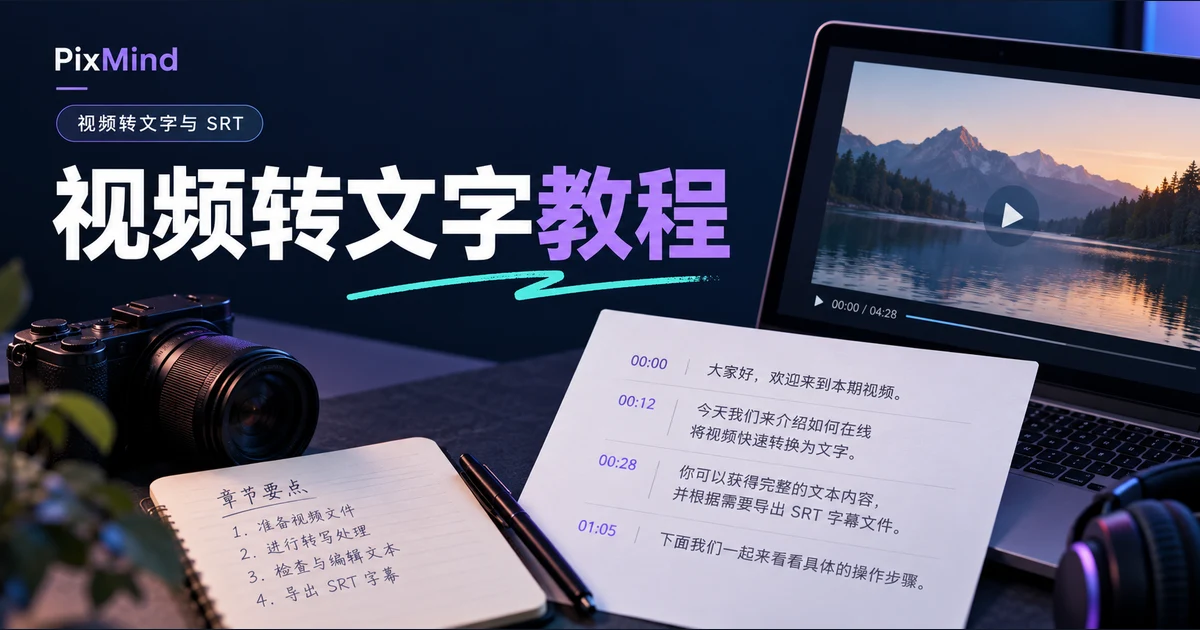
Between a video and a usable subtitle file lies just one export. Hand the video to a transcription tool, get a transcript segmented by time, click SRT in the results area, and every spoken line gains start and end timecodes—becoming an external file you can drop straight onto a subtitle track in editing software, without typing a single timecode by hand.
Open Video to SRT, upload a video or paste a link, and after generating choose SRT in the results area to download.
Key takeaways
- SRT is an external subtitle file: each subtitle consists of three lines—index, start-and-end timecodes, text—with a blank line between blocks; it's not the same thing as subtitles burned into the picture.
- After transcription, click the SRT button in the transcript results area to download; timecodes follow the format
00:00:01,000 --> 00:00:04,120, and the exported file is UTF-8 encoded.- Importing into editing software is an external step: the general path is import the subtitle file, place it on a subtitle track, play back and check; for exact menu locations, defer to your software's official documentation.
- Troubleshoot by scope: for an overall subtitle delay, apply a uniform shift first; for garbled text on open, check the encoding; for software not recognizing the file, check the extension.
What an SRT File Has That a TXT Doesn't
For the same speech, a TXT records "what was said" while an SRT additionally records "when it was said." Each TXT line marks time as "[minutes:seconds] text," handy for humans checking back by time; an SRT writes the time as start-and-end timecodes that players and editors both read directly. An SRT file's content looks roughly like this (subtitle text is a made-up example):
1
00:00:01,000 --> 00:00:04,120
Example: Welcome to this short film

2
00:00:04,400 --> 00:00:08,000
Example: Today, three steps to your first subtitles

3
00:00:08,200 --> 00:00:12,500
Example: Upload the video first, then export the SRT
Each subtitle block has three lines: the first is the index, incrementing from 1; the second is the line's start and end time in "hours:minutes:seconds,milliseconds" format, with three-digit milliseconds after the comma and --> in between; the third is the subtitle text. A blank line separates blocks, and parsers rely on it to recognize each subtitle's boundary.
Also distinguish two kinds of "having subtitles." SRT is external: the file lives apart from the video—players load it, editors import it, and it can be modified or replaced anytime. Burned-in subtitles render the text into the picture's pixels; once exported, they can't be switched off or re-edited separately. After you have the SRT, whether and when to burn it in is a decision left to the editing stage.
Generate the Transcription at the Video-to-SRT Entry
The first step to an SRT is a time-segmented transcription. The Video to SRT entry defaults to "Upload file" mode—just select a local video or audio file, with MP4, MOV, WEBM, MP3, and other common formats supported; switch to "Paste link" when handling platform videos. Signed out you get 1 free run per day for files within 50 MB and 10 minutes; signed in you get 2 per day, and credits extend processing up to 2 hours.
- Upload a file or paste a link. The video is usually on your machine, and the entry defaults to "Upload file"—just pick the video.
- Leave the spoken language on "Auto (follow the video)," or manually specify Chinese, English, Japanese, Korean, Spanish, Russian, or French.
- Click "Start generating." The page reports progress by stage (reading the video source, preparing audio, reading subtitles or transcribing speech, and so on) and usually finishes in 1–3 minutes; refreshing mid-task won't lose your progress.
- Check the segmentation in the transcript results area, click the SRT button to download, and you have the transcript.srt file.
The results area labels the transcript's source: if the video carries its own subtitles, platform captions may be used; otherwise the audio is speech-transcribed. Signed out, you can preview the first 3 segments—viewing the full content requires signing in. This subtitle entry's form offers only the SRT, VTT, and TXT subtitle format switch, with no summary or chapter output options; cleaning up the verbatim transcript, revising the TXT, and checking proper nouns belong to the video-to-text tutorial's scope—this article continues from the exported SRT file.
Check Timecodes, Line Breaks, and Proper Nouns
The first exported SRT is usually usable already, but two minutes checking timecodes, line breaks, and proper nouns before handing it to your editor is time well spent. Open transcript.srt in any text editor or dedicated subtitle editor to make changes.
On line breaks, automatic segmentation occasionally produces a line too long for one block. Suppose block 2 of the example was originally a single sentence:
2
00:00:04,400 --> 00:00:11,800
Example: Today, three steps to your first subtitles and importing them into your editor
After playing it back to confirm the break point, split it into two:
2
00:00:04,400 --> 00:00:08,000
Example: Today, three steps to your first subtitles

3
00:00:08,000 --> 00:00:11,800
Example: and importing them into your editor
Watch three things when splitting: the new block's start time must not be earlier than the previous block's end; all later indexes shift down; keep one blank line between blocks. Merging two blocks is the reverse—delete the blank line between them and fix up the numbering.
On timecodes: each block's start must precede its end, the format stays "hours:minutes:seconds,milliseconds," and the comma before milliseconds must not become a period—the period is VTT's notation. On encoding: the exported SRT is UTF-8; when saving your edited file from a text editor, choose UTF-8 again—other encodings may show as garbled text in some software. On proper nouns: unify names, brands, and product terms to match how they actually appear in the video; editing text doesn't affect timecodes, and when a pronunciation needs checking, jump to that block's timecode in the video and listen.
Import the Subtitles into an Editing Tool
Once the SRT exists, importing happens inside the editing software—PixMind doesn't burn subtitles into the picture for you. Menu names differ across programs, but the general path is the same:
- Open your project in the editing software and place the video clip on the timeline.
- Find the subtitle or title menu, choose "Import subtitle file," and select the .srt; some software also lets you drag the .srt straight onto the timeline.
- The subtitles appear on a subtitle track, aligned above or below the audio track.
- Play from the top and confirm each subtitle appears and disappears in step with the speech.
- When the subtitles must appear in the final picture, run the export render and the subtitles burn in with the frame.
Common editors such as CapCut and Premiere all support importing SRT as an editable subtitle track; exact menu locations change with versions, so defer to your software's official documentation. After importing, skim the block distribution on the subtitle track, then play through segment by segment—problems surface more easily than in a direct final render.
Troubleshooting Overall Subtitle Delay or Garbled Text
Troubleshoot from largest scope to smallest: fix what affects the whole video first, then touch individual subtitles.
- Overall delay or lead: all subtitles uniformly half a second late or early means the timeline has shifted wholesale. Common causes are an added intro at the video's start, or the subtitle being made for a different cut of the video. Use the subtitle editor's or editing software's global shift to move all subtitles by one fixed offset—don't hand-edit block by block.
- Garbled on open: content displaying as characters like "测试" is an encoding problem. The exported original is UTF-8; garbling usually means a re-save switched encodings—reopen or re-save as UTF-8 in a text editor to restore it.
- Software doesn't recognize it: first confirm the extension is .srt and not .srt.txt—easy to miss when the system hides extensions; then open the file and check the structure: timecodes in the right order, blank lines between blocks, indexes in sequence.
When only individual subtitles are out of sync and the rest are fine, fine-tune that block's timecodes directly—no need to move the whole timeline.
When to Choose SRT, VTT, or TXT
The same transcription exports in three formats, and structural differences decide where each goes:
| Format | Structural features | Best for |
|---|---|---|
| SRT | Index plus 00:00:01,000 --> 00:00:04,120 timecodes (comma milliseconds) plus text |
Subtitle tracks in editing software, external subtitles in local players |
| VTT | WEBVTT on the first line, period milliseconds, no index numbers | Web playback scenarios such as browser players |
| TXT | Each line as "[minutes:seconds] text" | Organizing the transcript, checking content by time |
The rule in one sentence: for editing software and players, choose SRT; web players want VTT; for human reading and transcript organization, choose TXT. Some platforms impose specific format and encoding requirements on subtitle uploads—check the platform's official documentation before uploading instead of guessing.
FAQ
Does generating an SRT mean subtitles are now in the picture?
No. SRT is an external subtitle file; generating it only produces the file, and the picture changes not at all. To see the subtitles, load the SRT in a player, or import it into editing software and burn it into the picture through the export render.
Can a TXT without timecodes be turned directly into an SRT?
Yes, but you'd have to write start and end timecodes for every line and lay them out block by block in the index, timecode, blank-line format—a hefty workload once sentences add up. While the transcription result is still there, export an SRT from the same result instead: the timecodes are already generated, which saves the manual work and avoids format mistakes.
Subtitles out of sync with the audio—what do I check first?
First check for a global offset: if all subtitles are uniformly early or late, one global shift fixes it. If shifting doesn't solve it, confirm the video version matches—whether an intro was added, whether the duration is the same—and only then fine-tune the individual misplaced subtitles.
Generate Your First Importable Subtitle File
Pick a video that genuinely needs subtitles: a talking-head piece, a tutorial screen recording, or a product demo all work. Upload it, generate the transcription, export the SRT, run through the timecodes and line breaks in an editor, then import it into your editing software onto a subtitle track and confirm with one playback.
Open the Video to SRT entry and generate an importable subtitle file.