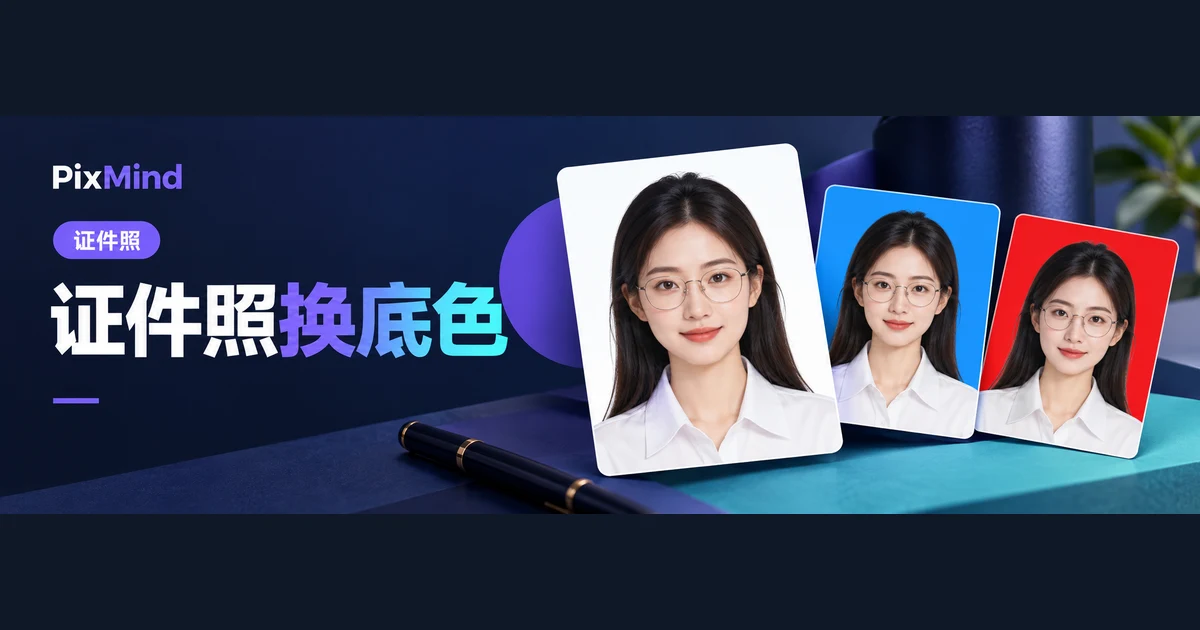
When you suddenly need a digital ID photo and all you have is a phone selfie, hand the selfie straight to PixMind's AI ID Photo tool: upload a front-facing selfie, pick a size and background color, and download the finished digital image. Size, background color, and outfit styling are all decided at generation time, so the source photo doesn't need to be a perfectly composed ID shot already. The tool's size presets cover common specs from Small 1-inch, 1-inch, and 2-inch formats to Resident ID card and standard passport, and a custom pixel option fills in anything the presets don't cover.
Open AI ID Photo and start by preparing a qualified selfie.
Key takeaways
- The source photo sets the ceiling on results: a selfie with clear facial features, a front-facing pose, no obstructions, and even lighting generates the most stable output.
- Choose size and background to match the recipient's requirements: the tool offers eight size presets (with pixel and millimeter equivalents) plus custom pixel input, and six preset background colors plus a color picker.
- The generate button shows the compute cost for the run (50), the process displays a progress percentage, and you download directly from the results page when it finishes.
- Manually check composition and likeness before downloading; if the result isn't right, swap the source photo or change the settings and regenerate.
First, confirm where this photo is going
Different destinations have different requirements even though they all say "ID photo." Exam registrations, onboarding paperwork, and official document applications each specify pixel dimensions or millimeter specs and background colors, and some also restrict file format and size. Before generating, note down three things: the required size, the background color, and the file requirements.
Watch how the size is written, too: some recipients give a millimeter spec, others give pixels directly. The tool's presets show both notations side by side, so you can match them without converting anything yourself. The walkthrough below uses one explicit example configuration: 1-inch, white background, digital file — corresponding to the tool's "1-inch" preset (295×413 pixels, 25×35 mm) with a white background. If your requirements differ, swap in the specs your recipient asks for; the instructions from whoever issues or receives the material are always the final word.
Choose a front-facing selfie that works
The source photo determines the ceiling on quality. The tool's advice in the upload area reads: clear facial features, front-facing photo, no obstructions, sharp image. Selfies that meet these points get far more stable results for both appearance and composition.
Check four points when picking or reshooting:
- Your whole head is in frame and your face points straight ahead;
- Facial features are not covered by hair, a mask, or your hands;
- Lighting is even, with no obvious shadows or backlighting on your face;
- Focus is sharp, without steep overhead or upward angles.
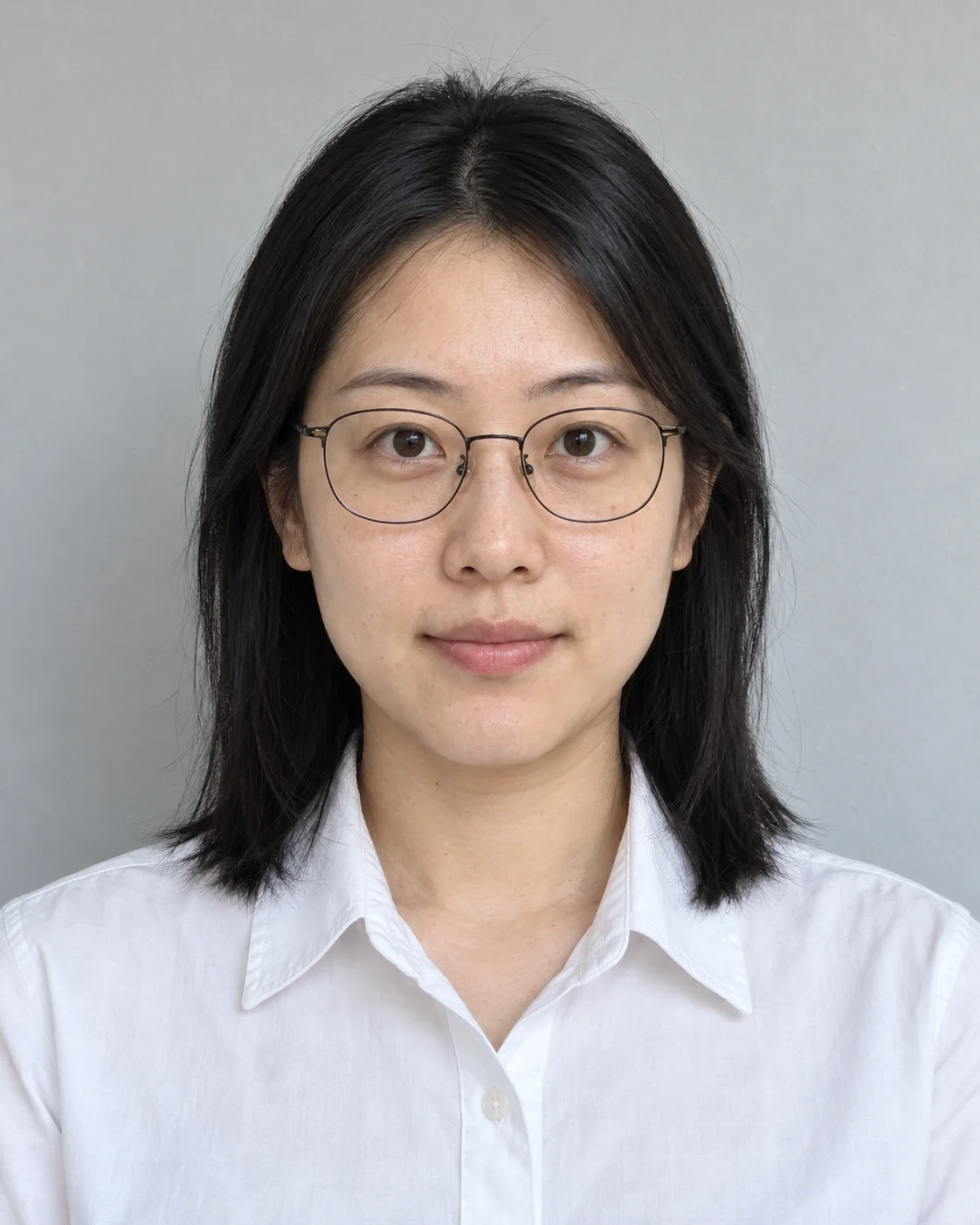

Sample photos displayed next to the upload area give you a reference for judging how far your source image is from the ideal input. The photo must also pass three checks: PNG, JPEG, or WebP format; a file no larger than 10MB; and both width and height between 384 and 5000 pixels. When a check fails, the tool tells you why — switch to an image that passes before continuing. Sources such as a turned head, bangs covering the eyes, or a backlit night shot can pass validation yet still generate poor results, so reshooting first is cheaper than round after round of rework after generating.
Pick a size and background in PixMind
Upload to generation takes five steps.
- Upload the selfie. Click "Click to upload" in the upload area and choose the source photo you checked in the previous section; after uploading, you can delete the preview and swap in another.
- Choose a size. Click one of the presets; if the presets don't include the spec you need, choose "Custom" and enter the width and height in pixels.
| Preset | Pixels | Millimeters |
|---|---|---|
| Small 1-inch | 260×378 | 22×32 |
| 1-inch | 295×413 | 25×35 |
| Large 1-inch | 390×567 | 33×48 |
| Small 2-inch | 413×531 | 35×45 |
| 2-inch | 413×579 | 35×49 |
| Large 2-inch | 413×636 | 35×53 |
| Resident ID card | 358×441 | 26×32 |
| Standard passport | 480×640 | 41×54 |
- Choose a background color. The presets offer white, red, light gray, and three shades of blue; if none fits, use the color picker to specify any color. The example configuration picks white.
- Set the person options as needed: the "Natural smile" toggle; a retouch level of Original, Normal, or Fine; a processing mode of "Outfit and hairstyle" or "Half-body generation" (the latter requires uploading an additional half-body reference photo); plus a checkbox for whether to change the hairstyle.
- Click "Generate now." The button shows the compute cost for this run (50), and generation displays a progress percentage.
"Outfit and hairstyle" mode replaces the original clothing with your chosen style, while "Half-body generation" expands the ID crop into a half-body composition. For official uses where the photo must look like you, the more you change the appearance options, the more carefully you should verify the result.
Check composition and appearance after generation
When generation finishes, the results area on the right shows the image with "AI ID Photo" and selected-size badges; when one run returns multiple images, each gets its own download button. Before downloading, check four things:
- Whether the headroom above the head is appropriate and the head doesn't touch the edge of the frame;
- Whether the shoulders sit naturally and symmetrically;
- Whether the face is sharp, with no skin or facial distortion after retouching;
- Whether the person still looks like you, especially with a changed hairstyle, fine retouching, or outfit replacement enabled.
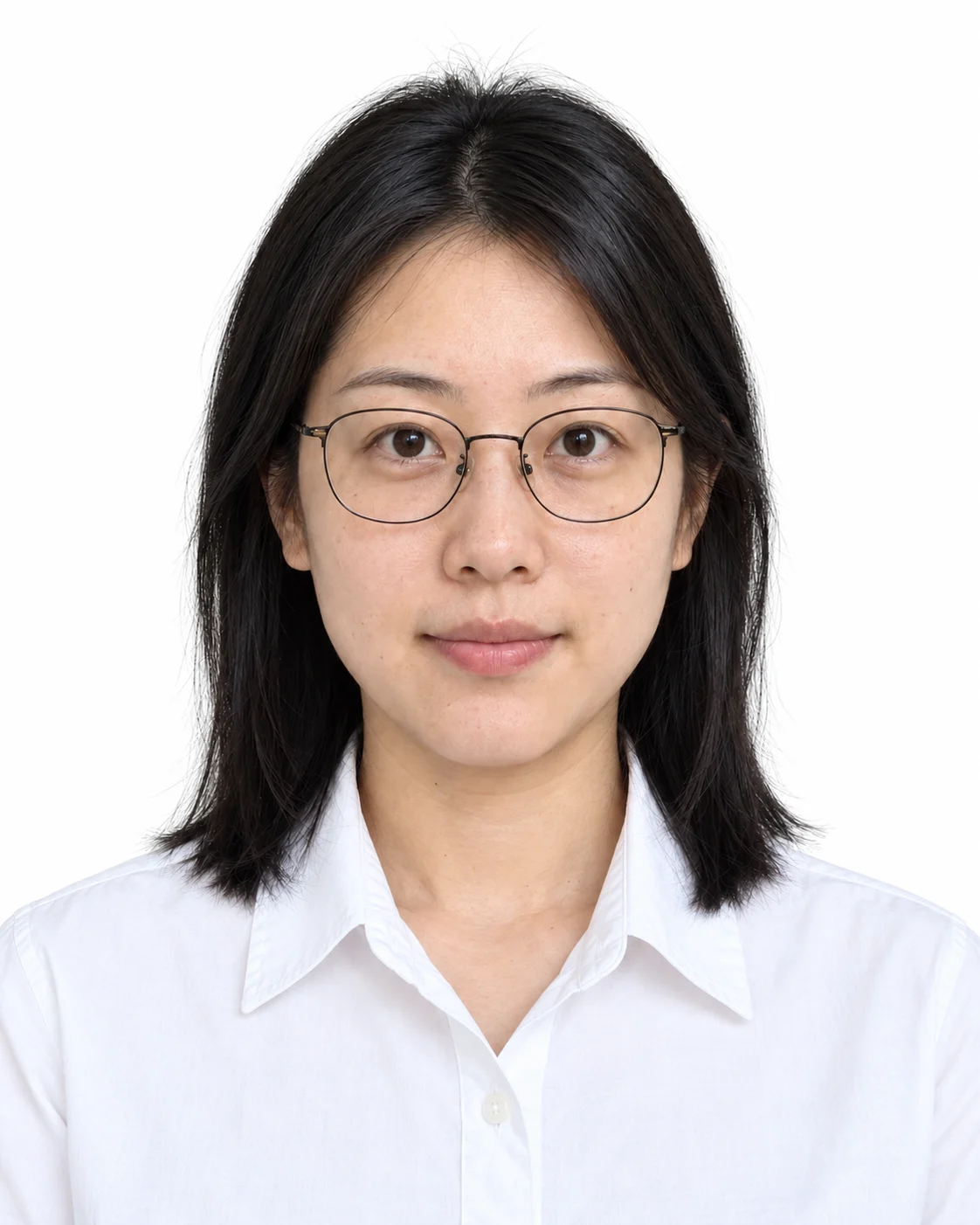
Don't settle for an unsuitable result — roll back in one of two places: if the source photo is the problem, upload a better selfie; if the composition or appearance is off, adjust retouching, hairstyle, processing mode, and other settings, then generate again. Every run is billed at the compute cost shown on the button, so changing the settings before clicking generate costs less than retrying repeatedly with the same setup.
Download the digital file and get it organized
A download button sits at the top right of the result image, saving the file locally under a name like "id-photo-number.png." After downloading, do two things:
- Verify the output size. Check the pixels in your system's image properties and compare them item by item against the recipient's requirements; with a custom size, make especially sure the width and height aren't swapped.
- Rename and file by purpose. A name like "registration-name-1inch-white" keeps the right file findable at a glance even after multiple generations.
If the recipient has additional file format or size requirements, or you need printed photos, convert the image with a local tool or hand the digital file to a photo studio or print service for spec-compliant layout and printing. Those steps sit outside the tool and belong to whichever stage handles them.
FAQ
Does any ordinary selfie work?
Format-wise, any PNG, JPEG, or WebP image up to 10MB with width and height between 384 and 5000 pixels can be uploaded. Results vary widely, though: front-facing, unobstructed, evenly lit selfies generate reliably, while sources with a turned head, obstructions, or backlighting tend to cause problems. Screen for "clear features, front-facing, no obstructions" before uploading.
What if the size I need isn't in the presets?
Choose "Custom" and enter the width and height in pixels to generate. When the recipient gives a millimeter spec, convert it against the preset table first: all eight presets list pixels and millimeters together, so common specs usually match directly.
What differs between the digital and printed versions?
For the digital version, focus on pixel dimensions, background color, and file format and size — all set inside the tool and verifiable right after download. The printed version additionally needs spec-compliant layout and printing, such as multiple photos per sheet, which happens outside the tool: just tell the photo studio or print service the purpose and spec when you hand over the digital file.
Prepare a selfie and generate your digital ID photo
The next step is concrete: find a selfie that passes "clear features, front-facing, no obstructions," confirm the size and background color the recipient requires, generate with settings chosen along this walkthrough, and complete the four checks before downloading.