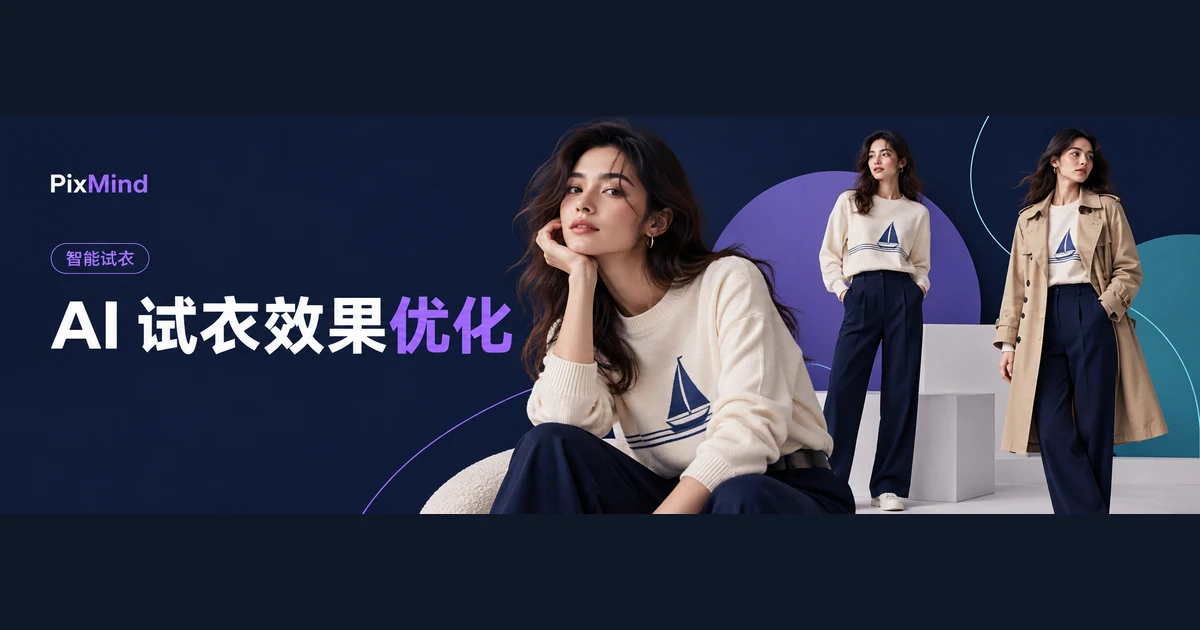
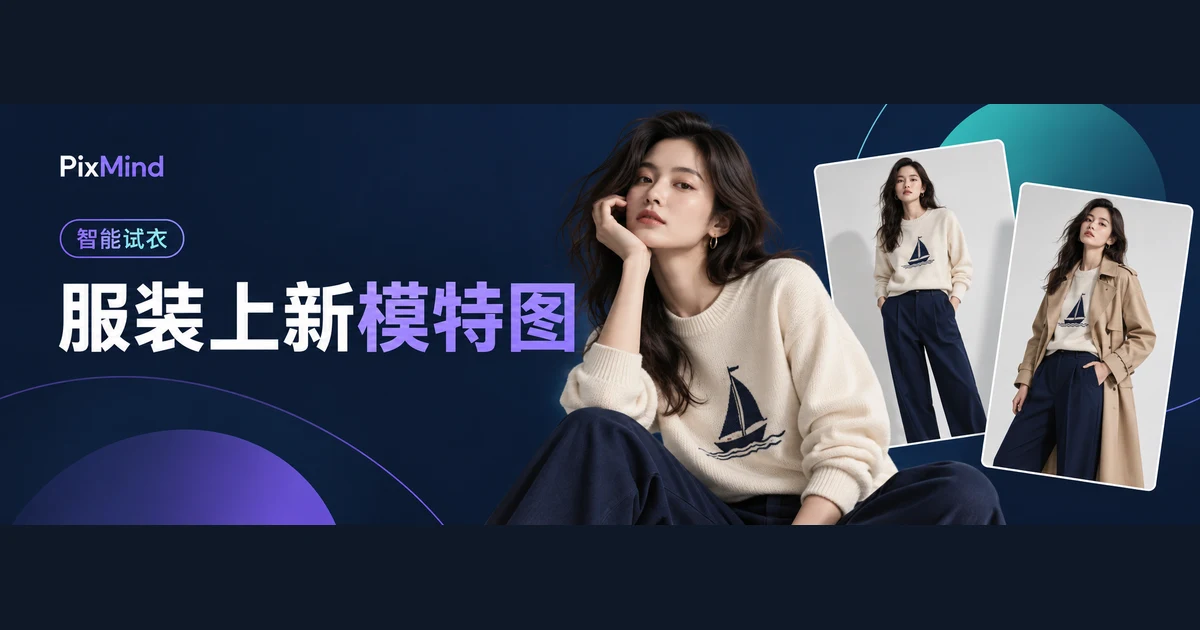
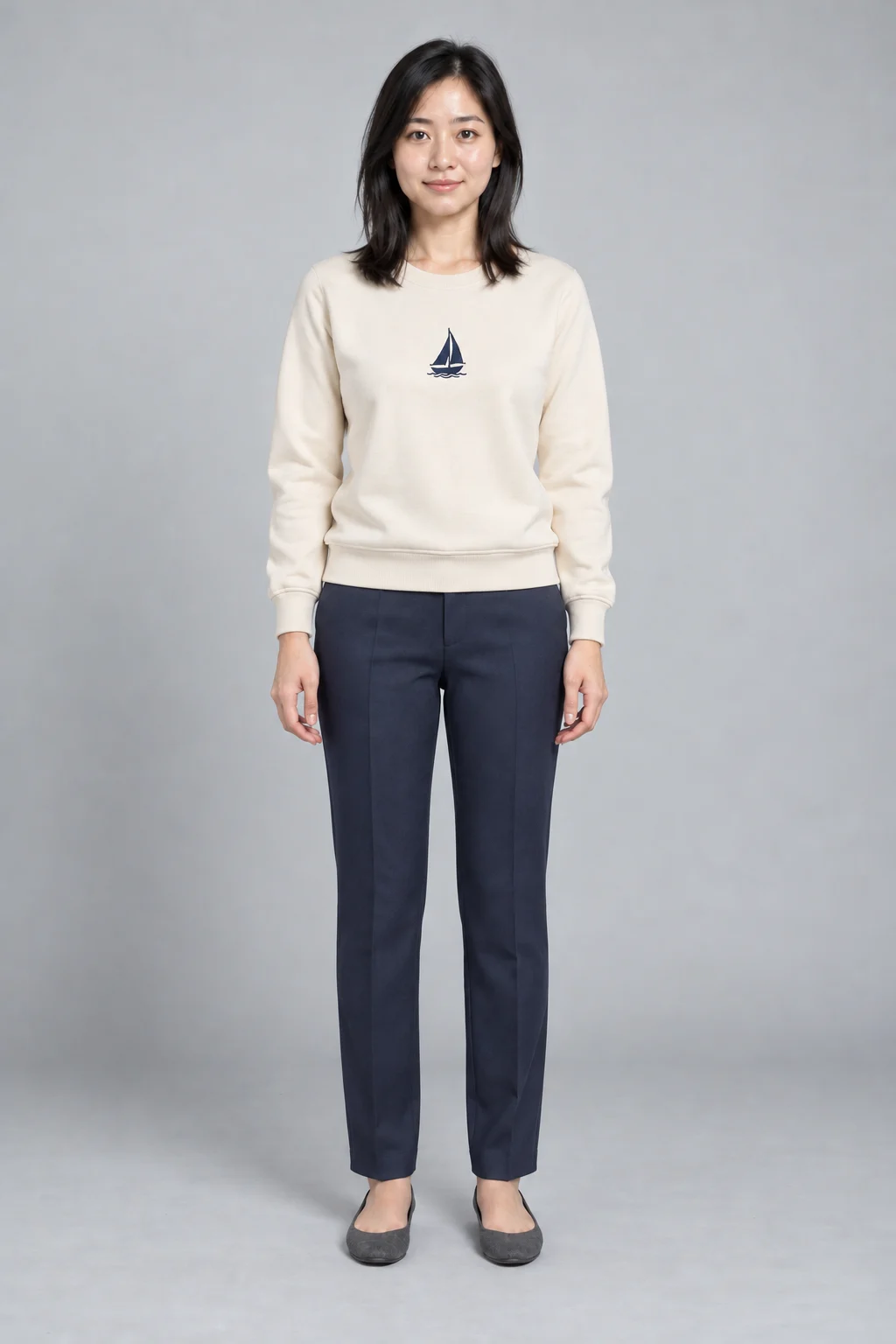
Turning a garment photo into a model try-on shot takes just three inputs: the garment photo, a model reference, and one line describing pose and background. PixMind's AI Virtual Try-On supports three input modes — top-and-bottom combinations, one-piece garments, and free mode — with models drawn from official presets or your own uploaded photo; results appear as a set of images you download one by one as PNGs.
Open AI Virtual Try-On, first confirm which kind of garment photo you have, then fill in the model and description in turn.
Key takeaways
- When top and bottom are separate photos, choose "Top and bottom" mode — both images are required; whole garments like dresses and jumpsuits go in "One-piece" mode.
- You can generate without uploading a model photo: the official model library filters preset models by age, gender, region, and style.
- The pose and background description is required and comes pre-filled with "Full-body shot, standing naturally, light solid-color background, soft studio lighting" — a small edit is all the first generation needs.
- Garment and model images both accept JPG, PNG, and WebP, up to 10MB each, with width and height each between 384 and 3072 pixels.
Prepare the garment photos and model reference
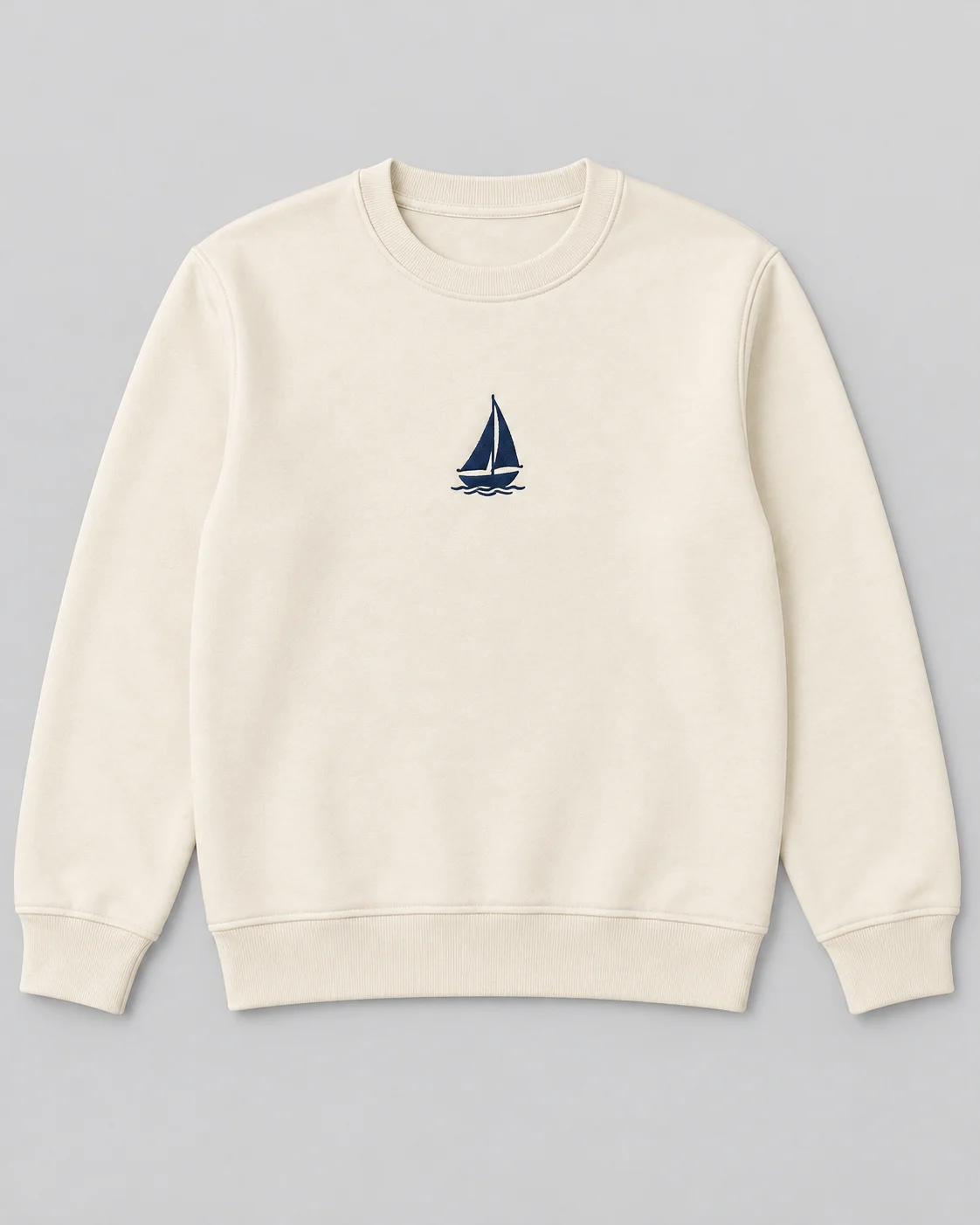
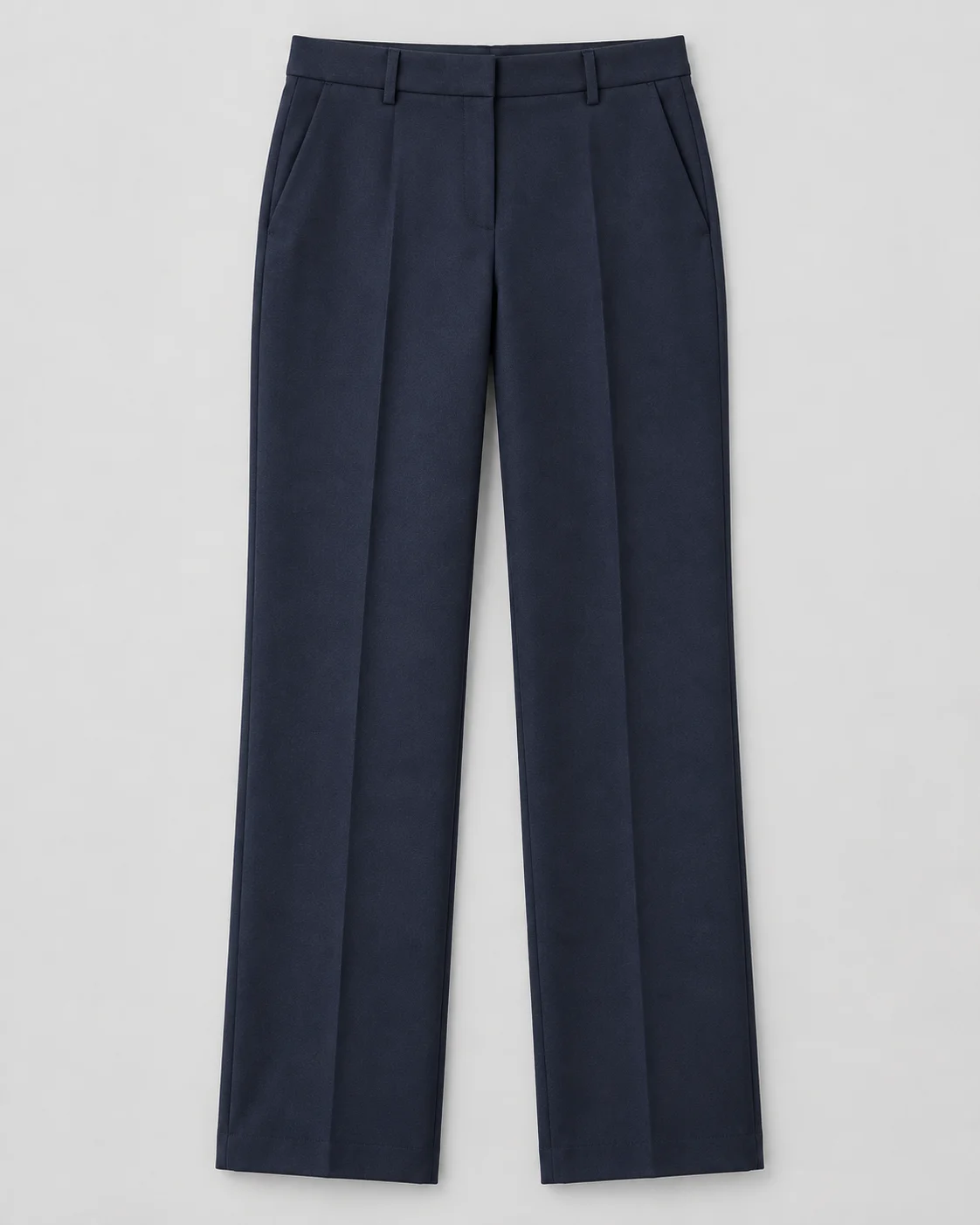
Start with a complete garment subject: a clear silhouette, discernible details like prints and buttons, and no large obstructions in the background. Prepare two photos for separate top and bottom, or one photo for whole garments like dresses. The tool applies three limits to every input image: JPG, PNG, or WebP format; 10MB maximum per image; and width and height each between 384 and 3072 pixels. If any check fails, the upload is rejected on the spot with a message and the image never enters the pipeline.
With the "AI cutout" toggle turned on before uploading, top, bottom, and one-piece garment images get their backgrounds removed automatically for a clean garment subject; when the garment's base color is close to the shooting background, this step reduces background residue. No suitable garment photo yet? No problem — the "Sample products" row under the top-and-bottom and one-piece modes provides ready-made images, and you can run your first generation with them.
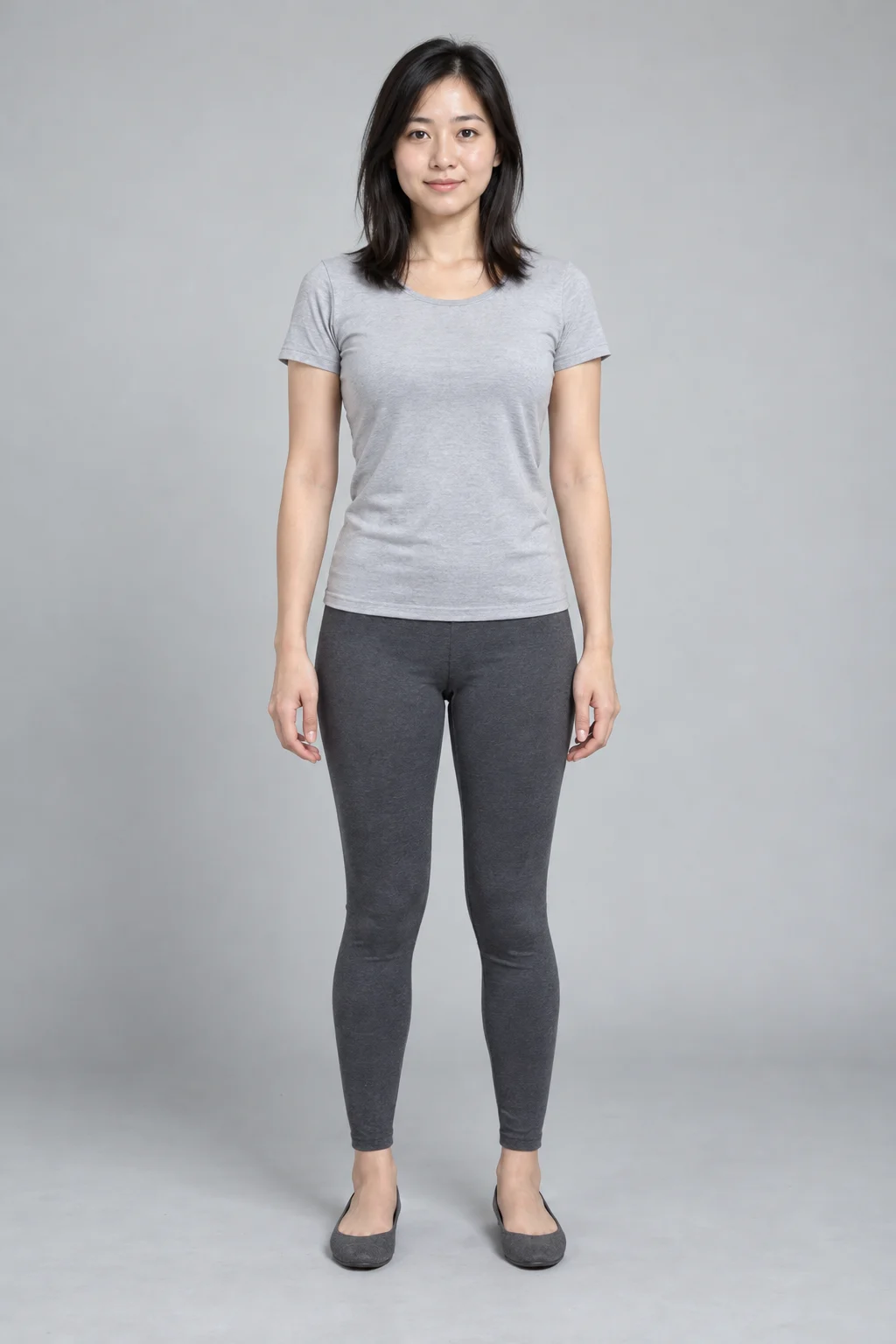
Model references come from two sources: pick directly from the official preset models, or upload your own photo under "Custom model." For your own model image, a full-body, standing, evenly lit photo close to your target visual style makes the first generation more stable.
Choose a try-on mode based on garment type
Step one, "Upload garments," has three tabs: Top and bottom, One-piece, and Free mode. Each mode has its own upload slots and submission rules, and picking the wrong one is the most common cause of rework.
| Mode | What to upload | Best for | Key rule |
|---|---|---|---|
| Top and bottom | One top image and one bottom image | Separately shot tops, pants, skirts | Both images are required |
| One-piece | One image of the whole garment | Dresses, jumpsuits, full-set garment images | A single image is enough |
| Free mode | Image 1 required, Image 2 optional | Free garment combinations of up to two images | At least one, at most two |
How to do it:
- Click a mode tab in the "Upload garments" row, and the interface switches to the matching upload slots.
- Click a slot or drag images straight in — one image per slot.
- To remove backgrounds automatically, turn on the "AI cutout" toggle before uploading; once processing finishes, the slot shows the cutout result.
- Check each slot's preview to confirm images aren't in the wrong place; in top-and-bottom mode, neither the top nor the bottom can be missing.
Pick a preset model or upload your own
Step two, "Choose model," has two tabs: "Official models" and "Custom model."
- For a preset model, choose from the default list first. It contains two default models — "Free model (female)" and "Free model (male)" — plus a collection of official models.
- Need more options? Click "More" — in the popup you can filter by age, gender, region, and style, switch the sort order, and click a card to complete the selection.
- To use your own photo, switch to "Custom model," click "Upload your photo" to add the image, and choose the gender "Female" or "Male."
A custom model must be genuinely uploaded. Submission accepts only the uploaded image address — if the upload didn't succeed, the tool won't fall back to the preset model you picked earlier; it will simply prompt you to upload a model photo first.
"More settings" offers further model adjustments: model feature management can add expressions, hairstyles, hair colors, and other traits, while outfit pairing management can add a pair of shoes to the whole look.
Describe the pose, background, and what to show off
Step three, "Pose and scene," is a required text box matching the "pose & background description." It decides the model's pose, the scene, and the lighting all at once, and it's the variable most worth adjusting between two generations.
The box comes pre-filled with one line: "Full-body shot, standing naturally, light solid-color background, soft studio lighting." For the first generation, keep edits small — complex poses can disturb the result. Three formulations you can use as-is:
- Standing pose: full-body shot, standing naturally, arms relaxed at the sides, light solid-color background, soft studio lighting.
- Full garment view: full-body shot, arms slightly away from the body, showing the sleeves and bodice in full, solid-color background, even lighting.
- Minimal scene: full-body standing pose against a white wall, visual focus on the garment, even lighting.
Below, "Recommended backgrounds" groups templates into five categories: solid-color backgrounds, outdoor commercial, indoor commercial, outdoor casual, and indoor casual. Clicking any template auto-fills its pose and background description into the text box, where you can keep editing by hand. Manual editing deselects the current template, and choosing a new template replaces the whole box — keep that in mind when tweaking the description.
Check garment details and export the results
- Before generating, adjust the output size in "More settings": 2:3 by default, with 1:1, 3:4, or custom width and height (each 512 to 2048 pixels) available.
- Click "Generate now" — the button shows exactly how many credits the run costs. Generation is an async task with a progress bar; the bottom of the interface flags any missing input in real time, and the generate button stays unclickable while something is missing.
- Results display as a grid; click any image to enlarge the preview.
- Against the original garment photo, check five classes of detail: print, neckline, buttons, sleeve length, and hem. When you spot a deviation, note exactly where it is, then return to the matching input to fix it — swap in a sharper garment photo, say, or simplify the pose description.
- Once satisfied, click "Download results" — each image saves as a PNG file; click "Clear results" to start the next set.
FAQ
Do I have to upload my own model photo?
No. The Official models tab holds the default models and the full model library — filter by age, gender, region, and style and pick directly. You only need to switch to "Custom model" when you want your own photo as the model, and then you must complete the upload and choose a gender.
Does a dress work the same way as separates?
Not quite. A dress belongs to "One-piece" mode — one image of the whole garment is enough; "Top and bottom" mode requires both the top and bottom images to be uploaded together, and missing one blocks submission. To combine garment images freely within two images, switch to "Free mode" instead.
Why do pose and background need describing too?
The pose and background description is required at submission — it controls the model's pose, the scene, and the lighting, none of which the garment and model images alone can determine. When unsure how to write it, keep the default standing-pose line, or pick a "Recommended backgrounds" template and tweak it a little.
Complete your first try-on
The next step is concrete: upload a set of the garment photos you have on hand, choose a model, keep the default standing-pose description for a first run, then check prints and silhouette against the original.
Open AI Virtual Try-On and start with a top-and-bottom set or a dress.