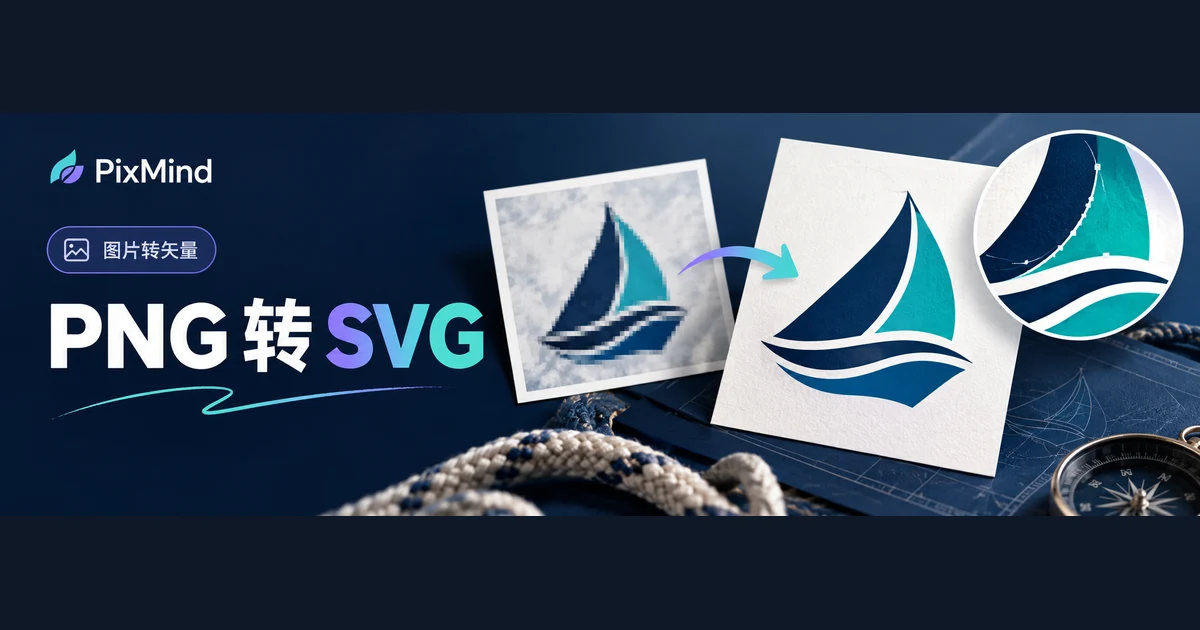
When a converted SVG has rough edges, the problem usually lies in the source image, not the conversion. Vectorization re-describes the outlines already present in the bitmap as paths: only a clean source edge gives the paths something clean to follow. A ring of compression artifacts around the subject, an arc reduced to two or three pixels wide, or a broad area of shadow—these defects get traced faithfully into the result. Identify which kind of source problem the roughness belongs to, tidy the input in order, and reconvert; that beats clicking retry over and over.
Open Image to Vector—and don't rush to switch tools: run the same image through the troubleshooting order below, and most edge problems will visibly change once the input changes. The full upload-convert-download steps for first-timers were demonstrated step by step in How to Convert PNG and JPG to SVG: A Complete Image Vectorization Tutorial; this article starts directly from the edge problems themselves.
Key takeaways
- Three source-image problems—compression noise, low-resolution outlines, and complex shadows—all get traced faithfully into the SVG paths; conversion can't restore information that doesn't exist in the source.
- First distinguish "missing information in the source" from "path-tracing error": the former needs a clearer source image, the latter can be fixed by tidying the input or cleaning up nodes.
- Change one variable per retry—swap the source, remove the background, and simplify the palette as separate steps, so any improvement can be attributed to a specific action.
- The current tool accepts PNG, JPG, and WebP with width and height each at least 256 pixels; use the result panel's 1×, 2×, and 4× zoom to inspect the same edge consistently.
First Tell Whether the Problem Comes from the Source or the Conversion
Open the SVG in the result panel at 4×, find the roughest edge, then go back to the source image and zoom the same spot to a similar magnification for comparison. Three typical defects each have a location signature:
Compression noise. The source has been saved repeatedly or forwarded through chat apps, pressing a ring of speckled color around the subject's outline. After conversion, the edge carries fine broken paths and frays, concentrated in a ring just outside the outline.
Low-resolution outlines. The source resolution is low, leaving arcs and corners very few pixels to work with. After conversion, arcs show stair-steps and corners go blunt, concentrated at curve transitions.
Complex shadows. The source carries soft gradients or drop shadows whose transitions have no clean boundary. After conversion they break into layers of near-match color blocks, concentrated in the shadow transition zones, and the colors no longer match the brand palette.
Classify after comparing, because the class decides the route: if the source's edges are themselves frayed, broken, or noisy at high zoom, it's missing information—only tidying the input or switching to a clearer version helps; if the source edges are clean at high zoom but the SVG grows extra nodes, stair-steps, or broken paths, it's path-tracing error, which retries or later node cleanup may solve. Skip this step and keep reconverting, and the two problem types blur together.
Remove Backgrounds That Interfere with the Outline
The background is the most common source of excess paths. Separate the subject from the background before converting, and both the path count and the edge cleanliness change visibly.
Solid-color backgrounds are the easiest: first crop away the surrounding blank margins so the subject fills the frame, then delete the base color and save as a transparent-background PNG. Cropping the margins is the cheapest single input upgrade—the subject's outline gets more pixels within the same picture. Note that the cropped width and height still need to be at least 256 pixels; crop too small and the upload check will reject it.
Complex backgrounds (patterns, gradients, real photos) require separating the subject first; otherwise the background texture gets traced into paths along with the graphic, leaving the converted edges littered with background fragments. For automatic separation, run the Logo Background Remover first, then upload its transparent-background output for conversion; the full cutout steps are documented in the background-removal tutorial and won't be repeated here.
One more thing about background removal: the separation tool outputs a bitmap. Its only job is lifting the subject off the background—it doesn't sharpen the subject itself. A blurry subject in the source stays blurry after background removal, so go back to the previous section and check whether it's missing information.
Handle Small Text, Thin Lines, and Gradients
These three element types distort most easily in conversion, and the order is fixed: find a clearer version first, then split text from graphics, and simplify shadows last.
Find a clearer version first. In a low-resolution source, small-text strokes fuse together and counters (the hollow of an O, say) shrink to a pixel or two—no conversion can conjure those details back. Larger versions often hide in website headers, business cards, marketing collateral, and brand books; find one and use it first. Thin lines follow the same rule: hairlines that break up in a low-resolution image convert into broken paths.
Split text from graphics. When text and graphics share one small image, crop the text region and the graphic region out separately, convert each, then align and rejoin them in design software. Each part gets a larger share of the canvas, which is more reliable than force-converting the whole small image in one go.
Simplify shadows. Soft gradients and drop shadows get split into layers of color-block paths. If brand guidelines allow, remove the drop shadow and replace the gradient with a flat main color block before converting; when the gradient is itself part of the brand identity, accept the blocky approximation or keep that part as a bitmap.
Hold on to one fact about text: the text in a conversion output is outline paths, not editable font text, and conversion will not restore it to the original typeface. Without the original font file, don't expect any conversion to "recover" the original letterforms, and don't guess a similar font from the outlines and adopt it as your brand font; when the copy needs to change, re-set it in design software with a confirmed font.
Retry One Variable at a Time
After preparing several input versions, don't swap them all in at once: change one variable per retry so improvements can be attributed.
Keep three things fixed in practice:
- Rotate inputs in rounds. Round one converts the original image as the baseline; round two swaps in only the background-removed version; round three swaps in only the simplified-palette or clearer version. When changing input each round, click the remove button at the preview's top right, upload the new file, and convert.
- Keep the inspection fixed. Look at the same roughest edge every round and compare at the same zoom—the result panel's 1×, 2×, and 4× provide a ready-made consistent baseline.
- Archive the results. Save the three SVGs with distinct names—logo-original.svg, logo-no-background.svg, logo-simplified.svg—and compare the edge differences side by side.
If two rounds show no visible difference, the problem isn't that input—return to the first section and reclassify; if there is a difference, keep pushing in that direction instead of piling on every change at once. To try the same input again, click "Re-vectorize" below the result to clear the current result and resubmit.
Decide: Keep the Conversion or Redraw by Hand
After a few rounds of fixing, one decision remains: is this SVG good enough, or is a manual redraw worth it?
Lean toward keeping the conversion when the mark is mostly flat color blocks with regular curves, small text and hairlines are few, and the use is web, UI icons, or mid-size collateral. If the edges are clean at 4×, the cutouts are intact, and the smallest text is legible, you can stop—no need to chase a minimal path count.
Lean toward redrawing by hand when small text is dense, hairlines are packed, the gradient is core to the brand identity, or the use is large-format printing and signage, where every stair-step and broken line blows up to naked-eye visibility. At that point, retracing the key outlines in vector editing software usually beats unlimited retries on time.
When the conversion is nearly usable and only stray frays remain, bring the SVG into vector editing software for node cleanup: delete surplus nodes, merge broken paths, and true up the rounded corners. That's a finishing step after retries, done in external software—the image-to-vector tool itself offers no node editing.
The bar always follows the use: the smaller the actual display size, the more tolerance for path imprecision; the bigger the enlargement, the more worthwhile it is to hunt down the best possible source image from the start.
FAQ
Does upscaling the image before converting to SVG help?
Only marginally. Upscaling adds pixel count, but interpolated pixels merely stretch the existing outline wider—no new edge information appears, and the noise gets enlarged along with everything else. It's fine for getting a small image past the 256-pixel minimum for submission; for genuinely clean edges, prioritize finding a higher-resolution original.
Why do photo-style logos produce so many paths?
Photos and continuous gradients have no clean color-block boundaries, so tracing can only approximate the transitions with masses of small color blocks; path counts explode with detail, and the file grows large and hard to edit. Such assets are better kept as high-resolution bitmaps; when a vector version is truly needed, simplify it into a color-blocked version first, or vectorize only the signature graphic portion. For a scenario-by-scenario table of which assets are worth converting and which should stay bitmap, see PNG or SVG for Logos: How to Choose for Web, Posters, and Print.
How do I judge that a conversion is good enough for the job?
Check at the final usage size. Open the result panel at 4× and inspect four spots—curves, cutouts, thin lines, and small text—then drop back to 1× to judge whether the color blocking is acceptable. Web and UI uses are measured by clarity at the actual display size; large-format printing and signage magnify every defect, so the bar rises accordingly. If the same edge shows visible improvement over the previous round, this round is good enough.
Tidy the Source and Convert Once More
Start from the roughest edge: classify the problem, prepare a new input with the matching fix, then open Image to Vector and reconvert with the new file. Afterwards, return to that same edge at the same zoom to compare; once the improvement is visible, move on to the next spot.