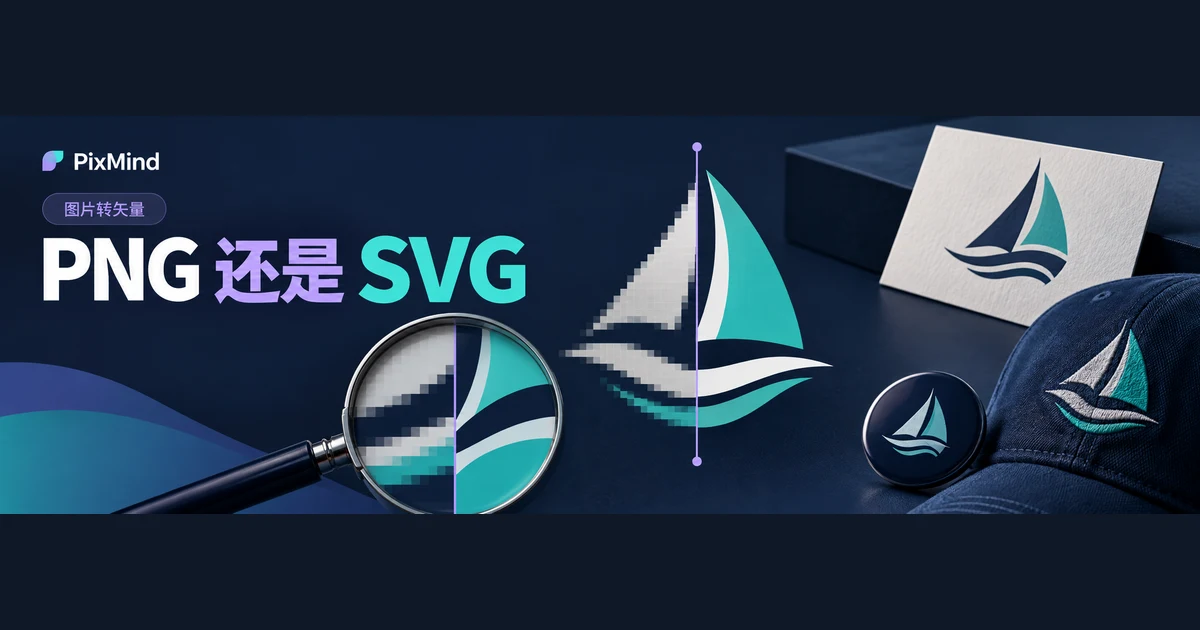
Plenty of teams hold their logo only as a PNG or JPG: fine on a webpage, but the moment it goes onto business cards, signage, or a blown-up display panel, the edges go soft. Convert that bitmap to an SVG vector and the graphic is recorded as paths—enlargement no longer depends on the original pixel count, and one file can serve the web, collateral, and large-format output at once.
PixMind's image-to-vector tool accepts PNG, JPG, and WebP inputs with width and height each at least 256 pixels, and downloads the SVG file directly after conversion. Open Image to Vector, upload the logo you already have, and four steps—upload, vectorize, inspect, download—get you your first vector version.
Key takeaways
- Clean-edged graphics—logos, icons, flat illustrations—suit SVG conversion; photos and complex textures don't belong in the same pipeline—what they need is upscaling, not vectorization.
- The current tool accepts PNG, JPG, and WebP with width and height each at least 256 pixels, converts one image at a time, and requires signing in before use.
- Conversion runs on the recraft-vectorize model and outputs an SVG file; clicking "Download SVG" saves it as vectorized.svg.
- The result panel has built-in 1×, 2×, and 4× zoom for inspection; before delivery, focus on four spots—curves, cutouts, thin lines, and small text.
Which Images Suit SVG Conversion
SVG describes graphics with paths and shapes, and software re-renders them as they scale; PNG and JPG record the picture on a pixel grid, so enlarging beyond the original size brings blur or jaggies. That's the whole difference behind a logo that's crisp on the web but soft printed on a sign.
Whether an image suits conversion is judged by its graphic structure, not the file itself:
| Graphic type | Suitability | Why |
|---|---|---|
| Graphic logos, wordmarks | Suitable | Clean boundaries and a limited palette keep the paths tidy |
| Icons, symbols | Suitable | Few colors and regular curves make post-conversion editing easy |
| Flat illustrations | Fairly suitable | Distinct color blocks; the more detail, the more paths you accept |
| Photos, complex textures | Not suitable | Continuous gradients and noise break into masses of fragmented paths—large files, hard to edit |
Force-convert photographic material and you get thousands of tiny color-block paths: a bloated file that's hard to edit, defeating the point of "few paths, scale freely." Such images are better kept as bitmaps—when you need larger sizes, process them with the image upscaler.
How to Tidy the Source Image Before Upload
The source image caps the conversion's quality. A few minutes of tidying before upload beats endless patching after:
- Find the highest-resolution version. Width and height each at least 256 pixels is the tool's minimum bar; beyond that bar, the clearer the source, the better grounded the edge detail.
- Crop away excess margins. Large blank areas eat the frame's proportions and shrink the subject graphic at the same file size.
- Remove the background first when it interferes. A busy base color gets converted into paths along with the subject; separating the graphic from the background first yields a cleaner result.
- Keep the original proportions. Stretching an image to hit a size distorts the graphic—circles become ellipses.
Complete Your First Vector Conversion in PixMind
Sign in, open the image-to-vector page, and the flow has four steps:
- Click the upload area to choose a file, or drag a PNG, JPG, or WebP straight into the dashed box. If either side is below 256 pixels, you'll see "Image too small (actual size), minimum 256×256 pixels"—go back a step and switch to a clearer source.
- Confirm the left-side preview shows the right graphic; if you picked the wrong one, click the remove button at the preview's top right and choose again.
- Click "Vectorize." The button switches to "Vectorizing…" with a progress percentage, and when the task finishes, the "Vector" panel on the right shows the result.
- Click "Download SVG" and the file saves as vectorized.svg. If the result disappoints, "Re-vectorize" beside it resubmits the job.
After you click "Vectorize," the uploaded image first enters task storage, then goes to the recraft-vectorize model. Two things need distinguishing here: vectorization reads the image you uploaded and re-describes it as vector paths—the graphic is still the original itself; AI text-to-image and image-to-image generate a brand-new image from a text description, and however close the prompt, the output is only "a similar but different image." To preserve an existing brand asset, the former path is the right one. If conversion fails, the page shows the specific error—adjust per the message and retry with "Re-vectorize."
Zoom In to Check Edges and Details
Everything looks fine at thumbnail size; problems usually surface after zooming. The result panel offers 1×, 2×, and 4× zoom plus a reset button—take the image to 4× before downloading and check four spots:
- Curves: whether arcs and corners run smooth, with no extra nodes or stair-steps.
- Cutouts: whether hollow areas like the letter O and the graphic's negative space survive, with clean edges.
- Thin lines: whether hairlines and strokes stay unbroken instead of fusing together.
- Small text: whether the longest word and smallest size remain legible.
Then return to 1× and review the colors as a whole. Soft gradients and shadows in the source may become blocky approximations after conversion—whether that's acceptable depends on the logo's actual use; the trade-offs seen here will be unpacked in an upcoming article on whether a logo should use PNG or SVG.
Put the SVG to Work in Your Next Design
vectorized.svg is an ordinary SVG file. On a webpage, reference it with an img tag or inline it directly into the page; mainstream design tools universally open or import SVG, and once the graphic is on the canvas you can recolor it wholesale, scale it freely, and lay it out alongside other elements.
Know one thing in advance: text inside the graphic becomes outline paths after conversion—no longer editable font text—so changing wording or font size means re-entering it in a design tool. A verified SVG works well as the brand's master file for site navigation, marketing collateral, and large-format printing; keep a transparent PNG alongside for settings that don't accept SVG.
What to Do When the Conversion Falls Short
When the result doesn't pass, first locate which class the problem belongs to, then return to the matching stage:
| Symptom | Common source | Direction to take |
|---|---|---|
| Edge noise, frays | The source went through repeated compression; its edges were never clean | Switch to a clearer original, or remove the background before converting |
| Distorted text | Text too small or resolution too low in the source | Find a source file with larger type; or re-set the text in a design tool if needed |
| Complex gradients, broken color blocks | The source carries broad soft gradients or rich shadows | Simplify the source palette, or keep using the bitmap version for that use |
Change one variable per retry: swap only the source first, then only handle the background, and compare the two results so improvement can be attributed. If the conversion is nearly usable, you can also import the SVG into vector editing software for node cleanup. The case where edges come out broadly rough and the source needs systematic tidying gets its own follow-up article.
FAQ
Can I just rename the file extension to SVG?
No. Renaming changes only the filename; the content is still a pixel grid, design software parses files by their real content, and enlargement still goes soft. SVG scales freely because it describes paths and shapes in text—that takes a real conversion, not a rename.
Is text still an editable font after conversion?
No. Vectorization turns letter strokes into outline paths—the glyph appearance survives, but it's no longer font text, and you can't directly edit wording, change size, or swap the typeface. To change the copy, delete the old paths in a design tool and re-enter it with the matching font; if the original font is missing, identify the font first, then re-set the text.
Can images with transparent backgrounds be converted?
Yes. The tool checks input by format and size, and PNGs with transparent areas upload and convert normally; the result panel even previews on a checkerboard background for inspecting the transparent regions. The downloaded SVG works directly wherever transparency is supported; a few placements have different file requirements, so defer to the target platform's rules.
Upload Your Logo and Produce Your First SVG
Start with the logo you keep having to enlarge: tidy the source, complete the conversion, check the edges at 4×, then file vectorized.svg in your brand library—business cards, signage, and the web can all use it from now on. Upload the logo you already have and generate and download your first SVG.