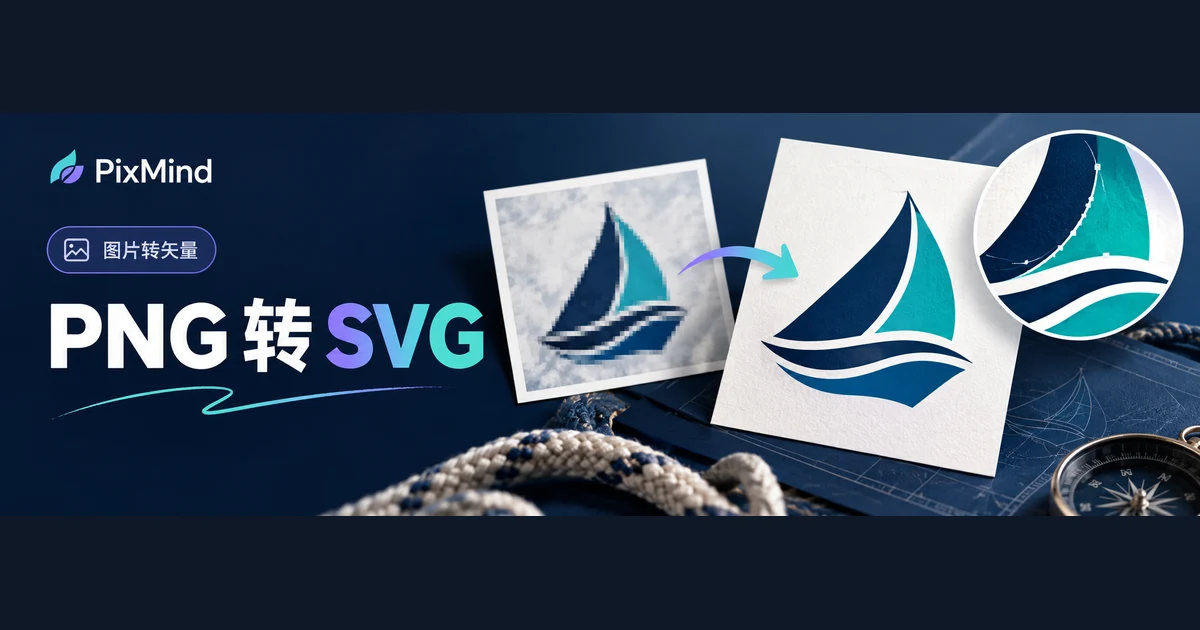
The same logo might be just 24 pixels tall in a website's navigation and blown up to two meters wide on a trade-show backdrop. Choosing PNG or SVG starts with where it's headed: for web pages and product interfaces, prefer SVG — the mark is recorded as paths and software redraws it at any size; for upload slots that only accept bitmaps (social avatars, some office documents), hand over a transparent PNG; for posters, signage, and print materials, use SVG or vector files exported from it so enlargement stays sharp. If all you have right now is a PNG, there's no need to start over — first confirm the format each scenario needs, then fill in whatever's missing.
Key takeaways
- For web pages, interfaces, and any setting needing repeated scaling or recoloring, use SVG: the graphic is recorded as paths, redrawn on enlargement, with edges that never blur.
- For entry points that only accept bitmap uploads (social avatars, some office software), use a transparent PNG — don't fight for SVG support the platform doesn't offer.
- Graphic logos and wordmarks deserve an SVG master file; photo-style mascots and brand images with complex textures keep a high-resolution PNG.
- SVG isn't necessarily smaller than PNG: file size depends on graphic complexity — choose by use, not by bytes.
Start choosing from three usage scenarios
The three most common delivery tasks cover nearly every destination of a logo file.
Website navigation marks. Marks in nav bars, footers, and mobile interfaces display at different sizes across screen densities. SVG fits best here: the browser draws the paths in real time, staying sharp from small-icon width to a big footer banner; recoloring happens right in the file or the code, and the same file can go to a designer for further editing unchanged.
Small social media avatars. Avatar upload slots usually accept only JPG and PNG, so prepare one transparent-background PNG: when the platform crops the avatar into a circle or square, no white block tags along around the mark. Avatars display at limited sizes, where a bitmap's sharpness is entirely sufficient — this scenario doesn't need SVG.
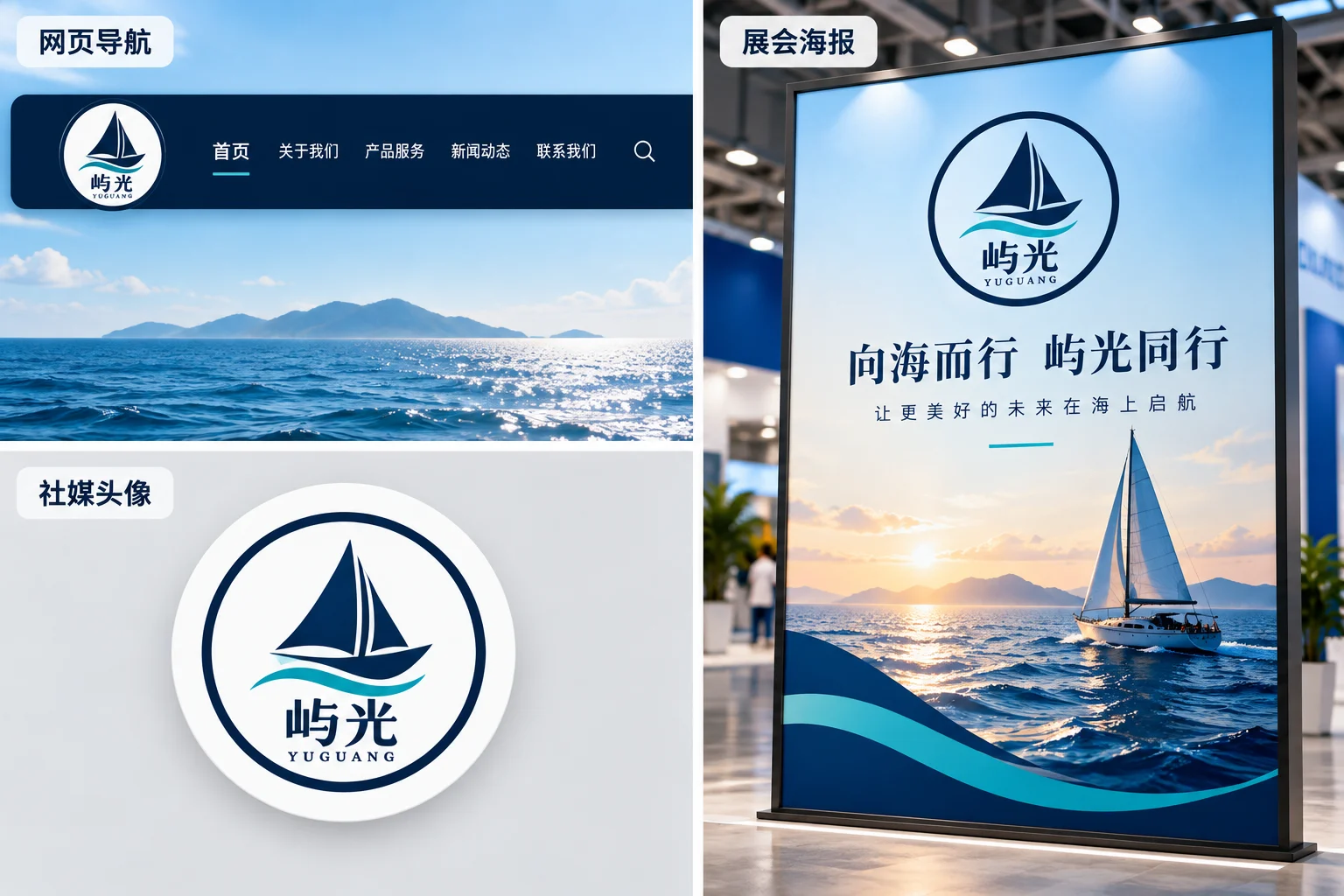
Large posters and print materials. Posters, roll-up banners, and storefront signage enlarge a mark tens of times over. SVG solves scaling at the root: paths are resolution-independent, and however large the output, the usage stage decides. With only a small PNG in hand, direct enlargement turns blurry and jagged — this is the scenario that genuinely needs a vector file.
Where the PNG and SVG differences show up
The fundamental difference between the two formats is how they record graphics. PNG uses a pixel grid: each point stores one color, and however large the file, it has a fixed total of pixels; enlarged beyond the original pixels, software can only stretch existing pixels to fill, and edges blur and turn jagged. SVG describes graphics with paths and shapes — where a line starts, how a curve bends, what color fills a region — and on enlargement the software redraws from those descriptions, keeping edges smooth.
Both formats support transparent backgrounds, differently. PNG preserves the cutouts around the mark through a transparent pixel channel; SVG has no "background" by nature — the graphic itself is a collection of paths. Later editing is the bigger dividing line: an SVG opens ready for wholesale recoloring, anchor adjustment, and splitting or regrouping; a PNG can only be handled pixel by pixel, and changing one color block means patching an area in bitmap software.
File size is often misread. With a simple graphic, an SVG records only a few paths and is usually tiny; a bitmap with rich gradients and visible noise converts to SVG as a mass of fragmented paths, potentially far larger than the original PNG. "SVG is smaller" doesn't hold — what holds is "an SVG of a simple graphic is small."
A scenario-and-format selection table
Asset type decides the choice more than format parameters. Recommendations for three common kinds of brand graphics:
| Asset type | Graphic traits | Recommendation | Why |
|---|---|---|---|
| Graphic logos, wordmarks | Clean edges, limited color blocks | Keep an SVG master plus a transparent PNG | Clean, editable paths; SVG serves scaling while PNG backs up settings without SVG support |
| Photo-style mascots | Continuous gradients, rich shading | Keep the high-resolution PNG | Vectorizing shatters it into fragmentary paths that are hard to edit, defeating the point of few-path free scaling |
| Brand images with complex textures | Detail-heavy, grainy | Stay bitmap-first, vectorize parts on demand | Full conversion usually costs more than it returns; for bigger sizes, re-export a higher-resolution bitmap first |
One rule of thumb suffices: the cleaner the edges and the fewer the color blocks, the more worth vectorizing; the closer the image is to a photograph, the more it should stay a bitmap.
How to fill in the SVG when all you have is a PNG
Once you've confirmed you need SVG, the conversion is only a small stretch of the whole job. Upload that PNG to Image to Vector: the tool accepts PNG, JPG, and WebP with width and height each at least 256 pixels, converts one image per run after signing in, and lets you download the SVG when done. For interface screenshots of every step — upload, review, download — the companion tutorial "How to Convert PNG and JPG to SVG" covers the full workflow, so it isn't repeated here.
After conversion, the result still needs organizing by use. The results panel offers 1×, 2×, and 4× zoom — before delivery, focus on whether curves, cutouts, and thin lines are clean. Accept two things up front: text becomes outlined paths, and the conversion won't restore an editable original font, so copy changes mean retyping in a design tool; edge quality is decided by the source image — a heavily compressed PNG converts to rough edges, so swap in a clearer source first. That kind of source-image cleanup gets its own treatment in "What to Do When Your Vectorized Logo Has Rough Edges."
How to assemble a brand file delivery kit
Once formats are settled, organize the logo into a named set of files so no recipient has to keep asking back and forth. A minimal usable kit looks like this:
| File | Purpose | Naming example |
|---|---|---|
| SVG master | The single source file for web, materials, scaling, and future edits | acme-logo.svg |
| Transparent PNG | Bitmap-only occasions like social avatars and office documents | acme-logo-transparent.png |
| Dark-background preview | Checking the mark's readability on dark backgrounds | acme-logo-preview-dark.png |
| Light-background preview | Checking the mark's appearance on light backgrounds | acme-logo-preview-light.png |
Name with a consistent prefix plus a purpose suffix, and bump the version number on changes instead of copying to a new name — otherwise the kit eventually ends up with logo-final-2.png sitting next to logo-final-final.png. Put the dark and light previews in the same directory so the recipient can confirm at a glance that the mark works on both backgrounds.
Treat print-stage files separately. When a printer asks for vector PDF, a specific color mode, or bleed dimensions, those production files belong to a proper design workflow: start from the SVG, convert and export in design software, and confirm every color standard with the printer item by item. The Image to Vector tool outputs SVG files and does not produce print production files directly.
FAQ
Is SVG always smaller than PNG?
Not necessarily — file size depends on content complexity. An SVG of a simple graphic records only a few paths and is usually small; a bitmap rich in gradients, shadows, and noise becomes a mass of fragmented paths that can end up larger. Choose the format by use and scaling needs, not by size.
My PNG blurs when enlarged — must I convert to vector?
It depends on the logo's next use. For a one-off enlargement, re-exporting a higher-resolution PNG is enough; only repeated scaling, wholesale recoloring, print use, or serving as the long-term brand master justifies adding an SVG. A photo-style logo converts into fragmentary paths that are hard to edit anyway — keeping a high-resolution bitmap is more practical.
What if the printer asks for PDF?
Follow the printer's specific requirements through the matching design workflow: place the SVG master into design software, export to the PDF type they specify, and confirm color mode, bleed, and other parameters with the printer item by item. Image to Vector outputs SVG files; print-production PDFs happen in the design stage.
If all you have is a PNG, add an SVG first
Start from whichever item the kit is missing: with only a PNG version, first use Image to Vector to add an SVG, check it once against the dark and light previews, and then decide whether it can serve as the master. After this step, the three scenarios — website, avatar, and poster — each have a file in the right format.