Limited timeAnnual membership:30% offplus unlimited access to GPT Image, MiniMax H3, and more
Share PixMind, earn 20% recurring commission · Join the affiliate program
Upgrade now
Pixmind

BYTEDANCE · SCENE AUDIO

Seed Audio 1.0

Direct the dialogue. Build the sound around it.

Create a conversation with the room around it, a narrated scene or a sound effect from a description. Seed Audio 1.0 brings speech, ambience and sound cues into one generated audio track.

  • Up to 120 seconds
  • Text, image or audio reference
  • Optional timed subtitles
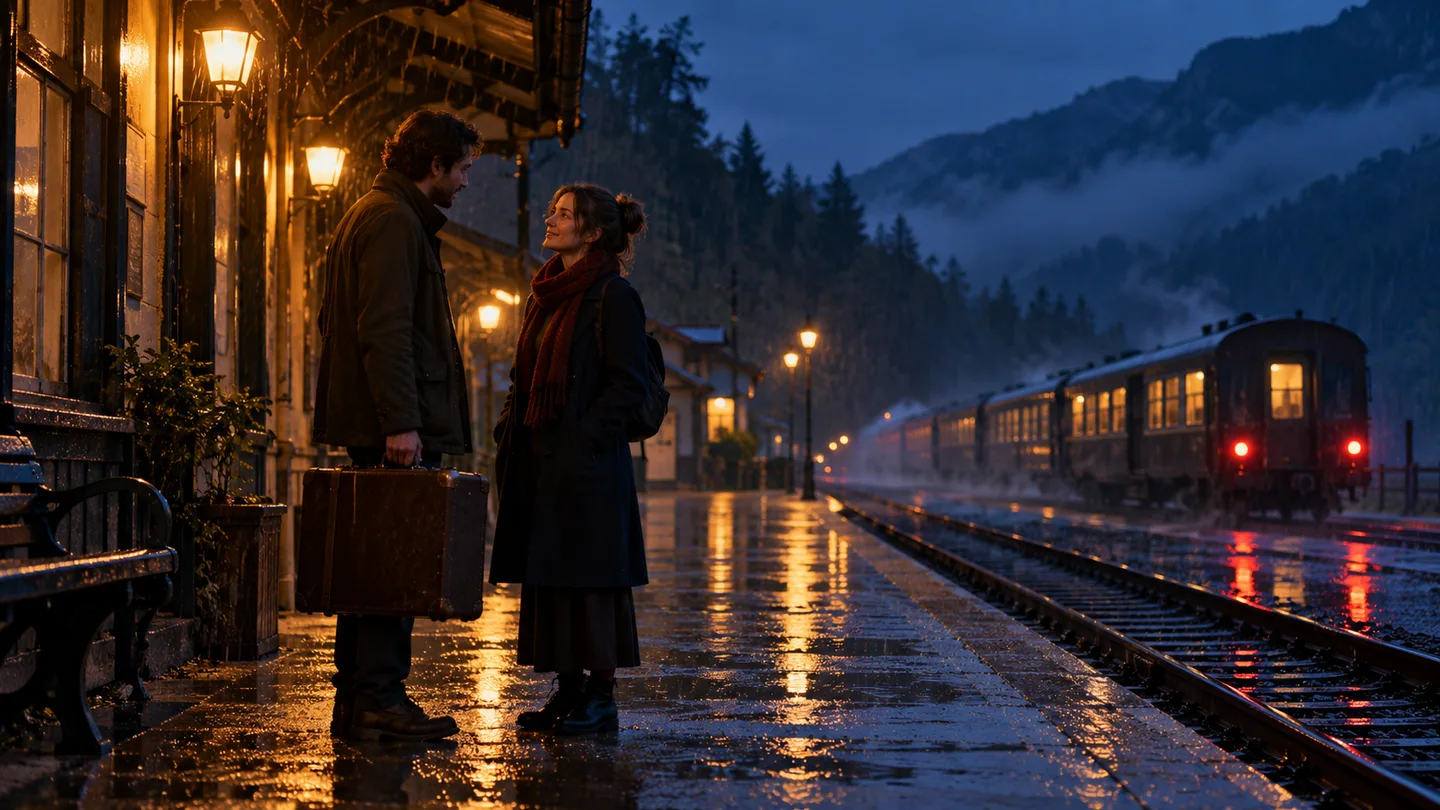
Two travelers speaking on a rain-soaked railway platform at dusk
Scene reference: voices, rain, footsteps and a departing train.

CREATE WITH SEED AUDIO 1.0

From a sound idea to an audio track

Describe the scene and exact dialogue. Add an optional reference, generate, then listen and download.

Create your audio

Seed Audio 1.0
Describe the sound, exact dialogue and timing. Up to 120 seconds per generation.0/3000
Audio settings

Download timed subtitles when the generated track contains speech.

Your audio

Hear your scene here

Your generated audio will appear here for playback, download and subtitle export.

REAL GENERATED AUDIO

Listen to Seed Audio 1.0

Every clip below was generated on PixMind with Seed Audio 1.0 from a single text prompt — no editing. Copy the prompt to recreate the scene yourself.

Dialogue + ambience

Spaceship Cockpit Dialogue

0:14

Create a 14-second spaceship cockpit scene in English. From 2–5 seconds, a calm male voice reports: “Engines at seventy percent, course locked.” From 6–11 seconds, a female voice replies urgently: “Reroute the auxiliary power, we have ninety seconds.” Low reactor hum, soft console beeps and a distant mechanical clank. No music.
Narration

Nature Documentary Narration

0:12

Create a 12-second nature documentary narration in English. From 2–10 seconds, a warm male voice says: “Beyond the last ridge, the valley wakes. Mist lifts off the river as the first light touches the canopy.” Gentle birdsong, a flowing river and soft wind in the background. No music.

Ad voiceover

Wireless Earbuds Ad

0:12

Create a 12-second earbuds ad voiceover in English. From 2–6 seconds, an energetic female voice says: “Meet AeroBuds Pro — forty hours of battery and noise cancelling that silences the world.” From 7–10 seconds, she adds: “Order today and save thirty dollars.” Subtle whooshes and a bright closing chime. No loud music.

Sound effects

Morning Forest Foley

0:10

Create a 10-second morning forest soundscape. From 1–3 seconds, boots press into soft mud with a squelch. From 4–6 seconds, water drips from wet leaves. From 7–9 seconds, a woodpecker knocks in the distance and a gentle breeze moves through the branches. No speech and no music.

ONE SCENE, MULTIPLE SOUNDS

Write what happens and what we hear

Describe the performance and its surroundings together. Use the prompts below as starting points for your own scene.

Reference scenes illustrate prompt ideas; they are not generated audio results.

DIALOGUE + AMBIENCE

Give characters a shared acoustic space

A conversation feels different in a quiet café, a busy street or an empty hall.

Write each character’s line, voice and delivery, then describe the surrounding sounds. Seed Audio can generate dialogue and its background together in one track.

  • Specify each speaker and the exact words
  • Describe emotion, pauses and speaking style
  • Keep background sounds below the conversation
Scene prompt

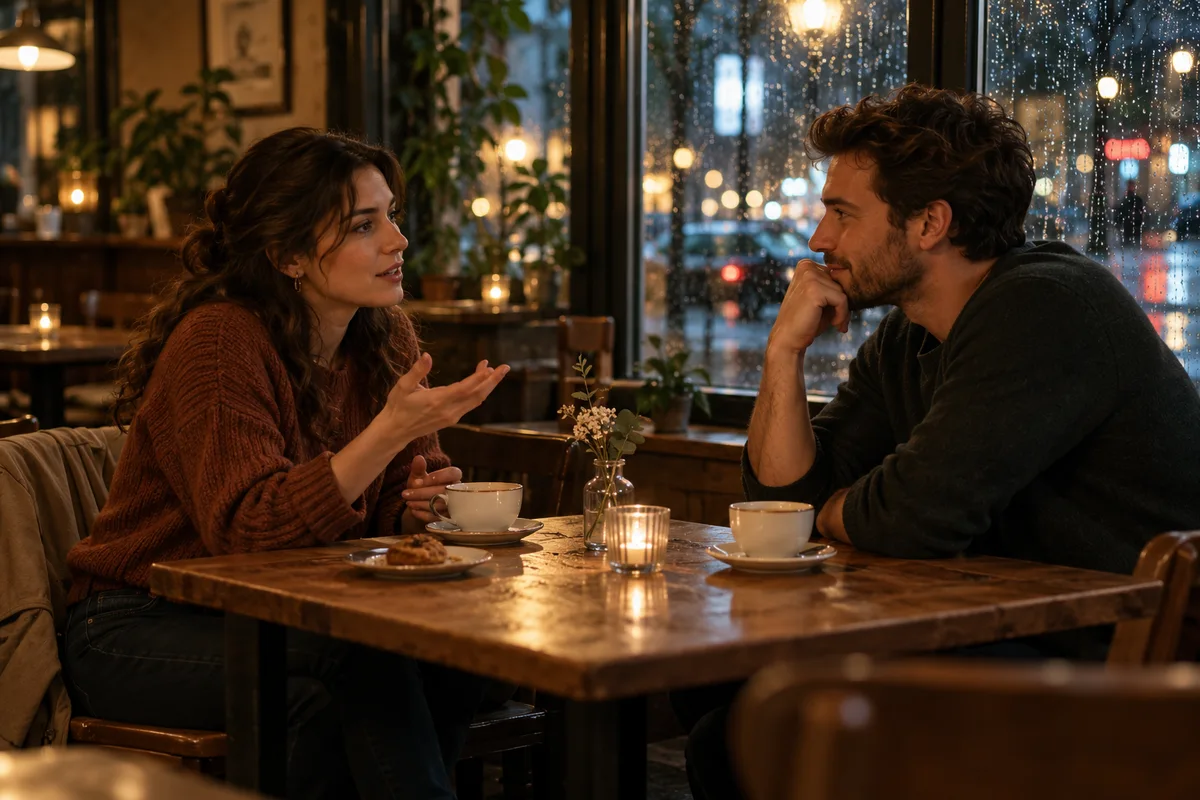
Create a 12-second café scene in English. From 2–5 seconds, a woman asks softly: “Shall we wait here?” From 6–9 seconds, a man replies: “Until the rain stops.” Gentle rain outside, quiet cups and low room ambience. No loud music.

Create with Seed Audio
A woman and man talking across a café table beside a rainy window
Prompt idea: a two-person conversation with rain and café ambience.

IMAGE-GUIDED AUDIO

Start with a frame and imagine its sound

A coastline can suggest wind, waves and distant birds before you write a line.

Upload one image to guide the audio, then describe the sounds or spoken words you want. A video keyframe can serve as the reference for an audio track you will mix into your edit.

  • Use one JPG, PNG or WebP image up to 10 MB
  • Describe the atmosphere and any required dialogue
  • Choose image reference separately from voice references
Scene prompt

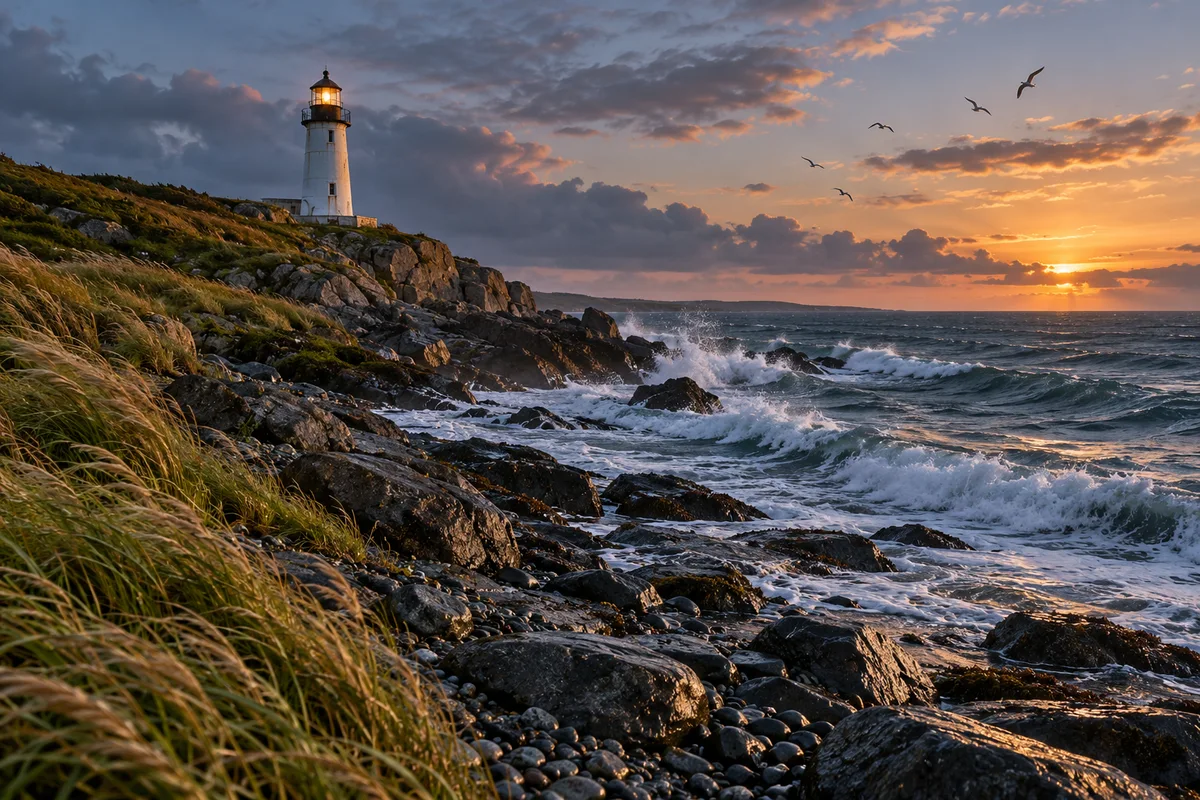
Create 15 seconds of coastal ambience for this image. Wind moves through the grass, waves break against the rocks, and occasional gulls call in the distance. No speech or music. Let the waves rise and fade naturally.

Create with Seed Audio
A lighthouse above a rocky coast with waves, sea grass and distant birds
Reference-image idea: wind, surf and seabirds around a coastal lighthouse.

SOUND EFFECTS + TIMING

Make the small sounds part of the scene

A latch clicks. A toolbox closes. The room settles back into its background hum.

Describe the object, action, material and space to shape an effect. Add the desired length and timing in natural language, or generate an isolated sound to layer into a larger edit.

  • Name the action and material, such as a metal latch
  • Describe close-up sound or distant room ambience
  • Say when voices or music should be absent
Scene prompt

Create an 8-second bicycle-workshop sound scene. A small metal latch clicks at about 2 seconds. A red steel toolbox closes with a solid clunk at about 3 seconds. A few tools rattle, then fade to quiet workshop room tone. No speech and no music.

Create with Seed Audio
A mechanic closing a red metal toolbox on a wooden workshop bench
Prompt idea: a latch, a toolbox impact and workshop room tone.

SCENARIO PLAYBOOKS

Four ways to bring a project to life with sound

Start with the job you need to finish. Each example includes a scene reference, a sound plan and an editable prompt for the audio generator.

These are scene references and script ideas. Generate and listen to your own audio in the studio above.

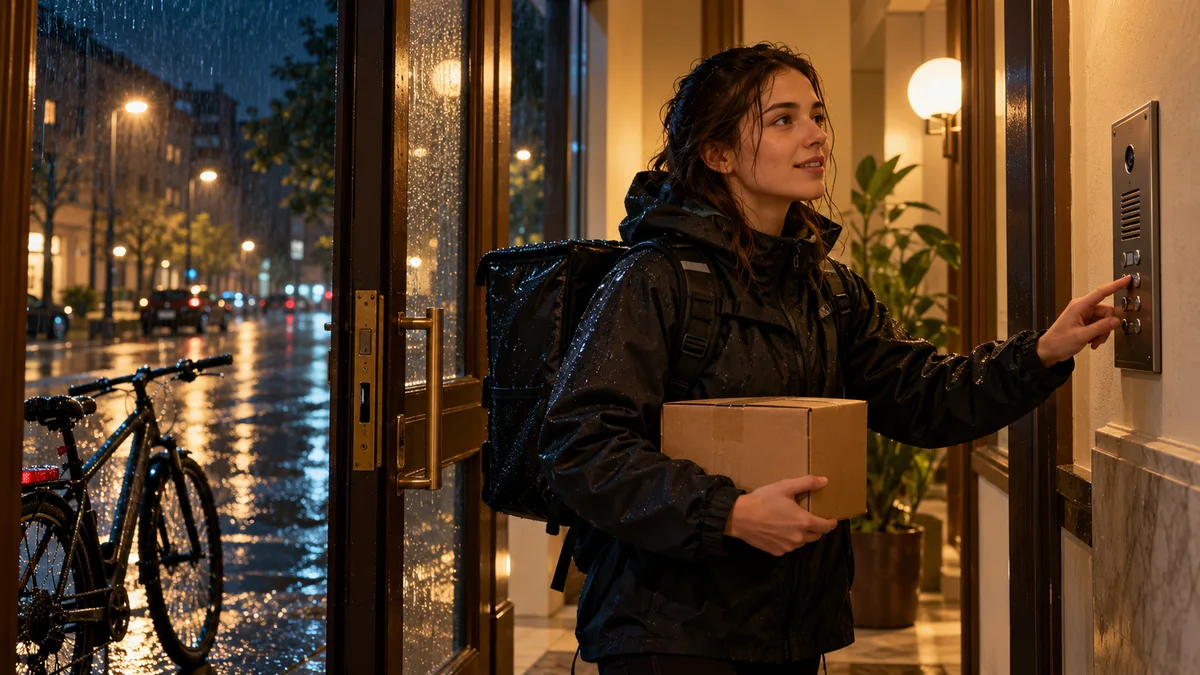
A bicycle courier holding a parcel beside an apartment intercom on a rainy night

Add sound to a silent AI video

Give a short delivery scene its dialogue and the sounds that establish a rainy night.

Sound plan

  1. 0–2 seconds: rain, wet footsteps and a bicycle stopping
  2. 2–5 seconds: the courier says, “Your package is here.”
  3. 6–9 seconds: the intercom replies, “Thank you, come on in.”

Use it in your project

Take a keyframe from your video as an optional image reference. Generate the track, then place it under the original clip in your editor and adjust the timing.

Scene prompt

Create a 12-second rainy-night delivery scene in English. From 0–2 seconds, rain and footsteps on wet pavement, then a bicycle stops. From 2–5 seconds, a woman says clearly: “Your package is here.” From 6–9 seconds, a warm male voice over an intercom replies: “Thank you, come on in.” Finish with a quiet door-opening sound. Keep the rain below the dialogue. No music.

Create this kind of audio
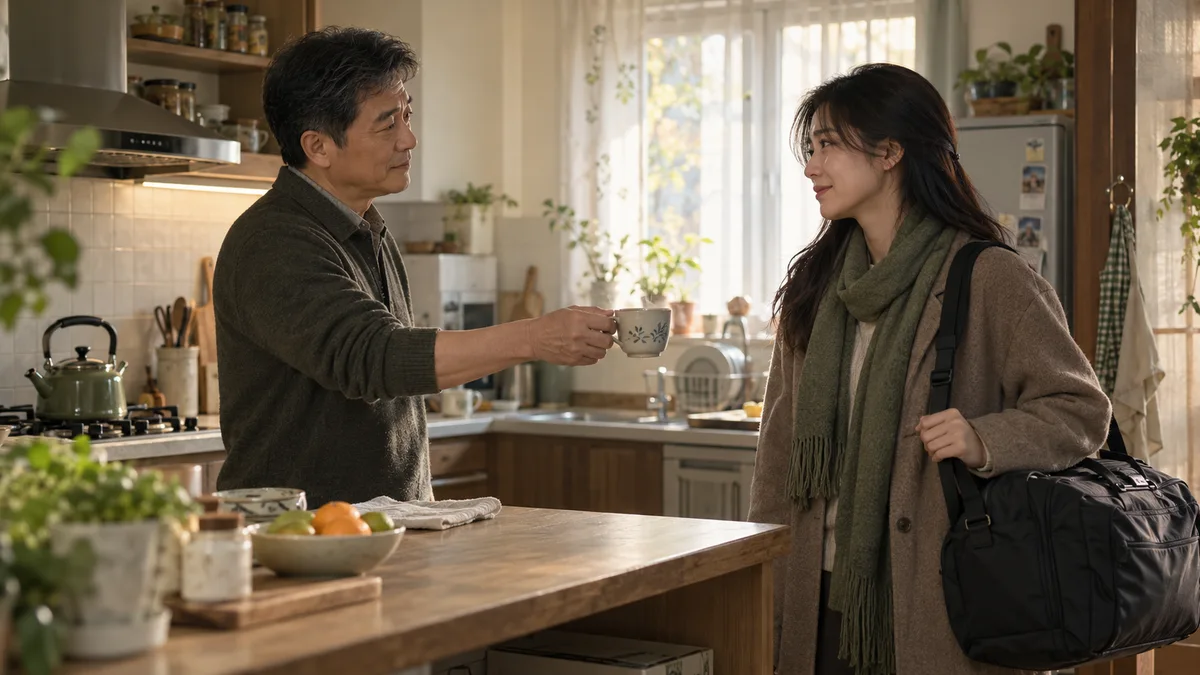
A father offering his adult daughter tea in a morning kitchen before she leaves

Build a short-drama conversation

Write a farewell scene with two distinct characters, natural pauses and a quiet kitchen around them.

Sound plan

  1. 0–2 seconds: a kettle and quiet kitchen room tone
  2. 2–5 seconds: the father says, “You have everything?”
  3. 6–10 seconds: the daughter replies, “Everything except your tea.”

Use it in your project

Describe each character’s voice and delivery in the prompt. For consistent voice references, switch to audio-reference mode and identify the samples in upload order.

Scene prompt

Create a 14-second domestic short-drama scene in English. A middle-aged father has a low, gentle voice; his adult daughter has a clear, relaxed voice. Quiet kettle and kitchen ambience. From 2–5 seconds, the father asks softly: “You have everything?” From 6–10 seconds, the daughter answers with an affectionate smile in her voice: “Everything except your tea.” Leave a small pause, then a cup is set down. Keep the background subtle and use no music.

Create this kind of audio
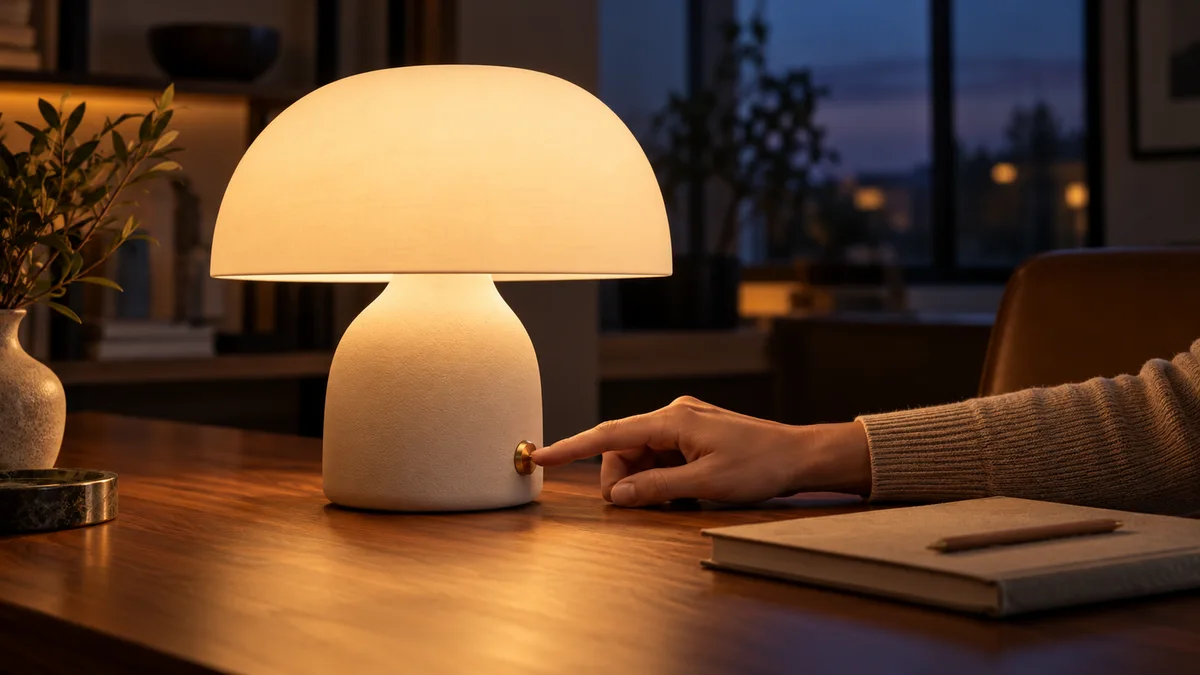
A hand switching on a warm ceramic desk lamp beside a notebook on a dark desk

Voice a product advertisement

Combine a short narration with a switch click and a restrained musical bed for a desk-lamp ad.

Sound plan

  1. 0–2 seconds: a small switch click, then soft music enters
  2. 2–9 seconds: a calm, close voice delivers the product line
  3. 9–12 seconds: music resolves while the room stays quiet

Use it in your project

Write the exact ad copy in quotes and describe the music below it. Download the audio and available SRT subtitles, then combine them with your product shots.

Scene prompt

Create a 12-second desk-lamp advertisement in English. At about 1 second, a small brass switch clicks. A soft, minimal instrumental bed enters. From 2–9 seconds, a calm, confident woman says: “A little light. A little room to think. Make space for what matters.” Keep the voice close and clear, the music low, and let the final notes fade naturally.

Create this kind of audio
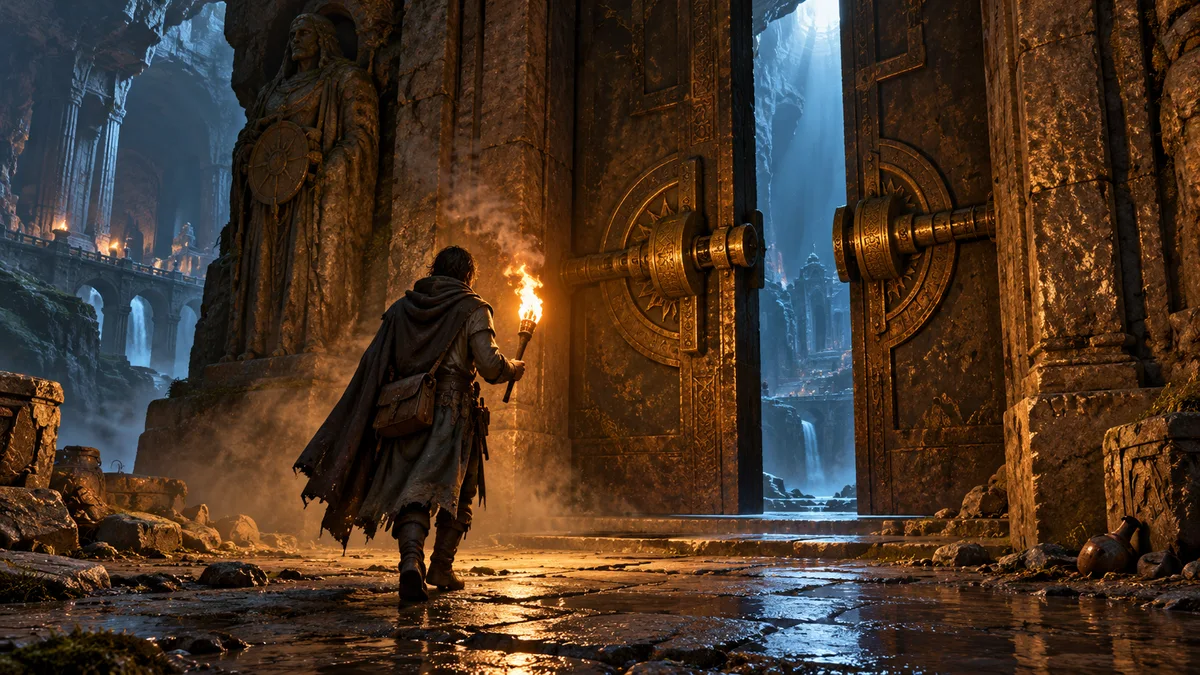
A cloaked explorer with a torch approaching a heavy stone doorway in an underground ruin

Prototype a game sound scene

Explore footsteps, a lock and a heavy stone door as a character enters an underground ruin.

Sound plan

  1. 0–2 seconds: boots and torch crackle in a stone corridor
  2. 2–6 seconds: a lock clicks and the stone door grinds open
  3. 6–10 seconds: the door settles into deep cavern ambience

Use it in your project

Describe the materials, distance and acoustic space. Use a full scene track for a prototype; generate individual effects separately when you need independent game triggers.

Scene prompt

Create a 10-second adventure-game sound scene in an underground stone ruin. From 0–2 seconds, slow leather boots on wet stone and a nearby torch crackling. At about 2 seconds, a bronze lock clicks. From 3–6 seconds, a heavy stone door grinds open with a long echo. Let the sound settle into low cavern ambience for the remaining seconds. No voices, speech or music.

Create this kind of audio

Give the model a script it can perform

Combine a setting, speakers, exact lines, background sounds and a timing plan. Reference audio uses @音频1, @音频2 and @音频3 in upload order.

Timing goes in the prompt

Write a total length and the interval for each line. The model arranges the audio from these instructions; exact frame alignment remains an editing step.

Take the track into your edit

Download MP3, WAV or OGG Opus. Enable subtitles to export available speech timing as SRT, then place both files into your video project.

Choose the audio tool for your next task

Use scene generation when voices and surroundings belong together. Use the dedicated speech or music tools when that is the main deliverable.

ToolBest forWhat you provideWhat you create
Seed Audio 1.0Dialogue with ambience, narration and sound effectsA scene description, plus optional image or audio referencesOne scene audio track; optional speech subtitles
Text-to-speech studioNarration and scripts arranged in separate segmentsScript segments, voices and delivery instructionsSpeech segments you can arrange and export
AI music generatorBackground music and songs with lyricsA music description, style or lyricsMusic or a song for your video project

Create a Seed Audio scene in three steps

  1. Describe the scene

    Name the setting and sounds. Put exact spoken lines in quotes and describe each voice.

  2. Choose your reference

    Use text alone, one image, or up to three short audio references. Choose the format and subtitle option.

  3. Generate, listen and download

    Listen to your audio, refine the scene description if needed, and download the track with any available SRT subtitles.

Seed Audio 1.0 questions

What is Seed Audio 1.0 designed to create?

Seed Audio 1.0 is ByteDance’s audio creation model for scene-level sound. It can combine spoken performance, sound effects, ambience and musical elements under a shared natural-language description.

Can Seed Audio generate new character dialogue?

Yes. Write the exact lines and describe the speakers, emotions and delivery. You can request multiple characters and describe the surrounding sounds in the same prompt.

How do image references work on PixMind?

Choose Image in the generator and upload one JPG, PNG or WebP up to 10 MB. Add the text or sound description you want. Image references cannot be mixed with audio references or a preset voice in this integration.

How do I refer to several audio samples?

Upload the samples in the order you will use them. Write @音频1, @音频2 and @音频3 in your prompt to identify them. Each sample must be 30 seconds or shorter and at most 10 MB. A configured preset voice occupies one reference slot.

How do I request a particular duration or dialogue timing?

Describe the total duration and the time window of each line in the prompt, for example “a 12-second scene; the first speaker talks from 2 to 5 seconds.” The maximum original output is 120 seconds. This page does not use a separate duration parameter.

Which speech languages does this integration support?

The current API lists Chinese, English, Japanese, Korean, Mexican and European Spanish, German, French, Brazilian Portuguese, Thai, Vietnamese, Malay, Filipino, Italian, Russian, Dutch, Polish and Turkish.

Does this model page accept a whole video for automatic dubbing?

The generator accepts text, one reference image or short audio references. You can extract a keyframe from a video and use it as an image reference. Generating a synchronized finished video or changing mouth movements requires a separate video workflow.

What files can I download after generation?

The generator offers MP3, WAV and OGG Opus audio. If subtitle generation is enabled and the model returns speech timestamps, you can download an SRT file. The audio is one combined track rather than separate dialogue, music and effects stems.

How does PixMind charge for Seed Audio 1.0?

The generator shows the current credit rate before submission. It reserves up to the 120-second maximum, then settles against the original generated audio duration rounded up to a whole second. Unused reserved credits are returned; speed adjustments do not change the original duration used for billing.

Model details and API reference

Details checked on 2026-10-25.

Give your next scene a voice and a world

Start with the line, the setting and the sounds you want to hear.