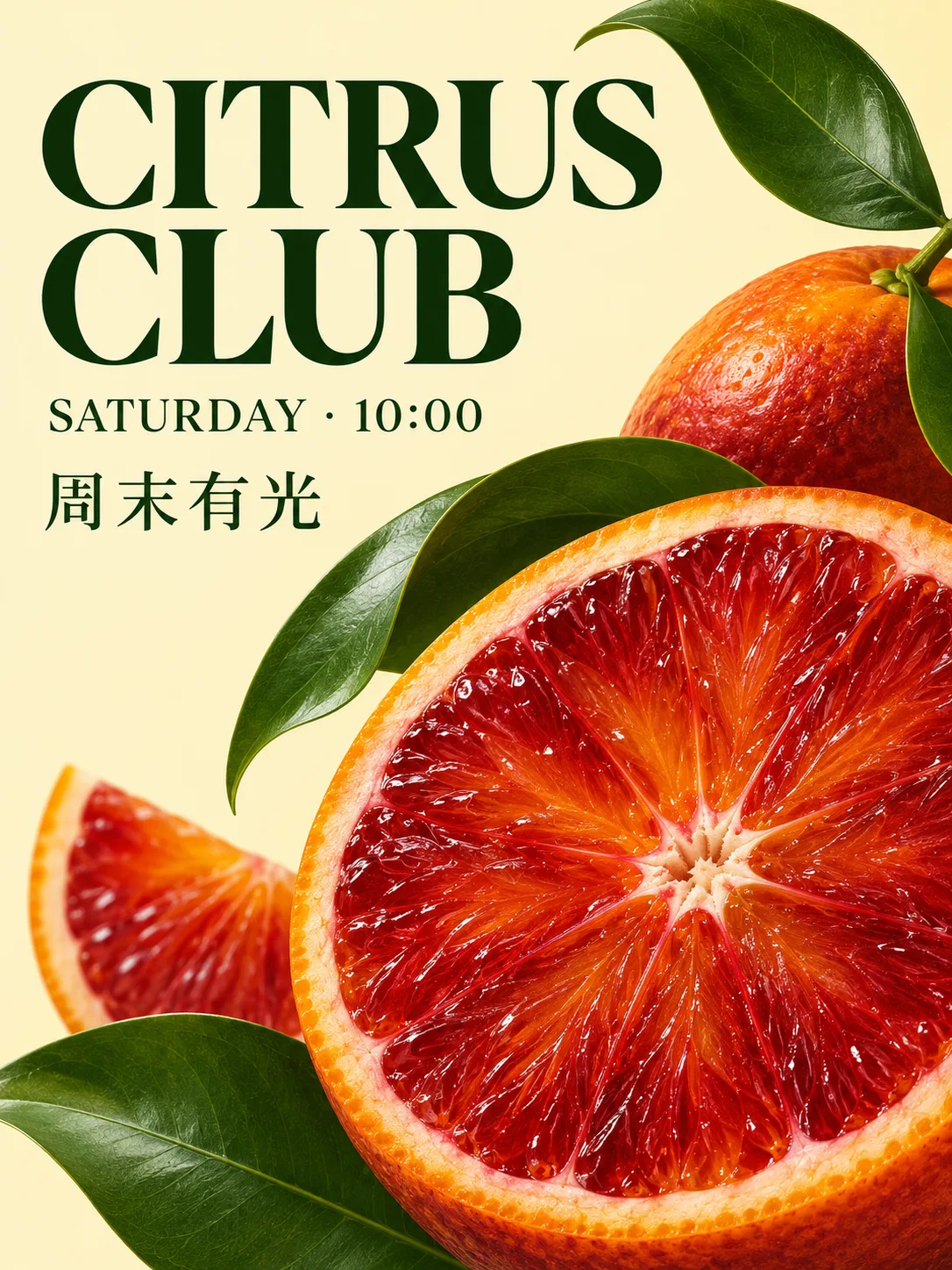
Build a product scene, set a poster headline or refine a reference image with Seedream 5.5. Keep the subject, layout and next edit in one workflow, then separate finished artwork into reusable layers.
Illustrative concept artwork created with OpenAI image generation, not Seedream 5.5 output.
Text-to-image and image editing1K / 1.5K / 2KUp to 10 reference images
APIMart model capabilities. PixMind's active generator determines available controls; layer decomposition has a separate tool.
Create with Seedream 5.5
Describe a new image or upload references. This generator selects Seedream 5.5 explicitly; choose your composition and resolution before submitting.
Loading...
Three tasks, three clear starting points
Give each image a job: introduce a product, communicate a short message or supply elements for a larger design.
Illustrative concept artwork created with OpenAI image generation, not Seedream 5.5 output.
Put your product in a new setting
Use a product photograph as the identity reference, then describe the surface, light and background. For multiple references, explain which image supplies the product and which sets the scene.
Prompt starter
Use my cup photo as the product reference. Preserve its cobalt glaze, angular handle and proportions. Place it in an ivory plaster niche on travertine, with warm morning sunlight and leaf shadows. Keep a quiet area for copy; add no text.
Write the headline and subtitle separately, including their positions and relative sizes. Keep the first draft to a few short lines so the image brief establishes typography and hierarchy together.
Prompt starter
Design a portrait citrus festival poster on pale yellow with a blood-orange still life and emerald leaves. Place the exact headline “CITRUS CLUB” above “SATURDAY · 10:00”, with the short subtitle “周末有光”. Use dark green type, generous margins and no extra wording.
Seedream 5.5's API supports transparent PNG generation. For an existing composition, open PixMind's Image Layers tool to separate a base image and transparent elements, then download layers or continue in the design editor.
Prompt starter
Create an orange cat-shaped porcelain incense holder with cobalt botanical details, a white tray and three separate blossoms. Keep the complete silhouettes visible and the edges clean. Use a transparent PNG background through a route that exposes background control; add no text.
Refine the image without rewriting the whole brief
Choose one result as the next reference. Request a single change and name what must stay fixed, instead of relying on the model to remember the last result automatically.
Prompt starter
In my reference image, change only the background to a softly lit ivory studio. Preserve the subject, product details, colors, camera angle and composition. Keep existing wording unchanged and introduce no new objects.
Choose a Seedream version for the next task
Compare supported workflows using the same prompt and references. The active PixMind model list is separate from upstream capabilities; older 4.0 and 4.5 routes are retired.
Model
Start here when
Workflow
Seedream 5.5
You want generation, focused reference editing and a separate layer workflow with the latest integrated version.
1K / 1.5K / 2K; up to 10 references; one output per ordinary task. Layer decomposition accepts one source image.
Checked November 12, 2026 against APIMart documentation and PixMind's live model list. The 5.5 route is pending activation until deployment.
Brief, generate, then make one useful revision
Define the placement
Name the subject, composition, light and intended crop. Quote visible wording exactly and separate it from the scene description.
Give references a role
Use clear source images and say what each controls. Choose an available resolution and check the total credit estimate after adding references.
Continue with the result
Download your preferred image, reuse it as a reference for a focused edit, or open Image Layers to extract elements for your design.
Seedream 5.5 questions
What can I make with Seedream 5.5?
Seedream 5.5 is ByteDance's image-generation and editing model. Start with product scenes, short-copy posters or reference-guided edits. Its APIMart route also supports transparency and a separate layer-decomposition mode; PixMind exposes layer work in Image Layers.
Does this page select Seedream 5.5 directly?
Yes. The generator requires model seedream-5-5 and does not silently substitute another version. If that route is not enabled, it shows an availability message and a link to Seedream 5.0 Pro instead.
How many reference images can I upload?
Ordinary generation accepts up to 10 reference images; layer decomposition takes exactly one. APIMart supports JPEG, PNG, WebP, BMP, TIFF, GIF, HEIC and HEIF, up to 30 MiB and 36 million pixels per image. Upload controls can accept a narrower set. AVIF and JP2 are unsupported.
Can I generate native 4K or multiple images at once?
This route supports 1K, 1.5K and 2K, with one image per ordinary task. It does not support 3K or 4K. The API also accepts supported aspect ratios or exact dimensions within its pixel-area limits. Multiple layer outputs belong to the separate decomposition mode.
How many credits does Seedream 5.5 use?
The configured application rates are 35 credits per 1K or 1.5K output and 50 per 2K output, plus 10 for every reference image. Layer outputs include the base and are settled by actual count and pixel tier. API Platform uses separate actual-cost billing. Check the active estimate before submission.
How should I write a multilingual poster prompt?
Quote each exact line, identify its language and specify its position, size and contrast. Begin with a headline and short subtitle. For a wording correction, supply the result as a reference and ask to change only that text while preserving the rest of the layout.
What if a reference edit changes too much?
Return to the source image, remove conflicting references and request one change. List the shape, colors, text, light and camera angle that should stay fixed. Use photos you are authorized to edit and compare product details with the source before using the result in a campaign.
How do layers and text recognition work?
Open Image Layers and upload one composition. Seedream 5.5 supports a maximum of 2–100 outputs including the base; account limits can be lower. Optional OCR can return recognized wording and style metadata for regular text, but it may be absent. With OCR as the priority, leave the decomposition prompt blank.
When should I choose another Seedream version?
Keep Flash or Pro when you want to reproduce an established workflow or compare the same brief. Use 5.5 for the newly integrated generation and layer workflow. Seedream 4.0 and 4.5 are retired from the active catalog; their old links lead back to a supported version.
Give the next image a clear job.
Bring a source photo, a short headline or one edit. Start with a focused brief and keep the result that works for your placement.