An AI image translator for product photos, listing graphics and campaign creative. Translate the words, keep the visual story, then make the final edits your own.
30 credits per translation20 target languagesEditable PSD draft
OriginalTranslated
Drag to compare
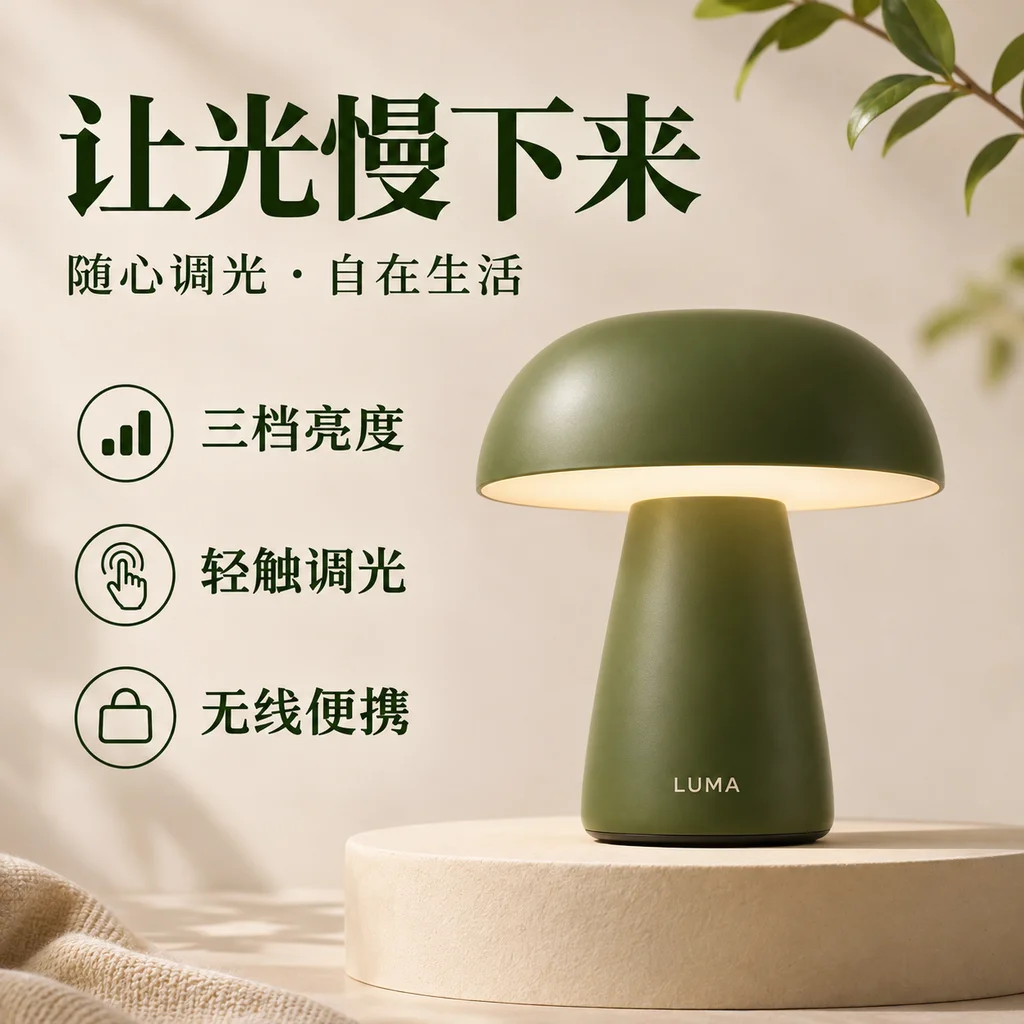
Chinese → English · Actual translation result
YOUR NEXT MARKET STARTS HERE
Translate text in an image, online
Upload one image, choose a language and set your translation preferences. Your result can become a finished image or the start of an editable design.
30 credits / image · Refunded on failure
Translation result
Upload an image and choose a target language. Your translated image will appear here.
ONE DESIGN. MORE POSSIBILITIES.
Made for images that sell an idea
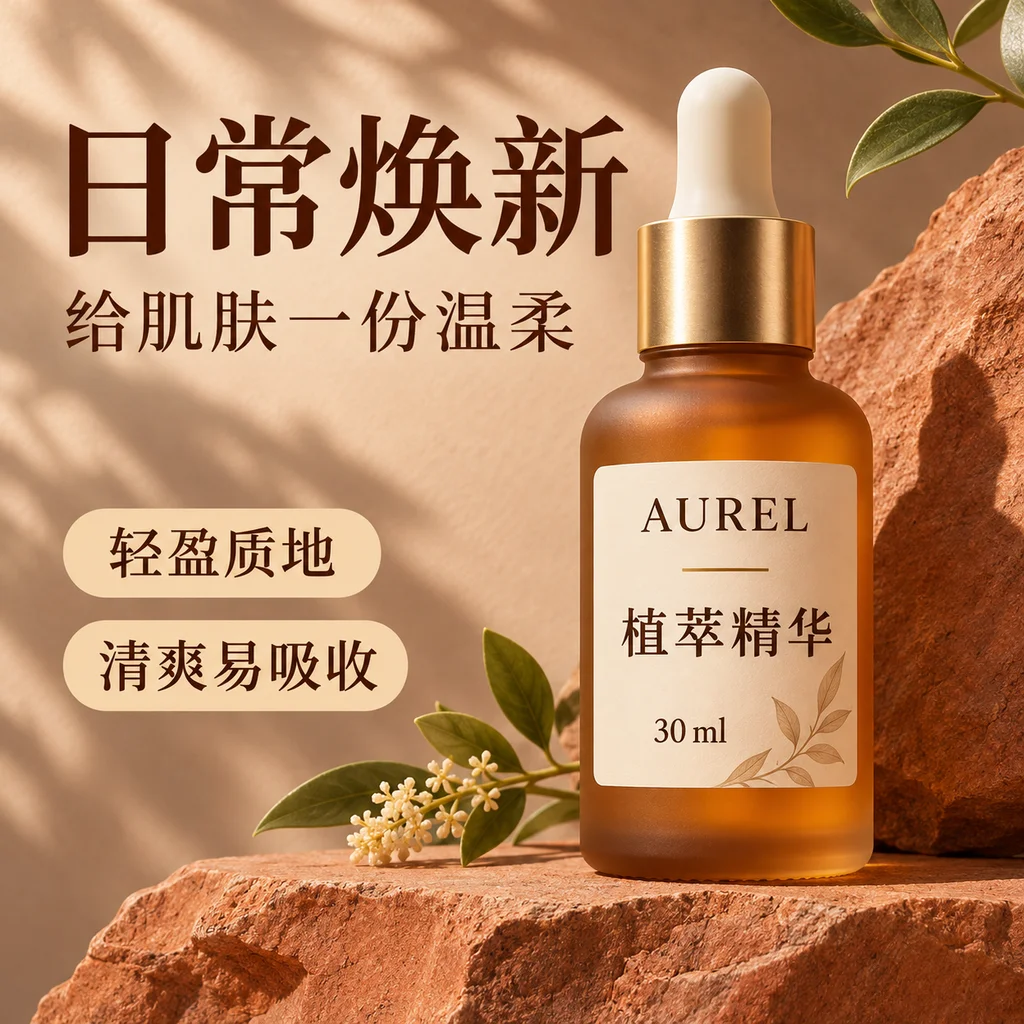
From a product specification to a campaign headline, see how your message travels with the design.
OriginalTranslated
Drag to compare
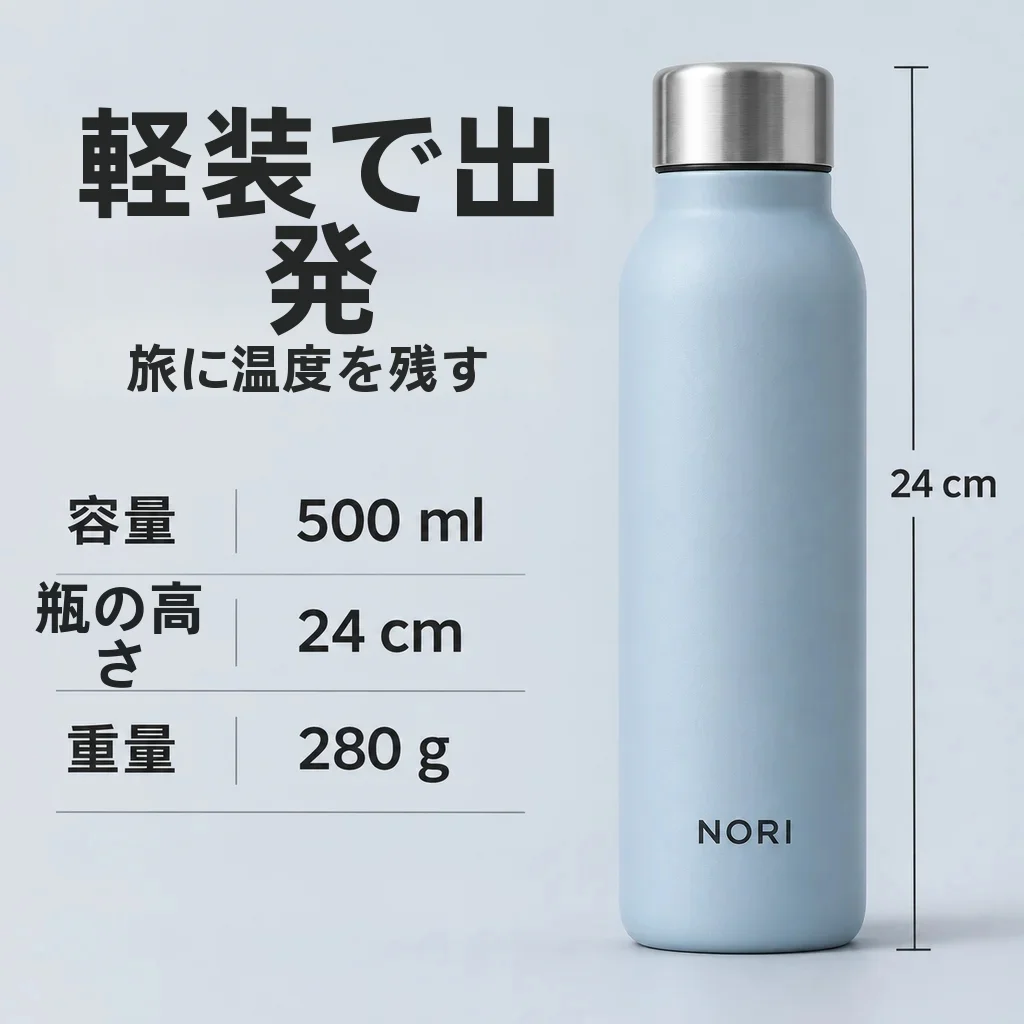
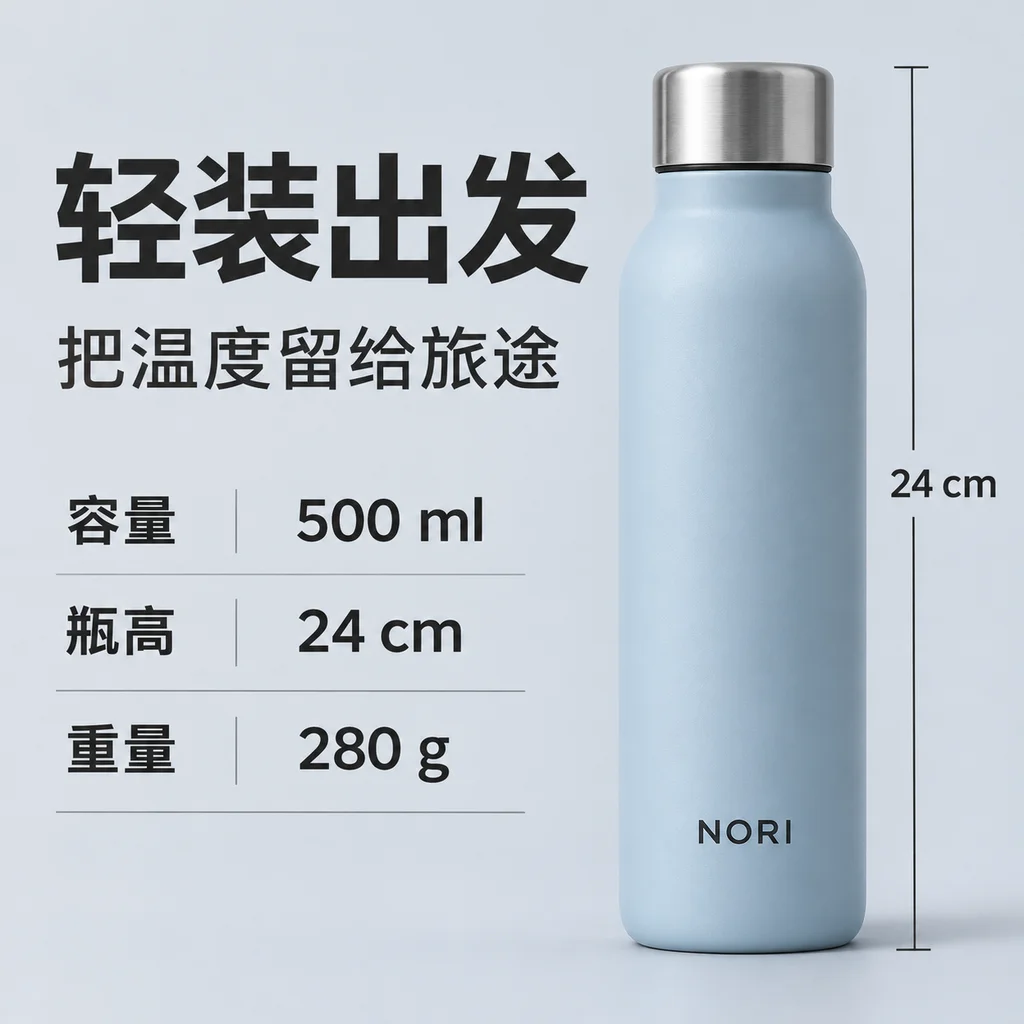
Chinese → Japanese · Actual translation result
PRODUCT DETAILS
Take your product details into another language
Translate feature labels and specification panels together with their image context. Start with your original JPG, PNG, BMP or WebP; no source design file is needed.
Translate your campaign copy while controlling the text on the product itself. Keep a brand name as written, or include it in the translation when needed.
Product text
Choose whether to translate words printed on the product or its packaging.
Brand names
Keep brand names as written by leaving brand translation switched off.
Your terminology
Enter source words and preferred translations. Save a glossary to your account and reuse it for the same target language.
TRANSLATION IS JUST THE START
The next edit is yours.
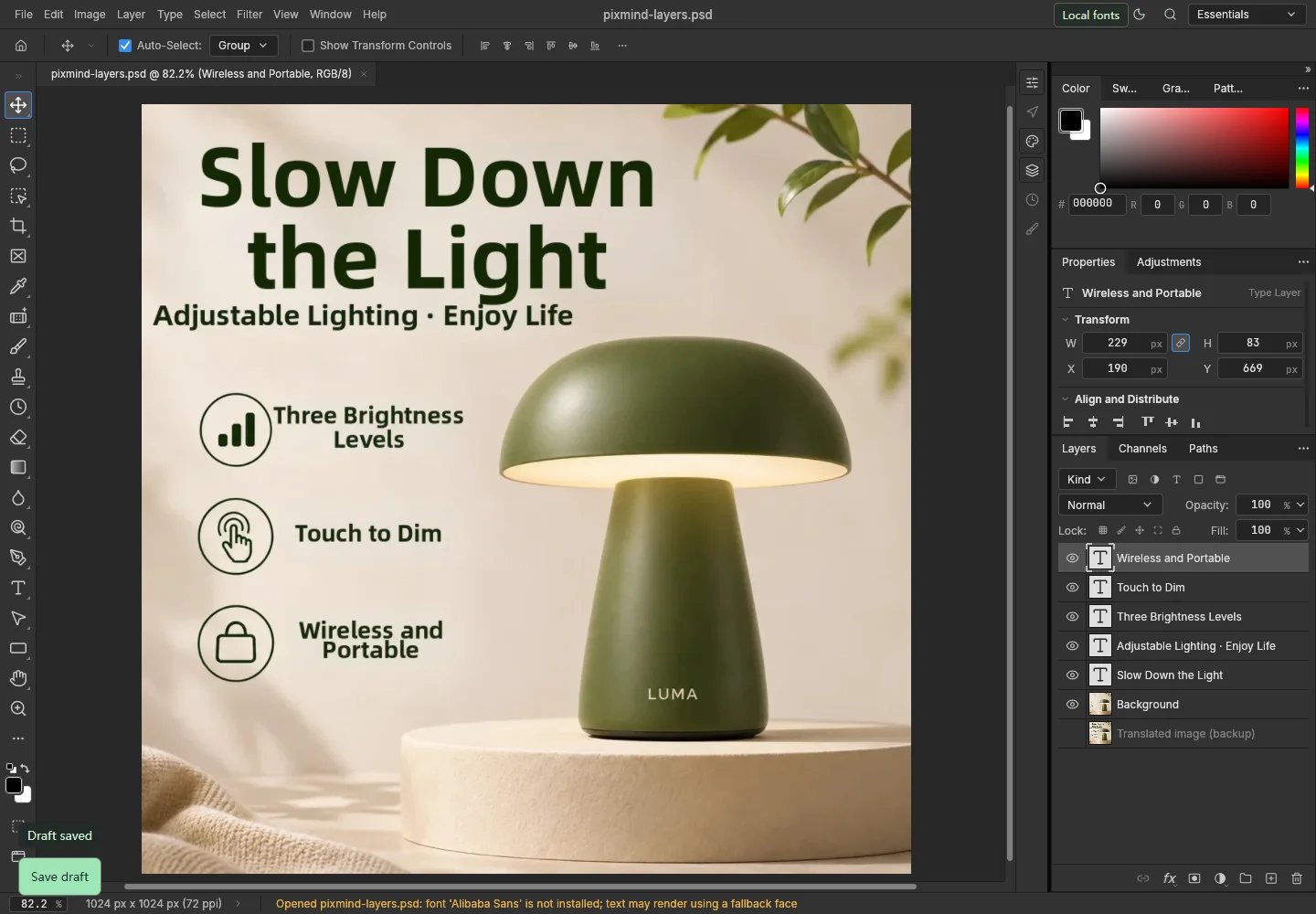
Enable editable layers before translating. Then open the result in PhotoCraft PS to refine a headline, adjust text size or tune the placement. Prefer your own workspace? Download the PSD draft.
Text you can keep editing
Translated text is stored in editable type layers, over the repaired background.
A background ready for new words
The repaired image and a hidden translated-image backup travel with the draft.
Choose a clear original image and select the target language. Let auto detection identify the source language.
02
Set your preferences
Choose how to handle product text and brand names. Turn on editable layers if you want a PSD draft or PS editing.
03
Download or make it yours
Compare the result with the original, download the image, or continue working in PhotoCraft PS.
One translation. Three ways to finish.
Choose the handoff that fits your workflow. Downloading the result or preparing its PSD draft does not submit another translation.
Output
Best for
What you get
Translated image
A finished image for your next step
A downloadable image with the translated text rendered in place.
Editable PSD draft
A handoff to a designer or Photoshop
Editable text layers, the repaired background and a translated-image backup. Requires editable layers.
PhotoCraft PS
Refining the translation in your browser
Open the layered result to change text, size, color and placement. Requires editable layers.
Your image, prepared for another market
Choose from 20 target languages, with automatic source-language detection. The interface is available in 19 site languages.
Bring your original image
PNG, JPEG, JPG, BMP or WebP. Up to 10 MB, with width and height each no greater than 4000 pixels.
A clear price for each translation
30 credits for one image into one target language. Failed translations are refunded. Preparing the result for download or editing does not charge another translation.
Choose your audience
Chinese
Chinese (Taiwan)
English
Japanese
Korean
German
French
Spanish
Portuguese
Italian
Russian
Arabic
Thai
Vietnamese
Indonesian
Malay
Filipino
Dutch
Polish
Turkish
FAQ
How do I translate text in an image online?
Upload your product image, choose a target language and press Translate image. PixMind detects the text, translates it and returns an image with the translated wording placed into the design.
Will the translation keep the original layout?
The service removes the original text, repairs the background and places the translation back into the image. Text length varies between languages, so you can use the editable layers to refine spacing, size and wording.
Can I translate the headline but keep text on the product?
Yes. Leave Translate text on the product switched off to protect text printed on the product itself. Switch it on when those words should be translated too.
How do I protect a brand name or use a preferred translation?
Leave Translate brand names switched off to retain brand wording. Open the glossary, enter source words and your preferred translations, or choose Keep original. Name and save the glossary, then reuse it for the same target language.
Which languages can I translate into?
The current tool offers 20 target languages, including English, Japanese, Korean, Spanish, French, German and Arabic. The source can be detected automatically, or you can select it yourself.
What image formats and sizes are supported?
Use PNG, JPEG, JPG, BMP or WebP, up to 10 MB. Both width and height must be 4000 pixels or less. Each translation processes one image into one selected target language.
Can I edit the translated text online?
Enable Return editable layers before you translate. When the result is ready, choose Edit in PS to open it in PhotoCraft PS, where you can change translated text and its appearance.
What is in the PSD draft, and why might its button be missing?
The draft contains editable translated text, a repaired background and a hidden translated-image backup. The PSD and PS editing buttons appear only when the translation result includes editor data; enable editable layers before submitting.
How many credits does it cost? Are downloads charged again?
One image into one target language costs 30 credits. Failed translations are refunded. Downloading the translated image, generating its PSD draft or opening the result in PS does not submit or charge another translation. Separate AI tools have their own pricing.
What should I do if processing or result lookup is interrupted?
Use Resume task to query the existing task. Do not start a new translation just to check its status. Recent tasks let you return to completed results; a failed task reports its status and is eligible for the automatic refund flow.