How to Make a PNG Background Transparent Online
A PNG with a transparent background is the quiet workhorse of design work: it drops onto any color, any slide, any video frame without a visible box around it. This guide shows how to turn an ordinary photo or graphic into a true transparent PNG using the Transparent Background Maker — and how to verify the transparency is real before you ship the file.
What "transparent PNG" actually means
PNG files store an alpha channel: for every pixel, the file records how opaque it is. A transparent PNG sets the background pixels to fully transparent while keeping the subject at full opacity. When you place that PNG over a new background, the new background shows through the transparent regions.
JPG files have no alpha channel, which is why a JPG can never be truly transparent — anyone who has tried to place a JPG logo on a colored page has met the white rectangle problem. The fix is to remove the background and save as PNG.
Step 1 — Upload the image
Open the Transparent Background Maker and drag in your file. JPG, PNG, WebP, and BMP inputs are supported, up to 3MB and under 2000×2000 pixels. Keep the transparent output mode selected — it is the default.
Step 2 — Let the AI cut out the subject
Processing runs automatically. The tool identifies the foreground subject and removes everything else. For logos, product shots, and objects on plain backdrops this normally takes one pass; for complex scenes you may want to retry with a photo where the subject stands out more.
Step 3 — Read the checkered preview
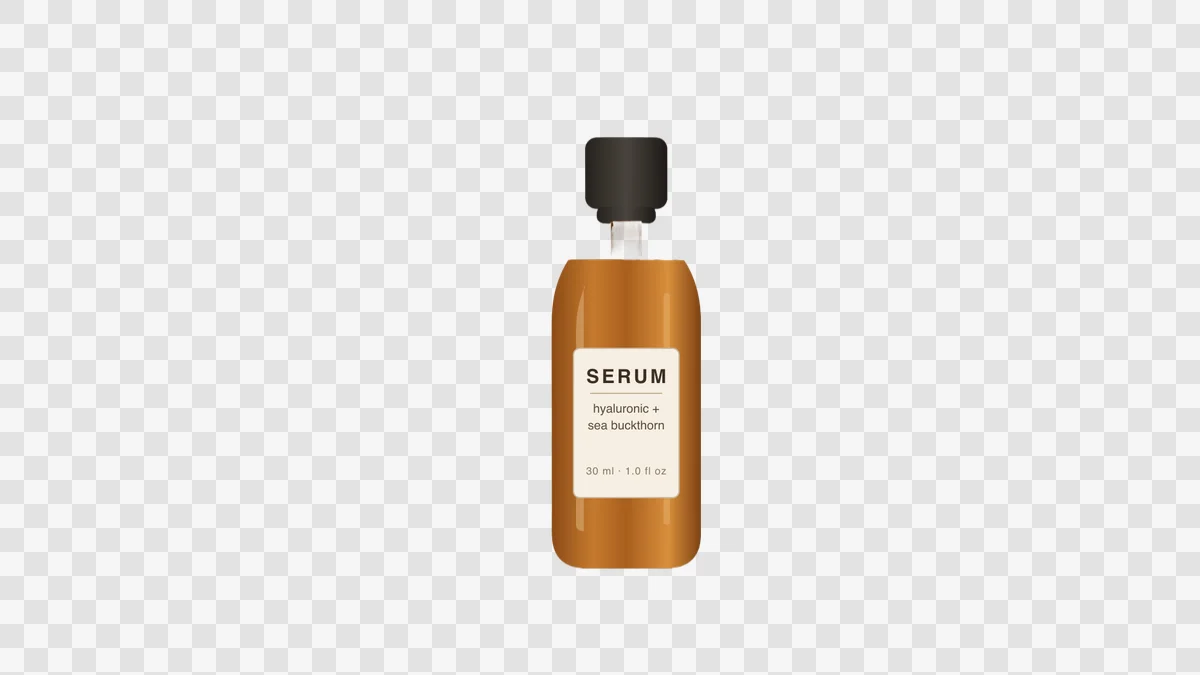
The preview shows transparent areas as a checkered pattern. This is not a design choice — it is the standard way image editors display transparency, and it is exactly what the downloaded file contains. Slide the before/after comparison across the image to confirm the subject edges survived: text strokes on logos, gaps between leaves or fingers, holes in handles and rings.

Step 4 — Download and verify
Download the PNG, then verify transparency in any editor you have: place the file over a colored layer and confirm the color shows through the cutout regions. If you place it on a website, the page background will show through the same way.
Common uses for transparent PNGs
- Logos and brand marks that must sit on any background color — see the Logo Background Remover for that workflow.
- Video overlays and watermarks, where the PNG becomes a layer in your editor without extra masking.
- Product cutouts for ads and banners where the product floats over a designed background; marketplace listings usually want white instead — the Product Background Remover covers that case.
- Stickers, thumbnails, and diagrams where a rectangular photo box would break the layout.
Frequently asked questions
Can a JPG have a transparent background? No — the format does not support an alpha channel. Convert by removing the background and exporting as PNG, which is what this tool does automatically.
Will transparency survive upload to my platform? Most design tools, video editors, and website builders respect PNG transparency. Some social platforms flatten images to JPG on upload, which fills transparency with white — check the platform's export settings if that matters.
Does compressing the PNG destroy transparency? Normal PNG optimization keeps the alpha channel intact. Avoid converting to JPG at any step of your pipeline, or the transparency is gone.